10 Gigabit Ethernet (10GbE) used to be strictly for offices and server rooms, but multi-gig network cards and small unmanaged switches have brought it within reach of home users who move big files between a PC and a NAS, edit video from network storage or back up several machines. Getting the full speed means every part of the path has to support it: the network card, the switch, the cables and the device at the other end. This guide walks through planning, buying and checking a home 10GbE setup, using TP-Link's official specifications for its TX401 card and TL-SX105 and TL-SX1008 switches as examples.
Step 1: Decide what actually needs 10GbE
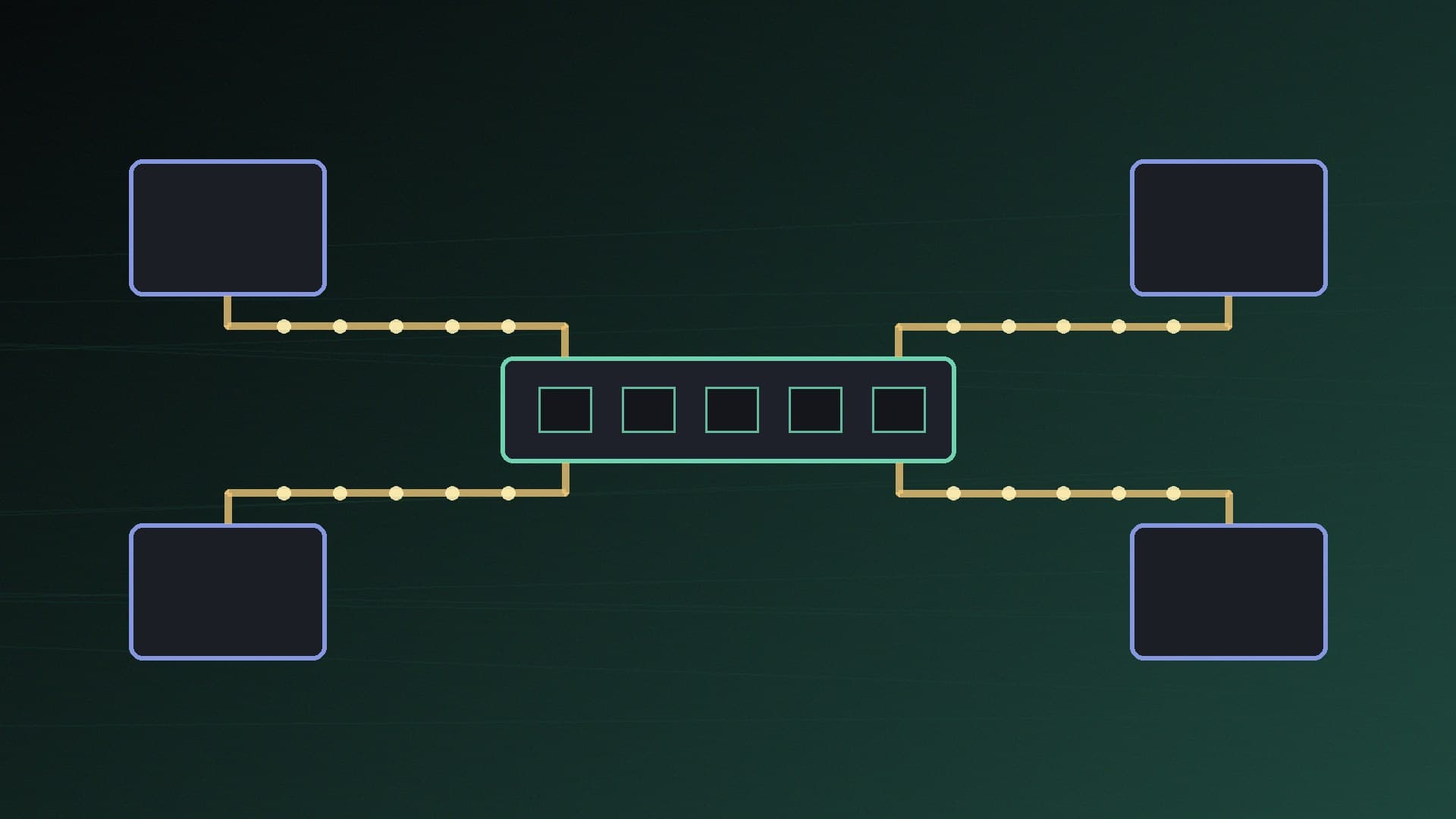
10GbE only helps for traffic between devices on your own network. Unless your broadband is faster than your current network port, faster Ethernet won't make web browsing or game downloads quicker, and your router doesn't need to support 10GbE for local transfers to run at full speed. The usual case is a desktop PC and a NAS or second PC that both get 10GbE ports, connected through a 10GbE switch, while everything else stays on your existing network.
The device at the other end matters too. A NAS full of hard drives may not be able to read or write fast enough to fill a 10GbE link, so check its storage and network specs. If you're still deciding between speeds, our 10GbE vs 2.5GbE comparison explains the trade-offs, and our best NAS for home guide covers which NAS boxes have faster ports.
Step 2: Add a 10GbE card to your PC
Many desktop motherboards have 1GbE or 2.5GbE ports, so you'll usually need a PCIe card. TP-Link's TP-Link TX401 10 Gigabit PCI Express Network Adapter is a typical example: it uses a PCIe 3.0 x4 interface, has one RJ45 port and supports 10GBASE-T as well as 5G, 2.5G, 1G and 100Mbps connections, so it still works on slower networks. TP-Link includes both full-height and low-profile brackets and a 1.5m Cat6a cable, and lists support for Windows 11 and 10 and Linux.
Before you buy, check your motherboard manual for a free PCIe slot that's x4 or larger and find out whether using it disables another slot or M.2 socket; some boards share lanes. Then follow our guide to installing a network card. For alternatives such as the ASUS XG-C100C V2 10GBase-T PCIe Network Adapter, see our best PCIe network card picks. If your PC has no free slot, our best USB Ethernet adapter guide covers external options.
Step 3: Choose a 10GbE switch
To connect more than two devices you'll need a switch with 10GbE ports. TP-Link's two unmanaged multi-gig switches show the main choices:
Spec | TP-Link TL-SX105 | TP-Link TL-SX1008 |
|---|
10GbE ports | 5 | 8 |
Port speeds | 100Mbps / 1 / 2.5 / 5 / 10Gbps | 100Mbps / 1 / 2.5 / 5 / 10Gbps |
Switching capacity | 100Gbps | 160Gbps |
Cooling | Fanless | 1 fan, intelligent speed control |
Power | 12V DC power adapter | 100-240V AC mains input |
Max power consumption | 21.4W | 31.2W |
Mounting | Desktop or wall | Desktop or rack (kit included) |
Jumbo frames | 10KB | 10KB |
QoS | 802.1p/DSCP | 802.1p/DSCP |
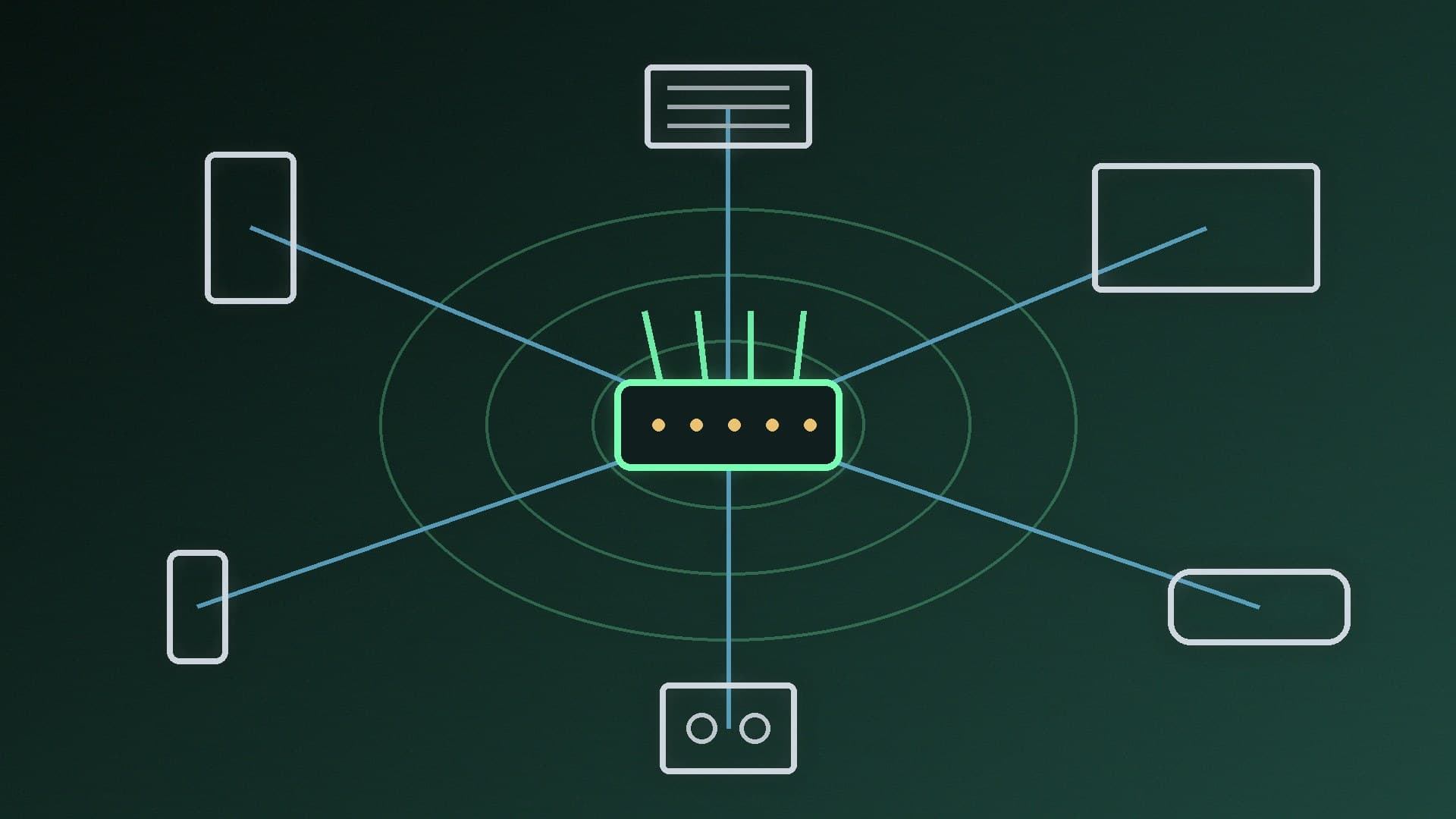
All figures are from TP-Link's UK product pages. For a desk or living room, the fanless TP-Link TL-SX105 5-Port 10G Desktop Switch is the obvious choice, since it makes no fan noise. The TP-Link TL-SX1008 8-Port 10G Desktop/Rackmount Switch gives you more ports and a rack kit, but it has a fan, so it's better suited to a cupboard or a small rack. Neither is a managed switch, so there's no web interface or VLAN set-up; our managed vs unmanaged switch guide explains when you'd want one.
Step 4: Check your cabling
Cabling is where many 10GbE upgrades fall short. TP-Link says its 10G switches can run 10G connections up to 100 metres over Cat6a or better cable, while existing Cat5e can still give multi-gig speeds that TP-Link puts at five times faster than gigabit. In practice that means short Cat6a patch leads for devices near the switch, and checking what's in your walls before relying on longer runs. Our Cat5e vs Cat6 vs Cat8 comparison covers cable categories in more detail.
Step 5: Connect everything and check the link speed
Plug the switch into a spare LAN port on your router so 10GbE devices can still reach the internet.
Connect your PC's new card and your NAS or second PC to the switch.
Check the switch's port lights: each port has a link/activity LED built into the socket.
In Windows 11, open Settings > Network & internet, select your Ethernet connection and look for Link speed (Receive/Transmit) in its properties. You can also check in Task Manager's Performance tab under Ethernet. It should read 10Gbps; if it shows 1Gbps or less, try a different cable first.
If the link negotiates at the wrong speed, our guide to fixing Ethernet stuck at 100Mbps covers the usual causes, and how to fix Ethernet not working in Windows 11 helps if the adapter doesn't connect at all. TP-Link also notes you may need to update the TX401's driver after an operating system update, so grab the latest version from its support site if Windows causes trouble.
Step 6: Test real-world throughput
A 10Gbps link speed only tells you what the hardware negotiated. To see how fast data actually moves between two machines, without storage getting in the way, run a network test with iperf3: see how to test network speed with iperf3. If you're copying files to a NAS, its drives may be the limit rather than the network.
Both TP-Link switches support jumbo frames up to 10KB, which some people enable for large transfers. Every device on the path should use a matching setting, so read our guide to enabling jumbo frames in Windows 11 before changing it, and leave it off if you're not sure.
Step 7: Keep it cool
10GbE hardware can run warm. TP-Link rates the TX401 and TL-SX105 for operating temperatures up to 40°C and the TL-SX1008 up to 50°C, so give the switch some open air rather than shutting it in a closed cabinet, and make sure your PC's case airflow reaches the expansion slots.
Our verdict
A home 10GbE network is straightforward if you plan the whole path: a 10GbE card such as the TP-Link TX401 in your PC, a matching port on your NAS or second PC, a multi-gig switch such as the fanless TL-SX105 or the eight-port TL-SX1008, and Cat6a cabling. Check that Windows reports a 10Gbps link speed, then test with iperf3 to confirm you're getting the speed you paid for.