A USB capture card such as the Elgato 4K X or Game Capture 4K S lets you record or stream console gameplay through your PC while you keep playing on your TV. Setup is mostly a matter of plugging three cables into the right ports, but a couple of console settings cause most "black screen" and "no signal" problems. This guide follows Elgato's official setup instructions and help articles.
What you need
An Elgato USB capture card. The 4K X and 4K S both come with a USB-C cable and an HDMI cable.
A second HDMI cable for the passthrough connection to your TV or monitor.
A PC or Mac with a suitable USB port: USB 3.0 (5Gbps) for the 4K S, or USB 3.2 Gen 2 (10Gbps) for full performance from the 4K X. Elgato says a 5Gbps USB 3.2 Gen 1 port works with the 4K X, but at reduced capture resolution, and USB 2.0 ports don't provide enough bandwidth.
Recording software: Elgato Studio is free, or you can use OBS Studio.
If you haven't bought a card yet, our best capture card guide compares the options.
Step 1: Turn off HDCP on a PlayStation (PS5 and PS4 only)
HDCP is a copy-protection signal, and Elgato capture cards can't capture an HDMI signal with HDCP turned on: you'll just see a black picture. The PS5 has HDCP turned on by default, so do this first:
Connect the PS5 directly to your TV or monitor with HDMI, without the capture card.
Go to Settings > System > HDMI and turn off Enable HDCP.
Elgato says turning HDCP off doesn't affect gameplay. On a PS4, the same toggle is under Settings > System. The PS3 can't have HDCP turned off, so it can't be captured over HDMI.
On Xbox One, Xbox Series X|S, Nintendo Switch and Switch 2, HDCP is off by default for games, so there's no setting to change. However, it switches on when you use media apps such as Netflix or a Blu-ray player app. If you still get a black picture after closing one, restart the console.
Step 2: Connect the cables
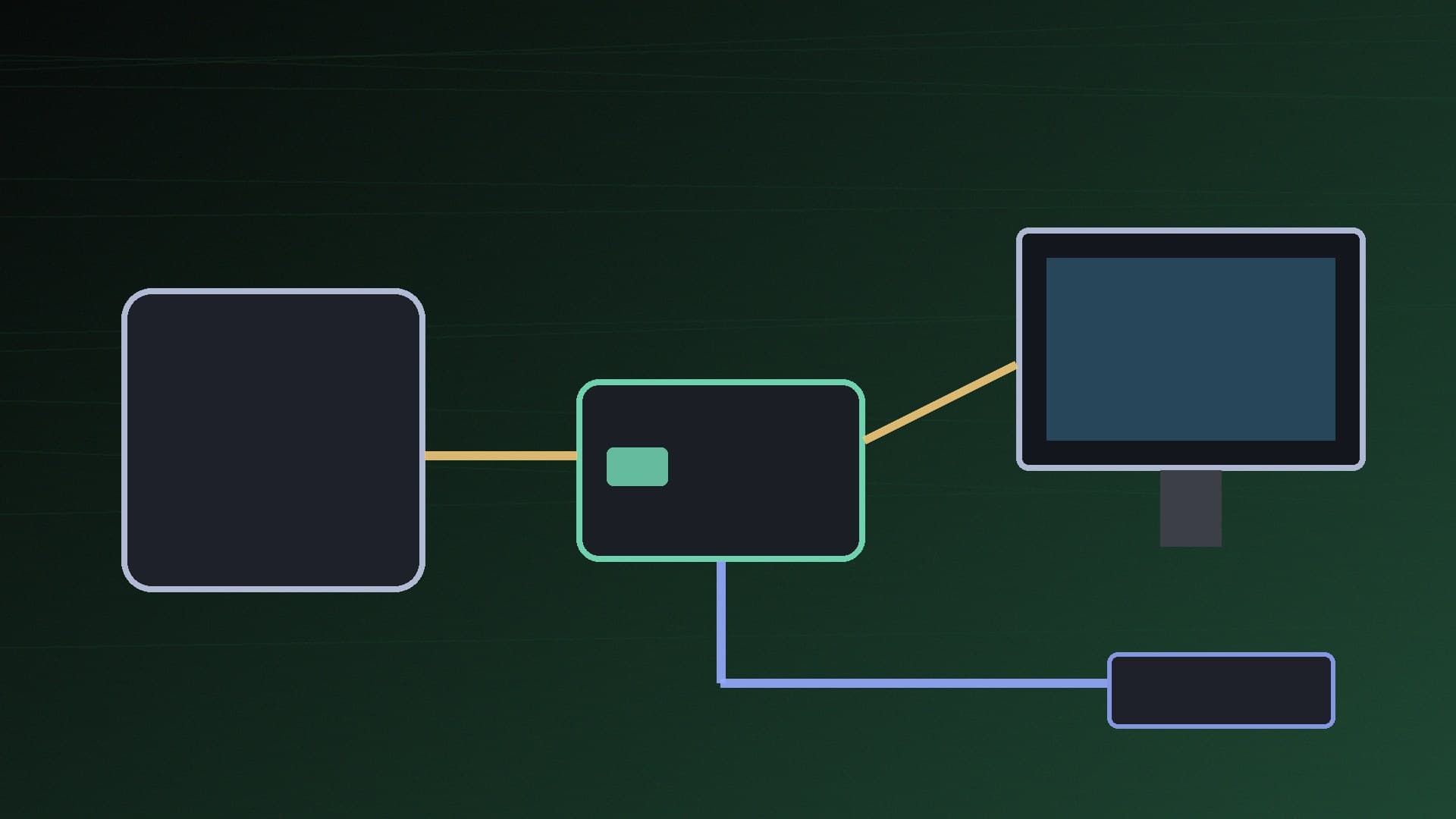
The connections are the same whichever console you use:
Console to capture card: plug an HDMI cable from the console's HDMI output into the card's HDMI In port. On Switch 2, use the HDMI output on the Switch 2 Dock, not the console itself.
Capture card to TV or monitor: plug a second HDMI cable from the card's HDMI Out port into your display. This is the passthrough connection, and Elgato says it adds no delay to what you see.
Capture card to PC or Mac: connect the included USB-C cable. Elgato recommends plugging it directly into your computer rather than a hub or dock.
Power on the console and check that the picture appears on your TV as normal. Our guide to checking USB port speed in Windows 11 shows how to find a 5Gbps or 10Gbps port on your PC.
Step 3: Check the console's video settings
Elgato suggests confirming your output settings before you open any software:
PS5: under Settings > Screen and Video > Video Output, confirm the resolution you want, for example 2160p for 4K or 1080p for smaller files.
Xbox Series X|S: under Settings > General > TV & display options, check the resolution and refresh rate match what you want to pass through and capture.
Switch 2: under System Settings > Display > TV Resolution, choose your resolution. With a 4K S, Elgato says you can't pass 4K60 with both HDR and VRR switched on, and the console drops to 1440p or 1080p; turn off HDR Output to keep 4K with VRR.
If you play in HDR, check the card's HDR capture limits: the 4K S captures HDR10 at up to 1080p60 and the 4K X at up to 4K30, 1440p60 or 1080p120, both on Windows only. On Mac and iPad, both cards automatically tone map HDR to SDR for capture.
Step 4: Open Elgato Studio or OBS Studio
Download Elgato Studio from Elgato's website. Elgato says the app is built specifically for its capture cards and shows real-time HDMI diagnostics so you can see what resolution is coming in and what you're recording. To stream with overlays, scenes and extra audio sources, add the card to OBS Studio as a Video Capture Device source instead. Our guides to recording gameplay with OBS Studio and streaming to YouTube with OBS cover the next steps, and our OBS Studio vs Streamlabs comparison helps if you haven't chosen an app.
Troubleshooting
Black screen or "No Signal": on PS5, go back to Settings > System > HDMI and confirm HDCP is off. Then try a different USB port (ideally one directly on the motherboard), and swap HDMI cables. Elgato says high refresh rates on the 4K X need an HDMI 2.1 cable.
No game audio in the recording: if your headset is plugged into the controller, the console may send audio to the headset instead of over HDMI. Elgato says a controller headset on PS5 takes audio off HDMI entirely, so the capture card records silence. Elgato's Chat Link Pro cable can feed headset audio, including party chat, into the 3.5mm line-in on the 4K S and 4K X. Elgato's 4K X help article notes this port is an audio line-in, not a microphone port.
Streaming apps show a black picture: Netflix, Disney+, Prime Video and other streaming apps always use HDCP, and Elgato capture cards can't record them.
Still stuck? Our guide to fixing a USB device not recognised in Windows 11 covers driver and port problems. You can find full specifications for the Elgato 4K X Superspeed Game Capture and Elgato Game Capture 4K S in our database.
Our verdict
Setting up an Elgato capture card with a console takes three cables: console to HDMI In, HDMI Out to your TV, and USB-C to your PC or Mac. Before you start, turn off HDCP on a PS5 (Settings > System > HDMI), use a 5Gbps USB port for the 4K S or a 10Gbps port for the 4K X, and use the Switch 2 Dock's HDMI output. Then open Elgato Studio or add the card to OBS Studio as a Video Capture Device.