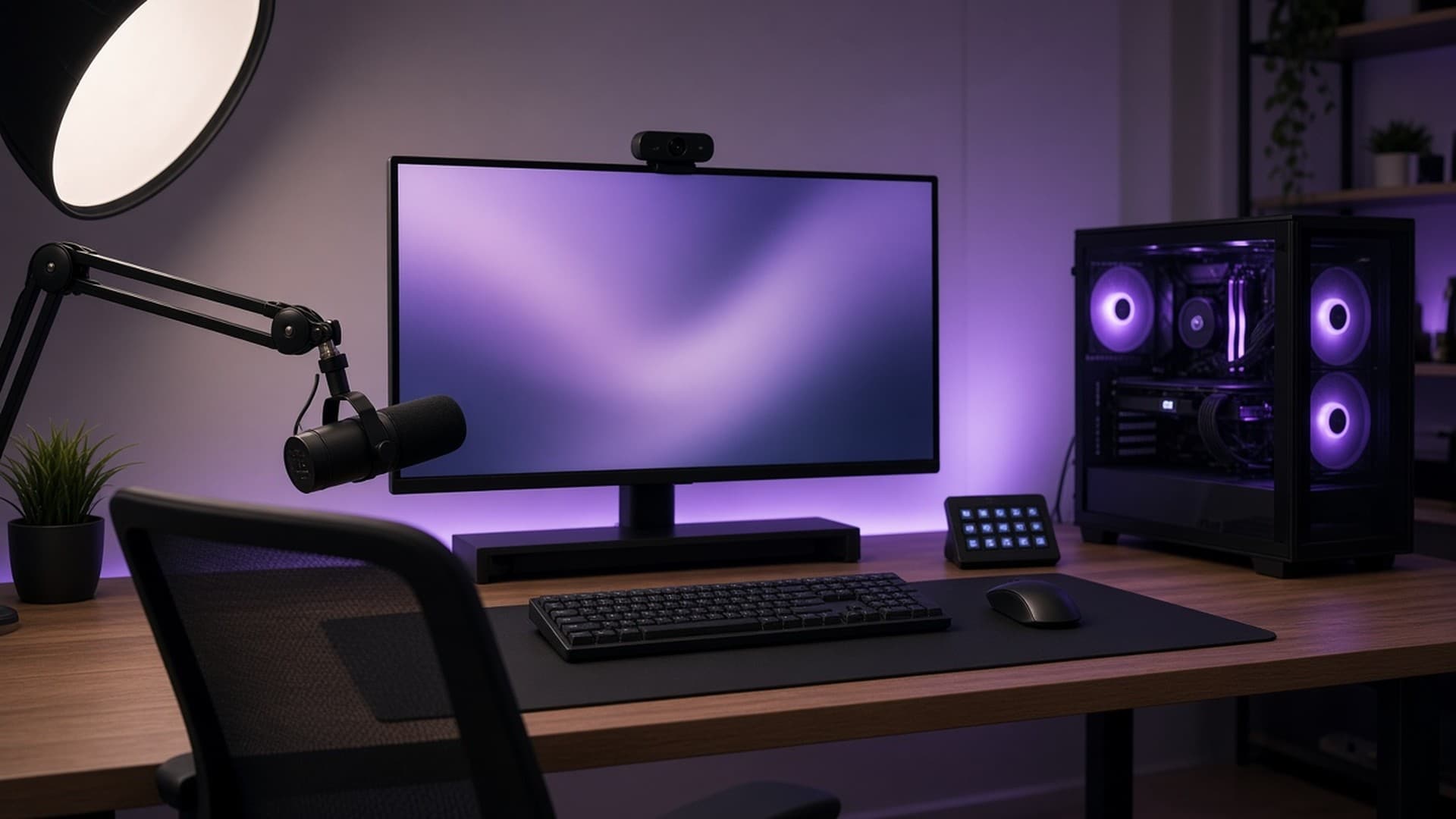
If you want to live-stream or record your desktop, two of the names you will see first are OBS Studio and Streamlabs Desktop. They are closely related: Streamlabs says Desktop is built on the OBS engine and is licensed under the same open-source GPL. The difference is what arrives in the box, and which operating systems you can use.
Forge PC has not benchmarked these apps against each other, and we have not measured CPU or GPU load. The comparison below is taken from the official OBS and Streamlabs pages, read on 13 November 2026. For the rest of a streaming PC setup, including capture cards, audio and lighting, see our streaming setup guide.
At a glance
| OBS Studio | Streamlabs Desktop |
|---|
Cost | Free and open source | Free to download; optional paid Streamlabs Ultra for extras such as extra destinations and premium overlays |
Engine | OBS's own | Built on the OBS engine (GPLv2), according to Streamlabs |
Platforms | Windows 10 and 11, macOS 13 or newer, Linux | Windows 10 or later, and macOS (Streamlabs lists macOS 12 as a minimum, and macOS 13 in its recommended spec) |
Built-in alerts, themes and widgets | No; add them with plugins, browser sources or a third-party tool | Yes: alerts, overlay themes, widgets, Cloudbot |
Dual Output (horizontal and vertical at once) | Not a built-in one-click feature on the official feature list | Yes; one of each format for free, more with Ultra, according to Streamlabs |
Plugin / script API | Yes, including native plugins and Lua or Python scripts | You can also use Streamlabs features inside OBS through the official Streamlabs plugin for OBS |
Current Windows snapshot (when we checked) | OBS Studio 33.0.1, dated 29 October on the official download page | Desktop download listed as a free Windows 10+ installer |
What OBS Studio gives you
OBS describes itself as free and open-source software for video recording and live streaming. The official feature list is about control rather than bundled decoration:
Real-time capture and mixing from window captures, games, webcams, capture cards, images, text and browser sources.
Unlimited scenes, custom transitions and stinger video files.
An audio mixer with per-source filters such as noise gate, noise suppression and gain, plus VST plugin support. If you want AI noise removal instead, our NVIDIA Broadcast vs AMD Noise Suppression comparison covers those tools.
Studio Mode, so you can preview a scene before it goes live, and a Multiview that can show eight scenes.
Hotkeys for almost every action, and a dock-based interface you can rearrange or pop out.
A plugin and script API.
OBS does not include a catalogue of branded overlay themes or a built-in tip ticker. You add those pieces yourself, which is more work at the start and more flexible later. It is also the only one of the two that officially supports Linux.
The current release on the OBS download page when we checked was 33.0.1, dated 29 October on that page. It supports Windows 10 and Windows 11, macOS 13 or newer, and Linux.
What Streamlabs Desktop adds
Streamlabs Desktop is the more guided app. Its download page says it includes, for free, the core tools to stream to the main platforms, plus alerts, some overlays, widgets, scenes, recording, and Dual Output. Optional extras such as multistreaming and premium overlays sit in Streamlabs Ultra. Streamlabs says Desktop does not add a watermark or a time limit on local recordings.
Features Streamlabs documents that go beyond a stock OBS install include:
Dual Output, to stream a horizontal and a vertical layout at the same time, aimed at YouTube, TikTok and similar destinations. One of each format is free; more destinations need Ultra.
Collab Cam, which adds a guest over a link.
A library of overlay themes, custom alerts (follows, subscriptions, tips, cheers and so on) and widgets such as goal meters and polls.
Cloudbot for chat tools, and automations that can trigger visuals, scene switches or clips from gameplay.
A highlight editor for short clips.
The official FAQ says the relationship with OBS is a licence of the OBS engine under GPLv2, and that Streamlabs itself is also an open-source project. If you like OBS but want Streamlabs alerts and widgets, Streamlabs says you can add them through its plugin for OBS, rather than switching apps.
Streamlabs lists a minimum of Windows 10 or macOS 12, with 8GB of RAM, and a recommended spec of Windows 10 or macOS 13, 16GB of RAM, an NVIDIA RTX 20- or 30-series or AMD RX 5000- or 6000-series GPU, a 512GB SSD or larger, and an Ethernet connection. Those GPU examples stop at older series; a newer RTX 50-series or RX 9000-series card is not excluded just because it is missing from a recommended list, but we will not invent a wider official list than the one Streamlabs publishes.
Which should you choose?
Choose OBS Studio if you want the standard, fully free tool, you are happy to build scenes yourself, you need Linux, or you already have a plugin setup you trust. It is also the safer default if you do not want a second account, a theme shop or a paid tier in the mix.
Choose Streamlabs Desktop if you want alerts, overlays and a vertical-plus-horizontal stream without assembling that stack yourself, and you are on Windows or macOS. Start with the free tier and only look at Ultra if you actually need the paid destinations or extras.
You do not have to treat this as a one-way door. Streamlabs' own FAQ points people who prefer OBS towards its OBS plugin. Whichever you use, keep the rest of the PC in order: current graphics drivers, a quiet microphone setup, and a wired network if you can. Our Wi-Fi versus Ethernet guide explains why that last point still matters.
Our verdict
Use OBS Studio if you want a free, open-source stream and recording app with full control, plugins and Linux support, and you do not mind setting up alerts yourself. Use Streamlabs Desktop if you would rather have themes, alerts, widgets and Dual Output built in, and you are comfortable with a free app that also sells an Ultra tier. Streamlabs is built on the OBS engine, and you can add Streamlabs features to OBS with the official plugin if you want a middle path. We have not compared CPU usage or stream quality in a lab; this is a feature comparison from the official documentation.