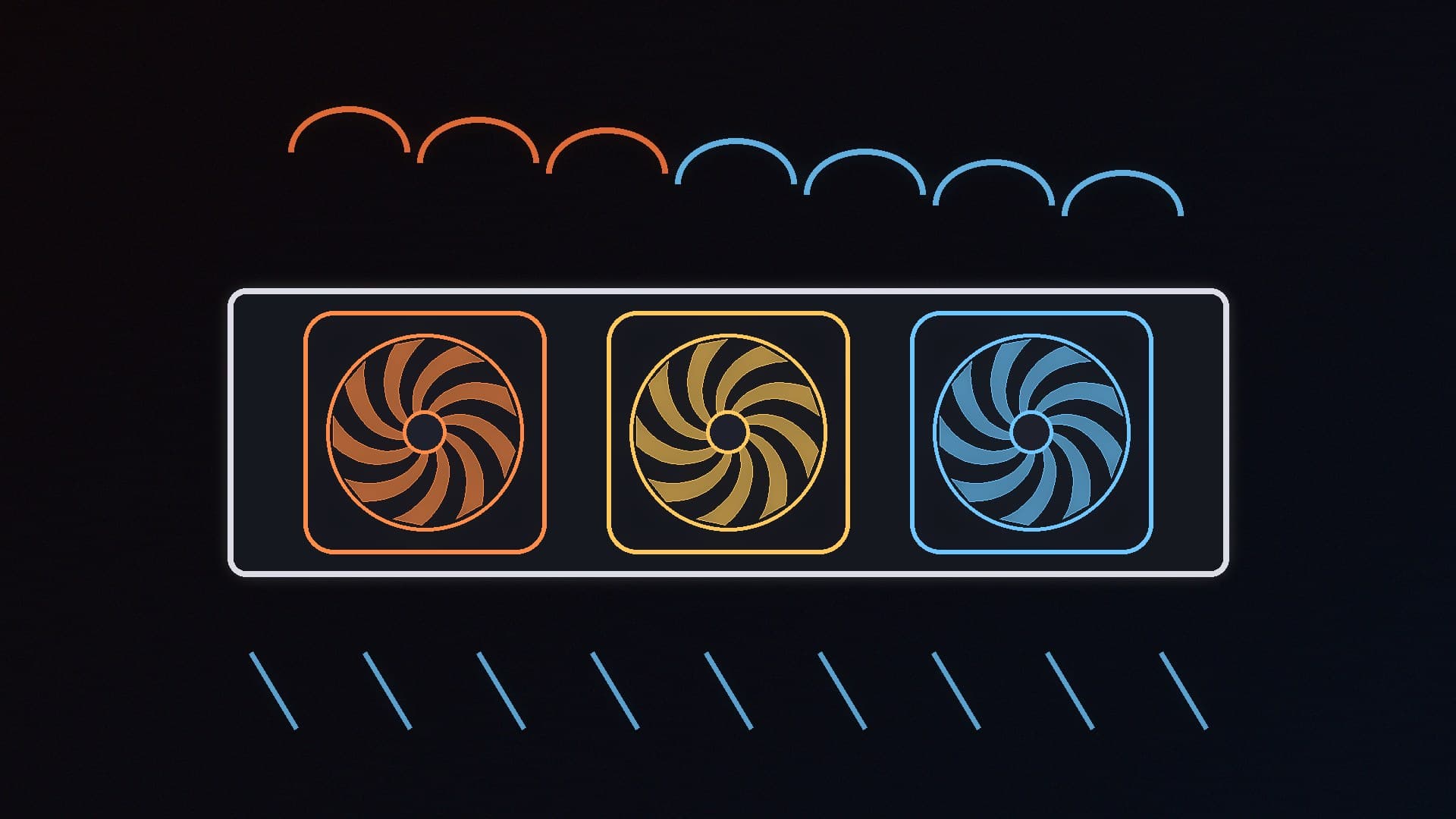
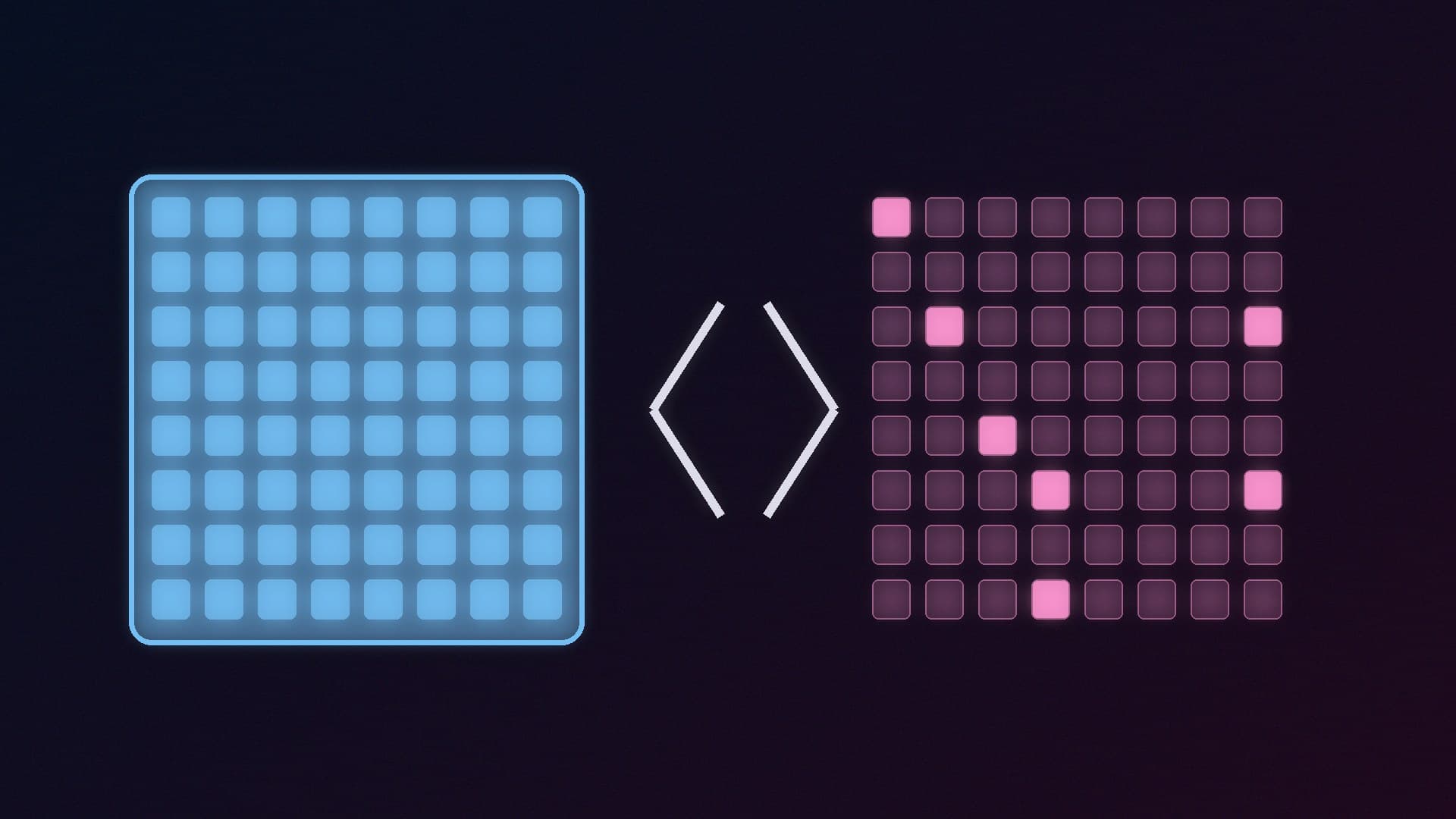
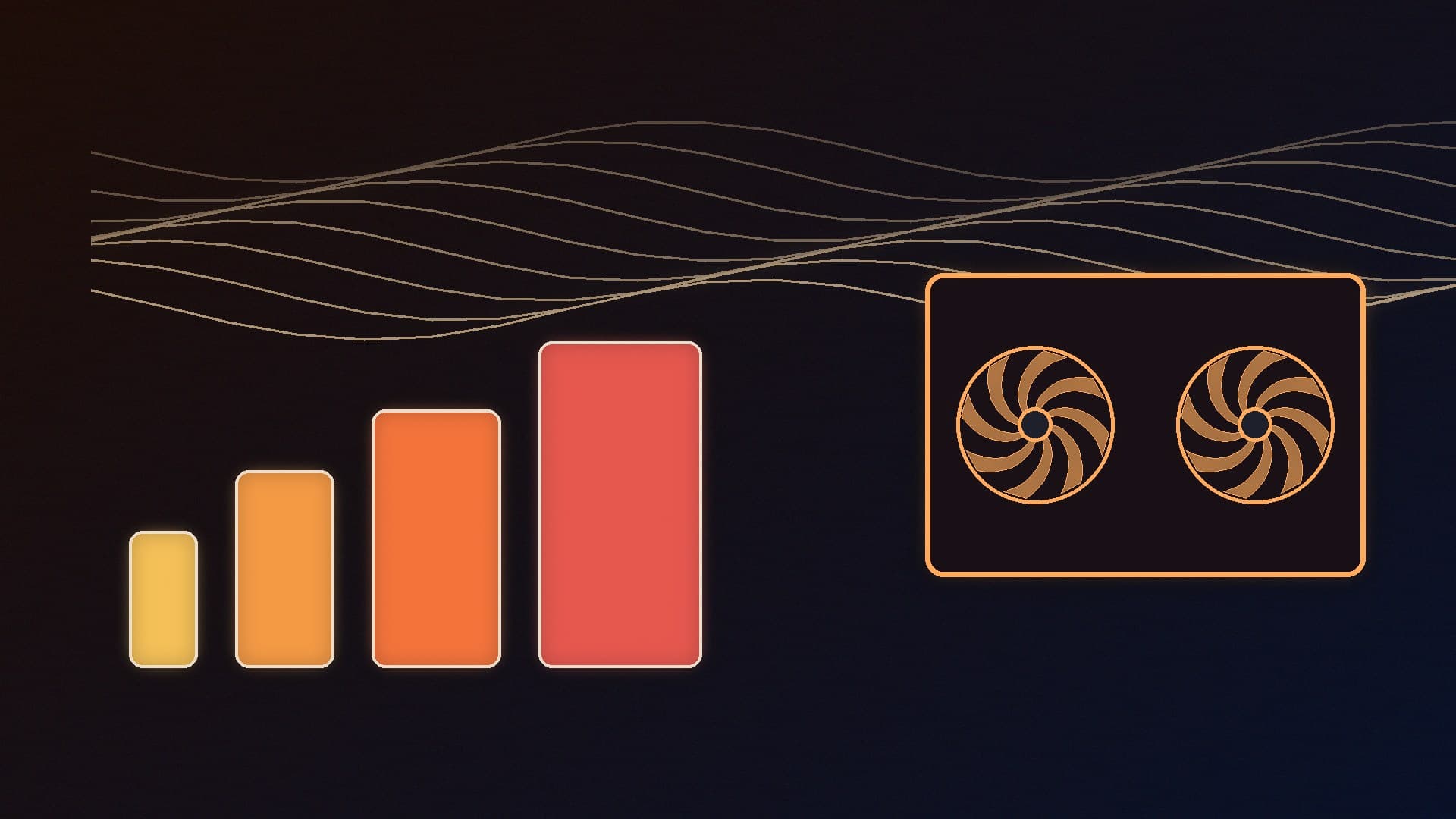
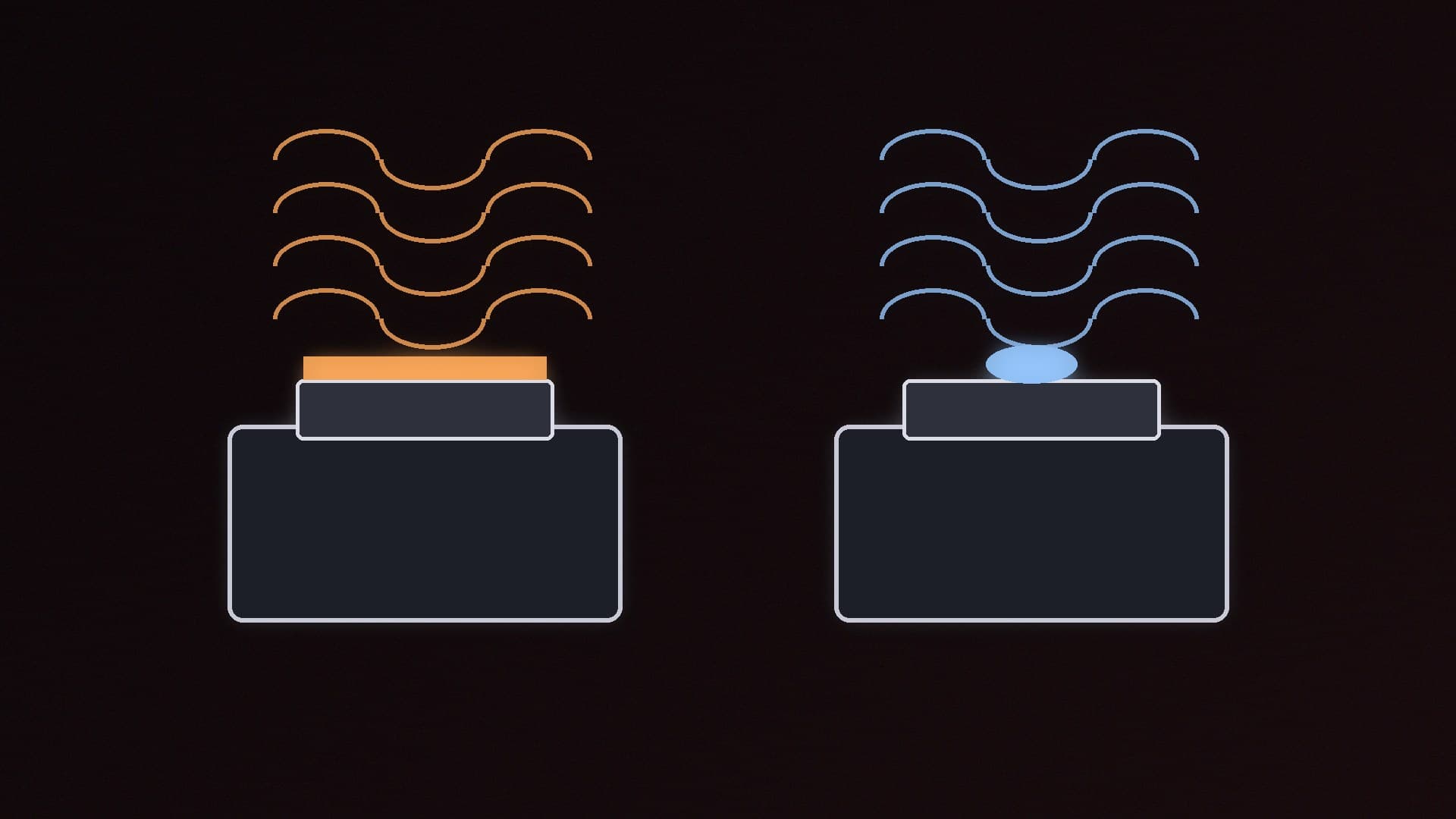
A graphics card that runs hot is usually louder than it needs to be, and if it overheats it can become unstable: NVIDIA lists overheating as a cause of freezes, reboots and crashes, and NZXT notes that an overheating GPU may thermal throttle. The good news is that most fixes are free. This guide works through them in a sensible order, from checking your readings to tuning fans and power.
Step 1: Measure your temperatures properly
Before changing anything, find out how hot the card actually gets under a sustained load, such as a long gaming session, rather than glancing at the desktop reading.
Our guide to checking GPU temperature in Windows 11 covers Task Manager and free monitoring tools.
On Radeon cards, note that AMD says the GPU Hotspot temperature reading is only available on Radeon VII, the Radeon RX 5000 series and newer.
What counts as "too hot" depends on the card. NZXT says operating temperatures vary and advises referring to your card's specifications, so check the maker's figures rather than relying on a single number from a forum.
Step 2: Undo any overclocks
NVIDIA's troubleshooting guide recommends resetting any overclocked component (CPU, memory or graphics card) to its default settings when you're chasing instability. An overclock raises power and heat, so if you've used MSI Afterburner or AMD Software to push the card, reset it to defaults and re-check temperatures. Our MSI Afterburner guide shows where the settings live; in AMD Software, AMD says you can restore default tuning settings at any time with the Reset icon.
Step 3: Clear out the dust
Dust build-up can make a card that used to run cool get hotter over time. NVIDIA says dust acts like a warm blanket on your components and recommends blowing it out with compressed air. NVIDIA also says a graphics card fan that is louder than when the card was new may not be working as efficiently as it used to.
Power down and unplug the PC first, and clean the card's heatsink and fans along with the case filters. Our guide to cleaning dust out of your PC walks through it safely.
Step 4: Improve case airflow
A graphics card can only be as cool as the air around it. NVIDIA recommends making sure the PC has proper ventilation at the front and rear, and warns that a PC placed inside an enclosed desk area may overheat.
Move the PC out of a closed cupboard or desk cubby, or leave the cupboard door open.
Check the case fans are working and that air has a clear path in at the front and out at the rear; see how to fix case fans not spinning if any have stopped.
If your case has a solid front panel with little ventilation, a mesh-fronted case can help; see our best airflow PC cases.
Step 5: Tune the fan curve
Graphics cards manage their own fans by default. If temperatures are high but the fans are fairly quiet, a more aggressive fan curve can help, at the cost of more noise.
AMD Radeon: AMD Software's Fan Tuning lets you adjust Zero RPM and the maximum fan speed, or switch to an advanced fan-speed-versus-temperature curve. AMD says Zero RPM keeps the fans stopped under light load and is enabled by default; the fans should spin up as load and temperature rise.
NVIDIA and other cards: tools such as MSI Afterburner offer a custom fan curve. Our guide to setting fan curves explains how to shape a curve sensibly.
Step 6: Cut power with a quieter preset or an undervolt
Less power means less heat. AMD Software offers several ways to reduce it on Radeon cards:
Quiet preset. AMD says this enables quiet operation with lower power and fan settings.
Undervolt GPU. AMD says this automatic option reduces voltage while maintaining clock speeds to improve performance per watt. It's only available on select GPUs.
Power limit. The Power Limit slider adjusts the card's power setting; AMD notes that a higher limit can add performance headroom, so lowering it trades some headroom for less power.
On NVIDIA cards, a manual undervolt with MSI Afterburner does a similar job; see our GPU undervolting guide. NVIDIA itself suggests lowering graphics and memory clocks in tools such as MSI Afterburner if a card isn't cooling as well as it used to.
After any change, check stability. AMD Software includes a Stress Test to verify that tuning settings are stable, and AMD says that if a test ends in a crash or reboot, the software resets the tuning settings to default.
Step 7: If it's still too hot, check the hardware
If the card is clean, the case is well ventilated and the fans are working, yet temperatures are still well beyond the maker's specifications, the problem may be the card's cooler itself, for example a failing fan. If the card is under warranty, contact the manufacturer or retailer rather than opening the cooler yourself. If heat is causing visual glitches, see how to fix GPU artifacting, and for whole-system heat problems see how to stop your PC overheating.
Our verdict
To lower GPU temperatures, start by measuring under a real load and checking your card's specifications, then reset any overclocks, clean out dust and give the case proper front-to-rear airflow. If it's still hot, tune the fan curve and reduce power with a quieter preset, a lower power limit or an undervolt, then stress test the result. A card that stays hot after all that may have a cooler fault worth raising under warranty.