A case fan that sits still while your PC is running is alarming, but it's often not a fault at all. Many modern fans are designed to stop at low speeds, and a misconfigured BIOS setting is the next most common cause. This guide works through the checks in order, from the free and easy to the hardware swaps. Menu names differ between motherboard makers.
Before you start, check your temperatures. If the CPU and GPU are running at normal temperatures, there's no emergency. Our HWiNFO and Afterburner monitoring guide shows how to watch them, and how to stop your PC overheating covers what to do if they're high.
1. Check whether the fan is stopping by design
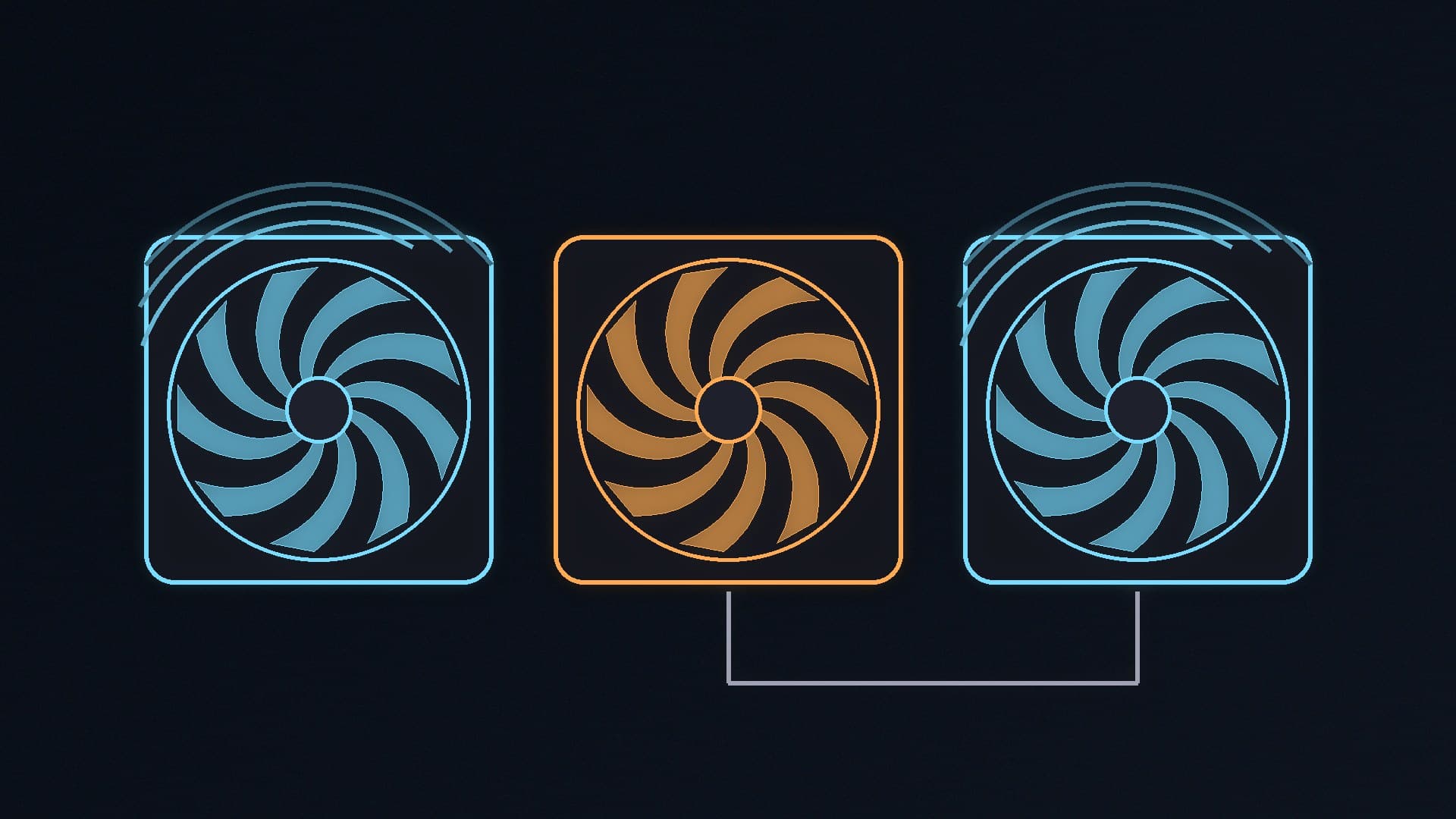
Some fans switch off completely when the motherboard asks for a very low speed. ARCTIC's P12 PWM PST, for example, is rated at 200 to 1,800rpm under PWM control, with 0rpm below 5% PWM. If your fan curve drops to 0% or a few percent at idle, a fan like this will simply stop when the PC is cool, then start again as temperatures rise.
To check:
Open your monitoring software or the BIOS hardware monitor and find the fan's speed reading.
Run something demanding for a few minutes, or temporarily set the fan to a fixed high speed in the BIOS.
If the fan starts as the speed rises, it's working as designed.
If you'd rather the fan never stops, raise the lowest point of its curve above the cut-off. Our guide to setting fan curves explains how.
2. Check the BIOS fan settings
ASUS says that if a fan isn't turning or its speed fluctuates, the BIOS fan curve may be set too low or automatic speed control may be disabled. ASUS recommends switching to PWM mode in that case, and its BIOS lets you set each header's Q-Fan Control to DC Mode, PWM Mode or Auto. As a rule, 4-pin fans are speed-controlled by PWM and 3-pin fans by voltage (DC).
Enter the BIOS (usually Delete or F2 at start-up) and find the fan control page, such as Q-Fan on ASUS boards.
For each chassis fan header, set the mode to match the fan: PWM for a 4-pin connector, DC for a 3-pin connector, or Auto if available. Our PWM vs DC case fans guide explains the difference.
Choose a standard profile or raise the minimum speed, save and reboot.
If you control fans with Windows software, it can override the BIOS. Check any fan utility you have installed, or see our best free fan control software round-up.
Make sure each fan is plugged into a fan header (often labelled CHA_FAN, SYS_FAN or similar), not a pump header that may be set differently, and check the header is enabled in the BIOS. If a fan is plugged into a header you've set to a silent profile or turned off, it won't spin. Our guide to connecting fan headers shows the common header names.
The CPU fan header is a special case: ASUS notes the board checks for a fan on CPU_FAN at start-up, and if it doesn't detect one you'll see a "CPU Fan Error" message. ASUS says a slow-spinning fan from another brand may not be detected, and suggests setting the CPU Fan Speed Low Limit to 200rpm in the BIOS.
4. Check the connectors and daisy chains
With the PC switched off and unplugged:
Push each fan connector fully onto its header. 3-pin plugs fit on 4-pin headers, but they need to be aligned with the plastic guide.
If your fans are daisy-chained, check every link in the chain. ARCTIC's PST fans, for example, have a 4-pin connector plus a 4-pin socket so one fan can plug into the next; if one link is loose, the fans after it lose power.
If you use a splitter or hub, check its own connections. Many fan hubs, such as ARCTIC's 10-port PWM hub, take power from a SATA cable from the power supply as well as a motherboard connection; if that power cable isn't connected, the fans on the hub won't run. Our fan hub vs fan splitter guide explains which needs what.
ARGB fans have two separate cables: one for the motor and one for the lights. If the lights work but the fan doesn't spin, the motor cable is probably the one that isn't connected. Our ARGB lighting troubleshooting guide covers the lighting side.
5. Check for blockages
ASUS warns that cables can jam fan blades and cause the fan to malfunction or run at abnormal speeds. Look for cables touching the blades, especially behind the front panel and around the top radiator area, and tie them back. While you're in there, clear any dust: ASUS notes that dust build-up obstructs airflow.
6. Swap to isolate the fault
If the fan still won't spin, find out whether the fan or the header is at fault. ASUS's suggestion is to try a different fan header, or a different fan on the same header.
Move the fan to a header you know works. If it now spins, the original header or its settings are the problem.
Plug a known-good fan into the original header. If that one doesn't spin either, the header is the issue.
If the fan doesn't spin on any header, the fan has likely failed and needs replacing. Many fans carry long warranties (ARCTIC lists six years on the P12 PWM PST), so check before buying a new one.
ASUS also suggests trying an external fan controller as a test; if a header won't drive any fan, a hub or controller on another header can work around it. Updating the BIOS is also worth a try, as ASUS recommends for fan detection problems; see how to update your BIOS safely.
Our verdict
Before assuming a fan is dead, check whether it's simply stopping at low PWM by design, then the BIOS fan mode and curve, the header and the connectors. Swapping fans and headers will show whether the fan or the header is at fault, and only then is it time to replace anything.