" guide, and Black Forest Labs' FLUX.2 [klein] model card, all read on 26 November 2026. No prices are listed because graphics card prices in the UK have been moving quickly; check specialist retailers on the day.
Running an image generator on your own PC means no subscriptions, no upload limits and no one else seeing your prompts or pictures. Apps like ComfyUI make it straightforward, but the graphics card decides what you can run. Unlike gaming, where a slower card simply means fewer frames per second, image models have a hard memory requirement. If a model doesn't fit in your card's video memory (VRAM), it either won't run or has to shuffle data back and forth with system RAM, which is much slower.
Quick picks
Pick | Card | VRAM | Why |
|---|
Best overall | NVIDIA GeForce RTX 5070 Ti | 16GB GDDR7 | 16GB, strong bandwidth, FP8 and FP4 support, best-supported software |
Best value | NVIDIA GeForce RTX 5060 Ti 16GB | 16GB GDDR7 | The cheapest current NVIDIA route to 16GB |
Best for the biggest models | NVIDIA GeForce RTX 5090 | 32GB GDDR7 | Most VRAM and bandwidth in a GeForce card |
Best AMD | AMD Radeon RX 9060 XT 16GB | 16GB GDDR6 | 16GB at 160W; best on Linux |
Best 32GB alternative | AMD Radeon AI PRO R9700 | 32GB GDDR6 | 32GB at 300W for large models |
What matters for image generation
Video memory comes first. Black Forest Labs says its FLUX.2 [klein] 4B model fits in about 13GB of VRAM and runs on consumer GPUs such as the RTX 3090 and RTX 4070 and above. NVIDIA's Blackwell whitepaper says the larger FLUX.dev model needs over 23GB of VRAM at FP16, but less than 10GB at FP4. That's why 16GB is our practical starting point, and why 32GB cards earn their place for the largest models at full precision.
ComfyUI can stretch smaller cards. Its README says it can run even the biggest open-source models on as little as 4GB of VRAM and 8GB of RAM using asynchronous weight streaming, and it has smart memory management and model offloading. That's helpful, but more VRAM still gives you more headroom. Our guide to running ComfyUI on a low-VRAM card covers the settings.
Software support comes a close second. ComfyUI's own GPU guide says that in AI the software stack is the most important thing, and ranks its recommendations accordingly:
NVIDIA: top tier. All NVIDIA GPUs from the last ten years are supported in PyTorch and work very well, with RTX 30-series and newer recommended.
AMD on Linux: good tier. Works well on cards officially supported by ROCm, though it can be slower than price-equivalent NVIDIA cards. ComfyUI says RDNA 4 gives a top-tier experience on the latest ComfyUI and PyTorch nightly builds.
AMD on Windows: good tier. An official PyTorch version works but can be slower than on Linux. ComfyUI's system requirements page says Windows support uses AMD's multi-architecture PyTorch packages and covers RDNA 2, RDNA 3, RDNA 3.5 and RDNA 4.
Intel Arc: good tier. Officially supported in PyTorch, and ComfyUI says people seem to get it working fine.
Number formats matter too. ComfyUI's guide lists which precisions each NVIDIA generation handles natively: RTX 50-series supports FP16, BF16, FP8 and FP4; RTX 40-series supports up to FP8; RTX 30-series supports FP16 and BF16. Lower-precision formats such as FP8 and FP4 use less memory, which helps big models fit. Our FP4 vs FP8 vs FP16 explainer explains the quality trade-offs.
Best overall: NVIDIA GeForce RTX 5070 Ti
The RTX 5070 Ti is the card we'd shortlist first for most people building an image-generation PC. It has 16GB of GDDR7 on a 256-bit bus, and NVIDIA's architecture whitepaper lists its peak memory bandwidth at 896GB/s. NVIDIA rates it at 1,406 AI TOPS.
That 16GB is enough for FLUX.2 [klein] 4B by Black Forest Labs' estimate, and as a Blackwell card it supports FP8 and FP4, which help larger models fit. It's also an NVIDIA card, so it sits in ComfyUI's top tier for software support.
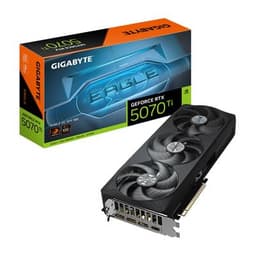
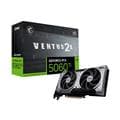
The trade-off is power: NVIDIA lists 300W total graphics power and a 750W system power recommendation. Models in our database include the MSI RTX 5070 Ti 16GB Ventus 3X OC and the Gigabyte RTX 5070 Ti 16GB Eagle OC.
Best value: NVIDIA GeForce RTX 5060 Ti 16GB
If your budget doesn't stretch to an RTX 5070 Ti, the 16GB RTX 5060 Ti gives you the same amount of VRAM and the same Blackwell feature set, including FP4 support. NVIDIA lists 16GB of GDDR7 on a 128-bit bus, 759 AI TOPS, 180W total graphics power and a 600W system power recommendation.
The narrower memory bus and lower AI TOPS rating mean it's the slower card, but for image generation, having 16GB matters more than raw speed. Make sure you buy the 16GB version: NVIDIA also sells the RTX 5060 Ti with 8GB, which is much more limiting. Our RTX 5060 Ti 16GB vs RTX 5070 Ti comparison goes into detail.
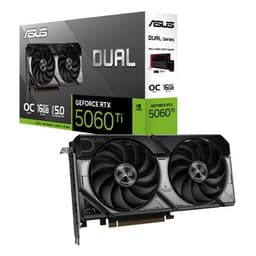
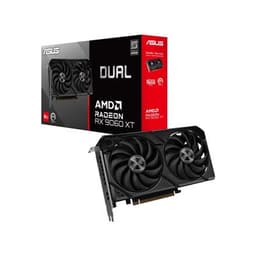
Options in our database include the ASUS RTX 5060 Ti 16GB Dual OC and the MSI RTX 5060 Ti 16GB Ventus 2X OC Plus.
Best for the biggest models: NVIDIA GeForce RTX 5090
The RTX 5090 is the card for running the largest image and video models at higher precision without compromise. It has 32GB of GDDR7 on a 512-bit bus, with 1,792GB/s of peak memory bandwidth according to NVIDIA's whitepaper, and NVIDIA rates it at 3,352 AI TOPS. NVIDIA's own example in that whitepaper is FLUX.dev, which it says needs over 23GB at FP16 and so only runs on cards like the RTX 4090, RTX 5090 and its professional GPUs.
It's a demanding card to live with. NVIDIA lists 575W total graphics power and a 1,000W system power requirement, and the Founders Edition is 304mm long. The NVIDIA GeForce RTX 5090 Founders Edition is in our database. If you're also interested in video generation, our best GPU for local AI video generation guide covers that heavier workload.
Best AMD: AMD Radeon RX 9060 XT 16GB
AMD's RX 9060 XT 16GB is the pick if you'd rather not buy NVIDIA, especially if you're happy using Linux. AMD lists 16GB of GDDR6 on a 128-bit bus, up to 320GB/s of memory bandwidth, 160W typical board power and a 450W minimum PSU recommendation.
Ollama's hardware documentation lists the RX 9060 XT among the cards it supports through ROCm on Linux, and ComfyUI's guide says AMD works well on Linux with cards officially supported by ROCm. On Windows, ComfyUI uses AMD's PyTorch packages, though its guide says Windows can be slower than Linux. Expect to do a little more setup than with an NVIDIA card; our guide to running local AI on an AMD Radeon card covers the basics.
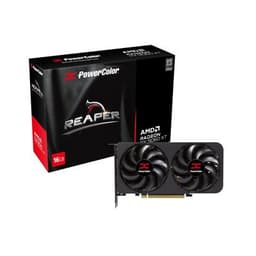
In our database: the ASUS RX 9060 XT 16GB Dual and the PowerColor RX 9060 XT 16GB Reaper.
Best 32GB alternative: AMD Radeon AI PRO R9700
If you want 32GB of VRAM without an RTX 5090's power demands, AMD's Radeon AI PRO R9700 is the card to look at. AMD lists 32GB of GDDR6 on a 256-bit bus, 640GB/s of peak memory bandwidth, 300W total board power, a 750W minimum PSU recommendation and a double-slot design. It also supports ECC memory on Linux.
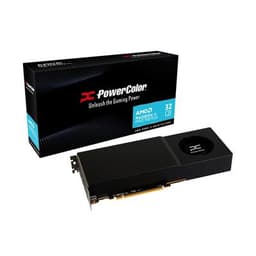
It has much less bandwidth than the RTX 5090 and sits in ComfyUI's AMD tiers for software support, so it isn't the faster choice. But for models that need more than 16GB, the extra capacity is the point. The PowerColor AI Pro R9700 32GB is in our database, and our best 32GB graphics cards for local AI guide compares the options.
What about Intel Arc?
ComfyUI's guide says Intel GPUs are officially supported in PyTorch on Linux and Windows and that people seem to get them working fine, and ComfyUI supports Arc through native PyTorch XPU support. We haven't made an Arc card a main pick here because we couldn't read Intel's official specification pages this time, but our best Intel Arc GPUs for local AI guide covers them.
What to avoid
ComfyUI's guide is blunt about a few options:
Old workstation cards with lots of VRAM. It warns against cheap Pascal-era workstation cards, saying performance will be bad because Pascal cards only handle slow full-precision FP32 natively, and that anything older than the RTX 20 series should be avoided because it's about to be deprecated in CUDA 13.
Qualcomm-based AI PCs. It says PyTorch doesn't work on them at all.
Apple Silicon Macs for heavy use. They're supported, but ComfyUI calls them very slow, with no FP8 support.
How to get started
Once you've chosen a card, our guide to installing ComfyUI on Windows and running FLUX.2 [klein] locally will get your first image generated. If you're still deciding on software, our best local AI image generators roundup compares the apps.
Our verdict
For most people, the NVIDIA GeForce RTX 5070 Ti is the graphics card to buy for local image generation: it has 16GB of fast GDDR7, FP8 and FP4 support, and NVIDIA's top-tier software support in ComfyUI. The 16GB RTX 5060 Ti is the value choice with the same memory and features. Step up to the 32GB RTX 5090 for the largest models at full precision, or choose AMD's RX 9060 XT 16GB or 32GB Radeon AI PRO R9700 if you prefer AMD and don't mind a little more setup, ideally on Linux.