NVIDIA cards are the most common choice for running AI models locally, but a Radeon graphics card is a workable alternative, especially if it has plenty of VRAM. The two most popular beginner tools, Ollama and LM Studio, both support AMD cards. The catch is that support depends on your card and operating system, and the two tools use different software back ends to talk to the GPU.
Forge PC has not benchmarked these tools on Radeon hardware. This guide follows Ollama's official GPU documentation and AMD's own developer playbook for LM Studio, last validated in August 2026. If you are still choosing hardware, see our NVIDIA vs AMD for local AI comparison first.
ROCm and Vulkan: the two routes
AMD's main compute software platform is ROCm, but Ollama only supports it on certain cards. Vulkan is a graphics API that most GPUs support, and both Ollama and LM Studio can use it as an alternative way to run models on the GPU. In practice, if your card is on the ROCm list, you can use ROCm. If it is not, Vulkan is how you still get GPU acceleration rather than falling back to the much slower CPU.
Which Radeon cards Ollama supports
Ollama's documentation lists different ROCm support on Linux and Windows.
Platform | Radeon RX cards listed for ROCm support |
|---|
Linux (ROCm v7 driver) | RX 9070 XT, 9070 GRE, 9070, 9060 XT, 9060 XT LP, 9060; RX 7900 XTX, 7900 XT, 7900 GRE, 7800 XT, 7700 XT, 7700, 7600 XT, 7600; RX 6950 XT, 6900 XTX, 6900 XT, 6800 XT, 6800 |
Windows (ROCm v7/HIP 7-capable driver) | RX 7900 XTX, 7900 XT, 7900 GRE, 7800 XT, 7700 XT, 7600 XT, 7600 |
The Linux list also includes Radeon AI PRO and PRO workstation cards and several Ryzen AI processors, including the Ryzen AI Max+ 395. Note that, as of the documentation we checked, the RX 9000 series appears on the Linux ROCm list but not the Windows one.
For other cards, Ollama says additional AMD support comes through Vulkan, which is enabled by default when the back end is installed. On Windows, Ollama says most GPU vendors' drivers come with Vulkan support and need no extra setup. Most Linux distributions need additional components.
Setting up Ollama on a Radeon card
Update your graphics driver. On Windows, AMD's playbook says to open AMD Software: Adrenalin Edition, go to Driver and Software, and click Manage Updates. Our graphics driver update guide has more detail. On Linux, Ollama needs the AMD ROCm v7 driver, which you can install with AMD's amdgpu-install utility.
Install Ollama from its official site and download a model. Our guide to running AI models locally walks through the first run.
If something goes wrong with Vulkan, Ollama's documentation says you can turn off all Vulkan GPUs by setting the environment variable OLLAMA_VULKAN=0. On systems with both integrated and discrete graphics, it suggests keeping Vulkan on and using GGML_VK_VISIBLE_DEVICES to point Ollama at the discrete card.
Linux users with an unsupported card can try the HSA_OVERRIDE_GFX_VERSION variable, which tells ROCm to treat the GPU as a similar supported model. Ollama documents this as a Linux option for experimenting, not a guaranteed fix, and it does not apply to Windows.
Setting up LM Studio on a Radeon card
AMD's playbook says LM Studio offers both Vulkan and ROCm back ends, which it calls runtimes, for AMD users. AMD's steps are:
Update your Adrenalin driver as above.
Install LM Studio, and download a model from the Discover tab (Ctrl+Shift+M). AMD suggests the Q4_K_M quantisation of Qwen3.5 9B as a good balance of size and quality.
Press Ctrl+L to open the model loader, choose to set load parameters manually, and tick "show advanced settings".
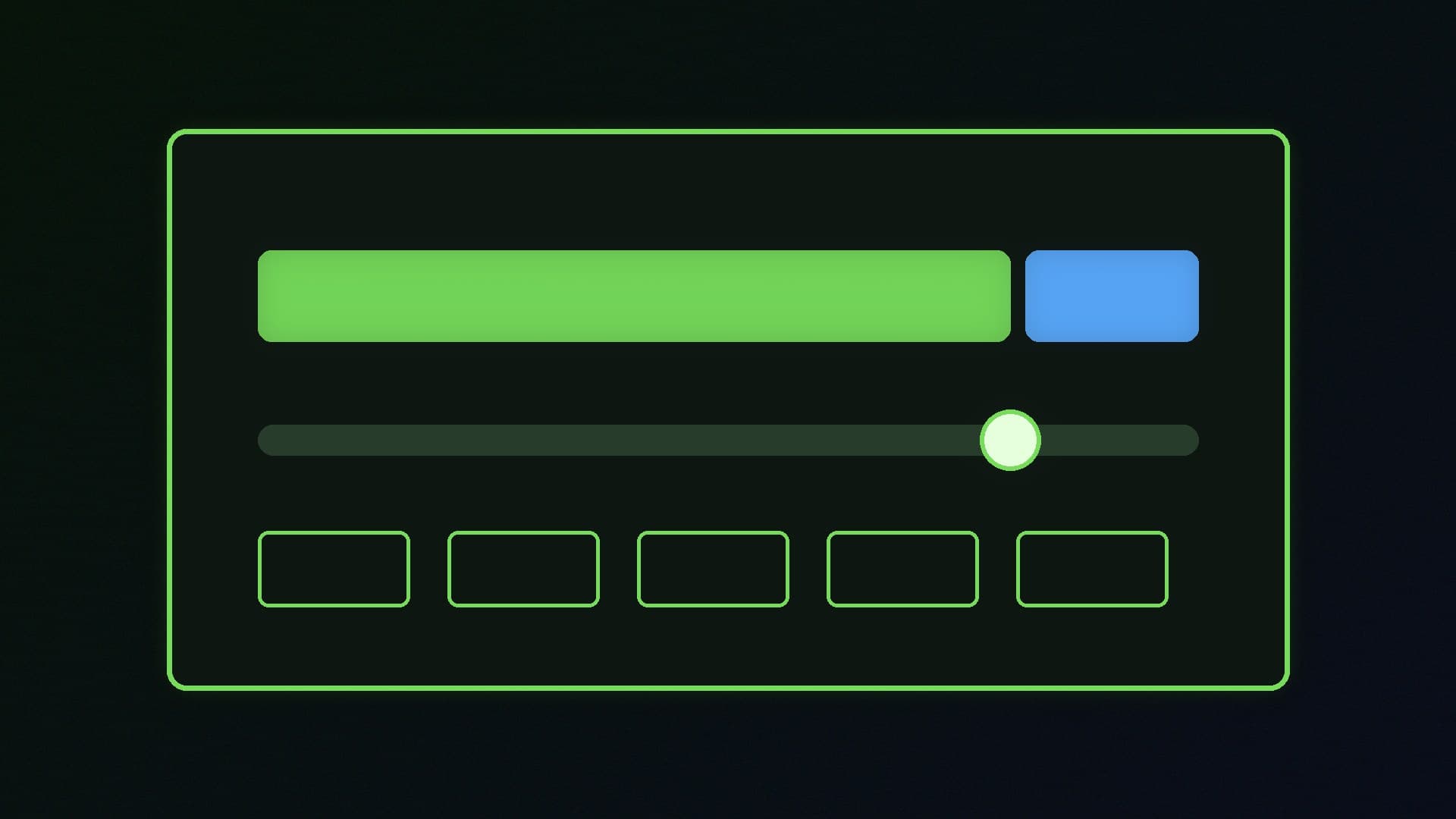
Set GPU Offload to maximum and turn Flash Attention on. AMD's recommended context length for its example is 4096. A longer context uses more memory.
To switch between Vulkan and ROCm, press Ctrl+Shift+R to open Runtime Selections and choose the runtime from the drop-down menu.
If one runtime does not load a model, or runs slowly, try the other. If you want to use LM Studio with other apps, AMD's playbook shows how to start LM Studio's OpenAI-compatible server, which usually runs at http://127.0.0.1:1234. Our LM Studio server guide covers that in more detail.
Choosing a model that fits your VRAM
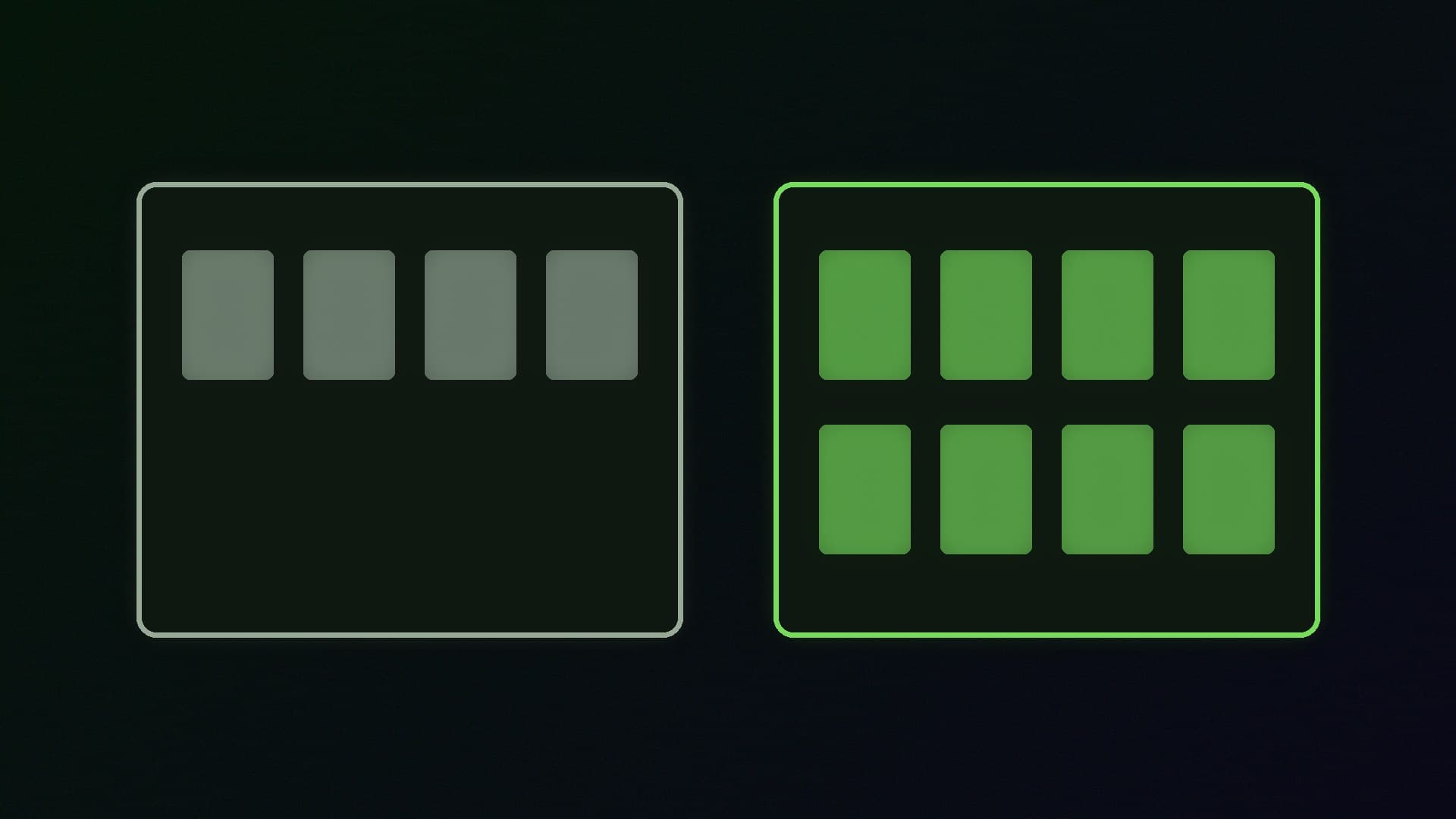
The amount of VRAM on your card decides which models will run fully on the GPU. A 16GB card has twice the room of an 8GB one, and our VRAM guide explains how much you need. Quantised models in GGUF format, which both tools use, cut memory use considerably. Our GGUF quantisation guide explains the trade-off, and our Ollama vs LM Studio comparison helps you pick a tool.
If you have a Ryzen AI processor with integrated graphics, AMD's playbook says you can give the GPU more of your system memory in Adrenalin under Performance > Tuning > AMD Variable Graphics Memory, leaving roughly 20 per cent of system RAM for the operating system.
Our verdict
You can run local AI models well on a Radeon card. On Windows, Ollama lists ROCm support for the RX 7600, 7600 XT, 7700 XT, 7800 XT and RX 7900-series cards, and other cards, including the RX 9000 series, can use Vulkan. On Linux, the ROCm list is broader and includes the RX 9000 series. LM Studio gives you both runtimes in one app, so it is the easiest place to start: update Adrenalin, set GPU Offload to maximum, turn on Flash Attention, and try ROCm and Vulkan to see which works better on your card. We have not benchmarked these tools on Radeon hardware; this guide follows Ollama's documentation and AMD's August 2026 LM Studio playbook.
The bottom line
You can run local AI models well on a Radeon card. On Windows, Ollama lists ROCm support for the RX 7600, 7600 XT, 7700 XT, 7800 XT and RX 7900-series cards, and other cards, including the RX 9000 series, can use Vulkan. On Linux, the ROCm list is broader and includes the RX 9000 series. LM Studio gives you both runtimes in one app, so it is the easiest place to start: update Adrenalin, set GPU Offload to maximum, turn on Flash Attention, and try ROCm and Vulkan to see which works better on your card. We have not benchmarked these tools on Radeon hardware; this guide follows Ollama's documentation and AMD's August 2026 LM Studio playbook.