Our picks are based on ComfyUI's official system requirements and documentation, NVIDIA's and AMD's published specifications, and how image generation uses graphics memory. We haven't included speed figures, because we haven't measured them, and we haven't included prices.
ComfyUI is the most flexible free tool for generating images on your own PC, and it's also the one that pushes your graphics card hardest. If you're choosing a card mainly for ComfyUI, the priorities are a little different from gaming: video memory (VRAM) comes first, software support second and raw speed third. Here's what we'd buy, and why.
What matters for ComfyUI
VRAM. Image models, their text encoders, VAEs, LoRAs and ControlNets all have to sit somewhere while a workflow runs. ComfyUI is very good at coping with small cards: its developers say it can run even the biggest open-source models on as little as 4GB of VRAM and 8GB of system RAM, using asynchronous weight streaming, and it manages VRAM and RAM automatically, offloads models and supports quantised models. But streaming weights from system memory is a workaround, not a free lunch. The more of a workflow that fits in VRAM, the less ComfyUI has to shuffle data across the PCIe bus. For a card bought in late 2026, we treat 16GB as the sensible minimum.
Software support. ComfyUI's system requirements list support for NVIDIA cards through PyTorch with CUDA 13.0, AMD cards on Linux through ROCm 7.2 and AMD cards on Windows through ROCm 10.0 via AMD's multi-architecture PyTorch packages, covering RDNA 2, RDNA 3, RDNA 3.5 and RDNA 4 with no separate HIP SDK needed. Intel Arc cards are supported through PyTorch's native torch.xpu support. That's broad support, but there are still practical differences. The ready-made Windows Portable build is for NVIDIA GPUs or CPU only, so AMD and Intel owners need another route, such as a manual install. That makes NVIDIA the least-hassle choice on Windows, because it's the only GPU vendor with a ready-to-run download. Our CUDA vs ROCm vs Vulkan explainer covers why.
Memory bandwidth and AI compute. Once a model fits, a wider memory bus and more tensor hardware help each step finish faster. We compare manufacturers' figures below, but remember that those numbers aren't ComfyUI benchmarks.
Avoid 8GB cards for new purchases. ComfyUI will run on them, as our low-VRAM ComfyUI guide explains, but you'll lean on offloading and smaller model files all the time. That includes the 8GB version of the RTX 5060 Ti, so check the memory size on the box.
Our picks at a glance
Pick | Card | VRAM | Memory bus | Maker's AI figure |
|---|
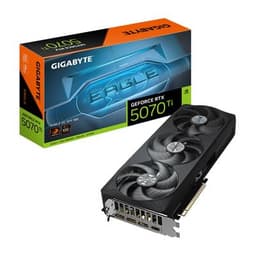
Best overall | NVIDIA GeForce RTX 5070 Ti | 16GB GDDR7 | 256-bit | 1,406 AI TOPS |
Best value | NVIDIA GeForce RTX 5060 Ti 16GB | 16GB GDDR7 | 128-bit | 759 AI TOPS |
Best for big models | NVIDIA GeForce RTX 5090 | 32GB GDDR7 | 512-bit | 3,352 AI TOPS |
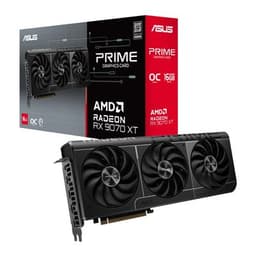
Best AMD option | AMD Radeon RX 9070 XT | 16GB GDDR6 | 256-bit, up to 640GB/s | Not comparable |
NVIDIA figures are from NVIDIA's UK specification pages; AMD figures are from AMD's RX 9070 XT page. AI TOPS is NVIDIA's own measure and isn't directly comparable with other makers' figures; see our TOPS vs TFLOPS explainer.
Best overall: NVIDIA GeForce RTX 5070 Ti
The RTX 5070 Ti is where we'd start for a dedicated ComfyUI card. It pairs 16GB of GDDR7 with a 256-bit memory interface, double the width of the RTX 5060 Ti's, and NVIDIA rates its fifth-generation Tensor Cores at 1,406 AI TOPS, close to twice the cheaper card's figure. That combination means the same 16GB goes further: workflows that fit will move data and compute faster, while you get the full NVIDIA software ecosystem, including the Windows Portable build.
16GB is still a limit. The largest current image and video models, or stacked workflows with several big models, will rely on ComfyUI's offloading. If you want more headroom without the cost of a flagship, our best 24GB graphics card guide covers the options.
Choose it if: you want a fast, well-supported card for everyday image generation, LoRAs and ControlNet workflows.
Example in our database: Gigabyte RTX 5070 Ti 16GB Eagle OC.
Best value: NVIDIA GeForce RTX 5060 Ti 16GB
The 16GB RTX 5060 Ti is the cheapest current NVIDIA card we'd buy for ComfyUI. It gives you the same 16GB of VRAM as the RTX 5070 Ti, so the same models will load, but with a 128-bit memory interface and 759 AI TOPS by NVIDIA's measure, so you should expect each image to take longer. For many hobbyists that's a fair trade: capacity decides what you can run at all, while speed decides how long you wait.
It's also a sensible card to build around if you later want a second GPU. Our guide to running a local LLM on two GPUs covers the hardware side of a two-card setup, including PCIe lanes.
Choose it if: you're on a budget but still want 16GB and NVIDIA's software support.
Example in our database: MSI RTX 5060 Ti 16GB Ventus 2X OC Plus.
Best for big models: NVIDIA GeForce RTX 5090
If you work with the largest image models, generate video, train LoRAs or simply never want to think about offloading, the RTX 5090 is the consumer card to get. It has 32GB of GDDR7 on a 512-bit memory interface, and NVIDIA rates it at 3,352 AI TOPS. That's twice the VRAM of our other picks and by far the widest memory bus.
It's expensive, large and power-hungry, so check your case and power supply first. Our guide to choosing a PSU for a local AI PC can help, and our best 32GB graphics card guide compares it with workstation alternatives.
Choose it if: VRAM is your bottleneck and you want the most capable single consumer card.
In our database: NVIDIA GeForce RTX 5090 Founders Edition.
Best AMD option: AMD Radeon RX 9070 XT
AMD support in ComfyUI is in much better shape than it was. ComfyUI's requirements list ROCm support on Windows for RDNA 4 cards such as the RX 9070 XT, without a separate HIP SDK, and ROCm 7.2 on Linux. The RX 9070 XT has 16GB of GDDR6 on a 256-bit interface with up to 640GB/s of memory bandwidth and 64 compute units, according to AMD.
The catch is the ecosystem rather than the hardware. The Windows Portable build is NVIDIA-only, so you'll need another route such as a manual install, and it's worth checking that any custom nodes you rely on support AMD cards. If you used to run ComfyUI on AMD through DirectML, note that ComfyUI has dropped DirectML support in favour of ROCm.
Choose it if: you also game on the card, prefer AMD, and are comfortable with a slightly less beaten track.
Example in our database: ASUS RX 9070 XT 16GB Prime OC.
What about Intel Arc?
ComfyUI supports Intel Arc cards through PyTorch's torch.xpu support, so an Arc card will work with a manual install. We haven't included Arc in our main picks because we've kept them to NVIDIA, the only vendor the ready-made Windows Portable build supports, and AMD, whose Windows ROCm support ComfyUI now documents, but Intel is a valid choice if you're happy with a manual install. Our best Intel Arc GPU for local AI guide covers Intel's options, including its higher-memory Pro cards.
Don't forget the rest of the PC
System RAM: because ComfyUI offloads to system memory when VRAM runs out, 32GB of RAM is a sensible baseline for a ComfyUI PC, especially with a 16GB card.
Storage: model files are large and add up quickly. A fast NVMe SSD helps, and ComfyUI has a launch option, --fast-disk, for disk-backed loading that its help text says can be faster on fast NVMe drives.
Drivers: ComfyUI's documentation says the Windows Portable build ships with PyTorch for CUDA 13.0, and to update your NVIDIA driver if it doesn't start.
If you're new to the software, start with our ComfyUI installation guide for Windows.
Our verdict
For most people buying a card mainly for ComfyUI, the RTX 5070 Ti is the best balance of 16GB of VRAM, memory bandwidth and NVIDIA's software support. The RTX 5060 Ti 16GB loads the same models for less money and is our value pick, as long as you avoid the 8GB version. If VRAM is your bottleneck, the RTX 5090's 32GB is in a different league, and the RX 9070 XT is now a genuine option for AMD fans thanks to ComfyUI's ROCm support on Windows.