Model details come from NVIDIA's Hugging Face model card, read on 25 November 2026.
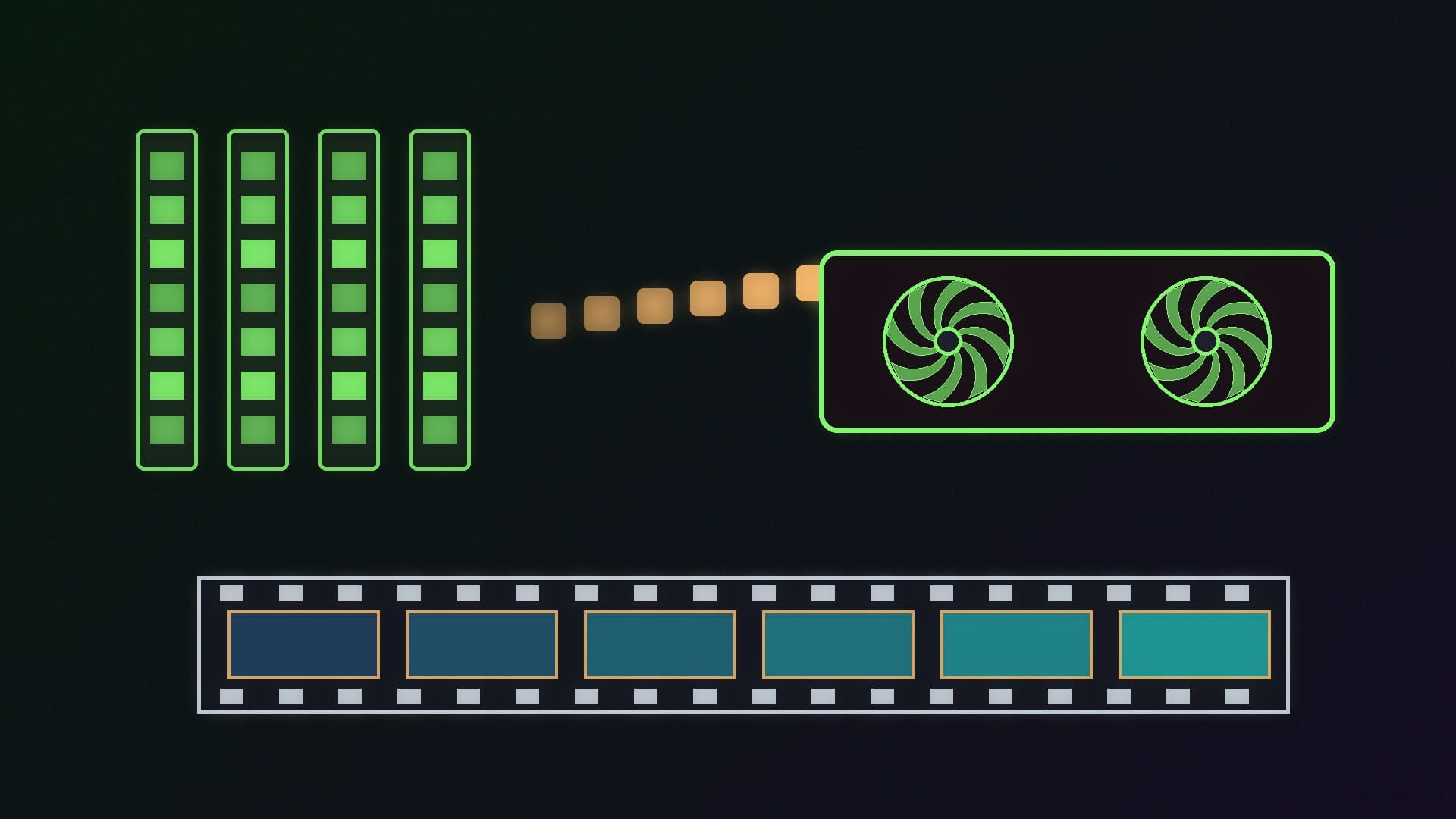
NVIDIA has published a tutorial and an open-source package that let its Cosmos 3 Nano video generation model run on GeForce RTX graphics cards with as little as 12GB of video memory. The trick is to keep most of the model's weights in ordinary system RAM and stream them to the graphics card one block at a time while it generates. It's slow, but it means you don't need a graphics card big enough to hold the model's full set of weights, which take up about 31.5GB on Hugging Face.
What is Cosmos 3 Nano?
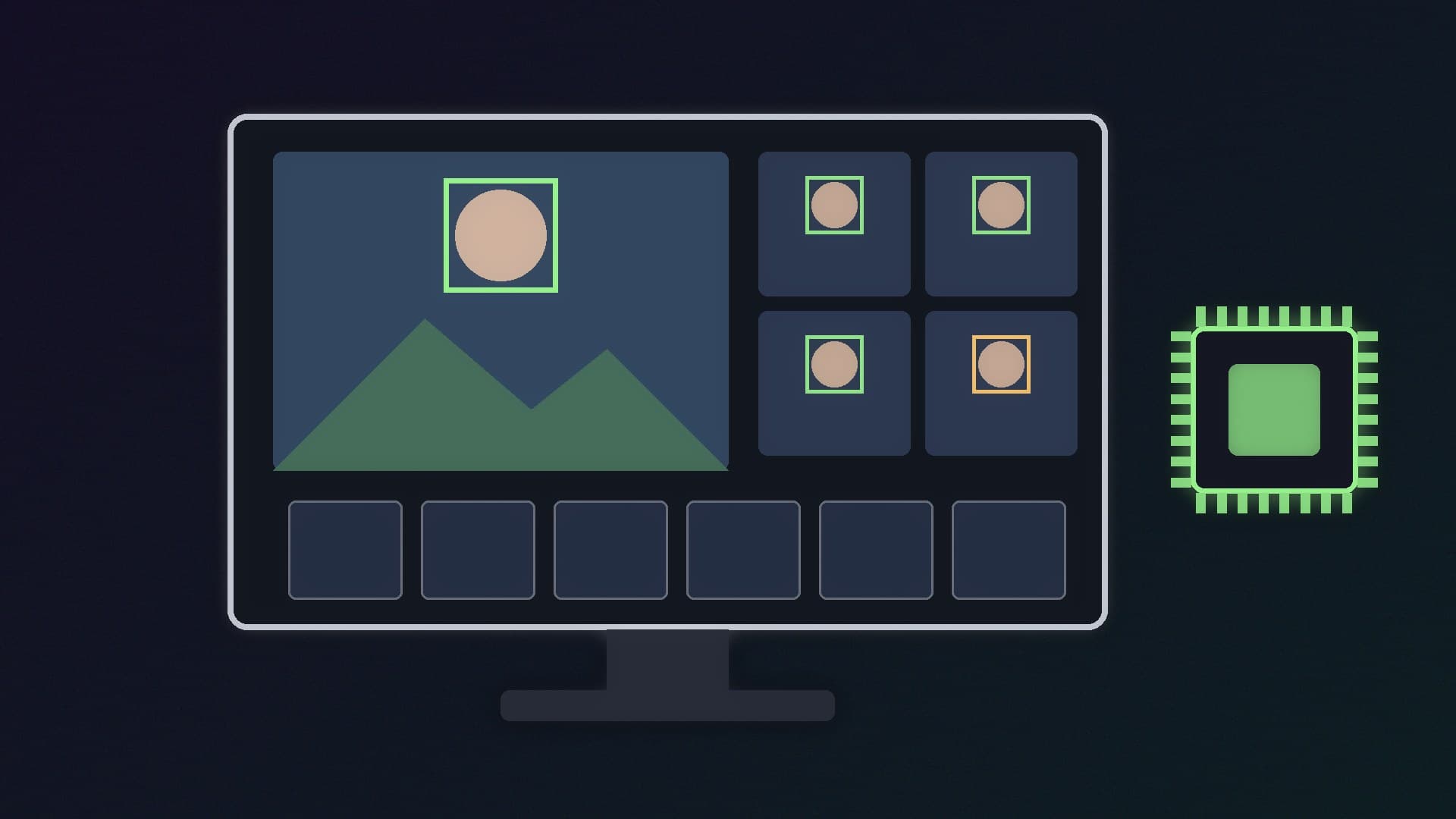
Cosmos is NVIDIA's family of "world foundation models", aimed mainly at physical AI work such as robotics, self-driving vehicles and factory simulation rather than at making social media clips. Cosmos 3 Nano can generate video from text, from an image or from another video, add sound to the video it makes, produce robot action data and follow control inputs such as edge maps.
NVIDIA's Hugging Face page lists it at about 15.75 billion parameters stored in BF16, with checkpoint files totalling about 31.5GB, released under NVIDIA's OpenMDW 1.1 licence. The page also has a separate FP8 branch, which the blog post uses to cut memory use further.
How it fits on a 12GB card
The new package, part of NVIDIA's Cosmos-Framework repository on GitHub, builds on the CPU offloading already in Hugging Face's Diffusers library. NVIDIA says it works like this:
Weights that aren't needed right now stay in system RAM, in BF16 or FP8.
The next transformer block is copied to the graphics card just before it's needed.
All the maths still runs on the GPU through CUDA, not on the processor.
The package manages memory for the video decoder and safety checks separately, and switches to a lower-memory mode automatically for heavier jobs.
There are no settings to tune by hand. NVIDIA is clear about the trade-off: you need more system RAM, the PCIe link to the graphics card becomes busy, and you won't get anything close to interactive speed. A fast SSD only helps load the model in the first place.
NVIDIA's timings
NVIDIA tested four GeForce cards, each in a PC with about 128GB of system RAM. The figures below are for a 189-frame, 24fps text-to-video clip at 1280x720 using BF16, with safety checks on. They cover the generation itself, not loading the model or saving the MP4. NVIDIA describes them as single runs and says they aren't a controlled ranking of the cards.
Graphics card (NVIDIA's results) | VRAM | Time for 720p clip | Peak GPU memory used |
|---|
GeForce RTX 5070 | 12GB | 2,624.9 seconds (about 44 minutes) | 9.94GiB |
GeForce RTX 5080 | 16GB | 1,594.4 seconds (about 27 minutes) | 11.92GiB |
GeForce RTX 4090 | 24GB | 1,052.2 seconds (about 18 minutes) | 16.56GiB |
GeForce RTX 5090 | 32GB | 1,016.7 seconds (about 17 minutes) | 18.22GiB |
Dropping the resolution makes a big difference. On the RTX 5070, NVIDIA's 848x480 clip took 849.5 seconds (about 14 minutes) and its 432x240 clip took 207.6 seconds (about 3.5 minutes). Using the FP8 checkpoint shaved the 720p time on the same card to 2,235.7 seconds (about 37 minutes) with a peak of 9.16GiB.
NVIDIA's own guidance is to start at 240p or 480p on a 12GB card, treat 480p as the practical working resolution on 16GB, and expect full 720p to be much more comfortable on 24GB and 32GB cards such as the NVIDIA GeForce RTX 5090 Founders Edition. The 16GB NVIDIA GeForce RTX 5080 Founders Edition sits in between.
What you need to try it
This is a developer tutorial, not a one-click app. NVIDIA's instructions assume:
Linux with Python 3.12 and a CUDA build of PyTorch. NVIDIA's model card lists Linux as the supported operating system; Windows users may be able to use WSL2, but NVIDIA's post doesn't cover it. Our guide to setting up WSL2 for GPU-accelerated local AI explains the basics.
An NVIDIA graphics card. The blog tested Blackwell (RTX 50 Series) and Ada (RTX 4090) cards. The model card lists Ampere, Hopper and Blackwell as compatible, and notes that only BF16 is officially tested, so the FP8 route is less proven.
Plenty of system RAM. NVIDIA's test PCs had about 128GB and the company stresses that this "is not a measured minimum". With roughly 31.5GB of BF16 weights to hold in memory, plus everything else the pipeline needs, we'd expect 32GB of RAM to be too little (our estimate, not NVIDIA's); our guide to how much RAM you need for local AI covers why offloading eats memory.
Installation is a git clone of NVIDIA's cosmos-framework repository followed by installing the diffusers-cpu-offloading package, and the model downloads from Hugging Face on first run.
Why it matters
Running video models locally usually comes down to VRAM, and offloading to system RAM is already how smaller models squeeze onto modest cards, as our guide to generating AI video locally explains for Wan 2.2 5B on 8GB cards. NVIDIA's package is a reminder that system RAM can stand in for some of that memory if you're prepared to wait. A 44-minute wait for one 720p clip on a 12GB card isn't practical for everyday use, but a few minutes for a 240p preview is workable for testing prompts before committing a faster machine.
For most people who just want to make clips, the community models we compared in Wan 2.2 vs LTX-2.5 remain the easier starting point. Cosmos 3 Nano is more interesting if you work with robotics or simulation, where its action and control features are the point. If you're choosing a card for this kind of work, our pick of the best 12GB graphics cards for local AI and our guide to how much VRAM you need are good places to start.
Our verdict
NVIDIA's weight-streaming package gets Cosmos 3 Nano running on 12GB GeForce cards, but on NVIDIA's own figures a 720p clip takes about 44 minutes on an RTX 5070 against about 17 minutes on an RTX 5090. It needs Linux and lots of system RAM (NVIDIA tested with about 128GB), so treat 12GB as a way to experiment at 240p or 480p rather than a production setup.