The steps are based on the official paperless-gpt README, the paperless-ngx API documentation and Ollama's model library, read on 25 November 2026.
Paperless-ngx is a popular free, self-hosted archive for scanned documents: bank letters, receipts, payslips, warranties and bills. It already makes them searchable, but naming and tagging hundreds of files is still slow manual work. paperless-gpt, a free MIT-licensed add-on, hands that job to a large language model. Point it at Ollama running on your own PC and the documents never leave your network, which matters when they're full of account numbers and addresses.
This guide assumes paperless-ngx is already running in Docker. If you haven't used Ollama before, start with our guide to running AI models locally with Ollama or LM Studio.
What paperless-gpt does
According to its README, paperless-gpt can:
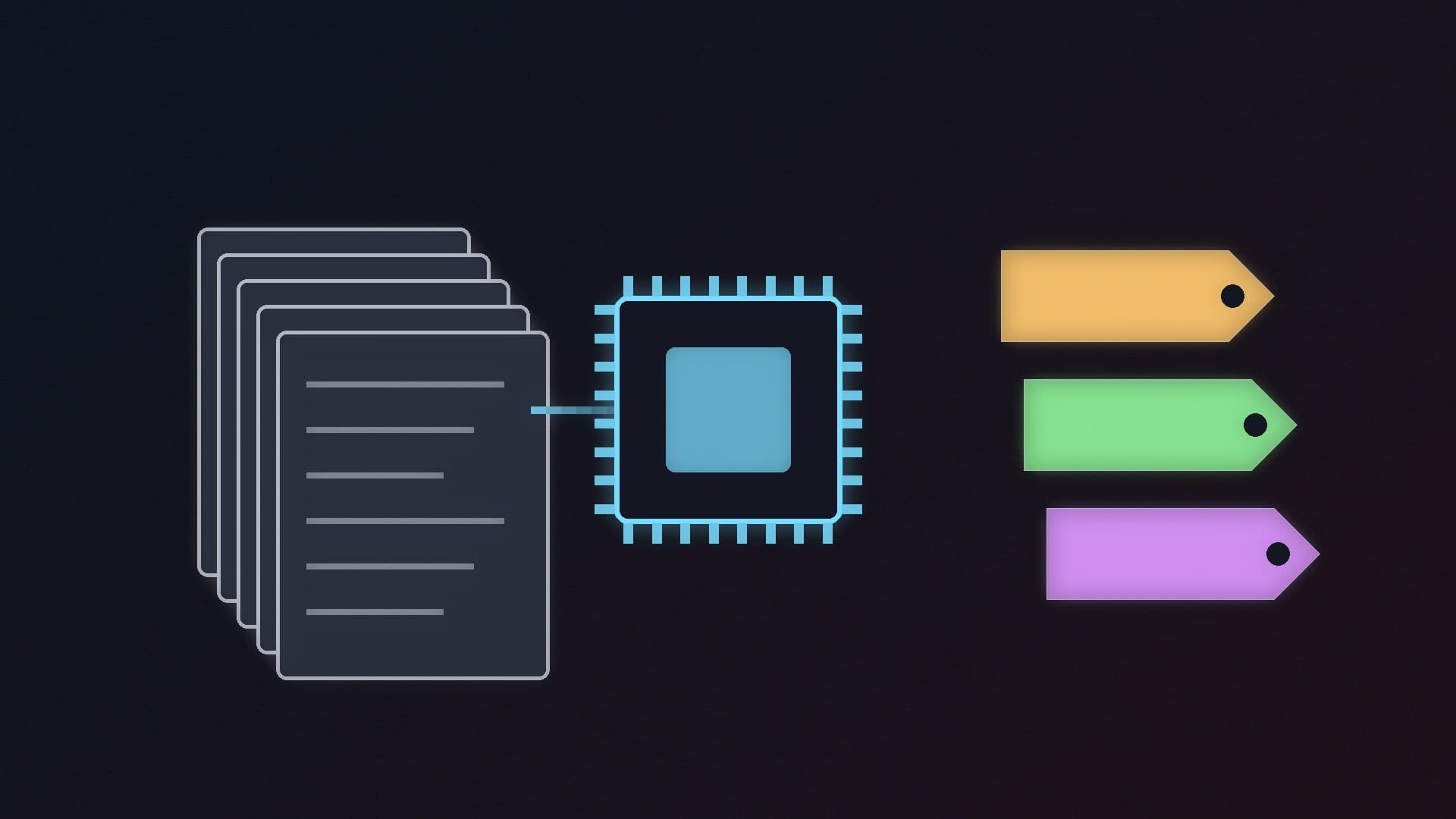
Suggest titles, tags, correspondents and document types for documents in paperless-ngx, which you can review before they're applied.
Re-run OCR with a vision model. Instead of classic text recognition, it can send page images to a vision-capable model, which the project says copes better with poor-quality scans and unusual layouts.
Link related documents, for example a reminder to the invoice it refers to, using a paperless-ngx Document Link custom field.
Run automatically or on demand, driven by tags you add in paperless-ngx.
It supports cloud providers too, but this guide uses Ollama only, so everything runs locally.
What you need
A working paperless-ngx install in Docker. The README says paperless-gpt has been tested against the paperless-ngx 2.20.x series and the 3.0.0 beta.
Ollama on the same PC or another machine on your network.
Two models: a text model for tagging and a vision model if you want AI OCR. The README's examples use qwen3:8b and minicpm-v. Ollama's library lists the default downloads at 5.2GB and 5.5GB respectively, so a graphics card with 8GB of VRAM is a sensible starting point for either; our guide to checking VRAM usage in Windows shows how to see what you have.
Step 1: Pull the models in Ollama
Open a terminal and run:
ollama pull qwen3:8b
ollama pull minicpm-v
If Ollama runs on a different machine from Docker, or Docker can't reach it, make Ollama listen on your network as described in our guide to sharing Ollama on your local network. Our guide to using vision models in Ollama covers how vision models work in more detail.
Step 2: Create a paperless-ngx API token
paperless-gpt talks to paperless-ngx through its API. The paperless-ngx documentation says you can create or re-create a token by opening My Profile from the user drop-down menu in the web interface and clicking the circular arrow button. Copy the token somewhere safe.
Step 3: Add paperless-gpt to your Docker Compose file
Add a paperless-gpt service alongside your existing paperless-ngx service. This is a trimmed version of the README's example, set up for Ollama:
  paperless-gpt:
    image: icereed/paperless-gpt:latest
    environment:
      PAPERLESS_BASE_URL: "http://paperless-ngx:8000"
      PAPERLESS_API_TOKEN: "your_paperless_api_token"
      LLM_PROVIDER: "ollama"
      LLM_MODEL: "qwen3:8b"
      OLLAMA_HOST: "http://host.docker.internal:11434"
      OLLAMA_CONTEXT_LENGTH: "8192"
      TOKEN_LIMIT: "1000"
      OCR_PROVIDER: "llm"
      VISION_LLM_PROVIDER: "ollama"
      VISION_LLM_MODEL: "minicpm-v"
    volumes:
      - ./prompts:/app/prompts
      - ./config:/app/config
      - ./db:/app/db
    ports:
      - "127.0.0.1:8080:8080"
    depends_on:
      - paperless-ngx
A few notes on the settings:
PAPERLESS_BASE_URL must match your paperless-ngx service name and port; paperless-ngx:8000 is the README's example.
OLLAMA_HOST points at Ollama. host.docker.internal reaches the host machine from Docker Desktop; on Linux, or if Ollama is on another PC, use that machine's address instead.
OLLAMA_CONTEXT_LENGTH sets Ollama's context window, and TOKEN_LIMIT caps how much document text is sent. The README recommends a conservative limit of around 1,000 tokens for smaller models and warns they may truncate content if given too much. Our guide to setting Ollama's context length explains the trade-off with VRAM.
The volumes keep your prompts, settings and processing history between restarts.
Security warning: the README says paperless-gpt has no built-in authentication, and by default it listens on all interfaces, so a plain 8080:8080 port mapping exposes it to your whole network. Anyone who can reach it can rewrite documents in paperless-ngx. Binding the port to 127.0.0.1, as above, keeps it local to the machine; if you need remote access, put it behind a reverse proxy or VPN with authentication.
Save the file and run:
docker compose up -d
Step 4: Tag documents for processing
paperless-gpt works on documents you tag in paperless-ngx. By default, the README lists these tags:
paperless-gpt for manual processing, where you review suggestions first.
paperless-gpt-auto for automatic processing.
paperless-gpt-ocr-auto for automatic OCR with the vision model.
Start with the manual tag on a handful of documents so you can see how well your model does before letting it loose on your archive.
Step 5: Review and apply suggestions
Open http://localhost:8080 in your browser. Documents with the manual tag are listed there. Click Generate Suggestions to see the proposed titles, tags and correspondents, edit anything that's wrong, then click Apply to save the changes to paperless-ngx.
You can also edit the prompts used for titles, tags and correspondents on paperless-gpt's Settings page. If you don't want the model inventing new tags, check the CREATE_NEW_TAGS setting described in the README's environment variable table.
Tips for local models
Keep one job at a time. The README advises leaving SUGGESTION_WORKERS at 1 for slow or local LLM backends to avoid overloading them.
Watch the page limit for OCR. OCR_LIMIT_PAGES defaults to 5 pages per document in the README's example; set it to 0 for no limit, at the cost of longer processing.
Decide on thinking. The README lists an OLLAMA_THINK option for reasoning models such as Qwen3, which accepts true or false, or low, medium or high on supported models. Our guide to turning off thinking in Ollama explains what thinking mode does.
Keep the model loaded. The README's OLLAMA_KEEP_ALIVE example of 10m stops Ollama unloading the model between documents. See our guide to keeping Ollama models loaded.
Check the failure tag. Documents that can't be updated are tagged paperless-gpt-failed by default, so they don't loop forever.
Our verdict
paperless-gpt is a practical way to put a local AI model to work on the most tedious part of a paperless archive: naming and tagging documents. With Ollama, a text model and an optional vision model, it suggests titles, tags and correspondents and can re-read poor scans, all without sending private paperwork to the cloud. Start with manual review on a few documents, bind the web interface to localhost because it has no login, and only switch on automatic tagging once you trust the results.