This guide is based on Brave's official Bring Your Own Model (BYOM) help article and announcement, Brave's public issue tracker and Ollama's documentation, read on 25 November 2026.
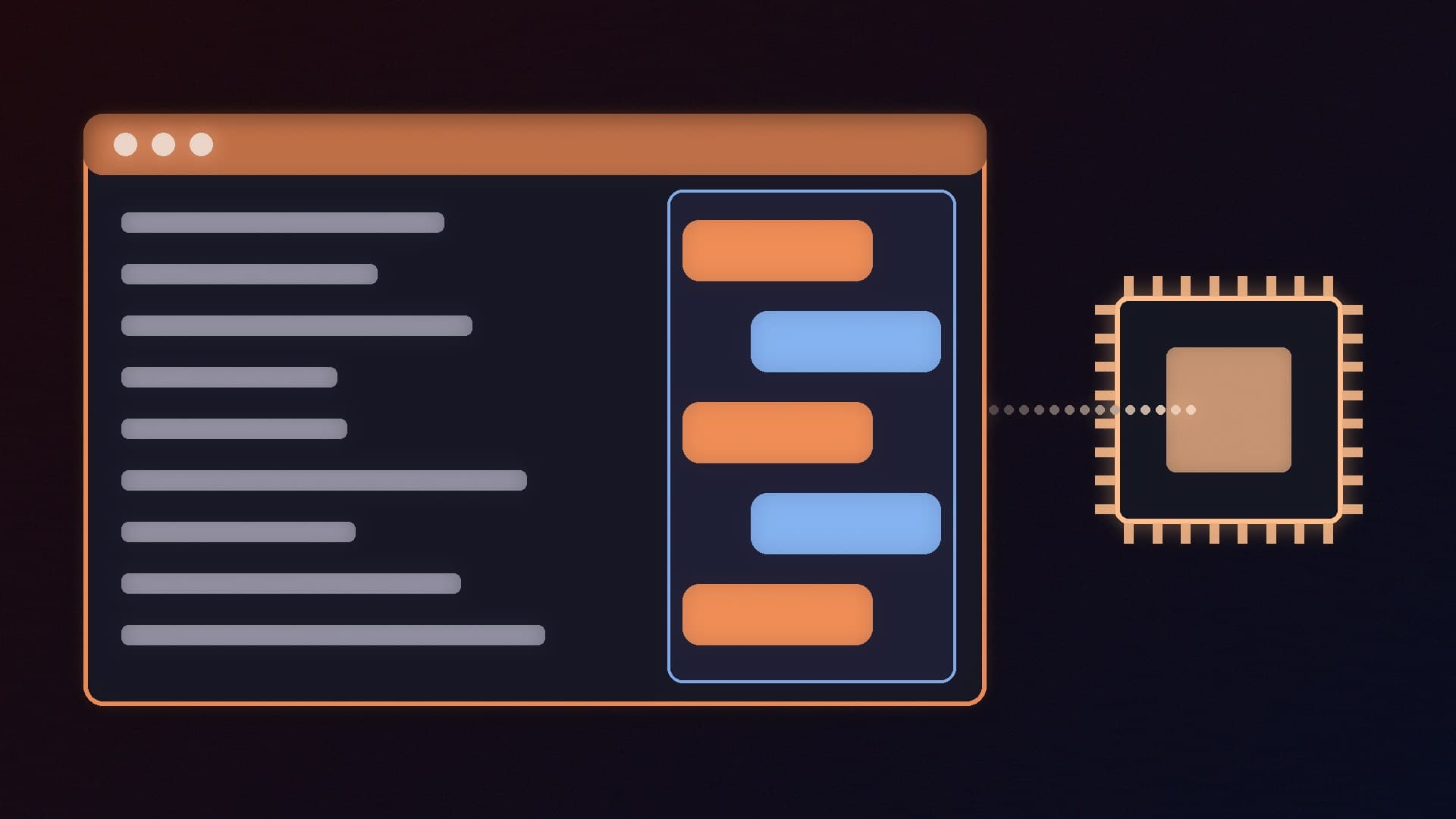
Leo is the AI assistant built into the Brave browser. You can chat with it or ask it questions about the web page you're reading. By default it uses Brave's own hosted models, but a feature called Bring Your Own Model (BYOM) lets you point Leo at a model running on your own PC instead.
Brave says that with BYOM, requests go straight from your device to the model endpoint you choose, and Brave has no access to that traffic. With a local model, Brave's help centre says conversations, web pages and prompts never leave your machine. That makes BYOM a neat way to get page summaries and quick answers without sending anything to a cloud AI service.
If you'd rather use a browser extension that works in Chrome, Edge or Firefox, see our guide to Page Assist with Ollama. For the built-in AI in other browsers, see Gemini Nano vs Aion Instruct.
What you need
Brave 1.69 or newer on a desktop PC running Windows, macOS or Linux. Brave's help centre lists a desktop platform as a requirement for BYOM.
Ollama, or another local server that offers an OpenAI-compatible chat endpoint, such as LM Studio. Our guide to running AI models locally with Ollama and LM Studio covers installation.
Enough memory for the model. Brave lists a minimum of 8GB of RAM for local models, and says model downloads range from 829MB to 40GB. For quick, responsive answers the model should fit in your graphics card's memory; our VRAM guide explains what fits on 8GB, 12GB, 16GB and 24GB cards.
Step 1: Install Ollama and pull a model
Download Ollama from ollama.com/download and install it. Then open a terminal and download a model. Brave's help article uses DeepSeek-R1 as its example:
ollama pull deepseek-r1
Any chat model from the Ollama library will do. A smaller model replies faster, and that matters in a browser, where you'll mostly ask short questions and summarise pages. Our round-up of the best local LLMs suggests models for different graphics cards.
Run ollama ls to see the exact names of the models you've downloaded. You'll need one of those names in the next step.
Leo talks to Ollama's local server, so make sure it's running. If it isn't, start it from a terminal with ollama serve.
Step 2: Add your model to Leo
Open Brave Settings and choose Leo.
Scroll down to the Bring your own model section and click Add new model.
Fill in the fields:
Label: any name you like. This is what appears in Leo's model menu, for example "DeepSeek-R1 (local)".
Model request name: the model's name exactly as Ollama expects it, for example deepseek-r1. Brave warns that if this doesn't match exactly, the integration won't work, so copy it from ollama ls, including any tag such as :8b.
Server endpoint: for Ollama, Brave gives http://localhost:11434/v1/chat/completions.
API key: leave this blank for a local Ollama server.
Click Add model.
Step 3: Select the model and start chatting
Open Leo in Brave, click the model selection menu and choose the model you just added. Ask a question to check it works.
Leo now uses your local model for chat and for questions about the page you're viewing.
Step 4: Get the context size right
The context size is how much text, measured in tokens, a model can consider at once. It matters for page summaries, because a long article can easily run to thousands of tokens.
There are two settings to think about:
Leo's context size. BYOM originally used one fixed context size for every custom model. Brave's issue tracker shows an editable context size was then added to the BYOM model details, and in Brave's own testing a low context size made Leo show a warning about conversation length. Set it to match what your model and server can handle.
Ollama's context length. Ollama's documentation says it defaults to a 4k context on PCs with less than 24GB of VRAM, 32k with 24GB to 48GB, and 256k with 48GB or more. You can raise it with the slider in the Ollama app's settings, or by starting the server with a variable such as OLLAMA_CONTEXT_LENGTH=8192 ollama serve. Our guide to setting Ollama's context length covers the details.
A bigger context uses more VRAM. Ollama recommends checking the CPU/GPU split in the PROCESSOR column of ollama ps. If replies slow to a crawl after you raise the context, the model has probably spilled into system RAM, so try a smaller value or a smaller model. Our explainer on context length and VRAM shows why.
Using LM Studio instead of Ollama
Brave says BYOM works with any local server that offers an endpoint following the OpenAI chat protocol, and LM Studio does. Start LM Studio's local server (our LM Studio server guide shows how), then add a model in Leo with:
Server endpoint: http://localhost:1234/v1/chat/completions (LM Studio's documentation uses port 1234 in its examples; change it if you've set a different port).
Model request name: the model identifier shown in LM Studio.
Troubleshooting
No reply at all: check that Ollama is running. ollama ls should respond in a terminal, and Brave's endpoint must be on the same PC unless you've deliberately shared Ollama on your network.
Model not found or an error message: the model request name must match exactly. Copy it from ollama ls, including the tag.
Wrong endpoint: the endpoint must include the full path, /v1/chat/completions, not just http://localhost:11434.
Very slow answers: the model or context doesn't fit in VRAM. Check ollama ps, then pick a smaller model. Our guide to checking whether Ollama is using your GPU helps here.
Want to run the model on another PC? Ollama can be shared on your home network; see our guide to sharing Ollama on a local network. Use that PC's address in Leo's server endpoint field.
Is it really private?
With a local model, yes for the AI part: Brave says requests go directly from your device to the endpoint you set, bypassing Brave, and its help centre says local processing keeps conversations, web pages and prompts on your machine. Bear in mind that Brave's help centre also says privacy protections vary when you use BYOM: local and remote third-party models have different privacy characteristics, so if you connect Leo to a remote server or a third-party API instead, your data's privacy depends on that service.
Our verdict
Brave Leo with Ollama is one of the simplest ways to get a private AI assistant inside your browser, because nothing extra needs installing in Brave itself. Pull a model in Ollama, add it under Settings > Leo > Bring your own model with the endpoint http://localhost:11434/v1/chat/completions and the exact model name, then raise both Leo's and Ollama's context size if you want to summarise long pages. Choose a model small enough to fit in your graphics card's memory and Leo will stay quick enough for everyday browsing.