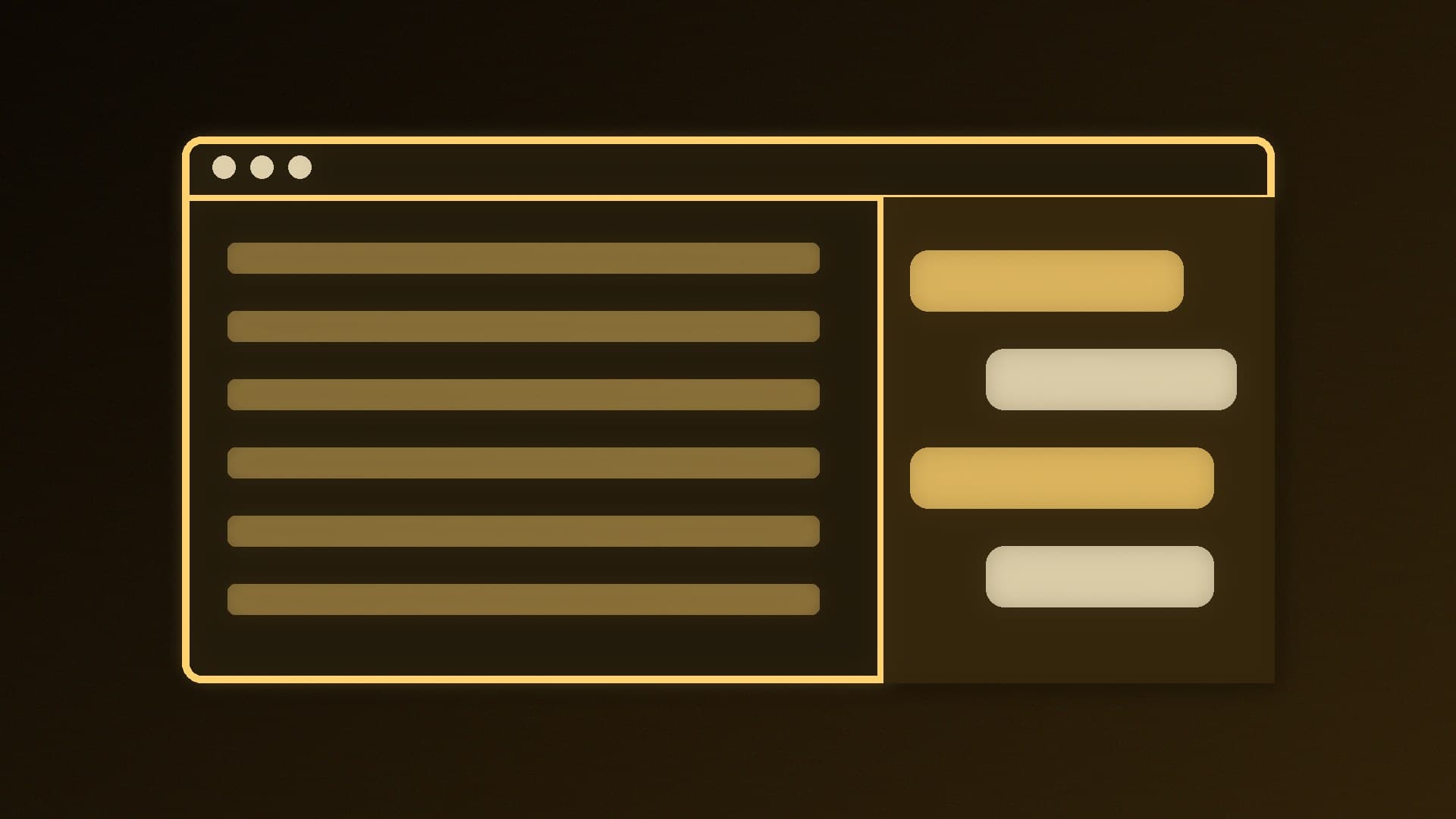
Running a large language model locally with Ollama is easy. Using it comfortably while you browse is another matter. Page Assist is a free, open-source browser extension that adds a sidebar you can open on any webpage, plus a full-tab web UI, both connected to the models on your own PC. You can ask questions about the page you're reading without copying and pasting it into a separate app.
This guide is based on Page Assist's GitHub page and documentation and on Ollama's official FAQ. Forge PC hasn't benchmarked Page Assist. How quickly answers appear depends on your hardware and the model you choose.
What you need
Step 1: Install the extension
Install Page Assist from your browser's official extension store. The project's GitHub page links to its Chrome Web Store listing. Firefox users should look for Page Assist on Firefox's official add-ons site. Page Assist is MIT-licensed, and you can also build it yourself from the source code on GitHub.
Step 2: Connect it to Ollama
According to Page Assist's documentation, it supports Ollama by default and detects it automatically if Ollama is running on its default local address. You don't need to add models by hand, because Page Assist fetches the list from your Ollama install.
Make sure Ollama is running (look for its icon in the Windows system tray).
Click the Page Assist icon in your browser toolbar. The web UI opens in a new tab.
Pick a model from the model selector and start chatting.
Page Assist can also connect to other local servers through any OpenAI-compatible endpoint, such as LM Studio or llamafile. You can add more than one Ollama instance, which is useful if you run models on another PC on your network. Our guide to sharing Ollama on your local network covers the Ollama side of that.
Press Ctrl+Shift+Y to open the sidebar on the current page, or use the right-click menu.
Press Ctrl+Shift+L to open the full web UI in a new tab.
In the sidebar, you can chat with the webpage: ask for a summary, or ask questions about its content.
You can change both shortcuts on your browser's extension management page.
If Page Assist can't connect to Ollama
Ollama only accepts browser requests from certain origins by default. Ollama's FAQ says browser extensions need their origin allowed explicitly through the OLLAMA_ORIGINS environment variable. For example, setting it to chrome-extension://*,moz-extension://* allows Chrome-based and Firefox extensions. On Windows:
Quit Ollama by clicking its icon in the taskbar and choosing Quit.
Open Settings, search for environment variables and choose Edit environment variables for your account.
Create a new user variable called OLLAMA_ORIGINS with the value chrome-extension://*,moz-extension://*. Use only the part you need if you'd rather be more restrictive.
Click OK, then start Ollama again from the Start menu.
Page Assist's documentation also has a dedicated Ollama connection troubleshooting page.
Privacy
Page Assist says it doesn't collect personal data, and that its chat data is stored locally in your browser's storage. It says the only time the extension contacts its own server is when you use the share feature, which you can turn off in settings. Your prompts go to whichever model server you've connected. With Ollama on your own PC, they stay local.
Alternatives
If you'd rather have a full web app with user accounts and document chat, see how to install Open WebUI with Ollama and our Open WebUI vs AnythingLLM comparison. Our best free local AI apps round-up covers more options.
Our verdict
Page Assist is a lightweight way to use local AI while you browse. Install it from your browser's extension store, start Ollama, and it should find your models automatically. Then press Ctrl+Shift+Y to chat about any webpage in a sidebar, or Ctrl+Shift+L for the full web UI. If it can't connect, allow browser extensions with Ollama's OLLAMA_ORIGINS variable and restart Ollama.