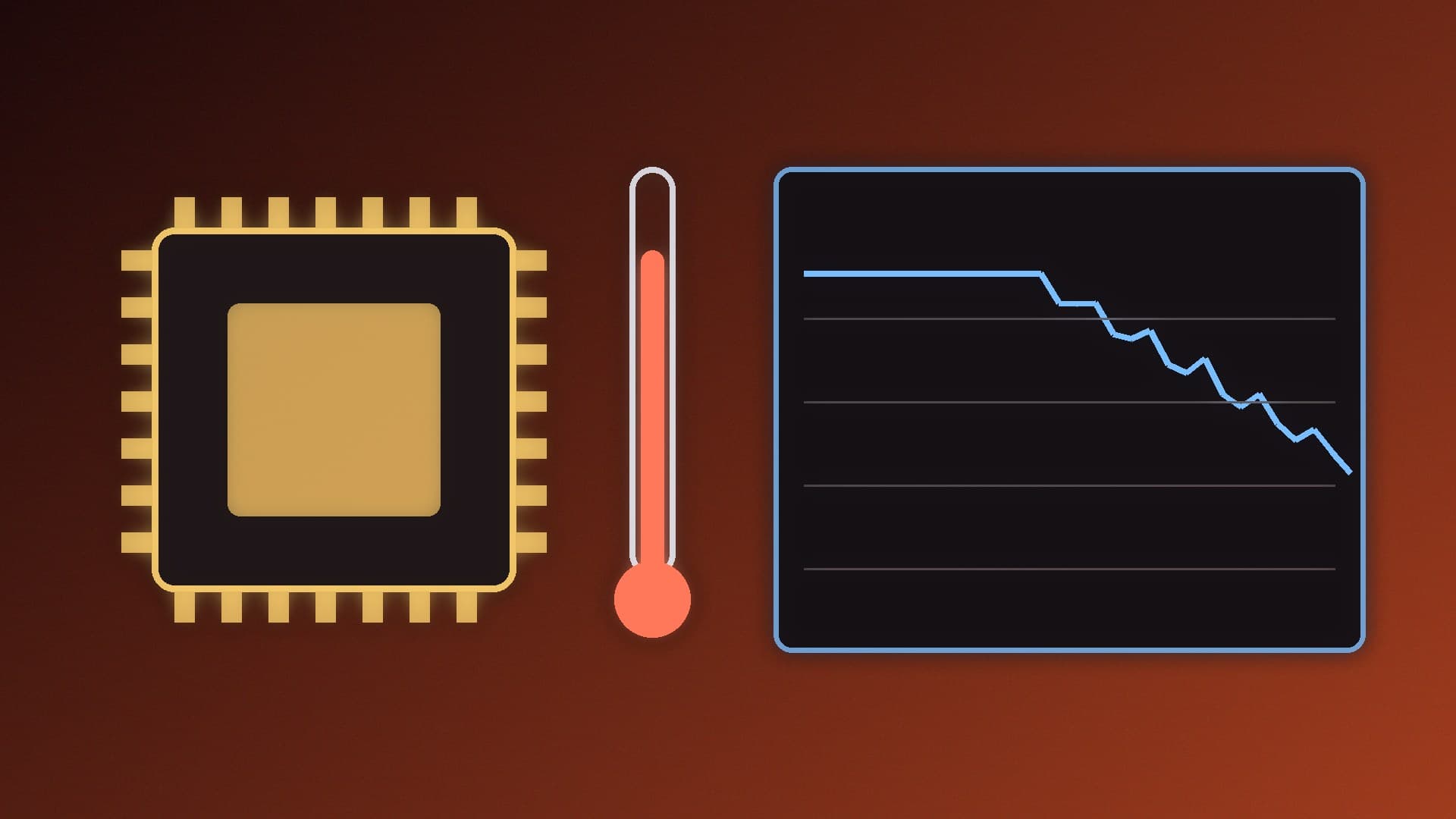
If games stutter after a few minutes, renders take longer than they used to, or a laptop's fans roar while performance drops, your processor may be throttling: deliberately lowering its clock speed to stay within temperature or power limits. A little of this is normal behaviour for modern CPUs. Heavy, constant throttling usually points to a cooling, power or settings problem you can fix.
Got a graphics card problem instead? See how to check GPU throttling with nvidia-smi.
What CPU throttling actually is
Modern processors boost as high as conditions allow. AMD, for example, says the maximum boost of its processors varies with factors including thermal paste, system cooling, motherboard design and BIOS, the chipset driver and OS updates. Each chip also has a maximum operating temperature: AMD lists 95°C (Tjmax) for the Ryzen 7 9700X, for instance. As a CPU approaches its limits, it reduces clocks to protect itself.
In practice there are three common causes, in our experience:
Thermal throttling: the CPU reaches its temperature limit and slows down. Usually caused by a weak or badly mounted cooler, dried-out thermal paste, dust, or poor case airflow.
Power-limit throttling: the CPU hits a power or current limit set by the motherboard, laptop firmware or Windows power settings, even if temperatures are fine.
Laptop-specific limits: TechPowerUp's ThrottleStop page explains that some laptops deliberately use clock modulation and multiplier reductions to run cooler or to work with a power adapter that can't power the laptop and charge the battery at once.
Step 1: Do a quick check in Task Manager
Open Task Manager with Ctrl + Shift + Esc, select Performance, then CPU. Start the game or workload that feels slow and watch the Speed reading. If the clock speed drops well below the base clock printed on your CPU's spec page during a sustained load, and performance falls at the same time, throttling is likely. Task Manager doesn't show temperatures, so move on to a monitoring tool to find out why.
Step 2: Log clocks, temperatures and power with HWiNFO
HWiNFO is a free tool that offers real-time monitoring of system components, with status logging. Run it in sensors-only mode and look at:
Core clocks (effective clocks if shown) for each core
CPU package or Tctl/Tdie temperature
CPU package power
Any throttling or limit indicators listed for your CPU, which vary by platform and model
Then run a sustained load for 10 to 15 minutes, such as a long game session or a stress test (see our guide on how to stress test a PC). Our guide to logging sensor data in HWiNFO shows how to save the readings to a CSV file so you can look at them afterwards.
How to read the results (our guidance):
Clocks fall as temperature sits at or near the CPU's maximum operating temperature: thermal throttling.
Clocks fall while temperature is comfortably below the limit, and package power sits flat at a fixed value: power-limit throttling.
Clocks drop only on battery, or only when charging and gaming at once on a laptop: power-adapter or firmware limits.
On AMD Ryzen systems, AMD Ryzen Master provides real-time monitoring of per-core clock rates, temperature and voltages, including average and peak readings. That makes it a handy second opinion alongside HWiNFO. Ryzen Master is also an overclocking tool, so if you're only checking for throttling, stick to the monitoring view and don't change settings.
On Intel laptops, ThrottleStop is a free download that TechPowerUp describes as designed to monitor for and correct the three main types of CPU throttling used on many laptops, with a monitoring panel showing the current state of each CPU thread. The latest version listed on TechPowerUp is 9.7.3. TechPowerUp's page warns that using it to bypass throttling is at your own risk, recommends monitoring power at the wall so you don't exceed the power adapter's capability, and says misuse can damage the adapter or computer and may not be covered by warranty. We'd use it to diagnose first, and only change settings if you understand the risks.
Step 4: Fix thermal throttling
Our recommended order, cheapest first:
Clean out dust from the cooler, fans and filters. On laptops, clear the intake and exhaust vents.
Check fans are spinning and curves are sensible. See how to set fan curves and how to fix case fans not spinning.
Improve case airflow. Our case fan airflow guide covers intake and exhaust layouts.
Reseat the cooler and replace the thermal paste, especially on an older PC or after a cooler change. See how to replace CPU thermal paste.
Upgrade the cooler if the CPU is simply too hot for it under sustained load. Our best thermal paste and cooler guides can help.
Step 5: Fix power-limit throttling
Check the Windows power mode. Microsoft says power mode lets you choose between better battery life, better performance or a balanced experience, in Settings > System > Power & battery > Power mode, with separate settings for plugged in and on battery on laptops. If you can't change it, a custom power plan may be selected. See our guide on how to change power mode in Windows 11.
Use the right charger on laptops. A lower-wattage USB-C charger can limit performance; use the adapter the maker supplied.
Check BIOS power settings on desktops. Motherboards can set power limits differently from the CPU maker's defaults. Update the BIOS first (how to update your BIOS safely), then compare the power-limit options with your board maker's guidance.
Check the vendor control app. Many laptops have quiet or silent modes in their own control software that cap power regardless of Windows settings.
Step 6: Re-test
Repeat the same sustained load with HWiNFO logging and compare clocks, temperature and power with your first run. If clocks are now steadier and temperatures lower, the fix worked. If nothing changes and temperatures are fine, the CPU may simply be running as designed within its limits.
Our verdict
Check throttling by watching clock speed, temperature and package power together under a sustained load: HWiNFO's logging makes that easy, with Ryzen Master or ThrottleStop as optional second opinions. If clocks fall at the temperature limit, fix cooling first, starting with dust, fans and thermal paste. If clocks fall with temperatures to spare, look at Windows power mode, the charger and BIOS power limits. Avoid tools that bypass protection unless you fully understand the risks.