This guide follows NVIDIA's official nvidia-smi documentation, read on 26 November 2026. Some fields aren't available on every card, and NVIDIA says only limited information is provided for most GeForce cards.
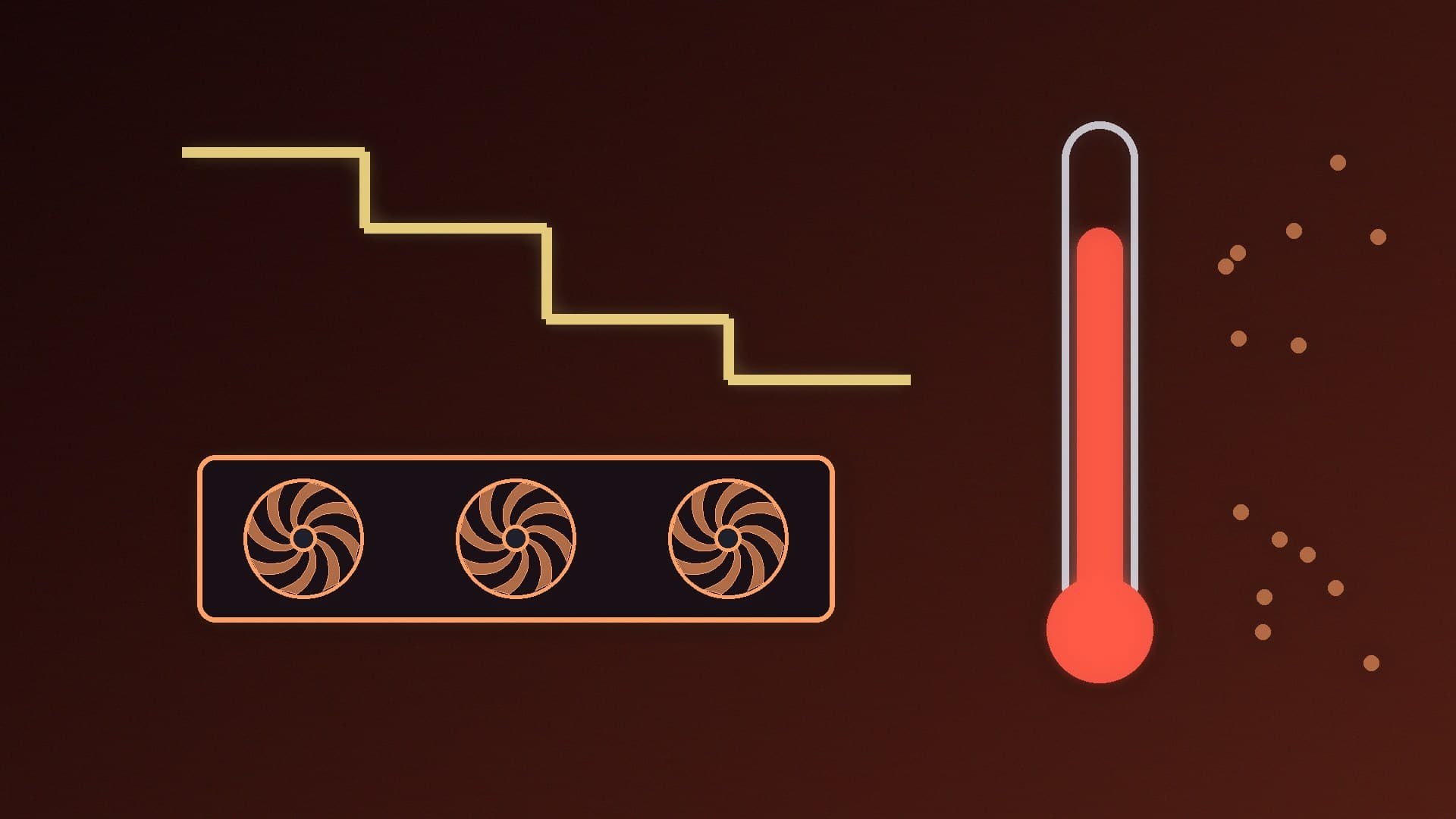
Local AI keeps a graphics card busy in a way most games don't. Generating a long reply, a batch of images or a short video clip can hold the GPU at full load for minutes at a time, and fine-tuning a model can run for hours. If the card gets too hot or hits its power limit, it lowers its clock speeds to protect itself. The job still finishes, just more slowly, and nothing on screen tells you why.
nvidia-smi, NVIDIA's command-line monitoring and management tool, can tell you. It reports the reasons the GPU is running below its maximum clocks, which NVIDIA now calls clock event reasons. Older versions of the tool called them clock throttle reasons, so you may see either name.
Step 1: open a terminal and run a quick check
Open Terminal (or Command Prompt) on Windows, or a terminal on Linux. NVIDIA's documentation says nvidia-smi supports 64-bit Windows and standard Linux distributions.
Type nvidia-smi and press Enter. If you see a table with your graphics card's name, the tool is working. If Windows doesn't recognise the command, check that the NVIDIA driver is installed.
Step 2: check the clock event reasons under load
Start the AI job you want to check, such as a long prompt in Ollama or LM Studio or an image batch in ComfyUI. While it's running, type:
nvidia-smi -q -d PERFORMANCE
This shows the Performance State and a list of Clocks Event Reasons, each marked Active or Not Active. NVIDIA's documentation says P0 is the maximum performance state and P12 the minimum, and that if every reason shows Not Active, the clocks are running as high as possible.
To watch the readings change over a long job, add a loop interval in seconds:
nvidia-smi -q -d PERFORMANCE -l 5
Press Ctrl + C to stop. To check temperature and power at the same time, NVIDIA's documentation says display types can be combined with a comma, for example nvidia-smi -q -d PERFORMANCE,TEMPERATURE,POWER.
Step 3: work out what each reason means
These are the reasons you're most likely to see, with NVIDIA's descriptions summarised:
Reason | What NVIDIA says it means | What to try |
|---|
Idle | Nothing is running on the GPU, so clocks drop | Normal; check again while the job is running |
SW Power Cap | The GPU is using too much power, so clocks are reduced below the requested level | Normal for a fully loaded card, unless you set a low power limit yourself |
SW Thermal Slowdown | The GPU temperature is above its Max Operating Temp, so clocks are reduced | Improve case airflow, clean dust filters, check fan settings |
HW Thermal Slowdown | Clocks are cut by a factor of two or more because the temperature is too high | Treat as urgent: check the card's fans, heatsink and case cooling |
HW Power Brake | An external power brake signal has been triggered, for example by the power supply | Check the power supply and power cables |
Sync Boost | The GPU is in a group with other GPUs and limited to the slowest one's clocks | Check the reasons on the other GPUs in the group |
NVIDIA marks some of these fields, such as Idle and HW Slowdown, as deprecated or due to be removed in a future release, so the exact list depends on your driver version.
SW Power Cap means the card has reached its power limit, and NVIDIA's documentation notes that this limit can be changed with nvidia-smi. Under a heavy AI job, we'd expect to see it at times, so on its own it isn't usually a sign of a fault. If you've deliberately lowered the limit, as in our guide to setting a GPU power limit with nvidia-smi, you should expect to see it more often.
The thermal reasons are the ones to act on. If SW Thermal Slowdown or HW Thermal Slowdown shows Active during a long job, your card is being held back by heat.
Step 4: check the temperature limits
Run:
nvidia-smi -q -d TEMPERATURE
NVIDIA's documentation describes the main fields like this:
GPU Current Temp: the current average temperature of the GPU.
GPU Max Operating Temp: the temperature at which the GPU's software starts to optimise its clocks for thermal conditions.
GPU Slowdown Temp: the temperature at which the hardware starts optimising clocks to cool down.
GPU Shutdown Temp: the temperature at which the GPU shuts down.
Some fields show N/A on cards that don't support them. If the current temperature sits close to the Max Operating Temp during long jobs, the card has little thermal headroom. Our guide on how to check GPU temperature covers graphical tools if you'd rather not use the command line.
Step 5: see how much time was lost
Newer versions of nvidia-smi can also report Clock Event Reasons Counters, which may appear alongside the clock event reasons. NVIDIA describes them as counters, in microseconds, of how long each factor has been reducing the clocks. If your driver shows them, note the SW Thermal Slowdown and HW Thermal Slowdown counters before and after a long job. If they keep climbing, heat is costing you time on every run.
To keep a record over a whole session, our guide to logging GPU usage with nvidia-smi shows how to save readings to a file.
How to reduce thermal throttling
Improve airflow: make sure the case has a clear path for cool air to reach the card and for hot air to leave. Our case fan airflow guide explains the basics.
Clean dust: dust filters and heatsink fins clogged with dust reduce cooling.
Lower the power limit or undervolt: using less power means less heat to get rid of. See our guides to setting a power limit and undervolting a GPU.
Check the job is really on the GPU: if your AI app is running partly on the processor, the problem may be memory rather than heat. Our guides to checking Ollama is using the GPU and checking VRAM usage help rule that out.
Our verdict
Run nvidia-smi -q -d PERFORMANCE while a long AI job is running. If every clock event reason shows Not Active, your card is running as fast as it can. SW Power Cap is normal under heavy load, but SW or HW Thermal Slowdown means heat is slowing your AI work, so improve airflow, clean out dust or lower the power limit.