Every PC gamer eventually meets the same trade-off. Turn V-Sync off and you get screen tearing; turn it on and the game can feel laggy, or stutter when the frame rate drops. NVIDIA's Fast Sync and AMD's Enhanced Sync are driver-level options designed to sit in between. This comparison explains what each one actually does and when it helps, drawing on Blur Busters' long-running G-SYNC 101 input lag analysis and AMD's own Enhanced Sync documentation.
Quick comparison
| V-Sync (double buffer) | NVIDIA Fast Sync | AMD Enhanced Sync |
|---|
Stops tearing | Yes | Yes | Designed to minimise it |
Frame rate above refresh rate | Capped at refresh rate | GPU keeps rendering; newest frame is shown | GPU keeps rendering; newest frame is shown |
Below refresh rate | Can drop to half the refresh rate | Doesn't lock to half refresh, but repeats frames (stutter) | AMD says it reduces V-Sync stutter |
Works with | Any GPU and display | NVIDIA GPUs, any display | Radeon GPUs (Polaris and newer), any display |
Best when | You can't use VRR and latency doesn't matter | Frame rate is far above refresh rate | Frame rate is above refresh rate, or above the FreeSync range |
Pair with G-Sync/FreeSync? | Yes, with a frame cap (see below) | Blur Busters says no | AMD says yes, for frame rates above the FreeSync range |
Why V-Sync adds lag
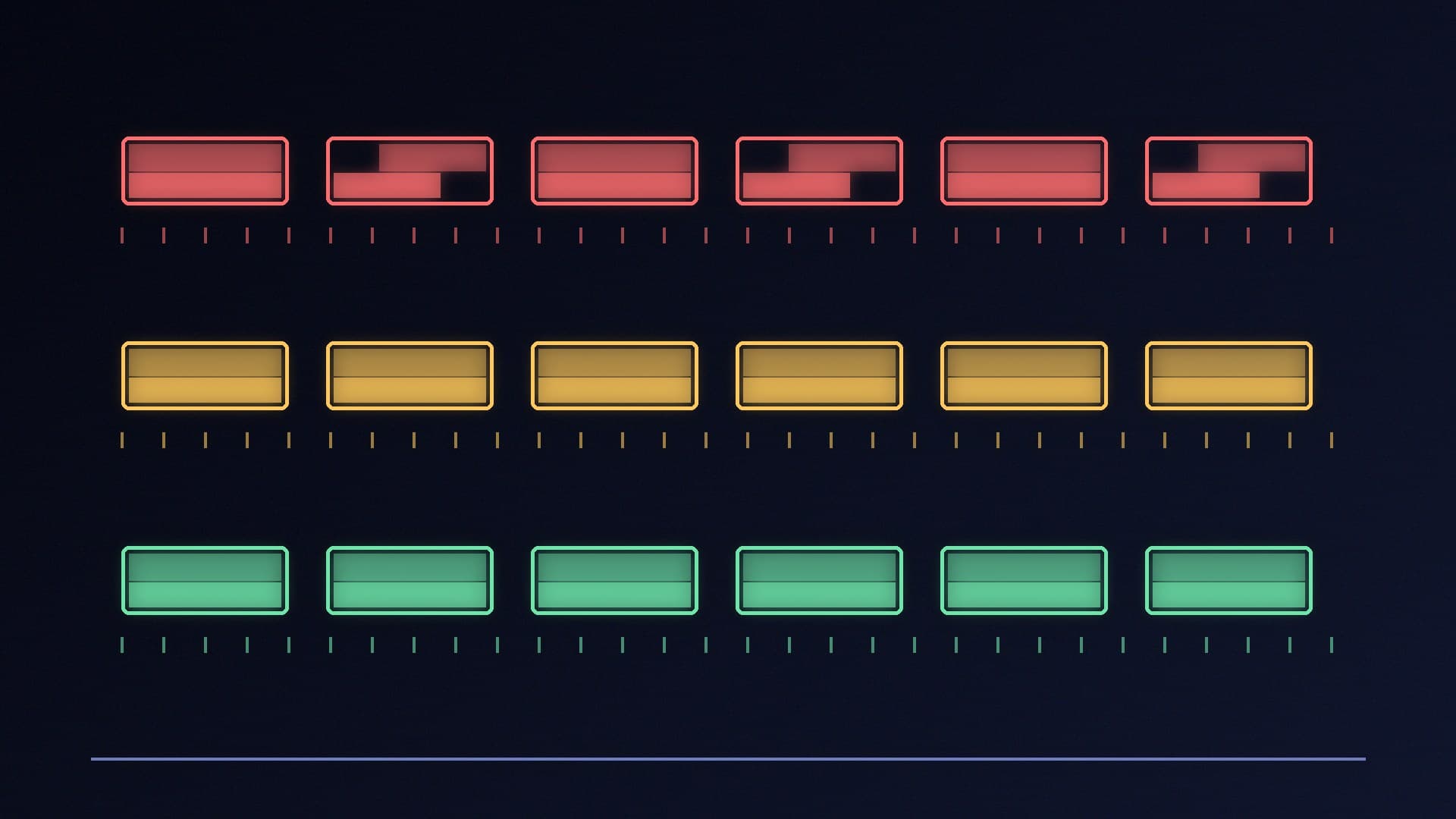
A fixed-refresh monitor updates at a set rate, say 60 or 144 times a second. If the graphics card swaps in a new frame partway through a refresh, you see parts of two frames at once with a visible line between them: tearing. AMD's explanation of the problem describes exactly this.
V-Sync fixes tearing by making the game wait for the display before showing each new frame. The cost, as AMD puts it, is that V-Sync "can lower frame rate significantly", and the waiting increases input lag. Blur Busters adds that traditional double-buffered V-Sync locks the frame rate to half the maximum refresh rate if it falls below it, which is where the familiar stutter comes from on a struggling system.
How NVIDIA Fast Sync works
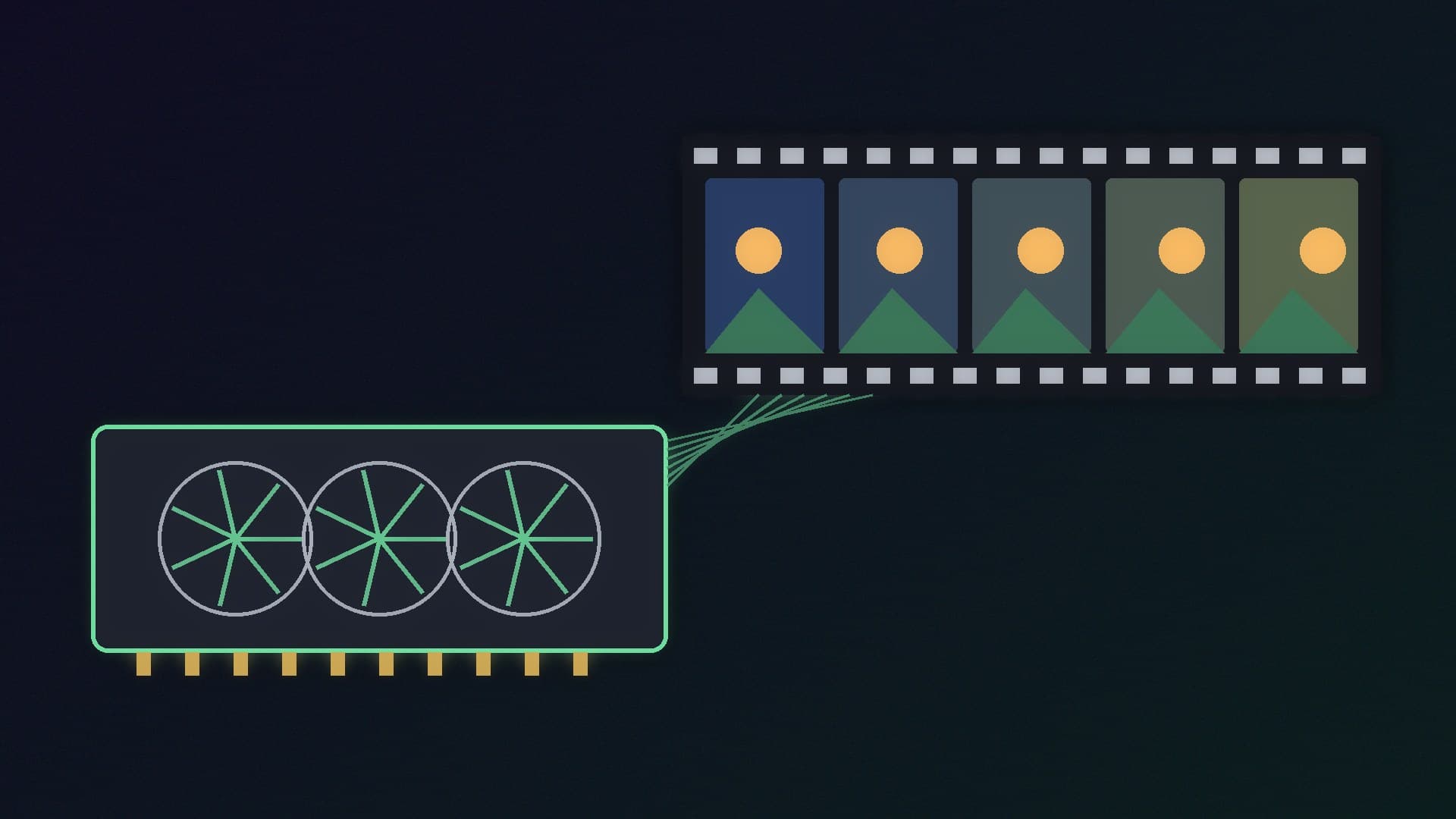
Fast Sync is still a fixed-refresh syncing method, but Blur Busters explains that it adds a third buffer so the frame rate can run above the refresh rate, and it uses those extra frames to deliver the newest one to the display as fast as possible. That avoids double-buffer behaviour above and below the refresh rate and "eliminates the majority of V-SYNC input latency". It works with any display, not just G-Sync monitors.
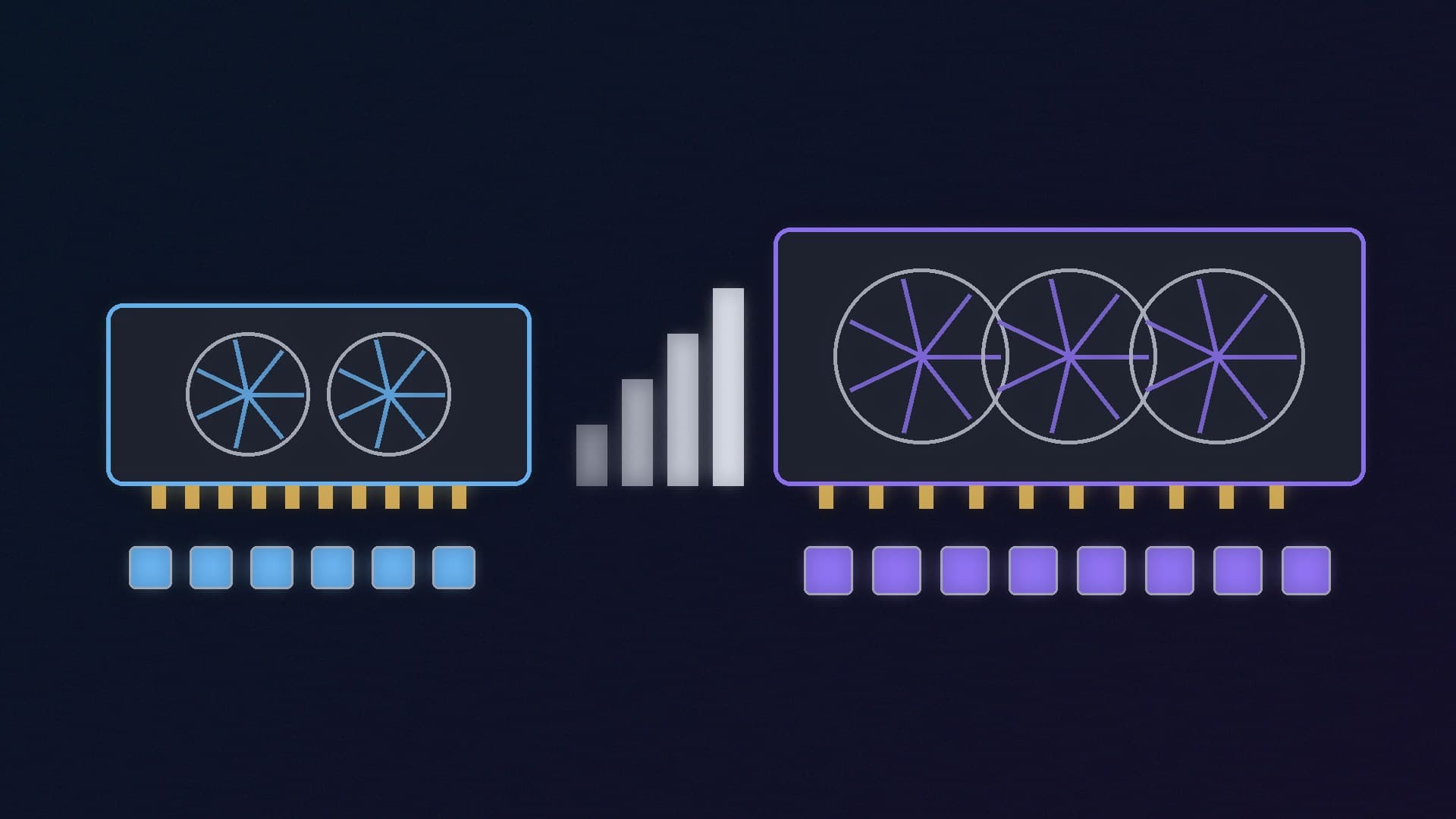
The catch is in Blur Busters' measurements. Fast Sync only starts to cut input lag meaningfully when the frame rate far exceeds the refresh rate. In its 60Hz tests, 300fps with Fast Sync (five times the refresh rate) matched the latency of G-Sync with a 58fps limit. With fewer spare frames, Fast Sync behaves more like capped V-Sync, and if the third buffer is starved completely it reverts to capped V-Sync latency plus an extra half to one frame of delay.
Below the refresh rate, Fast Sync won't drop to half refresh like double-buffer V-Sync, but it will periodically repeat frames, causing stutter. Blur Busters' advice is to use Fast Sync only when the frame rate can exceed the refresh rate by at least two or three times, and ideally five times, and not to combine it with an FPS limit below the refresh rate.
How AMD Enhanced Sync works
AMD describes Enhanced Sync as a way to "minimize screen tearing while decreasing the latency and stutter of traditional V-sync". In AMD's 2022 explanation, when the monitor is ready for a new frame, the most recently completed frame is shown and older, unneeded frames are dropped, so the game can run uncapped. That's the same basic idea as Fast Sync.
AMD's figures are its own: it reports up to 51% lower latency in Halo Infinite on a Radeon RX 6750 XT at 1080p with Enhanced Sync on versus V-Sync on. AMD lists support for DirectX 9, 10, 11 and 12 and Vulkan games on Polaris-based GPUs and newer, but not OpenGL. It also warns that Enhanced Sync doesn't support multimedia applications and "may cause flicker or other undesirable behaviors" there, so enable it per game rather than globally if you see problems with video playback.
Enhanced Sync is disabled by default. AMD says it can be set per game in AMD Software: Adrenalin Edition, and toggled from the Radeon Overlay's Display settings.
Where G-Sync and FreeSync fit
If your monitor supports a variable refresh rate (VRR), all three options above are mostly a fallback. G-Sync and FreeSync make the monitor refresh when each frame is ready, which removes tearing within the monitor's VRR range without V-Sync's waiting (our G-Sync vs FreeSync comparison covers the differences, and how to enable G-Sync or FreeSync walks through setup).
Blur Busters' recommended G-Sync setup is:
G-Sync on, with the driver's V-Sync setting on (in the NVIDIA App or Control Panel) and in-game V-Sync off.
A frame rate limit at least 3fps below the refresh rate, for example 141fps on a 144Hz monitor, using the game's own limiter where possible. Our guide to capping your frame rate covers the options.
Reflex on where a game supports it, which Blur Busters notes applies its own limit automatically with G-Sync and V-Sync on (see NVIDIA Reflex vs AMD Anti-Lag).
Blur Busters is blunt about Fast Sync with G-Sync: it "shouldn't be" paired, because with an uncapped frame rate just above the refresh rate G-Sync is effectively disabled, and Fast Sync can add input lag and microstutter. AMD takes a different line on its own hardware, describing Enhanced Sync as a complement to FreeSync that keeps play tear-free when the frame rate goes above the FreeSync range.
Which should you use?
You have a G-Sync or FreeSync monitor: use VRR with a frame cap a few fps below the refresh rate. That keeps you inside the VRR range so V-Sync, Fast Sync and Enhanced Sync rarely need to do anything. On Radeon, Enhanced Sync is AMD's suggested safety net above the FreeSync range.
Fixed-refresh monitor, very high frame rates (esports titles): Fast Sync or Enhanced Sync can give tear-free play with much less lag than V-Sync, provided the frame rate stays well above the refresh rate.
Fixed-refresh monitor, frame rate near or below the refresh rate: Fast Sync gives little benefit here and can stutter. Choose between standard V-Sync (smooth but laggier) and V-Sync off (lower lag but tearing).
Single-player games where smoothness matters more than lag: standard V-Sync is still a reasonable choice if you don't have VRR.
Our verdict
V-Sync stops tearing but adds lag and can halve your frame rate when performance dips. Fast Sync and Enhanced Sync show the newest finished frame instead, which helps most when your frame rate is far above the refresh rate; Blur Busters' tests show Fast Sync gains little with only a few spare frames. If you have a G-Sync or FreeSync monitor, VRR with driver V-Sync on and a cap at least 3fps below the refresh rate is the better setup, and you shouldn't pair Fast Sync with G-Sync.