It's based on NVIDIA's own documentation, read on 26 November 2026.
If you have an NVIDIA graphics card, you'll find two settings that promise lower input lag. Low Latency Mode lives in the NVIDIA Control Panel and works at the driver level. NVIDIA Reflex is built into individual games and switched on from their settings menus. They aim at the same problem, a queue of frames waiting for the GPU, but they don't work in the same way.
Quick answer
If a game offers NVIDIA Reflex, turn Reflex on. NVIDIA recommends Reflex over the driver's Ultra Low Latency Mode where a game supports it.
If a game doesn't support Reflex, NVIDIA's next best option is Low Latency Mode set to Ultra in the NVIDIA Control Panel.
You don't need to switch one off to use the other. NVIDIA says that if both are enabled, Reflex overrides Ultra Low Latency Mode.
Low Latency Mode vs Reflex at a glance
| Low Latency Mode | NVIDIA Reflex |
|---|
Where you turn it on | NVIDIA Control Panel, Manage 3D Settings | The game's own settings menu |
Which games | Set globally or per program in the driver | Only games that have added Reflex |
How it works | Limits how many frames the CPU can prepare ahead of the GPU | Game engine times its work to finish just in time for rendering |
Options | Off (default), On, Ultra | Varies by game; Reflex SDK also offers Low Latency Boost |
GPU support | Introduced in R435 drivers | GeForce 900 Series and newer, per NVIDIA |
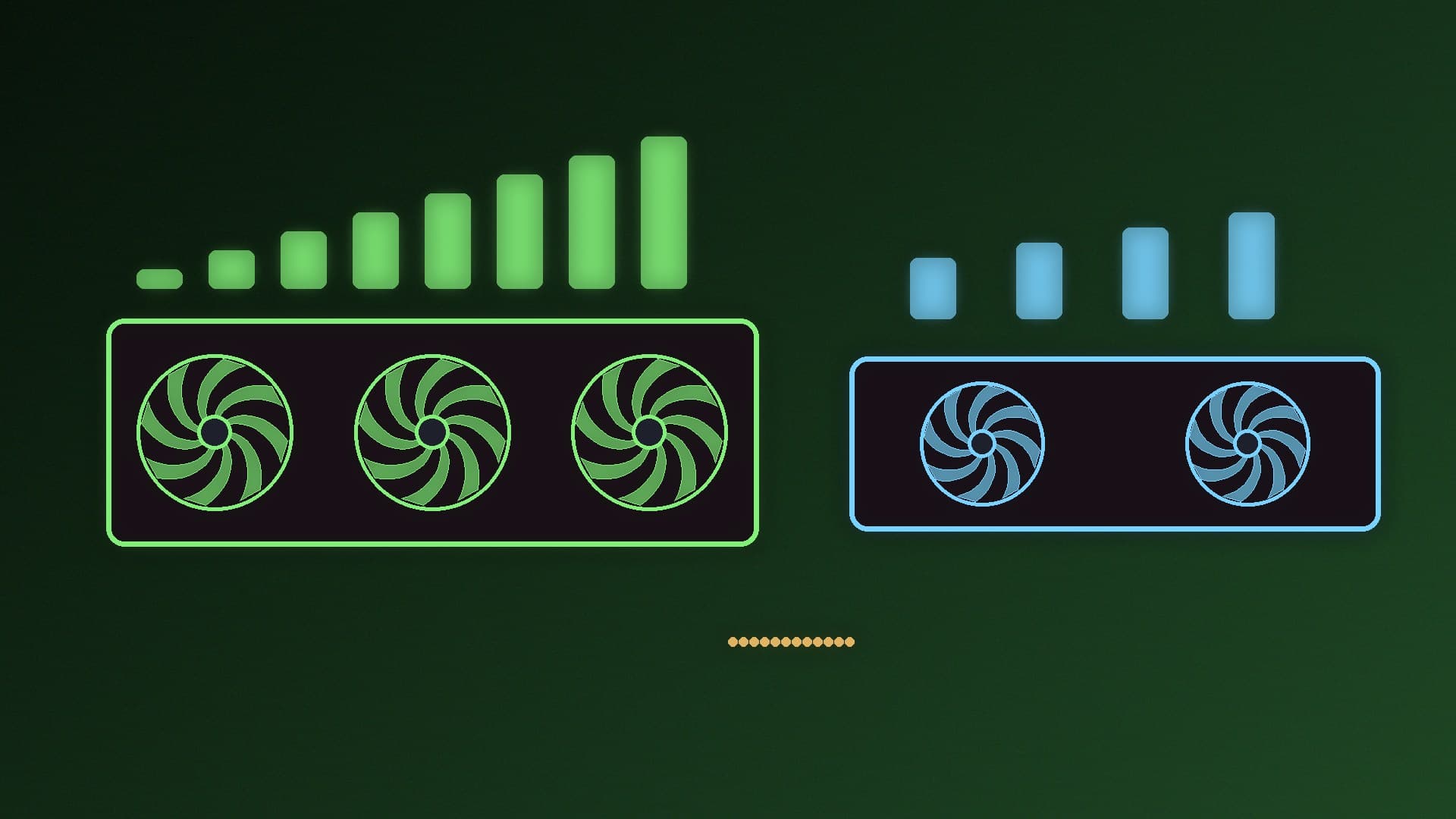
NVIDIA's recommendation | Next best option if Reflex isn't available | First choice where supported |
What Low Latency Mode does
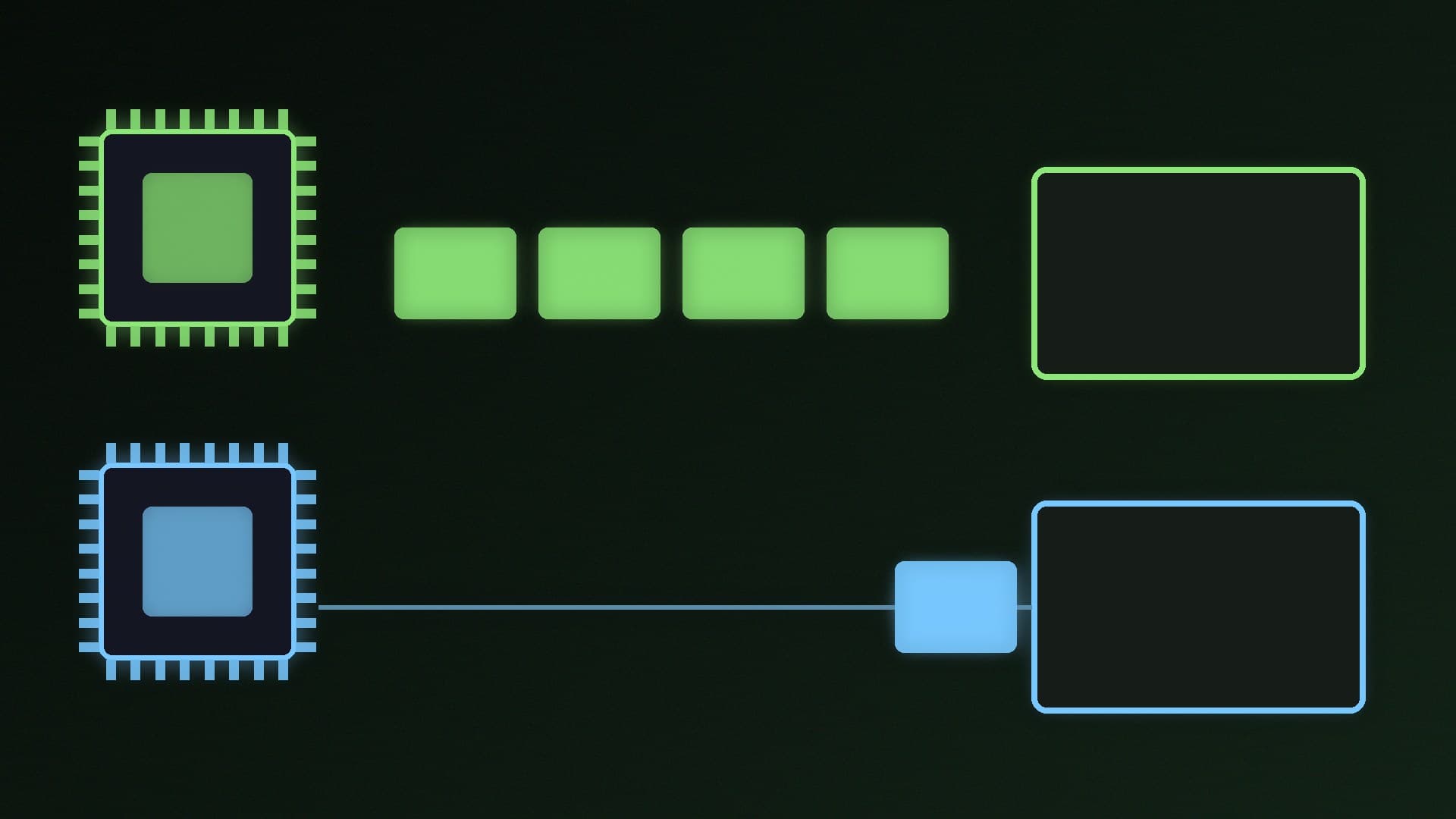
NVIDIA's Control Panel reference says Low Latency Mode reduces latency by limiting the number of frames the CPU can prepare before the GPU processes them. It was introduced in R435 drivers and has three settings:
Off (the default) prioritises render throughput by allowing games to queue frames.
On prioritises latency by limiting queued frames to one.
Ultra prioritises latency by fully minimising queued frames.
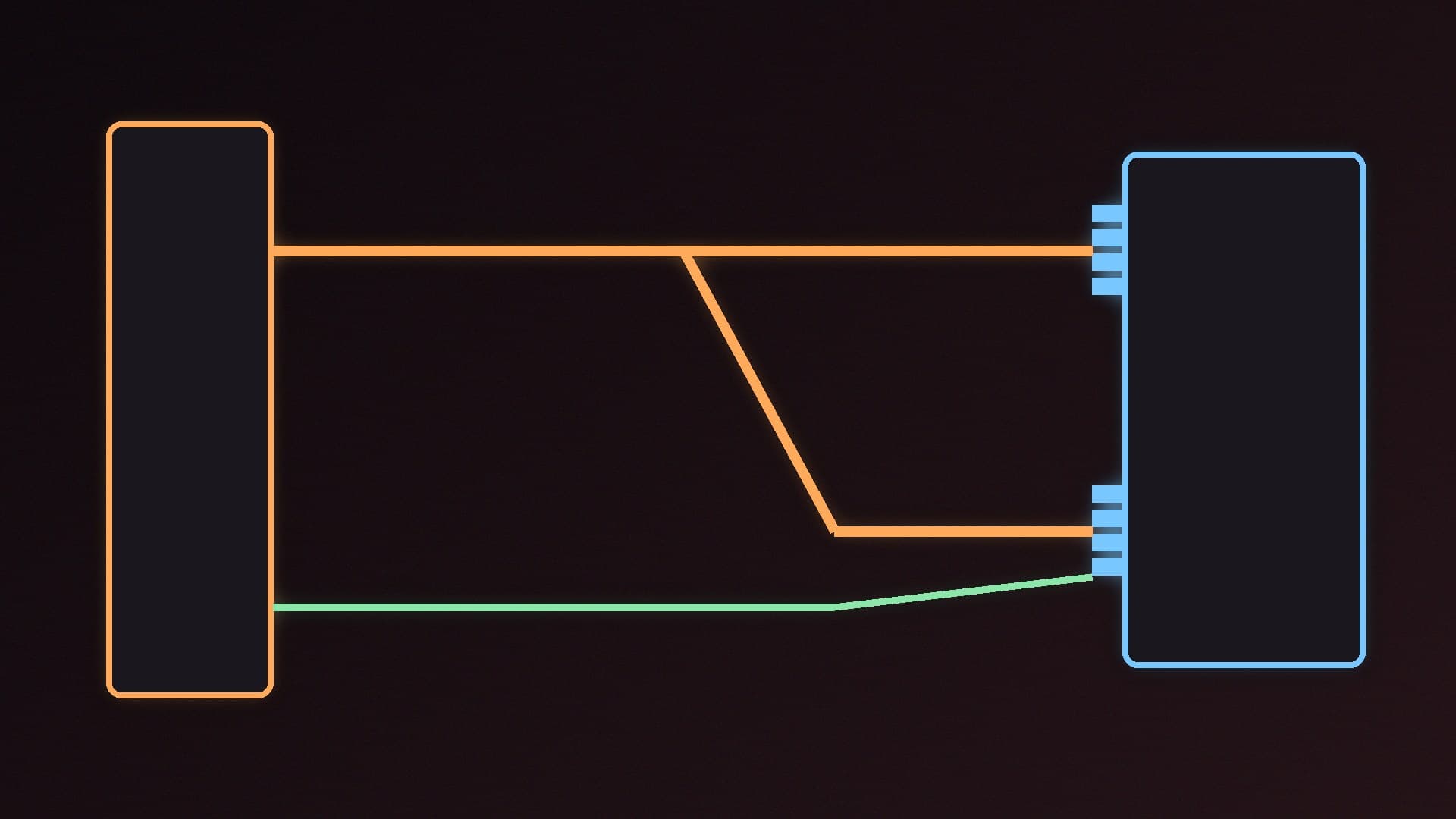
You can apply it to every game from the Global Settings tab or to one game from the Program Settings tab. Because the driver is doing the work from outside the game, NVIDIA says it can often reduce the render queue but can't remove the back-pressure that builds up on the game and CPU side.
What NVIDIA Reflex does
Reflex is a software development kit that game developers build into their games. NVIDIA says Reflex Low Latency mode aligns the game engine's work so it completes just in time for rendering, which eliminates the GPU render queue and reduces CPU back-pressure in GPU-intensive scenes. Because it's built into the game, NVIDIA says its latency benefits are generally much better than the driver's Ultra Low Latency Mode.
The Reflex SDK also offers an optional Low Latency Boost setting. NVIDIA says this overrides the GPU's power-saving features so clocks stay high when a game is heavily CPU-bound, at the cost of higher power use. You can use Reflex without Boost if you don't want that trade-off.
Reflex only appears in games that support it. NVIDIA keeps a list of supported games, monitors and mice, and says Reflex Low Latency mode works on GeForce 900 Series graphics cards and newer (Rainbow Six Siege needs a GeForce 10 Series card or newer).
How to turn each one on
Low Latency Mode:
Open the NVIDIA Control Panel.
Go to Manage 3D Settings.
Choose Global Settings for all games, or Program Settings and pick a game.
Set Low Latency Mode to Ultra (or On), then apply the change.
NVIDIA Reflex:
Open the game's video or graphics settings.
Find the NVIDIA Reflex Low Latency option.
Turn it on. If the game offers a Boost option, NVIDIA describes it as keeping GPU clocks higher at the cost of higher power use.
If you also want to cap your frame rate, see our guide on how to cap FPS on NVIDIA and AMD. If you're comparing NVIDIA's approach with AMD's, read NVIDIA Reflex vs AMD Anti-Lag, and for sync options see V-Sync vs Fast Sync vs Enhanced Sync.
Which should you use?
Start with the game. If its settings menu has NVIDIA Reflex, use it: NVIDIA recommends it over Ultra Low Latency Mode, and it takes priority automatically if both are switched on. If the game doesn't have Reflex, NVIDIA says your next best option is Ultra Low Latency Mode in the driver. Bear in mind that the default Off setting is there because it prioritises render throughput, so if a game feels worse with On or Ultra, set it back to Off for that program.
Our verdict
Turn on NVIDIA Reflex in any game that supports it, because NVIDIA says it cuts latency more effectively than the driver setting and overrides it if both are on. For games without Reflex, set Low Latency Mode to Ultra in the NVIDIA Control Panel, ideally per game, and switch it back to Off if that game runs worse.