It contains no performance figures of our own. It's based on Ninite's official website and Microsoft's WinGet documentation on Microsoft Learn, both checked on 26 November 2026.
Setting up a new or freshly reinstalled PC usually means downloading the same browser, chat apps, media player and utilities one by one. Ninite and WinGet both cut that down to a single step, but they work very differently. Ninite is a website that builds a custom installer for you; WinGet is Microsoft's command-line package manager built into Windows. If you're also weighing up other package managers, see our WinGet vs Chocolatey comparison.
Quick comparison
| Ninite | WinGet |
|---|
What it is | Website that builds a custom installer/updater | Command-line tool, client for the Windows Package Manager service |
How you use it | Tick apps on ninite.com, download and run the installer | Commands such as winget search, winget install and winget upgrade |
Included with Windows | No, download from ninite.com | Yes, on Windows 11 and modern Windows 10 as part of App Installer |
Supported Windows versions | Windows 11, 10, 8.x, 7 and equivalent Server versions | Windows 10 version 1809 (build 17763) or later, Windows 11, Windows Server 2025 |
App choice | Curated list of popular apps | A much larger catalogue (Ninite itself refers to thousands of WinGet apps) |
Updating apps | Run the same installer again; it skips up-to-date apps | winget upgrade lists updates; winget upgrade --all installs them |
Cost | Website free for home use; paid Ninite Pro for businesses | Free |
Ninite: tick boxes and go
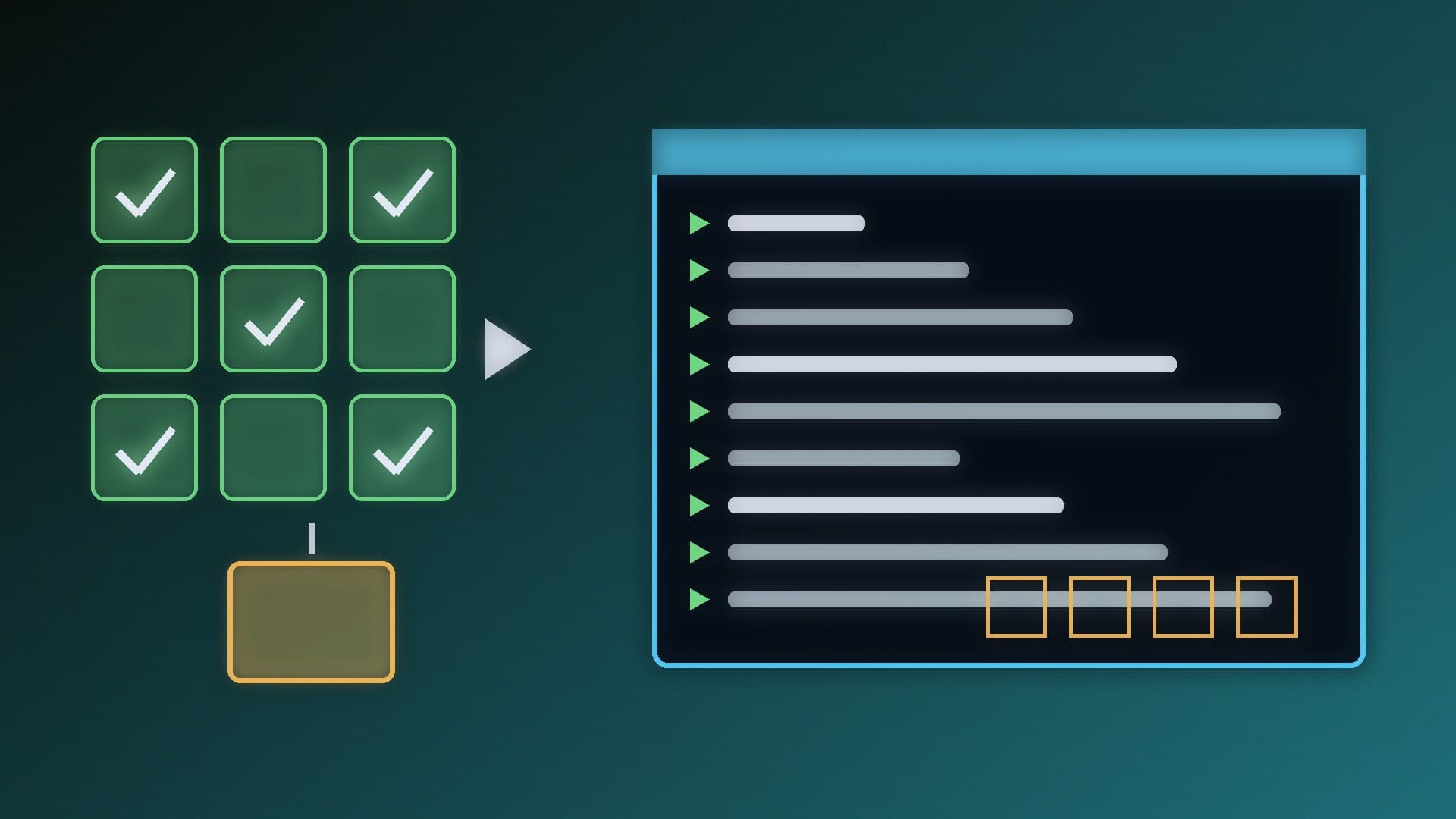
Ninite's approach is simple: you pick apps from a list on its website, then download and run a custom installer/updater. Its catalogue is curated rather than exhaustive, covering popular categories such as web browsers, messaging apps, media players and developer tools, and Ninite says it only adds popular user-requested apps.
Ninite lists what its installer does, including:
starts working as soon as you run it, without asking you any questions
installs apps in their default location and says no to toolbars or extra junk
installs 64-bit apps on 64-bit machines, in your PC's language or one you choose
installs the latest stable version and skips apps that are already up to date
downloads apps from each publisher's official site and verifies digital signatures or hashes before running anything
Because it skips up-to-date apps, running the same Ninite installer again later updates anything that's out of date. The trade-off is control: you can't choose install locations or options, and features such as silent mode, offline mode and update-only mode are part of the paid Ninite Pro. Ninite says its website is free for home use, with no ads or junkware, funded by business customers.
WinGet: Microsoft's built-in package manager
WinGet is a command-line tool that Microsoft says can discover, install, upgrade, remove and configure applications on Windows 10, Windows 11 and Windows Server 2025. It comes with App Installer, which the Microsoft Store delivers and updates on desktop Windows, so on most Windows 11 PCs it's already there. Microsoft notes it won't be available until you've signed in to Windows for the first time.
The basics are straightforward:
winget search <appname> finds an app
winget install <appname> installs it
winget upgrade with no arguments lists apps with updates available
winget upgrade --all upgrades every installed package that has an update
WinGet goes further than Ninite in other ways. It has export and import commands to save a list of installed packages and install everything in that file on another PC, plus pin to manage version pins, uninstall, repair and configure. Upgrade options include silent mode, a specific version and install scope. One thing to be aware of: Microsoft says some apps may need elevation when you run WinGet without administrator rights, and if you decline the prompt, the install fails.
If you like WinGet's catalogue but not the command line, UniGetUI puts a graphical front end on it.
Which should you use?
Choose Ninite if you want the simplest possible setup for common apps: tick boxes, run one file, and rerun it occasionally to update. It's ideal for helping a less technical friend or family member.
Choose WinGet if you want a wider app choice, scriptable installs, or the ability to export your app list from one PC and import it on another. On most Windows 11 PCs it's already installed as part of App Installer. For other essentials worth installing on a new machine, see our pick of the best free apps for a new gaming PC.
Our verdict
Ninite is the easiest way to install and update a handful of popular apps on a new PC: pick them on the website, run the installer and it handles the rest with no extra junk. WinGet is the better long-term tool for most enthusiasts because it's included with Windows 11 through App Installer, covers far more apps and can export and import your whole app list. Many people will be happy using both.