It contains no performance figures of our own. It's based on Microsoft's official support documentation and Microsoft Store listing for the Windows HDR Calibration app, both checked on 26 November 2026.
Once you've turned on HDR in Windows 11, games and apps still need to know what your monitor can actually show. Microsoft's free Windows HDR Calibration app handles that. Microsoft says it helps improve colour accuracy and consistency, and lets you customise how vividly colours appear for both HDR and SDR content while HDR is on.
What the app does
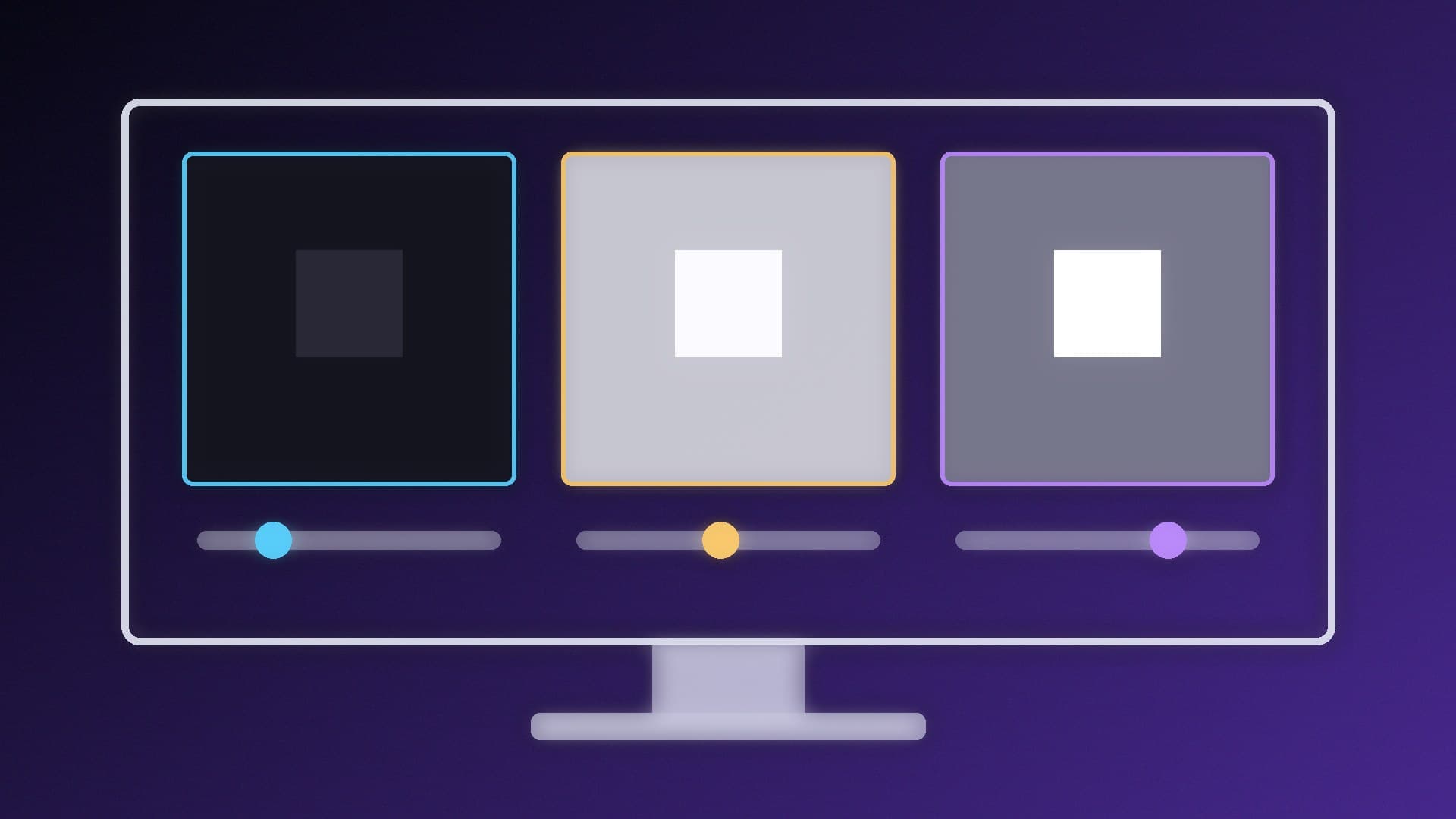
The app runs three test patterns that Microsoft says are recommended by the HDR Gaming Interest Group (HGIG). Between them they find:
the darkest details you can see
the brightest details you can see
the maximum brightness of your display
It then has a colour saturation step, and saves the result as a colour profile.
What you need
Microsoft lists these requirements:
Requirement | Details |
|---|
Operating system | Windows 11 |
Display | An HDR-capable display, built-in or external |
HDR | Turned on in Settings > System > Display > HDR |
App mode | The app must run full screen |
Graphics (for colour saturation to work properly) | AMD Radeon RX 400 Series or later, or Ryzen processors with Radeon Graphics; Intel 11th Gen (Ice Lake) or later integrated graphics, or Intel DG1 or later discrete; NVIDIA GTX 10 Series (Pascal) or later |
Display driver | WDDM 2.7 or later |
If your driver is out of date, check Windows Update or your GPU maker's site; our guide to updating graphics drivers covers both routes.
One exception: if you have a built-in laptop screen that can play streaming HDR video but doesn't support HDR games and apps, Microsoft says to use Display calibration for HDR video in Settings > System > Display > HDR instead. To check, look under Display capabilities on the HDR settings page and see whether HDR video streaming, games, apps and more says Supported or Not supported.
Step 1: Prepare your monitor
Microsoft's tips are worth following before you start:
Turn off any post-processing effects in your monitor's on-screen menu if you can, because the app may not work as expected with them on.
Calibrate in the same lighting you normally use the monitor in.
Step 2: Install and open the app
Download Windows HDR Calibration from the Microsoft Store, where it's listed as free. Once it's installed, select Start, then All apps > Windows HDR Calibration. If you have more than one monitor, make sure the app's window is on your HDR-capable display.
Step 3: Run the three test patterns
On each of the three test screens, drag the slider until the pattern is no longer visible, then move on. That's how the app works out your display's dark detail, bright detail and peak brightness limits.
Step 4: Set colour saturation
Next, the app lets you adjust colour saturation for SDR and HDR content. Drag the slider from less saturated (the default, on the left) towards more saturated (on the right). Microsoft notes the change may be subtle depending on your display, and warns that pushing it too far can make HDR content look unnatural and oversaturated. The Before and After images may also look similar on some monitors.
Step 5: Save, and know how to undo it
The app saves your settings as a colour profile. If you want to remove one later, open Color Management from the Start menu, select the All Profiles tab, pick the profile and select Remove.
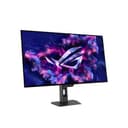
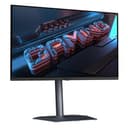
Microsoft also recommends running the app again whenever you change your display setup, for example adding a new monitor or replacing one. If you're shopping for a new HDR screen, the ASUS 31.5-inch WOLED XG32UCWMG (DisplayHDR 600 in our specs database) and the Gigabyte 27-inch QD-OLED MO27Q2A (DisplayHDR True Black 400) are two examples of HDR-capable monitors.
Do certified HDR monitors need it?
Microsoft says HDR-certified displays typically work well out of the box, but still suggests using the app on your HDR display. It's separate from SDR colour calibration with a hardware colorimeter, which we cover in our guide to calibrating a monitor in Windows 11. If you play games with HDR, our Auto HDR vs RTX HDR comparison explains how Windows and NVIDIA add HDR to SDR games.
Our verdict
If you use HDR on Windows 11, the Windows HDR Calibration app is a quick, free way to tell Windows what your monitor can show. Check you meet the requirements, turn off your monitor's post-processing, run the three HGIG test patterns full screen, and go easy on the saturation slider. Run it again whenever you change monitors.