It's based on Microsoft's and NVIDIA's own documentation, read on 24 November 2026. Both features are free: Auto HDR is part of Windows 11, and RTX HDR comes with the free NVIDIA app.
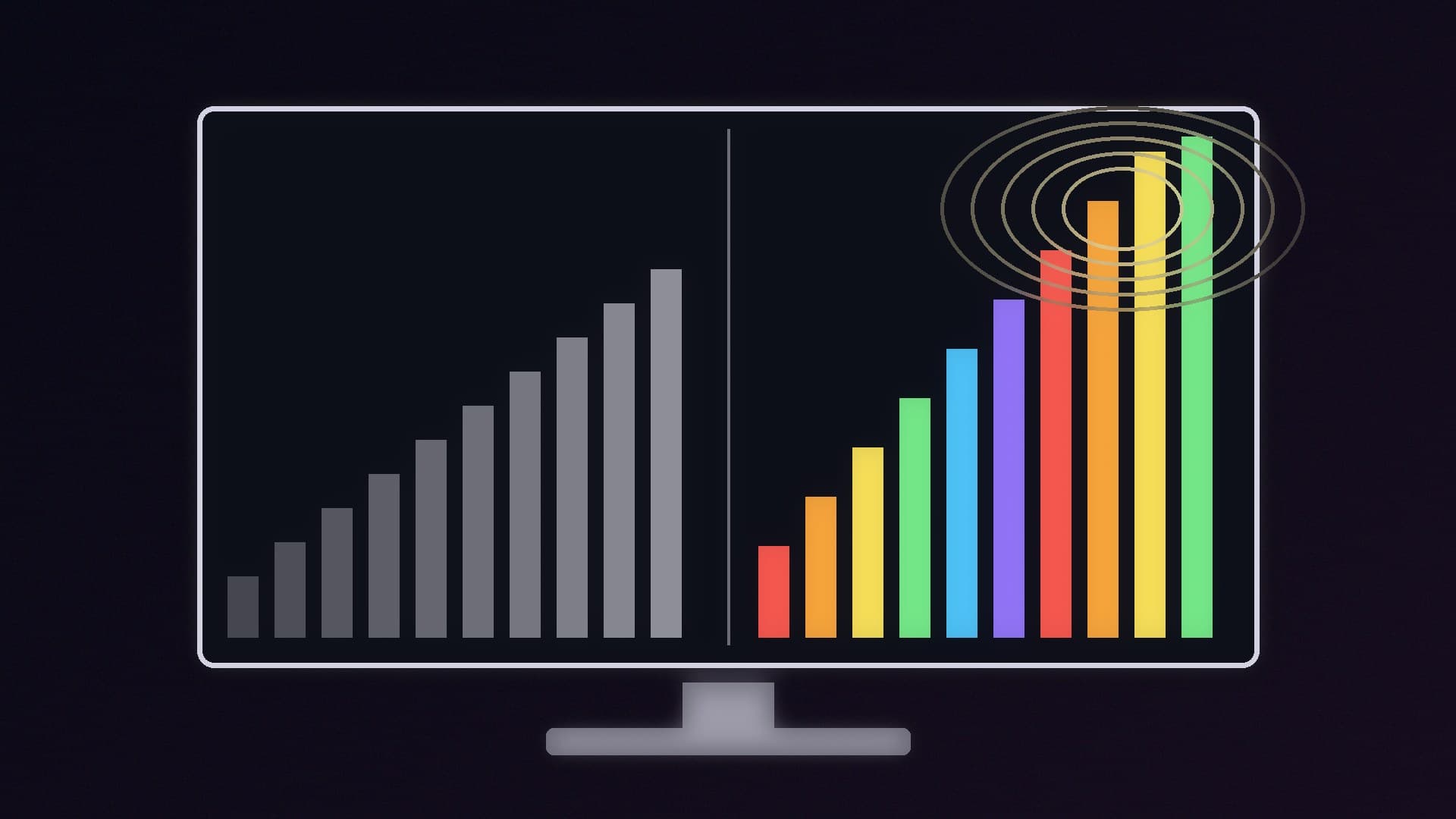
If you've bought an HDR monitor, you've probably noticed that most of your games don't use it. In October 2024, NVIDIA said only 12 of the 50 most-played games on GeForce PCs had their own HDR support. Two features try to fill that gap by converting standard dynamic range (SDR) games to HDR on the fly: Microsoft's Auto HDR, which is built into Windows 11, and NVIDIA's RTX HDR, which runs through the NVIDIA app on GeForce RTX graphics cards.
They do the same job, but they're not interchangeable. They support different games and different hardware, and NVIDIA says you have to turn Auto HDR off before RTX HDR will work. Here's how to choose.
Auto HDR vs RTX HDR at a glance
| Windows Auto HDR | NVIDIA RTX HDR |
|---|
Where it lives | Windows 11 Settings > System > Display | NVIDIA app > Graphics |
Graphics card | Not tied to a GPU brand | GeForce RTX 20 Series or newer, single GPU |
Games supported | DirectX 11 and DirectX 12 | DirectX 9 to 12 and Vulkan (not OpenGL) |
Monitor | HDR-capable display with HDR on | HDR400 or better, HDR on in Windows |
Windows version | Windows 11 | Windows 11 version 22H2 (build 22621) or later |
Driver | Your normal graphics driver | NVIDIA driver 565.90 or later |
Adjustments | HDR intensity slider in Game Bar | Settings in the NVIDIA app overlay |
Per-game control | "Don't use Auto HDR" option per app | Per-game setting in the NVIDIA app |
How Auto HDR works
Microsoft brought Auto HDR to PC from the Xbox Series X|S, which launched with it in November 2020. In its DirectX Developer Blog post announcing the PC preview in March 2021, Microsoft said the feature takes DirectX 11 or DirectX 12 games that only support SDR and "intelligently" expands their colour and brightness range up to HDR, and that it would cover more than 1,000 games at the time.
Microsoft's current Windows pages say Auto HDR needs an HDR monitor and works with games using DirectX 11 or later. To use it:
Open Settings > System > Display.
If you have more than one screen, select your HDR-capable display at the top.
Turn on Use HDR, then expand the HDR section.
Turn on Auto HDR.
You can then fine-tune it without leaving your game. Press Windows + G to open Game Bar, select Settings, go to Gaming features and choose Adjust HDR intensity for a slider that controls how bright and vivid the result looks.
Microsoft also notes that turning on Auto HDR automatically turns on Optimizations for windowed games, which moves older DirectX 10 and 11 games in windowed or borderless mode to a more modern presentation model. If a particular game looks wrong, you don't have to turn Auto HDR off everywhere: in Settings > System > Display > Graphics, select the game and tick Don't use Auto HDR.
The big advantage is that Auto HDR doesn't care which graphics card you have. Microsoft's own advice is that if you have a PC with an HDR monitor, you're good to go. That makes it the only option of the two on AMD Radeon and Intel Arc cards, and on GeForce GTX cards.
How RTX HDR works
NVIDIA describes RTX HDR as an AI-powered filter that brings HDR to games that weren't built with it. It first appeared in the NVIDIA app beta in February 2024, and multi-monitor support arrived in October 2024 with driver 565.90.
NVIDIA's requirements, from its NVIDIA app FAQ, are stricter than Microsoft's:
Windows 11 version 22H2 (OS build 22621) or newer, with Use HDR turned on in Windows.
A GeForce RTX 20 Series or newer graphics card, as a single GPU (no SLI).
An HDR400 or better monitor.
Driver 565.90 or newer.
A DirectX 9, 10, 11 or 12 game, or a Vulkan game. OpenGL isn't supported.
The game's own HDR setting turned off, and Windows Auto HDR turned off.
The game in full screen or exclusive full screen, with Fast Sync disabled. For borderless windowed games, NVIDIA says to turn on Optimizations for windowed games in Windows' graphics settings.
On a laptop, the RTX GPU has to drive the internal display.
You turn it on in the NVIDIA app under Graphics, either globally or for individual games, and adjust it in-game through the NVIDIA app overlay. Our step-by-step guide to using RTX HDR in the NVIDIA app covers the setup in detail.
One useful detail is how RTX HDR handles brightness. NVIDIA says it reads your monitor's peak brightness from the display's EDID and lets you set a peak up to that value, with a maximum of 2,000 nits. If the monitor doesn't report it, the NVIDIA app defaults to a 1,500-nit maximum. If you've calibrated your screen with Microsoft's Windows HDR Calibration app, RTX HDR uses the calibrated values instead.
Game support: the biggest practical difference
This is where the two features differ most.
Older DirectX 9 games: RTX HDR lists DirectX 9 support. Microsoft only promises Auto HDR for DirectX 11 and DirectX 12 games.
Vulkan games: RTX HDR supports Vulkan. Microsoft doesn't list Vulkan for Auto HDR.
OpenGL games: neither feature lists support. NVIDIA explicitly says OpenGL isn't supported, and Microsoft's requirement is DirectX 11 or later.
Games with their own HDR mode: use the game's native HDR. NVIDIA requires in-game HDR to be off for RTX HDR, and in Microsoft's own comparison, native HDR mastered by the developer was presented as the best-quality option, with Auto HDR as the fallback for games that don't have it.
So if you mostly play older DirectX 9 titles or Vulkan games and have an RTX card, RTX HDR covers games Auto HDR doesn't. If you play DirectX 11 and 12 games, both are options.
Auto HDR is the lighter-touch choice in terms of requirements: any graphics card, any Windows 11 PC with an HDR display.
RTX HDR is a filter applied through your GeForce card's driver and the NVIDIA app. NVIDIA doesn't list a performance cost in its requirements, and we haven't measured one, so if you're running close to your target frame rate, compare the same scene with RTX HDR on and off before leaving it enabled. A simple overlay such as the one in our guide to monitoring temps and FPS with HWiNFO and Afterburner is enough to check.
Your monitor matters more than either feature. NVIDIA's minimum is HDR400, and the difference between an entry-level HDR panel and a bright OLED or Mini LED screen is far bigger than the difference between Auto HDR and RTX HDR. Our explainer on DisplayHDR 400 vs 600 vs 1000 explains what those ratings mean.
Multi-monitor setups
Auto HDR is set per display: you select the HDR-capable screen at the top of the Display page and turn it on there.
NVIDIA says RTX HDR works with multiple monitors in extended mode, but not with NVIDIA Surround or Clone mode. If you mix an HDR and an SDR monitor, the game has to run on the HDR display for RTX HDR to work. NVIDIA also notes that Multiplane Overlay (MPO) is turned off automatically when HDR is enabled.
Can you use both?
No. NVIDIA lists Windows Auto HDR being turned off as a requirement for RTX HDR. If you want to switch between them, you don't have to flip the system-wide toggle each time: tick Don't use Auto HDR for the games where you'll use RTX HDR, and turn RTX HDR on only for those games in the NVIDIA app's per-game settings.
Whichever you use, set up HDR in Windows properly first. Our guide to setting up HDR in Windows 11 covers the basics, including the Windows HDR Calibration app, which both features benefit from.
Which should you use?
You have an AMD Radeon, Intel Arc or GeForce GTX card: Auto HDR is your only choice of the two. Turn it on and use the Game Bar slider to adjust it.
You have a GeForce RTX card and play DirectX 9 or Vulkan games: use RTX HDR for those, because Auto HDR doesn't cover them.
You have a GeForce RTX card and play DirectX 11 or 12 games: both will work. Auto HDR has no extra setup and no driver requirement; RTX HDR gives you more control, including a peak brightness setting based on your monitor. Try each on the same game and keep the one you prefer.
The game has its own HDR mode: use that instead of either.
Our verdict
Auto HDR is the easy, universal option: it's built into Windows 11, works with any graphics card and needs nothing more than an HDR monitor and a DirectX 11 or 12 game. RTX HDR asks more of your PC, with a GeForce RTX 20 Series or newer card, driver 565.90 or later and stricter game settings, but it supports DirectX 9 and Vulkan games that Auto HDR doesn't, and it adapts its peak brightness to your display. If you have an RTX card, use RTX HDR for games Auto HDR can't handle and compare the two on the rest; on any other card, use Auto HDR. Either way, NVIDIA says you can't run both at once, and a game's own HDR mode is still the better choice when it has one.