It's based on Microsoft's own support pages and DirectX blog, read on 26 November 2026.
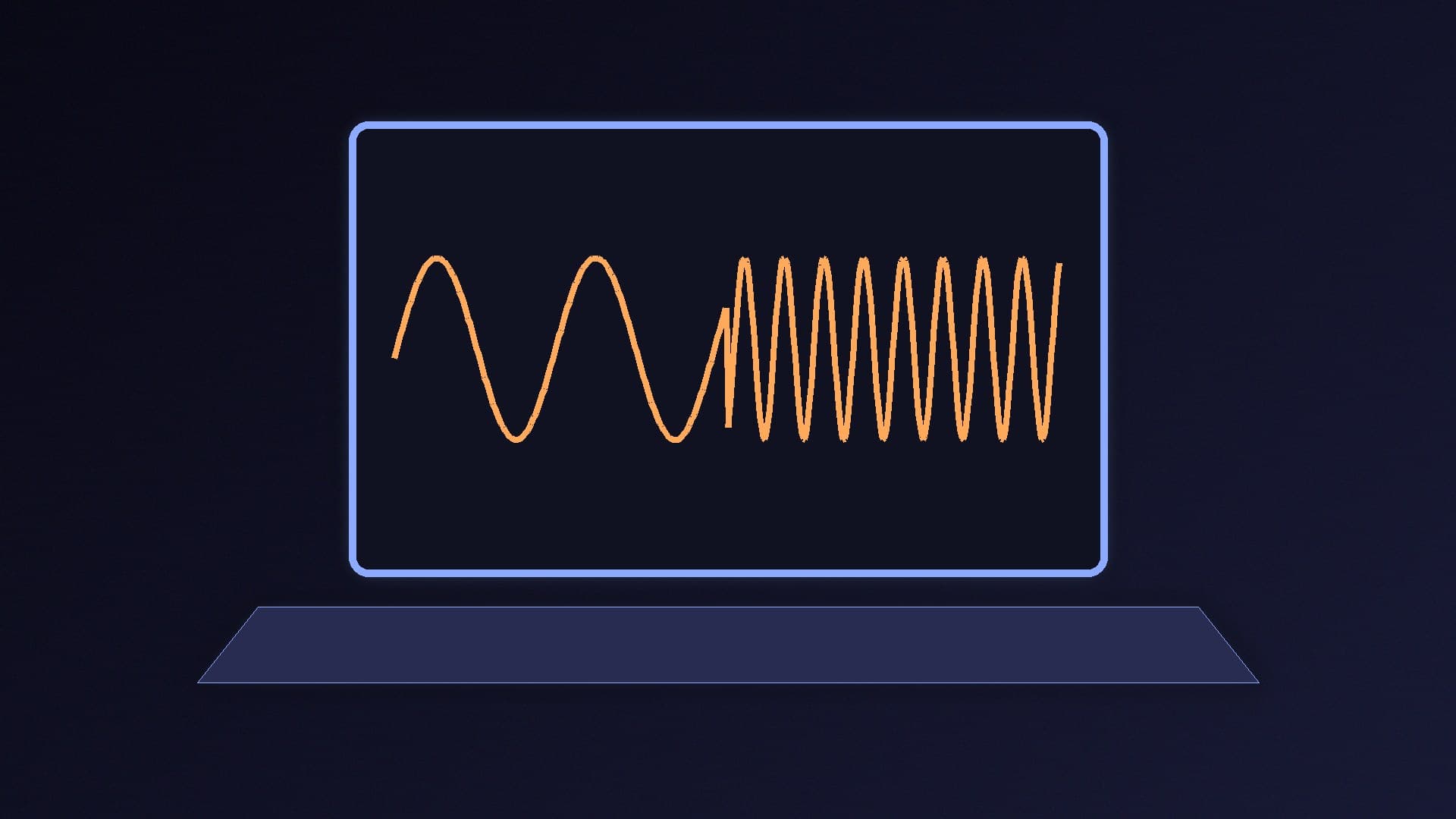
If you have a laptop with a high refresh rate screen, running it at 120Hz or more all the time looks smooth but uses more power. Windows 11's Dynamic Refresh Rate (DRR) is Microsoft's answer: it changes the refresh rate automatically depending on what you're doing.
What Dynamic Refresh Rate does
Microsoft describes DRR as a Windows 11 feature that automatically adjusts the refresh rate based on what you're doing at the time. The aim is a smooth experience for gaming, browsing and inking, and longer battery life when you're not doing those things.
Microsoft's DirectX blog gave an example in June 2021, when the feature first appeared in test builds: in a Dynamic 60Hz or 120Hz mode, the display refreshes at 60Hz for everyday productivity tasks such as email and writing documents, then switches to 120Hz for inking and scrolling.
Microsoft's Windows 11 power settings guide also lists Dynamic refresh rate as one of the settings that can help save power, by lowering the screen refresh rate during static tasks.
What you need
According to Microsoft, DRR has these requirements:
Windows 11. Windows 10 doesn't support DRR.
A display that supports variable refresh rate (VRR) and a refresh rate of at least 120Hz.
A graphics driver that supports it. Microsoft's DirectX blog post from June 2021 says DRR needs a WDDM 3.0 graphics driver.
A laptop. The same 2021 post says DRR is only available on laptops, not external displays.
If your hardware doesn't support DRR, Microsoft says you won't be able to turn it on.
How to check your screen supports VRR
Open Settings > System > Display > Advanced display. Microsoft says the Display information panel shows the current resolution and refresh rate for the selected display, and whether it supports variable refresh rate. The Choose a refresh rate drop-down shows every refresh rate your screen supports.
If you want to check your graphics driver model, the DirectX blog suggests opening dxdiag from the Start menu, selecting the Display tab and looking at Driver Model in the Drivers box.
How to turn Dynamic Refresh Rate on or off
Select Start > Settings > System > Display.
Select Advanced display.
If you have more than one screen, pick your laptop's built-in display under Choose display.
Use the Dynamic refresh rate toggle to turn DRR on or off.
On early Windows 11 builds, the DirectX blog described a different method: choosing a refresh rate with "Dynamic" in its name from the Choose a refresh rate drop-down. Microsoft's current support page describes the toggle, so look for that first.
To change the maximum refresh rate itself, see our guide on how to change your monitor's refresh rate.
DRR and games
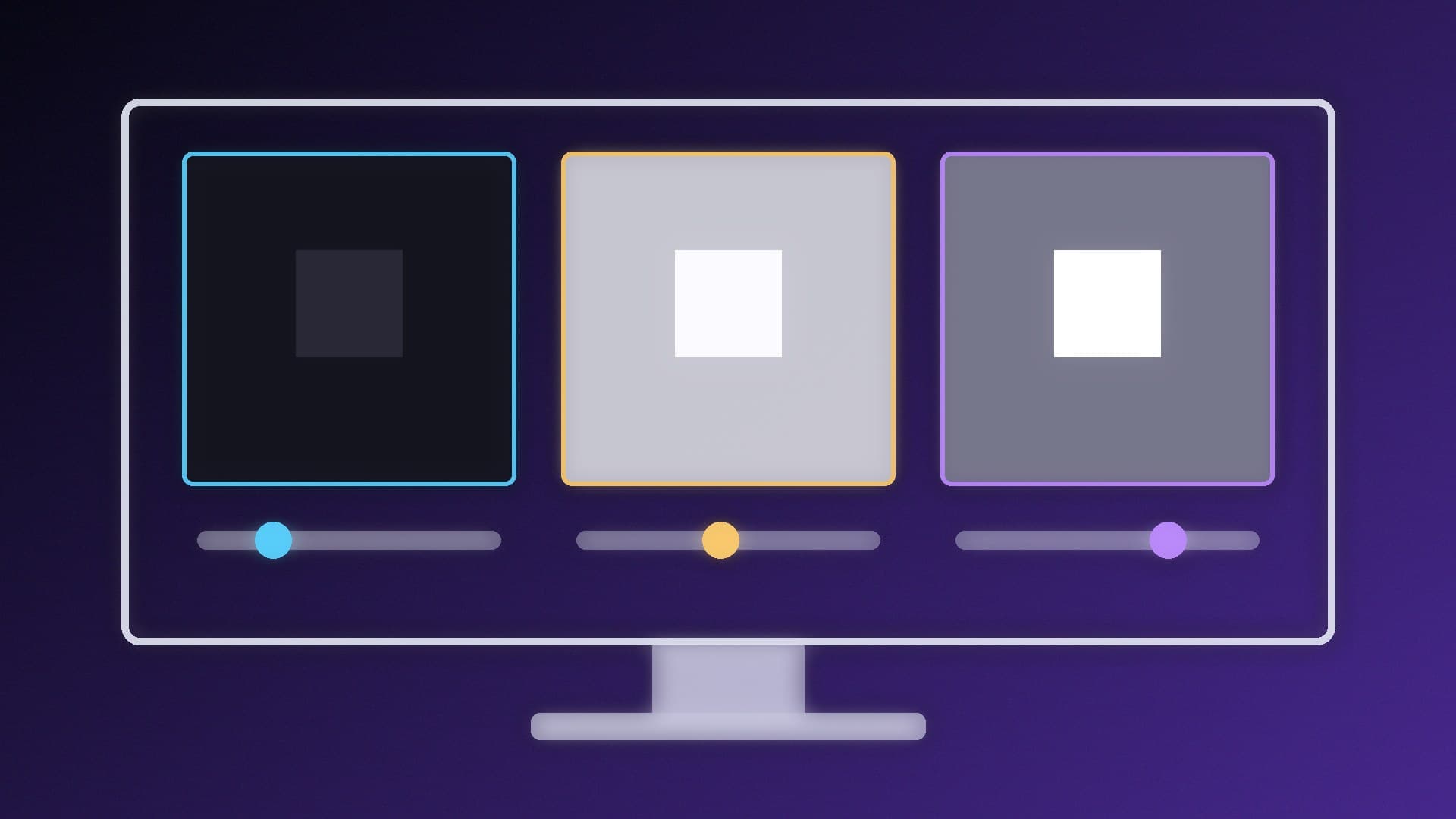
Microsoft says DRR shouldn't affect games designed for VRR, but it can limit the maximum refresh rate of other games. If you turn DRR on and a favourite game seems to run at a lower refresh rate, Microsoft's advice is to turn DRR off.
DRR is different from VRR in games, which matches the screen's refresh rate to the frame rate a game is producing. If that's what you're after, see how to turn on variable refresh rate in Windows 11. And if you're choosing a new screen, our 144Hz vs 240Hz monitor guide explains what higher refresh rates get you.
Should you turn it on?
If your laptop supports DRR and you spend most of your time on battery doing office work or browsing, it's worth switching on, because Microsoft designed it to balance smoothness and power use. If you mainly play games that don't use VRR on a laptop that's plugged in, Microsoft's own guidance suggests turning it off if those games appear capped.
Our verdict
Turn on Dynamic Refresh Rate in Settings > System > Display > Advanced display if your Windows 11 laptop has a VRR screen of 120Hz or more, because Microsoft built it to save power during everyday tasks while keeping scrolling and inking smooth. If a game that doesn't use VRR seems stuck at a lower refresh rate, switch DRR off, as Microsoft recommends.