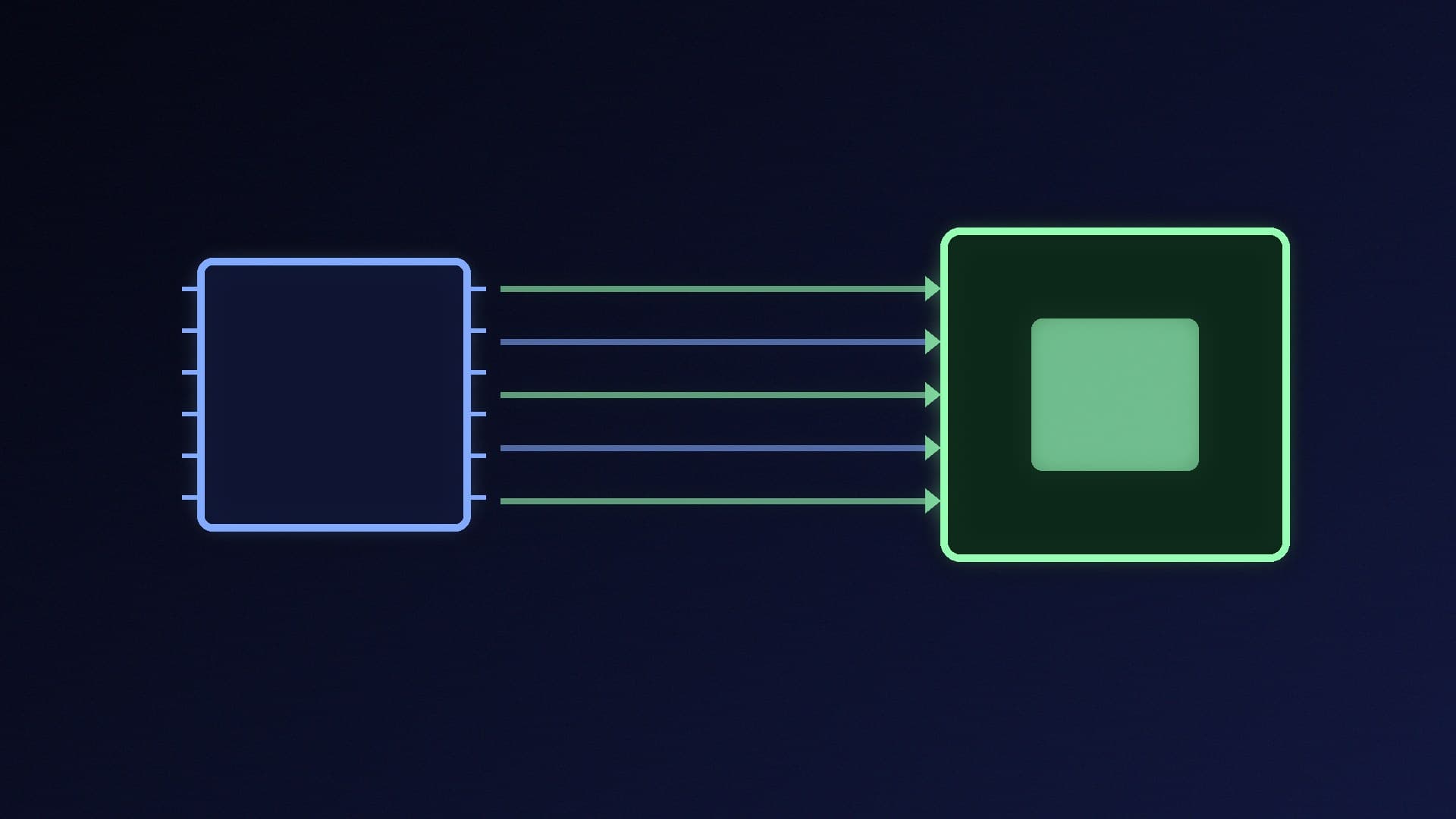
The Encoder drop-down is one of the first choices in OBS Studio's output settings, and one of the most argued about. x264 is a software encoder that runs on your CPU. NVENC is a dedicated video encoder built into NVIDIA graphics cards. AMD (AMF) and Intel (Quick Sync) GPUs have their own hardware encoders too, but this comparison focuses on the most common choice for UK streamers with GeForce cards.
This comparison is based on OBS's knowledge base and NVIDIA's OBS broadcasting guide. Forge PC hasn't run its own encoding quality tests.
The short answer
Single gaming PC with a GeForce GTX 16-series (Turing) or newer card: use NVENC. OBS generally recommends hardware encoders for best performance.
Older GPU with an early NVENC generation: x264 may look better at the same bitrate, if your CPU has spare headroom.
Dedicated streaming PC with a powerful CPU: x264 is a reasonable option, because the CPU isn't also running the game. See single PC vs dual PC streaming.
How they differ
| x264 (software) | NVENC (hardware) |
|---|
Runs on | CPU | Dedicated encoder on NVIDIA GPUs |
Performance impact | Uses CPU time that your game may need | OBS says hardware encoders take the work off the CPU |
Codecs in OBS | H.264 | H.264, plus HEVC and AV1 on supported GPUs |
Quality control | x264 presets (OBS's default is veryfast) | P1-P7 presets, multipass, look-ahead and more |
What OBS says
OBS's hardware encoding guide says hardware encoders, as opposed to the included x264 software encoder, are generally recommended for best performance. That's because they move the work from the CPU to a specialised part of the GPU that encodes video more efficiently. OBS says modern hardware encoders give very good quality with minimal performance impact.
OBS adds a caveat about older hardware. Earlier-generation hardware encoders give lower quality than x264's default veryfast preset at the same bitrate. For NVIDIA, OBS says you need at least a GeForce GTX 750 Ti (900-series, Maxwell, or higher) for NVENC, and recommends 6th-generation NVENC (Turing) for best results, which includes the GTX 1650 rev 2 and higher. OBS notes that the original GTX 1650 has 5th-generation NVENC.
What NVIDIA recommends
NVIDIA says GeForce RTX cards have dedicated NVENC encoders that let you capture and stream without hurting GPU or CPU performance, and that newer RTX generations support newer, more efficient codecs. NVIDIA's OBS guide recommends:
Twitch: NVENC H.264.
YouTube: NVENC AV1 on an RTX 40-series card, or NVENC HEVC otherwise.
Preset: P6 (Slower, Better Quality) for most users, lowering it if you run several encodes at once.
Recording: AV1 gives the best quality, then HEVC, then H.264. H.264 is the most compatible with editing apps.
For high-motion games, NVIDIA also suggests lowering the stream resolution rather than letting fast scenes turn blocky at your bitrate.
When x264 still makes sense
You have a dedicated streaming PC with a fast CPU and no game to run.
Your GPU has an early NVENC version or none at all. OBS notes older hardware encoders trade quality for lower performance impact.
You're CPU-rich and GPU-poor in a specific game. Even then, watch for dropped frames, because x264 at slower presets is demanding.
If your game is CPU-heavy, x264 competes with it for CPU time, which can cause stutter in the game or the stream. In that case, NVENC is usually the safer choice on a single PC.
Setting it up
In OBS, go to Settings > Output, set Output Mode to Advanced and choose your encoder under Streaming and Recording. Our guides to setting up a PC for streaming and recording gameplay with OBS Studio walk through the rest. If you're still choosing software, see OBS Studio vs Streamlabs.
Our verdict
On a single gaming PC with a GeForce GTX 16-series or RTX card, use NVENC. OBS recommends hardware encoders for performance, and NVIDIA's guide covers H.264 for Twitch and AV1 or HEVC for YouTube, with the P6 preset. x264 still suits a dedicated streaming PC with a strong CPU, or a GPU with an old or missing hardware encoder. For most single-PC streamers, though, it takes CPU time your game could use.