We haven't included prices because none of the official pages we used listed UK pricing.
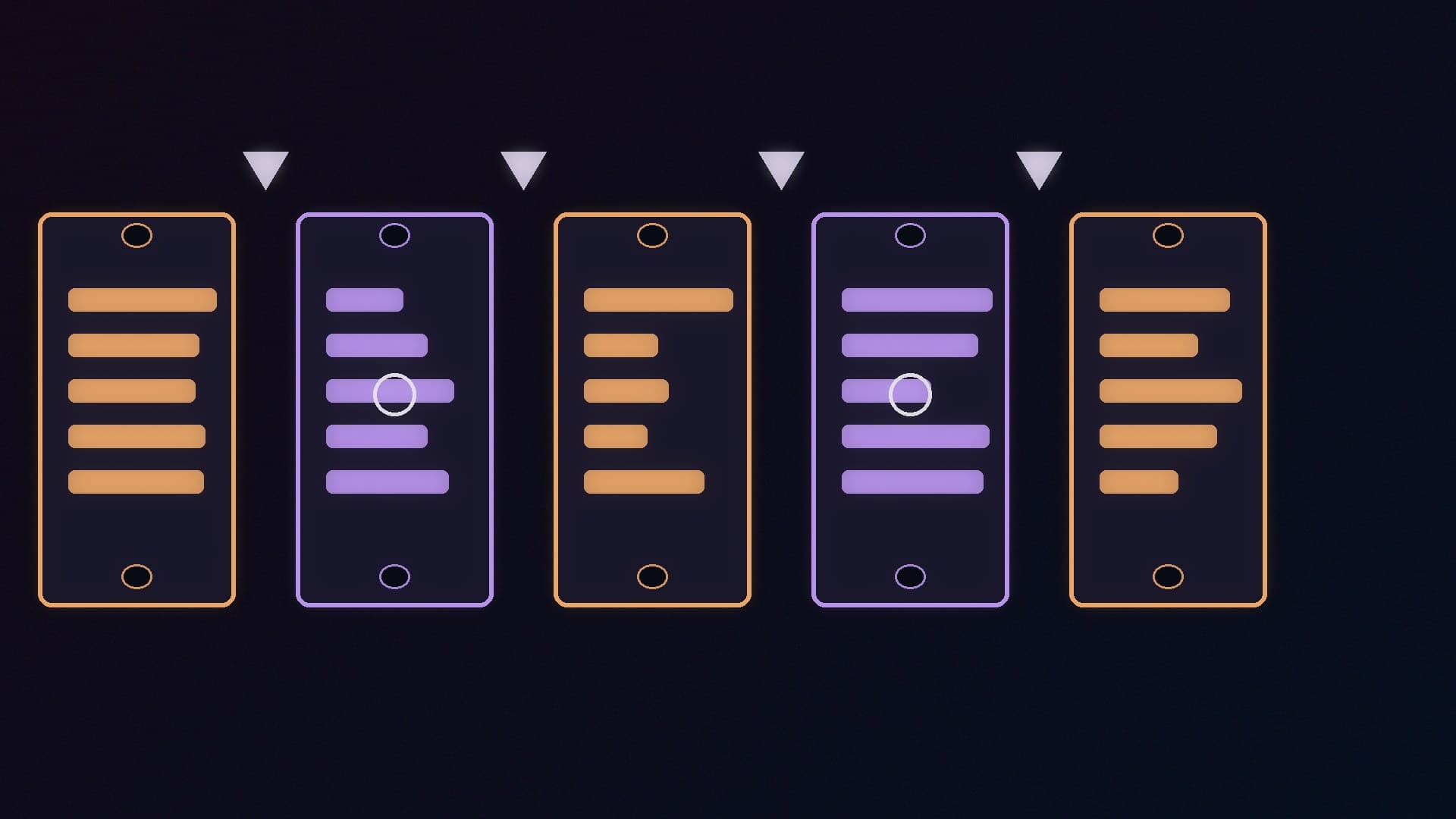
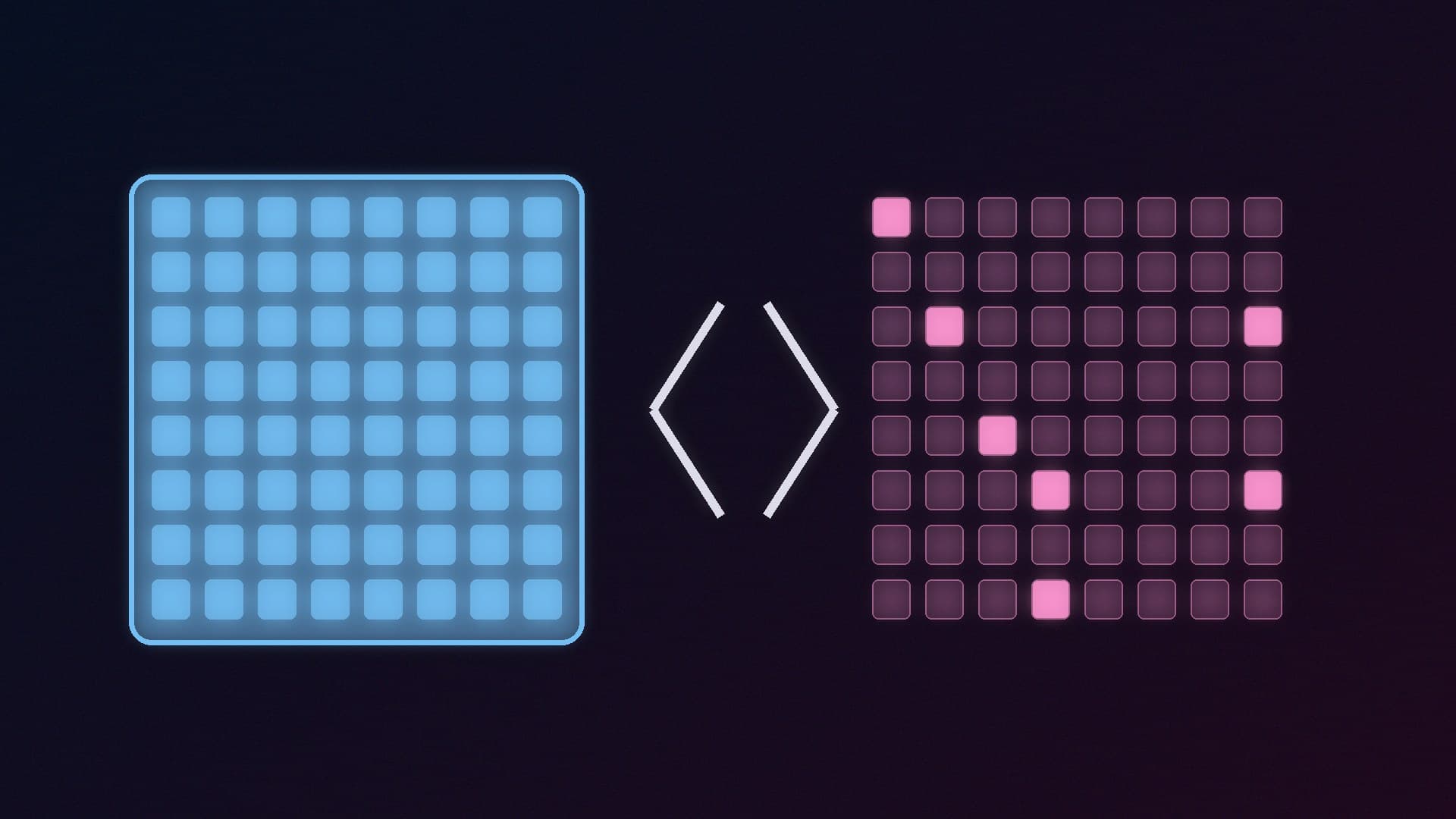
Frame interpolation generates new frames between the ones a video already has. Double the frames of a 30fps clip and it plays at 60fps; keep the frame rate the same and you get smooth slow motion instead. Older methods simply blended or warped neighbouring frames. AI models such as RIFE (Real-Time Intermediate Flow Estimation) use a neural network to estimate how each part of the picture moves, which usually gives cleaner results on fast motion.
This is different from the frame generation you get in games. DLSS Frame Generation, FSR and Lossless Scaling insert frames into a game while it's running; our frame generation explainer and Magpie vs Lossless Scaling comparison cover that. The tools below work on video files, or in one case on video while it plays.
Quick picks
Tool | Best for | Platforms | Cost |
|---|
Flowframes | Easiest free app for converting videos | Windows | Free (older builds); newest builds for Patreon supporters |
Video2X | Upscaling and interpolation in one free app | Windows, Linux | Free, open source |
rife-ncnn-vulkan | Command-line and batch work on any GPU | Windows, Linux, macOS | Free, open source |
SVP 4 | Real-time smoothing while you watch | Windows 10+, macOS 13+, Linux | Paid lifetime licence, 30-day free trial |
Topaz Video | Professional restoration and slow motion | Windows, macOS | Paid subscription |
1. Flowframes: best free app for converting videos
Flowframes is a Windows app that puts a simple interface on top of several interpolation models: RIFE (in both PyTorch and NCNN versions), DAIN and FLAVR. You load a video, choose a model, and it handles extracting the frames, interpolating them and encoding the result. Its developer says all settings have reasonable defaults, so you don't need to configure anything before your first run.
Its developer describes it as open-source donationware. Free builds go up on itch.io after an early-access period for Patreon supporters, so the free version is usually a little behind the latest one.
Hardware: the minimum is a Vulkan-capable GPU (Nvidia Kepler or newer, AMD GCN 2 or newer), which runs RIFE-NCNN. The recommended setup is a CUDA-capable Nvidia GPU (Maxwell or newer) with 6GB of VRAM or more, plus 16GB of RAM. The project's FAQ says RIFE CUDA and RIFE NCNN should give identical results, but CUDA is faster on Nvidia cards while NCNN also runs on AMD.
Two settings matter most:
Frame de-duplication is for 2D animation, which often repeats frames. The FAQ says to turn it off for camera footage and 3D renders, because it can make output choppy.
Fix Scene Changes avoids interpolating across cuts, which would otherwise create an odd morphing frame.
2. Video2X: best for upscaling and interpolation together
Video2X is a free, open-source app best known for AI upscaling, but version 6 also has a frame interpolation mode using RIFE. It runs on Windows (with a graphical installer) and Linux, and its AI models (Real-ESRGAN, Real-CUGAN and RIFE) run through ncnn and Vulkan, so it isn't limited to Nvidia cards.
Its stated minimum requirements are modest: a CPU with AVX2 (Intel Haswell or AMD Excavator onwards) and a Vulkan GPU (Nvidia GTX 600 series, AMD Radeon HD 7000 series or Intel HD Graphics 4000 or newer). The developer also says version 6 needs no extra disk space during processing beyond the final output, which matters because older approaches extract every frame as an image first.
Choose it if you want to upscale old footage and smooth it out in the same tool. Our Video2X upscaling guide walks through installing and using it.
3. rife-ncnn-vulkan: best for command-line and batch work
rife-ncnn-vulkan is a portable build of RIFE for Windows, Linux and macOS that runs on Intel, AMD and Nvidia GPUs through Vulkan. Its README says the download includes all the binaries and models, with no CUDA or PyTorch install needed. Flowframes bundles RIFE-NCNN too, and Video2X runs RIFE through the same ncnn framework.
There's no interface: you give it a folder of frames and it writes a folder of interpolated frames, which you then turn back into a video with FFmpeg. The README includes a complete example: extract the audio and frames with FFmpeg, run rife-ncnn-vulkan -i input_frames -o output_frames to double the frame count, then encode the new frames at twice the original frame rate with the audio added back. It can even split work across a CPU, a discrete GPU and integrated graphics at once.
Pick it if you're comfortable in a terminal and want to script batches of clips, or if you want to see exactly what's happening at each step.
4. SVP 4: best for real-time smoothing while you watch
SmoothVideo Project (SVP) is the odd one out: instead of converting a file, it interpolates video in real time inside players such as MPC-HC, mpv and VLC, so films play at 60fps or higher as you watch. It also has a transcoding mode for converting files.
SVP's own motion interpolation method is much less demanding. It can also use the RIFE neural network for higher-quality frames, which SVP describes as giving very high-quality frames but being very demanding by comparison. Its RIFE page gives estimated GPU requirements for real-time playback: around an RTX 2060 for 720p at 48fps, an RTX 3070 for 1080p at 48fps, an RTX 3080 for 1080p at 60-72fps, and an RTX 4090 for 4K at 48fps with the generic engine. Optional TensorRT support for Nvidia RTX cards lowers those requirements, according to SVP's table, and SVP says the generic engine also works on AMD and Apple M-series chips. These are SVP's estimates, not our measurements.
SVP 4 Pro is a one-time purchase with lifetime updates for one Windows or macOS computer, and there's a 30-day free trial on Windows 10 or later, macOS 13 or later and Linux.
5. Topaz Video: best for professional restoration
Topaz Video is a commercial app for Windows and macOS that combines frame interpolation and slow motion with upscaling, denoising and stabilisation. Topaz says you can render locally, so files stay on your PC, or use its cloud rendering with monthly credits.
It's paid software sold through Topaz's subscription plans, which also include monthly cloud video credits. It makes most sense for people restoring old footage or producing slow-motion shots for paid work; for occasionally smoothing a home video, the free tools above are a better place to start.
What hardware do you need?
Every tool here does the heavy lifting on the graphics card, so the GPU matters far more than the CPU:
Any recent GPU with Vulkan support will run RIFE through Flowframes, Video2X or rife-ncnn-vulkan, including AMD and Intel cards. It will just be slower on older or entry-level hardware.
Nvidia cards can use faster CUDA (Flowframes) or TensorRT (SVP) routes.
Real-time playback with RIFE in SVP is the most demanding job, needing a mid-range or better RTX card even at 1080p by SVP's estimates.
Disk space matters for tools that extract frames as images, especially for long or 4K clips. Use a fast SSD with plenty of free space.
If you just want sharper streaming video rather than smoother motion, RTX Video Super Resolution is a simpler, driver-level option on Nvidia cards.
Our verdict
For most people, Flowframes is the easiest free way to turn a 24fps or 30fps video into smooth 60fps or slow motion on Windows, and Video2X is the pick if you also want to upscale. rife-ncnn-vulkan suits scripted batch work on any GPU. If you want films to look smoother while you watch them, rather than converting files, SVP 4 is the tool to try, with a 30-day free trial, though RIFE-quality real-time playback needs a capable RTX card. Topaz Video is the paid choice for professional restoration. Turn off frame de-duplication for camera footage, and expect some artefacts on very fast motion whichever tool you use.