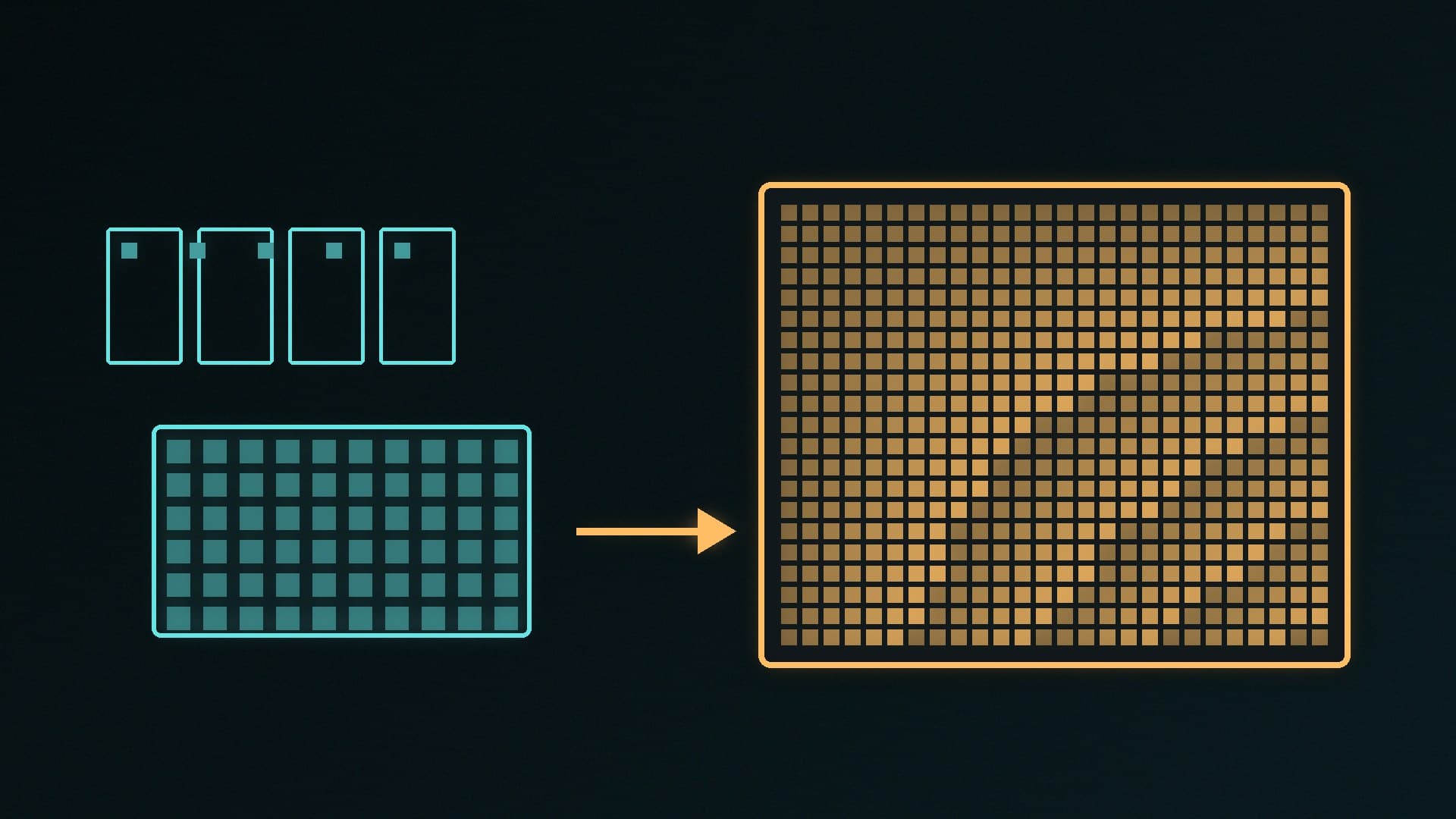
Old home videos, low-resolution clips and anime can look much sharper after AI upscaling, and you don't need a paid cloud service to do it. Video2X is a free, open-source program that runs AI upscaling and frame interpolation models on your own graphics card, so your videos stay on your PC.
Forge PC hasn't tested Video2X. Details here come from the project's official GitHub page, releases page and documentation. The latest release on 16 November 2026 was version 6.4.0, published on 24 January 2025, so it hasn't had a new release for almost two years; check the GitHub page for any updates before you install.
What Video2X does
Video2X describes itself as a machine learning-based video super resolution and frame interpolation framework. Version 6 is a complete rewrite in C/C++ that runs on Windows and Linux and has two modes:
Upscaling (filtering): increases resolution using Real-ESRGAN, Real-CUGAN or Anime4K v4. Anime4K and Real-CUGAN are designed for anime and cartoons; Real-ESRGAN also has general-purpose models.
Frame interpolation: uses RIFE to generate extra frames, for example to make a video smoother.
The AI models run through ncnn and Vulkan, so they work on NVIDIA, AMD and Intel graphics. The project says it needs no extra disk space during processing beyond space for the final output.
What you need
According to the Video2X GitHub page:
CPU: must support AVX2. That means Intel Haswell (2013) or newer, or AMD Excavator (2015) or newer. Any Ryzen processor qualifies.
GPU: must support Vulkan. That means NVIDIA Kepler (GTX 600 series) or newer, AMD GCN 1.0 (Radeon HD 7000 series) or newer, or Intel HD Graphics 4000 or newer.
OS: Windows or Linux. There's a Windows installer with a graphical interface, packages for some Linux distributions, an AppImage, and a Docker image for Linux and macOS.
Those are minimums. AI upscaling is demanding, so a modern graphics card will be much faster, and long or high-resolution videos can take a long time on any PC. Check your hardware with our guide on how to check your PC specs in Windows 11.
Step 1: Download and install Video2X
Go to the Video2X releases page on GitHub (link in Sources below).
Under the latest release, download the Windows installer, video2x-qt6-windows-amd64-installer.exe.
Run the installer and follow the prompts.
Only download Video2X from its official GitHub page.
Step 2: Choose your video and processor
Exact labels in the Video2X window may differ between versions, but the basic process is:
Open Video2X from the Start menu.
Add the video file you want to process.
Choose the mode: upscaling or frame interpolation.
Choose the processor and model. As a starting point:
Anime and cartoons: Real-CUGAN or Anime4K.
Live-action video: Real-ESRGAN with a general-purpose model.
Smoother motion: RIFE frame interpolation.
Choose the scaling factor, for example 2x to turn 1080p into 4K.
The project's documentation covers the GUI options in detail; the Video2X docs note that some pages are still under construction.
Step 3: Run a short test first
Before processing a whole film, cut a short clip of 10 to 30 seconds and process that first. It shows you how long the job is likely to take on your hardware and whether the model suits your footage. AI upscaling can make some live-action video look over-smoothed or artificial, so compare the result with the original.
Step 4: Process the full video and compress the result
When you're happy with the settings, process the full video. Upscaled 4K files can be very large, so you may want to re-encode the result. Our guide to compressing videos with HandBrake shows how.
Tips
Keep your graphics driver up to date, as Video2X relies on Vulkan.
Watch temperatures on long jobs. Upscaling keeps your GPU at full load for a long time; our HWiNFO and Afterburner guide shows how to monitor it.
For still images, use Upscayl. Our guide on how to upscale images locally with Upscayl covers photos and artwork.
Respect copyright. Only upscale videos you own or have permission to use.
Our verdict
Video2X is a free, private way to upscale videos and add frames with Real-ESRGAN, Real-CUGAN, Anime4K and RIFE on your own Windows or Linux PC. It needs an AVX2 processor and a Vulkan-capable graphics card, and the Windows installer makes setup straightforward. It's strongest on anime, and live-action results vary, so test a short clip first. The latest release, 6.4.0, dates from January 2025. Forge PC hasn't tested Video2X; details come from the project's official pages.