NewsBest PicksHow-ToVersusProductsToolsTopics
Search Forge PC/
How to make a local model in LM Studio reply in JSON that matches a schema: start the local server, send a /v1/chat/completions request with a JSON schema in response_format using curl or the OpenAI Python client, parse the reply, and pick a model of 7B or larger, as LM Studio advises.
By Marcus Thorne, Systems & Technical Editor
8 min read
How to Use LM Studio as a Local API Server
How to turn LM Studio into a local LLM API server on http://localhost:1234: start the server from the Developer tab or with lms server start, then send OpenAI-compatible chat requests, using LM Studio's official developer docs.
MT
By Marcus Thorne, Systems & Technical Editor
13 November 20264 min read
In this article
LM Studio is a desktop app for downloading and chatting with local models, but it can also serve those models over HTTP. If another app expects an OpenAI-style API, you can often point it at LM Studio on your PC instead of at a cloud endpoint.
The steps and URLs below come from LM Studio's official developer documentation.
This page assumes you already have LM Studio installed and at least one model downloaded. Our Ollama and LM Studio install guide covers that, and our guide to GGUF quantisation explains the file names you will see in the catalogue. This article does not walk through picking a model file again.
LM Studio's developer docs say you can serve models from the Developer tab, on localhost or on the network.
To start it in the app, open the Developer tab and toggle Start server.
To start it from a terminal, use LM Studio's CLI:
lms server start
The official OpenAI-compatibility examples assume the server port is 1234, so a typical base URL is:
http://localhost:1234/v1
If you have changed the port in Server Settings, use that port instead. The documentation also covers serving on the local network, authentication, running LM Studio as a headless service, idle TTL and auto-evict. For a first test, leave the server on localhost only.
Load a model in LM Studio before you send a request, or the client will have nothing to talk to. The REST API can also list, load and unload models, but the app's own loader is the straightforward route for a first check.
LM Studio documents OpenAI-compatible endpoints including:
GET /v1/models
POST /v1/chat/completions
POST /v1/completions
POST /v1/embeddings
POST /v1/responses
POST /v1/decisions
The official curl example for chat looks like this, with the model identifier taken from LM Studio rather than copied from OpenAI:
curl http://localhost:1234/v1/chat/completions \
  -H "Content-Type: application/json" \
  -d '{
     "model": "use the model identifier from LM Studio here",
     "messages": [{"role": "user", "content": "Say this is a test!"}],
     "temperature": 0.7
   }'
Replace the model string with the identifier shown in LM Studio for the loaded model.
In Python, the official snippet is to point the OpenAI client at the local base URL:
from openai import OpenAI

client = OpenAI(base_url="http://localhost:1234/v1")
Then call client.chat.completions.create as you would against OpenAI, using your local model name. The TypeScript example sets baseUrl to the same path.
LM Studio also implements POST /v1/responses, which its docs say is why Codex can be pointed at LM Studio. That is a compatibility note, not a requirement for ordinary chat scripts.
There is a separate LM Studio REST API, with its own quick start, that can report details such as tokens per second and whether a model is loaded. You do not need it for a first OpenAI-compatible chat request.
If you already run Ollama, do not assume the two servers are interchangeable without changing the URL.
LM Studio's documented default is port 1234, base URL http://localhost:1234/v1.
Ollama's documented local OpenAI-compatible base URL is http://localhost:11434/v1.
They can both be installed on the same PC, but they should not both try to bind the same port, and a client must point at the server that actually has the model loaded. Keep both on localhost unless you have followed the vendor's guidance for authentication and network access.
If a request fails, check that the server toggle is on, that a model is loaded, that the port in the URL matches Server Settings, and that the model field matches an identifier LM Studio actually lists.
LM Studio can serve on the local network, and the developer docs have separate pages for authentication, LM Link, and running the app as a headless service. Those are optional. A first setup should stay on localhost. If you later toggle "Serve on Local Network", you are letting other devices on that network reach a model that can read whatever you send it. Use the official authentication guidance before you do that, and do not port-forward 1234 to the internet as a shortcut.
If you start the server and a request still fails, work through a short list:
Is the Developer tab server switch on, or did lms server start actually succeed?
Is a model loaded, and does the model field match the identifier in the app?
Does the URL use the port shown in Server Settings, not an assumed 1234 after you changed it?
Is something else already bound to that port? The official default is 1234, which is easy to collide with if you have another local tool using it.
The REST API can list loaded versus unloaded models if you want to inspect state from a script. For everyday use, looking at the Developer tab is enough.
Open LM Studio's Developer tab, start the server, load a model, and point an OpenAI-compatible client at http://localhost:1234/v1. Use the model identifier from the app, and leave the server on localhost until you have a reason to share it. We have not benchmarked this API; the steps come from LM Studio's official developer documentation.
Open LM Studio's Developer tab, start the server, load a model, and point an OpenAI-compatible client at http://localhost:1234/v1. Use the model identifier from the app, and leave the server on localhost until you have a reason to share it. We have not benchmarked this API; the steps come from LM Studio's official developer documentation.
MT
About the author
Systems & Technical Editor
Marcus writes Forge PC's step-by-step build, troubleshooting and system optimisation guides. His background spans Windows kernel and power-state diagnostics, UEFI/BIOS configuration, NVMe storage arrays, ATX 3.1 power delivery and running local AI and LLM workloads on consumer graphics cards.
01
47 min ago
02
48 min ago
03
58 min ago
04
58 min ago
05
59 min ago
The Bench
Newsletter
New articles and buying advice by email. Unsubscribe whenever you like.
Email address
Best Picks
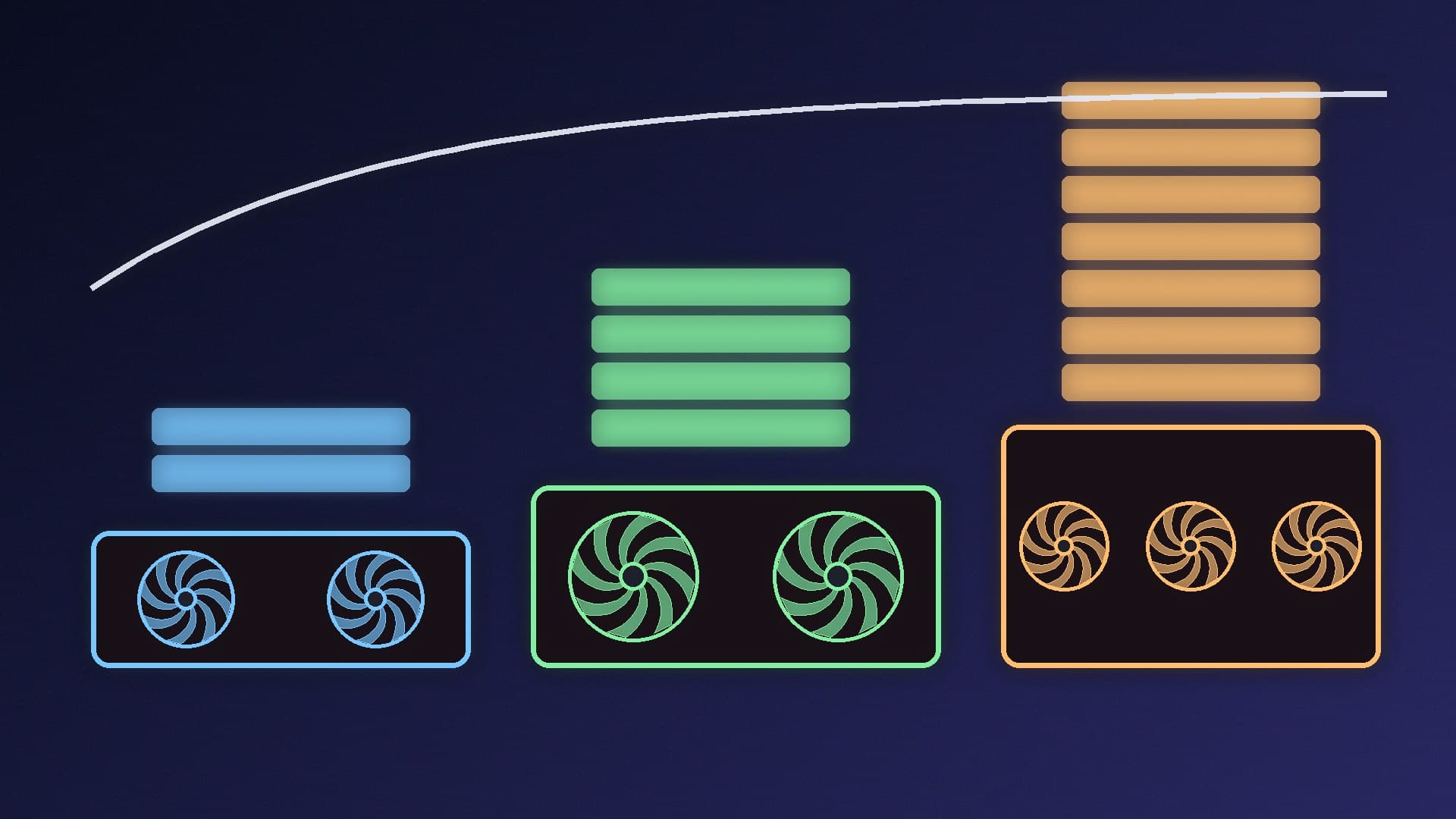
The GPUs we'd shortlist for fine-tuning language models at home, matched to Unsloth's published VRAM minimums: 16GB cards such as the RTX 5060 Ti 16GB and RTX 5070 Ti for QLoRA on models up to 14B, 32GB cards (RTX 5090, Radeon AI PRO R9700) for 27B to 32B, and the 96GB RTX PRO 6000 Blackwell for 70B.
Hannah Vance26 Nov 20264 min
How-To
Optimizations for windowed games is a Windows 11 graphics setting for DirectX 10 and DirectX 11 games played in windowed or borderless windowed mode. Microsoft says it switches them to flip-model presentation, reducing frame latency and enabling Auto HDR and variable refresh rate. You can turn it on for all games and off for individual ones.
Marcus Thorne26 Nov 20262 min
Versus
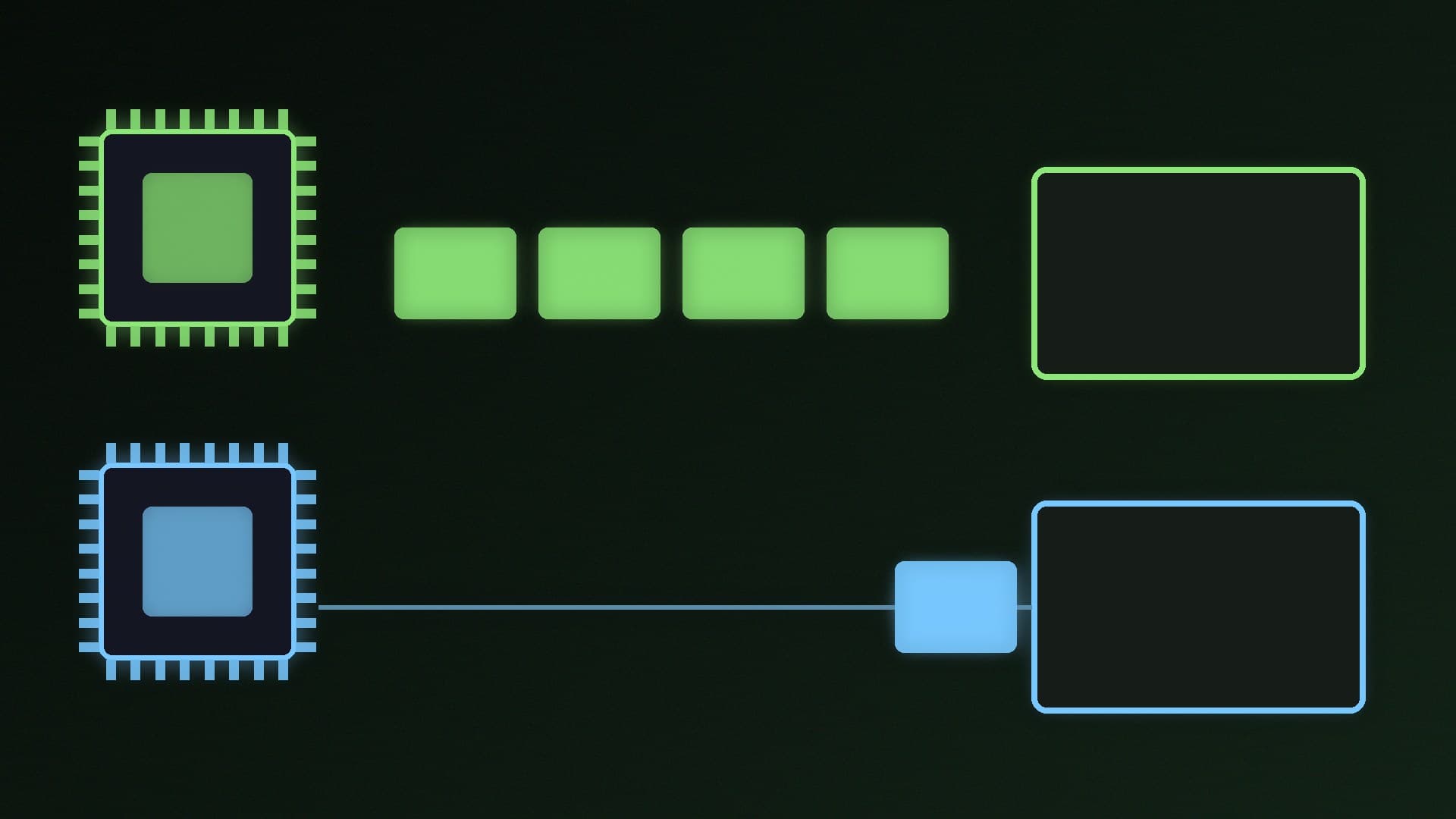
NVIDIA offers two ways to cut input lag. Low Latency Mode in the NVIDIA Control Panel limits how many frames the CPU queues for the GPU, while Reflex is built into supported games and times the engine's work just in time for rendering. NVIDIA recommends Reflex where a game supports it, with Ultra Low Latency Mode as the next best option.
Callum Reid26 Nov 20264 min
How-To
How to save default load settings for each model in LM Studio, such as GPU offload, context size and Flash Attention, from the My Models tab or when loading a model, and how per-model defaults differ from Presets, which hold system prompts and sampling settings but not load parameters.
Marcus Thorne26 Nov 20263 min
Hardware advice that shows its working.
New articles by email
Email address
Privacy policyCookie policyTerms of usePrivacy and cookie settingsRSSBack to top
Forge PC is funded by advertising and Amazon affiliate links. Advertisers have no say in what we cover or how we score it. Forge PC is a trading name of Foundry Systems Ltd, registered in England and Wales (company no. 16940612). Registered office: 71–75 Shelton Street, Covent Garden, London, WC2H 9JQ. hello@forgepc.co.uk
© 2026 Foundry Systems Ltd. Product names and logos belong to their owners.
To get JSON from LM Studio, start the local server, then send a /v1/chat/completions request with a JSON schema in response_format, and parse the string in choices[0].message.content. It follows the same format as OpenAI's Structured Output API, and LM Studio says it's expected to work with OpenAI's client SDKs. LM Studio warns that models below 7B are less likely to cope, so start with a larger model.
About the author
Systems & Technical Editor
Marcus writes Forge PC's step-by-step build, troubleshooting and system optimisation guides. His background spans Windows kernel and power-state diagnostics, UEFI/BIOS configuration, NVMe storage arrays, ATX 3.1 power delivery and running local AI and LLM workloads on consumer graphics cards.
More from Marcus Thorne
How-To
If your keyboard types " instead of @ or # instead of £, Windows is usually using the wrong keyboard layout. This guide follows Microsoft's official steps to check the active layout, switch it from the taskbar, add the United Kingdom layout and remove layouts you don't use, plus other causes to rule out.
Marcus Thorne2 min
Versus
Bulk Crap Uninstaller and Revo Uninstaller Free both remove Windows apps more thoroughly than Windows itself. BCU is open source and free for any use, with batch, forced and leftover removal. Revo Free handles one app at a time and adds Hunter Mode, but batch and forced removal need Revo Pro.
Callum Reid4 min
How-To
EarTrumpet is a free, open-source app that adds a per-app volume mixer to the Windows 11 system tray. Here's how to install it from the Microsoft Store, WinGet or Chocolatey, keep its icon visible, change individual app volumes, send apps to different speakers or headsets, and switch your default playback device.
Marcus Thorne3 min
News
NVIDIA's GeForce Game Ready 621.40 WHQL driver, released on 24 November 2026, officially fixes the bug that caused excessive background writes to the nvlog.nvlgstg log file. It also adds Game Ready support for Dawn of War IV and Assetto Corsa Rally, and DLSS 5 neural rendering for Where Winds Meet.
Eleanor Shaw2 min