Modern games often look a little soft. Temporal anti-aliasing, upscaling and post-processing effects all smear fine detail, and the result can be textures that look slightly out of focus, especially on a 1440p or 4K monitor. If you have an AMD Radeon graphics card, the driver has a built-in fix: Radeon Image Sharpening (RIS). This guide explains what it does, how to switch it on for every game or just one, and what changed with RIS 2, based on AMD's product page, support articles and driver release notes, checked on 28 November 2026.
What Radeon Image Sharpening does
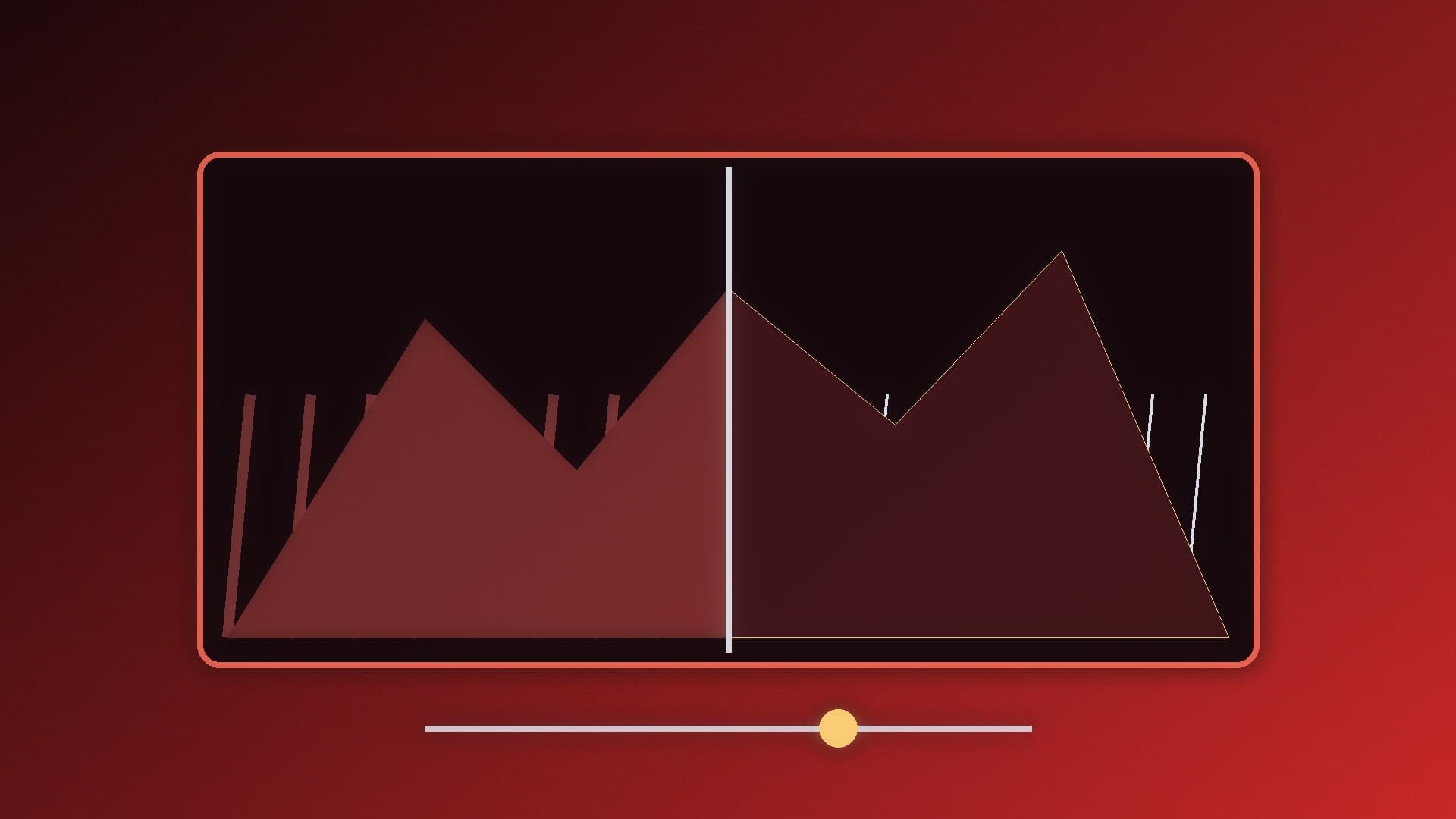
AMD describes RIS as a contrast adaptive sharpening algorithm that restores clarity to in-game visuals that may have been softened by other effects. "Contrast adaptive" is the important part. A basic sharpening filter boosts every edge equally, which quickly produces bright halos around objects and makes noise and aliasing more obvious. A contrast-adaptive filter sharpens less where there's already strong contrast and more where detail is faint, which is why AMD says it brings out detail without creating some of the visual artifacts seen in other sharpening effects.
The same algorithm is available to game developers as FidelityFX Contrast Adaptive Sharpening (CAS), and AMD notes that some games implement it themselves. If a game has its own CAS or sharpening slider, use one or the other rather than stacking both, or you'll double the effect.
RIS is a post-process filter. It doesn't add real detail or change the resolution a game renders at, so it isn't an upscaler in its own right. AMD does pitch it alongside optional GPU upscaling, though, and Radeon Super Resolution (RSR) is the driver-level upscaler covered in our Radeon Super Resolution guide. For how AMD's and NVIDIA's driver-level options compare, see NVIDIA Image Scaling vs Radeon Super Resolution.
Very little, according to AMD. Its product page footnote describes 2019 testing on a Radeon RX 5700 at 2560x1440 across five games, where turning RIS on reduced performance by between 0.53% and 1.41%, or about 1% on average. That's AMD's own testing on an older card and driver, so treat it as an indication rather than a guarantee, but sharpening is a light post-process pass and you shouldn't expect a noticeable drop.
Which Radeon GPUs support it
AMD's RIS page lists these requirements:
Graphics cards: Radeon RX 5000 series graphics cards, plus Radeon RX Vega 56, RX Vega 64, Vega Frontier Edition and Radeon VII, and the Radeon RX 470, RX 480, RX 570, RX 580 and RX 590.
APUs: Ryzen 2000 and newer APUs.
That list dates from RIS's 2019 launch, but newer cards are covered too: AMD's current support article demonstrates the feature on a Radeon RX 7900 XT. - APIs: DirectX 9, DirectX 11, DirectX 12 and Vulkan. AMD notes that with RIS enabled, DirectX 9 is only supported on Radeon RX 5000 series GPUs and newer and Ryzen 2000 series APUs and newer.
AMD also lists browsers and productivity apps among the supported software, which we cover below.
How to turn on Radeon Image Sharpening for all games
AMD's support article walks through the steps in AMD Software: Adrenalin Edition. AMD notes its screenshots were taken with a full install, so menus can vary with your hardware and install type; if you chose the driver-only option, you won't have these settings (see AMD Adrenalin full vs minimal vs driver only).
Press Start, type AMD Software and open the app.
In the search box at the top, type Sharpen and select the Radeon Image Sharpening - Graphics Settings result.
In Global Graphics, Radeon Image Sharpening is disabled by default. Toggle it to Enabled.
Set the sharpness level with the slider or by typing a value. AMD says changes take effect immediately.
Global Graphics settings apply to all supported games and applications when they launch. That last detail matters: AMD says RIS must be enabled before launching the game for it to take effect, so if a game is already running, close and reopen it.
How to set Radeon Image Sharpening for one game
Global sharpening isn't always ideal. A game with a very soft TAA implementation might benefit from a strong setting, while a crisp competitive shooter might need little or none. Adrenalin lets you set RIS per game through application profiles:
In AMD Software, type Gaming into the search box and select the Gaming result.
Select the game's application profile. If it isn't listed, AMD's support article on customising graphics settings explains how to add one.
Adjust Radeon Image Sharpening and its sharpness level for that profile.
AMD says the software copies your Global Graphics RIS setting into an application profile on first use, and that any change you make in the profile affects only that game or application.
Choosing a sharpness level
There's no single correct value, because it depends on how soft the game's own image is, your monitor's resolution and how close you sit. A sensible way to dial it in:
Start low, then raise the slider in small steps while looking at fine detail such as foliage, distant text, fences or hair.
Stop as soon as you see bright outlines around high-contrast edges, crawling shimmer on thin lines or grainy-looking flat surfaces. That's oversharpening, and backing off one or two steps usually fixes it.
If you upscale with RSR or in-game FSR, you may want a bit more sharpening than at native resolution, because upscaled images tend to be softer.
Use profiles to keep strong settings for the games that need them rather than raising the global level for everything.
Sharpening browsers, videos and apps
RIS isn't limited to games. AMD's support article says RIS can also be applied to select multimedia and productivity applications to sharpen picture and video content, and lists Google Chrome, Microsoft Edge, Mozilla Firefox, Windows Movies & TV Player, Microsoft Word, Excel, PowerPoint, Outlook, OneNote, Teams, VLC Player, Adobe Reader and Microsoft Photos. Because these apps have their own application profiles, you can enable sharpening for, say, VLC to tidy up lower-resolution video while leaving your browser untouched. Text in office apps is already sharp on most displays, so heavy sharpening there tends to look worse rather than better.
What's different about Radeon Image Sharpening 2
AMD introduced Radeon Image Sharpening 2 in the AMD Software: Adrenalin Edition 25.3.1 driver. The release notes say support is exclusively on Radeon RX 9070 Series graphics cards, that it was updated to provide stronger, more responsive sharpening in more use cases, and that it can apply sharpening to games, videos or across the entire desktop. AMD's notes for later drivers may extend that list, so check the release notes for your card and driver version if you own a newer Radeon RX 9000 model.
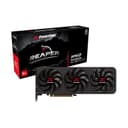
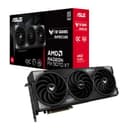
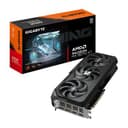
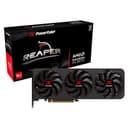
If you have an RX 9070-series card, such as the PowerColor RX 9070 XT 16GB Reaper, ASUS RX 9070 XT 16GB TUF Gaming OC, Gigabyte RX 9070 XT 16GB Gaming OC or PowerColor RX 9070 16GB Reaper, keep your driver up to date to get RIS 2. Older supported cards keep the original RIS.
Troubleshooting
Sharpening doesn't seem to do anything: restart the game, because RIS has to be on before launch. Then check that a per-game profile isn't overriding your global setting.
No RIS option at all: check your GPU is on AMD's supported list and that you installed the full AMD Software rather than driver only. AMD recommends using the latest version of AMD Software: Adrenalin Edition.
The image looks harsh or noisy: lower the sharpness level, or turn off any sharpening in the game's own menu so the two aren't stacked.
RIS sits alongside other Adrenalin features worth knowing, including Radeon Chill for lower power and heat and HYPR-RX, AMD's one-click profile. If you're weighing AMD's software against NVIDIA's, see NVIDIA App vs AMD Software.