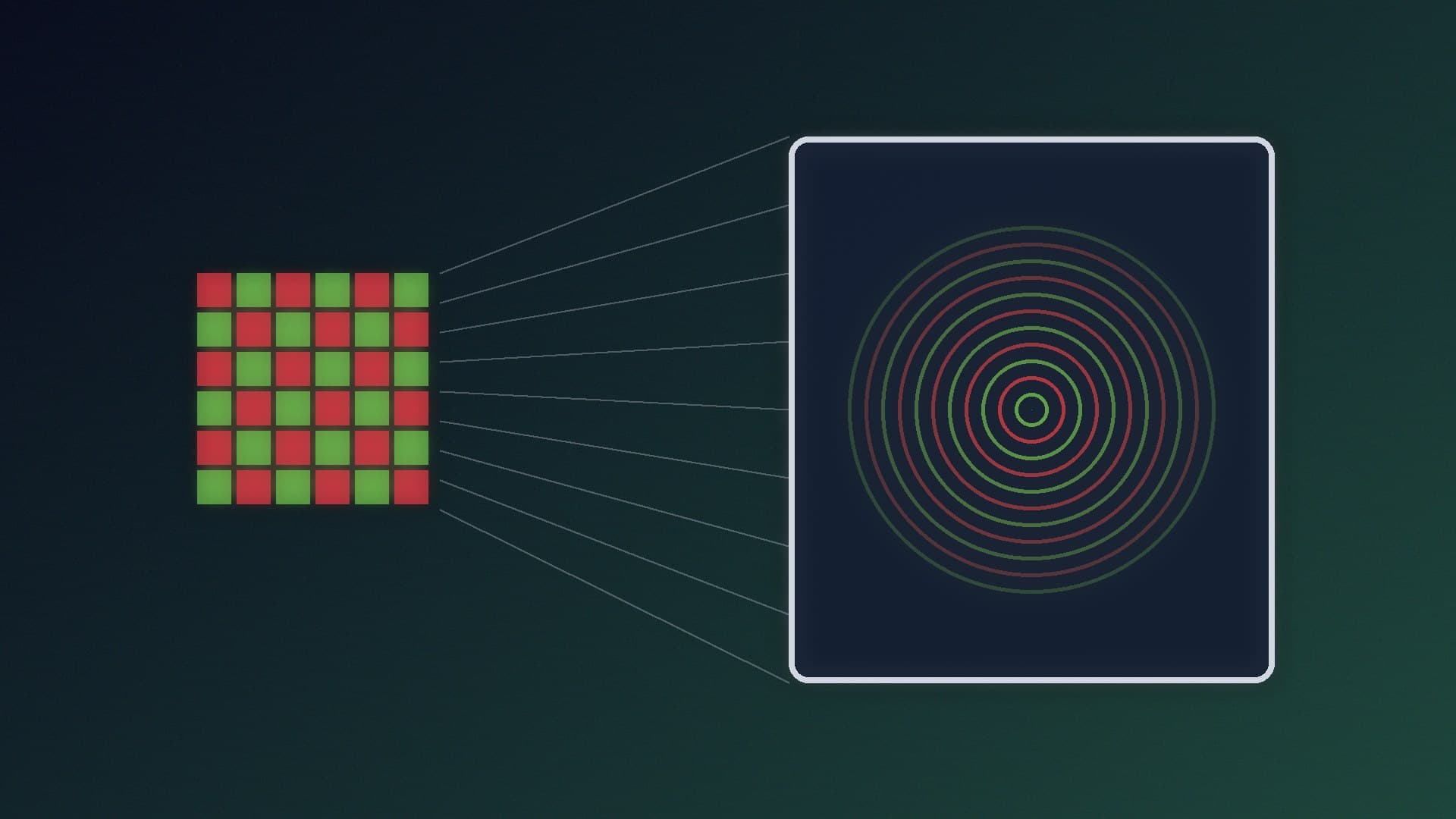
NVIDIA Image Scaling (NIS) and AMD Radeon Super Resolution (RSR) solve the same problem. Some games, especially older ones, don't support DLSS, FSR or XeSS, so you can't get an upscaling boost from the game's own menu. Both features move the upscaling into the graphics driver instead: the game renders at a lower resolution and the driver scales the picture up to your monitor's native resolution and sharpens it.
Both are spatial upscalers. NVIDIA's developer FAQ explains the difference: DLSS uses AI, motion vectors and previous frames, while spatial upscalers use only the current frame and a non-AI algorithm, trading some image quality for performance. That's why both companies say an upscaler built into the game is the better choice when one is available. Our DLSS, FSR and frame generation explainer covers the in-game options.
At a glance
| NVIDIA Image Scaling | AMD Radeon Super Resolution |
|---|
What it is | Driver-based spatial upscaler and sharpener | In-driver upscaler using the FSR (FidelityFX Super Resolution) algorithm |
Graphics cards | GeForce cards (NVIDIA's FAQ lists HDR limits on Maxwell and Pascal) | Radeon RX 5000 series and later on desktops, plus select AMD Advantage systems |
Where to turn it on | NVIDIA Control Panel > Manage 3D Settings > Image Scaling | AMD Software: Adrenalin Edition > Graphics settings |
Display mode | Exclusive full screen, or match your desktop resolution to the game | Exclusive full screen or borderless full screen |
Per-game control | Per-game sharpness in Program Settings | Per-game settings in AMD Software game profiles |
Works at native resolution? | Sharpening still applies at native resolution | Stays inactive until the game resolution drops below native |
Game APIs | DirectX 9, 10, 11, 12, Vulkan and OpenGL games | AMD says thousands of games, in supported full-screen modes |
How NVIDIA Image Scaling works
NVIDIA describes Image Scaling as a driver-based spatial upscaler and sharpener for GeForce GPUs that works with DirectX 9, 10, 11 and 12, Vulkan and OpenGL games. You switch it on in NVIDIA Control Panel > Manage 3D Settings > Image Scaling.
When you enable it, the driver adds five extra scaling resolutions based on your monitor's native resolution, which then appear in your games' resolution menus. NVIDIA recommends a quick reboot so games pick them up. For a 1440p monitor, NVIDIA's table lists these render resolutions:
Scaling | Render resolution on a 1440p monitor | On a 4K monitor |
|---|
85% | 2176 x 1224 | 3264 x 1836 |
77% | 1970 x 1108 | 2954 x 1662 |
67% | 1706 x 960 | 2560 x 1440 |
59% | 1506 x 847 | 2259 x 1271 |
50% | 1280 x 720 | 1920 x 1080 |
NVIDIA says the 50% setting isn't supported by Windows on a 1080p display.
In the game, choose Fullscreen mode and pick one of the lower resolutions. If you turn on the overlay indicator, a "NIS" label appears in the top-left corner: green means the game is being scaled and sharpened, blue means it's only being sharpened. Sharpening is applied globally, and you can set a different sharpness for each game under Manage 3D Settings > Program Settings.
Limitations worth knowing, according to NVIDIA's FAQ:
The display must be driven by the NVIDIA GPU. On Optimus (MSHybrid) laptops you need to switch to discrete GPU mode first.
It works natively only in exclusive full screen, not borderless windowed. For games without a proper full-screen mode, set your desktop resolution to match the game's.
HDR is supported on Turing and Ampere GPUs, but not on Maxwell or Pascal.
It isn't supported in SLI, Surround, clone or duplicate multi-monitor modes, VR or Integer Scaling mode.
NVIDIA's FAQ was last updated in January 2022 and also describes a GeForce Experience route. If you use the newer NVIDIA app, our NVIDIA Control Panel vs NVIDIA app comparison explains which settings live where.
How Radeon Super Resolution works
AMD describes RSR as an in-driver upscaler powered by the same algorithm as FSR, designed for the thousands of games without built-in upscaling. AMD's support page says it needs a Windows 10 or Windows 11 desktop with a Radeon RX 5000 series card or newer (or a select AMD Advantage system) and a full installation of AMD Software: Adrenalin Edition 22.7.1 or later.
RSR is disabled by default. Open AMD Software, search for "Graphics" and switch Radeon Super Resolution to Enabled in Global Graphics. AMD notes this also enables GPU Scaling and the screen goes blank for a moment. You can then change RSR for individual games from Gaming > Games in AMD Software. Our step-by-step Radeon Super Resolution guide walks through the menus.
Two differences from NVIDIA's approach stand out:
Borderless full screen works. RSR runs in exclusive full screen and borderless full screen. In exclusive full screen you lower the in-game resolution yourself. In borderless full screen, AMD says RSR automatically lowers your desktop resolution based on your RSR settings.
It only kicks in below native resolution. RSR stays inactive until the game's resolution falls below your monitor's native resolution.
AMD also warns that RSR is mutually exclusive with some other features. When RSR is on, AMD Software automatically disables Radeon Chill, Radeon Image Sharpening and Integer Scaling. RSR is also one of the features AMD bundles into its one-click HYPR-RX profiles (see our HYPR-RX guide).
Which should you use?
You don't really get to choose between them: NIS needs an NVIDIA GeForce card and RSR needs a Radeon RX 5000 series card or newer. The useful questions are when to use your card's driver upscaler at all, and how to get the best from it.
Use the game's own upscaler first. AMD recommends FSR over RSR when a game supports FSR, and advises against running both together because it doubles the work and can degrade image quality. NVIDIA's developer FAQ says DLSS delivers the best image quality and performance, while spatial upscalers trade image quality for performance, and its FAQ notes that GeForce Experience enables DLSS instead of NIS on RTX cards in supported games.
Use NIS or RSR for older or unsupported games where you need more performance and there's no in-game option.
Pick the mildest scaling step that gets you a playable frame rate. Both companies describe a trade-off: a higher render resolution looks better, a lower one runs faster.
On NVIDIA, use exclusive full screen or match your desktop resolution. On AMD, borderless full screen also works.
Want sharper rather than faster? That's a different job: driver supersampling renders above native resolution. See our DLDSR and VSR guide.
Our verdict
NVIDIA Image Scaling and Radeon Super Resolution are both free, driver-level spatial upscalers for games that don't have DLSS or FSR built in, and the card in your PC decides which one you get. NIS works with DirectX, Vulkan and OpenGL games on GeForce cards and adds per-game sharpening, but it needs exclusive full screen (or a matched desktop resolution) and sharpens even at native resolution while it's on. RSR needs a Radeon RX 5000 series card or newer, also works in borderless full screen and only engages below native resolution, but it switches off Radeon Chill, Radeon Image Sharpening and Integer Scaling while it's on. Whichever you have, use the game's own DLSS or FSR first and save the driver upscaler for older or unsupported games.