It's based on AMD's own support article and product page for Radeon Super Resolution, cross-checked with an independent walkthrough from WePC, all read on 24 November 2026. RSR is part of AMD's free AMD Software: Adrenalin Edition.
Most new games include an upscaler such as AMD FSR or NVIDIA DLSS, which render the game at a lower resolution and scale it up to fit your screen to boost frame rates. Plenty of older and smaller games don't. That's the gap Radeon Super Resolution (RSR) is designed to fill. It's built into the Radeon driver, so it can upscale games that have no upscaling options of their own.
If you're not sure how upscaling works in general, our explainer on DLSS, FSR and frame generation is a good place to start.
What RSR is
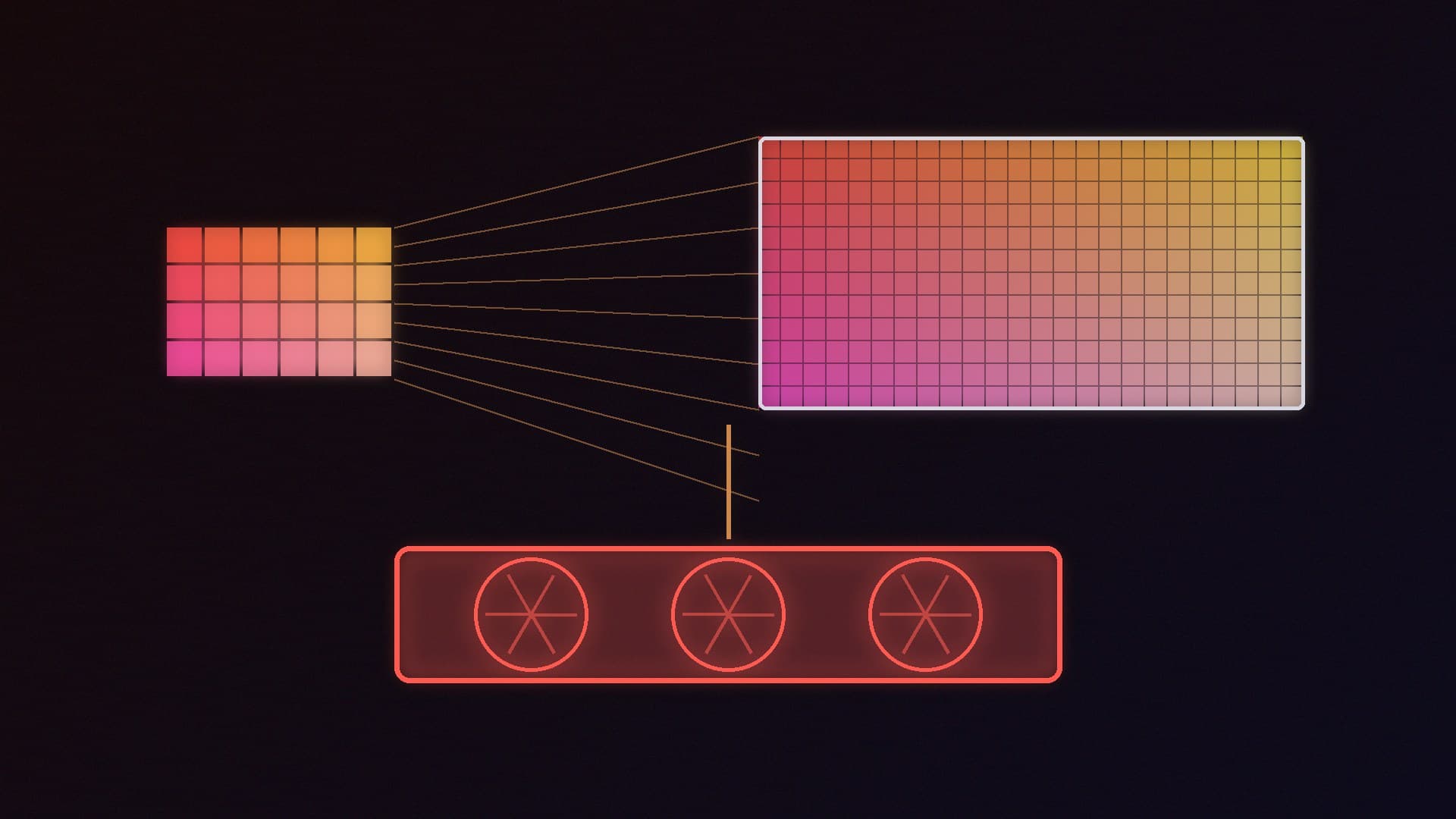
AMD describes RSR as an in-driver upscaler powered by AMD FidelityFX Super Resolution (FSR) technology, using the same algorithm as FSR. AMD's support article says it applies spatial upscaling to games running in exclusive full screen or borderless full screen modes.
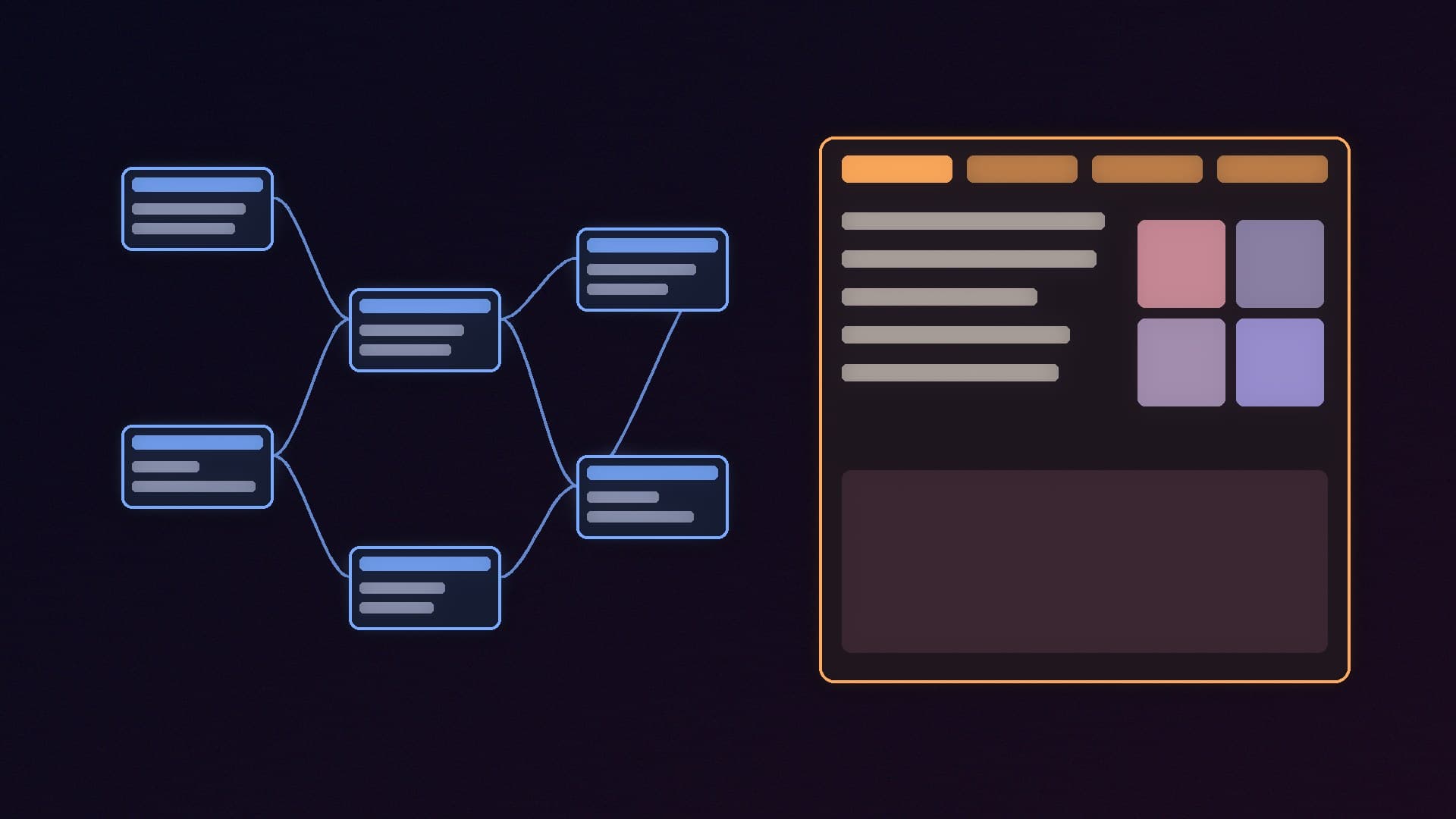
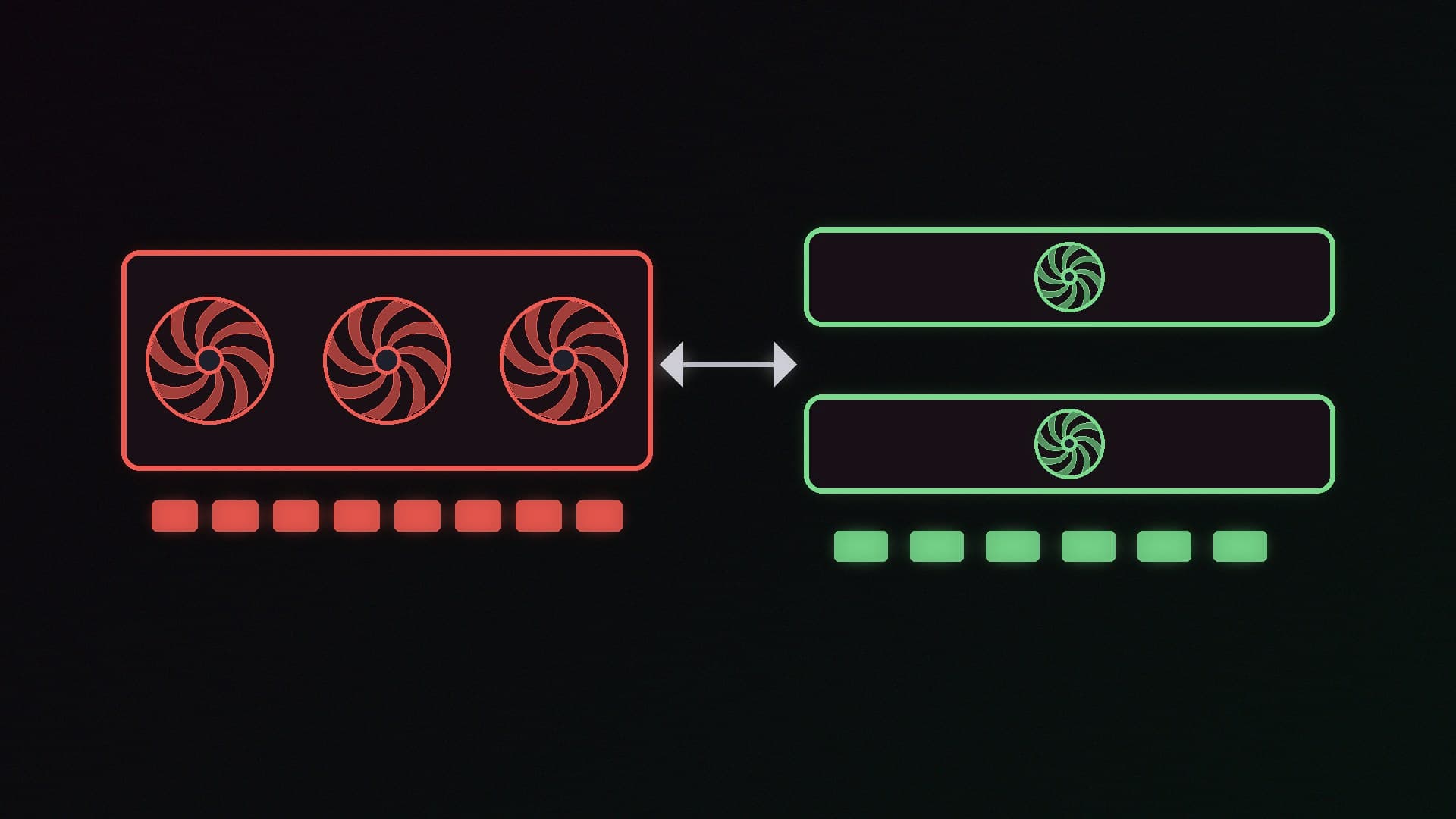
The key difference from FSR is where it runs. FSR has to be built into a game by its developer. RSR is applied by the driver, so it works with games that have never heard of it. AMD says it's designed to improve performance in "thousands of games" that lack upscaling.
That flexibility comes with a trade-off. WePC points out that because RSR applies to the full frame, it upscales the game's HUD and menus too, whereas FSR built into a game doesn't apply to the interface. AMD's own advice is clear: if a game has FSR built in, use FSR instead, because game-specific integration typically gives better results.
What you need
According to AMD's support article, RSR requires:
Windows 10 or Windows 11.
A desktop PC with a discrete AMD Radeon RX 5000 Series graphics card or newer, or one of a select number of AMD Advantage systems.
A full installation of AMD Software: Adrenalin Edition 22.7.1 or later. A driver-only or minimal install won't give you the setting.
AMD's support steps were written for Adrenalin 25.6.1 with a Radeon RX 9070, so the feature is current on RDNA 4 cards. Older cards such as the RX 400, RX 500 and RX Vega series aren't covered, and AMD's list doesn't include integrated graphics or laptops other than the select AMD Advantage systems. If you're not sure which driver you have, see our guide to updating your graphics drivers.
Step 1: Turn on RSR globally
Open AMD Software: Adrenalin Edition. You can search for "AMD Software" from the Start menu.
Type Graphics into the search box at the top and open Graphics Settings.
Under Global Graphics, switch Radeon Super Resolution to Enabled. It's disabled by default.
AMD says turning on RSR also turns on GPU Scaling in the Global Display settings, and your screen will go blank for a moment while that happens. That's normal.
The first time you enable it, AMD Software shows a quick-start guide explaining how to set up your games so RSR kicks in. It's worth reading through once.
Step 2: Set the sharpness
AMD's RSR page says there's a sharpening slider to customise the effect. Upscaling tends to soften an image, and sharpening helps restore some detail. Start at the default and adjust it to taste while looking at a game you know well.
Step 3: Lower the resolution in your game
This is the step people miss. AMD says RSR stays inactive until the game's resolution falls below your monitor's native resolution.
Games with an exclusive full screen mode: set the game to full screen, then choose a resolution lower than your monitor's native one in the game's own settings. RSR upscales the result back to native.
Games that use borderless full screen: AMD says RSR automatically lowers your desktop resolution, based on your RSR settings, when the game runs.
AMD's RSR product page puts the trade-off simply: a higher input resolution gives better visual quality, and a lower one gives more performance. WePC's guide adds that the game needs to run at the same aspect ratio as your screen, so on a 16:9 monitor, pick a lower 16:9 resolution.
As a starting point, try a resolution one step below native, for example 1920 x 1080 on a 2560 x 1440 monitor, and only go lower if you need more frames. If you're not sure what your monitor's native resolution is, check Settings > System > Display in Windows, where it's marked as recommended. Our guide to fullscreen vs borderless windowed explains the difference between the two display modes.
Step 4: Use RSR for one game only
You may not want RSR running for every game, especially ones that already support FSR. AMD lets you set it per game through application profiles:
In AMD Software, select Gaming from the top menu, then Games.
Choose the game's profile. If it isn't listed, you can add it.
Set Radeon Super Resolution for that game.
AMD says a game's profile picks up the global RSR setting the first time you use it, and changing the setting in the profile affects that game only.
Features that switch off when RSR is on
AMD says some Adrenalin features can't run at the same time as RSR. When you enable RSR, AMD Software automatically turns off:
Don't use RSR on top of FSR in the same game either. AMD's RSR FAQ says running both upscalers at once does the work twice and could reduce image quality. If a game has FSR, turn RSR off for it in that game's profile and use the game's own setting.
RSR is also one of the features AMD bundles into HYPR-RX, its one-click performance profile. If you've turned on HYPR-RX, RSR may already be enabled; our guide to AMD HYPR-RX explains what it switches on.
If RSR doesn't seem to work
Work through these checks, all based on AMD's requirements:
Is the game running below native resolution? If it's at native, RSR does nothing.
Is the game in exclusive full screen or borderless full screen? RSR doesn't apply to ordinary windowed mode. If borderless doesn't behave, try exclusive full screen, which AMD's product page names as the mode to use.
Is your card supported? You need an RX 5000 Series card or newer on a desktop PC.
Do you have the full Adrenalin install? Reinstall AMD Software with the full option if the setting is missing.
Is a game profile overriding the global setting? Check both Global Graphics and the game's profile.
Still not sure? WePC notes that pressing Alt + R in a game opens the AMD Software overlay, which shows whether RSR is enabled.
Our verdict
Radeon Super Resolution is a useful, free way to get more performance from games that don't include their own upscaler. On a Windows PC with a Radeon RX 5000 Series or newer card and a full Adrenalin install, enable it under Graphics Settings, then set the game to full screen and choose a resolution below your monitor's native one, keeping the same aspect ratio. Use the sharpening slider to taste, set it per game if you only need it in a few titles, and remember that Radeon Chill, Radeon Image Sharpening and Integer Scaling switch off while it's on. If a game has FSR built in, AMD recommends using that instead.