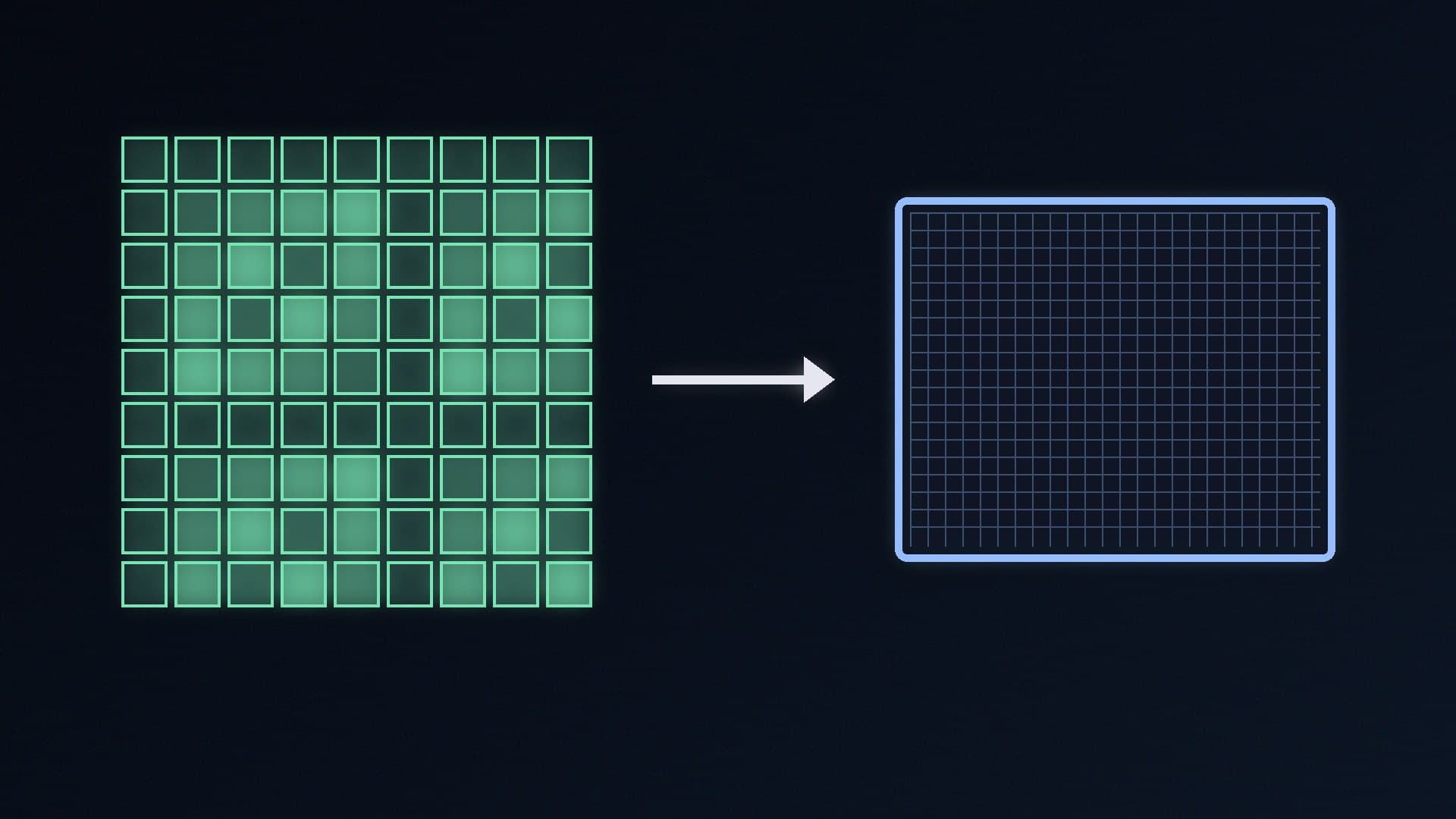
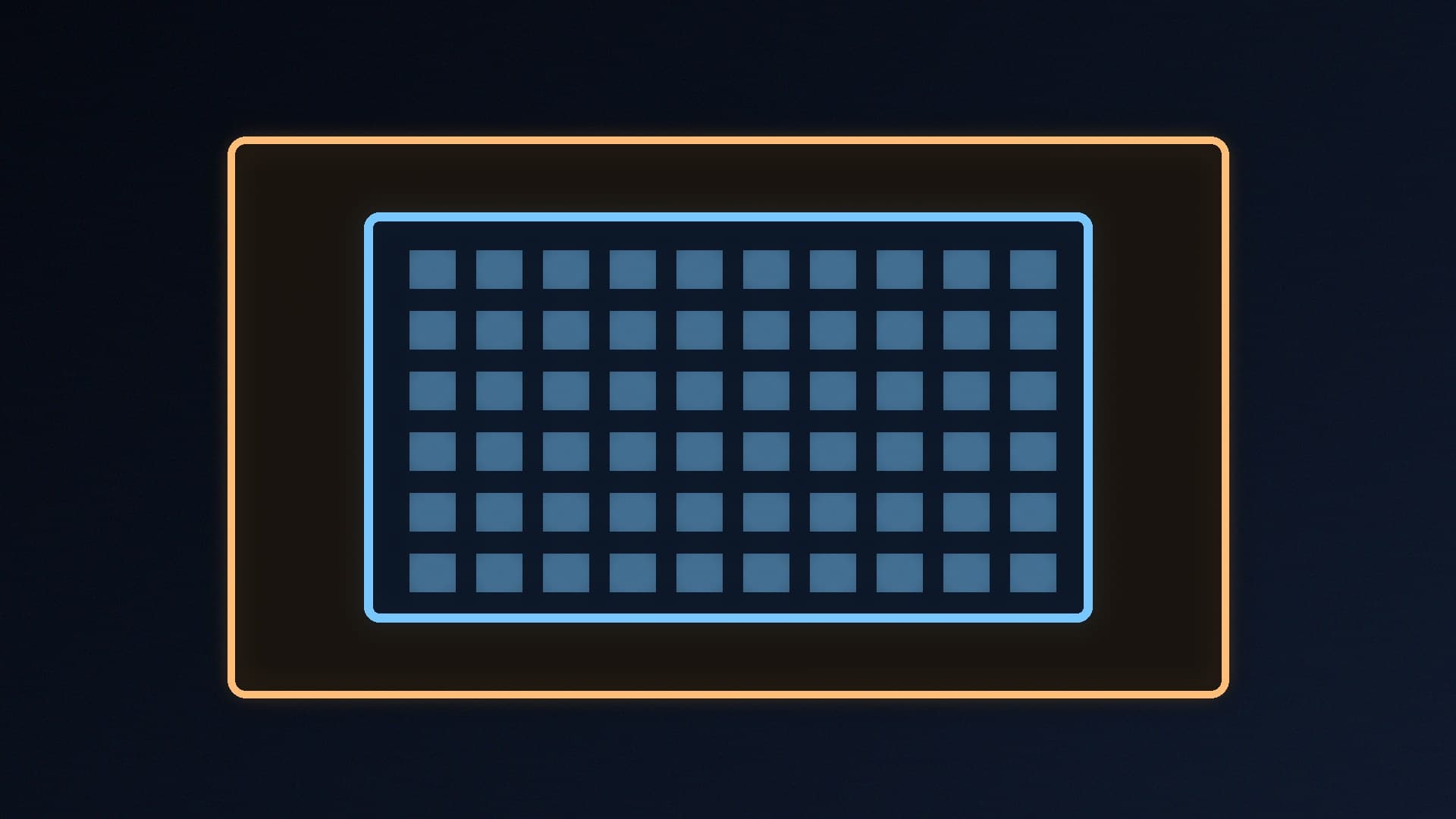
Upscalers such as DLSS and FSR render games below your monitor's resolution to gain frame rate. NVIDIA's DSR and DLDSR, and AMD's Virtual Super Resolution (VSR), do the opposite: they render above your native resolution and shrink the result to fit your screen. The result is a sharper, less jagged image, at the cost of performance.
It's a useful trick for older games, slower single-player titles and anything your graphics card runs comfortably above your target frame rate, especially on a 1080p monitor. Forge PC hasn't tested image quality or performance for this guide; the steps come from NVIDIA's and AMD's own documentation, and we credit TechSpot's analysis where we use it.
DSR, DLDSR and VSR explained
DSR (Dynamic Super Resolution) is NVIDIA's original feature. According to TechSpot, it works on GeForce GTX 700 series and newer cards and offers factors up to 4x your native pixel count.
DLDSR (Deep Learning Dynamic Super Resolution) adds an AI network that runs on the Tensor Cores of GeForce RTX graphics cards. NVIDIA says the network needs fewer input pixels, making the image quality of DLDSR 2.25x comparable to DSR 4x "but with higher performance". It works in most games.
VSR (Virtual Super Resolution) is AMD's equivalent. AMD says it lets games render above the display's native resolution and then rescales them down, simulating supersampling anti-aliasing in games that don't support it. AMD says it supports DirectX, Vulkan and OpenGL applications.
The factor refers to the total number of pixels. On a 1920 x 1080 monitor, DLDSR's 1.78x factor gives 2560 x 1440 and 2.25x gives 2880 x 1620. On a 2560 x 1440 monitor, 2.25x gives 3840 x 2160.
Before you start
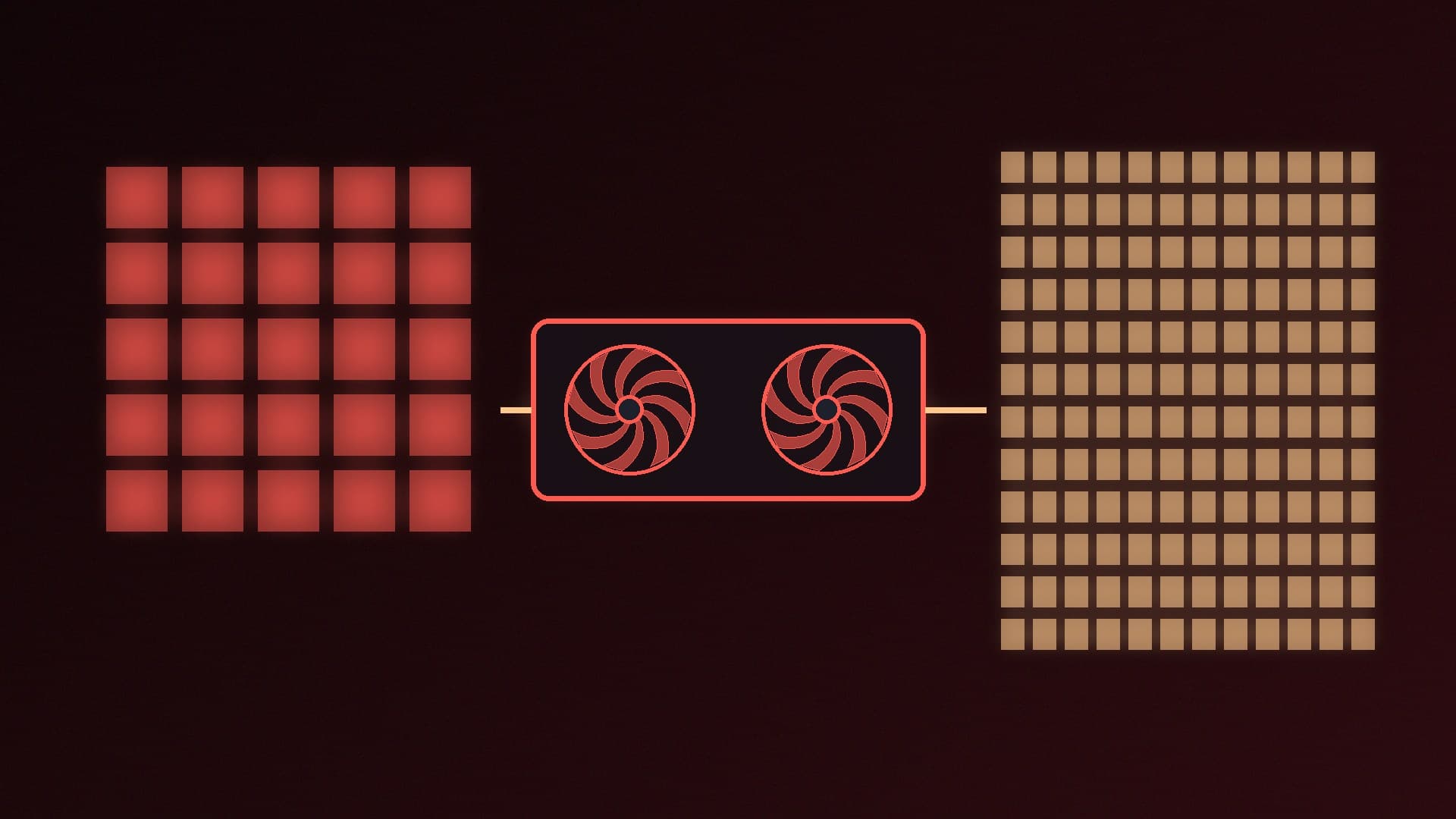
Expect a lower frame rate. The game really is rendering at the higher resolution. TechSpot measured a significant performance drop against native 1080p with both DSR and DLDSR, as you'd expect. If you need more frames, our explainer on DLSS, FSR and frame generation covers the opposite approach.
Check your setup is supported. NVIDIA's support chart says DSR and DLDSR don't work with tiled (MST) monitors, Surround configurations, integer scaling turned on, or standard Optimus laptops. On laptops with Advanced Optimus or MS Hybrid mode, you need to switch to NVIDIA GPU-only or discrete GPU mode first.
Update your driver. Use a recent driver from NVIDIA or AMD. See how to update graphics drivers if you're not sure.
How to turn on DLDSR (NVIDIA RTX)
Right-click the desktop and open NVIDIA Control Panel.
Go to Manage 3D Settings and stay on the Global Settings tab.
Find DSR - Factors and open the list.
Tick 1.78x DL and/or 2.25x DL. These are the deep learning factors and appear only on RTX cards. The others are legacy DSR factors.
Leave DSR - Smoothness at its default for now and click Apply.
TechSpot notes that you can select either a DL factor or the matching legacy factor, but not both.
On a GTX card, you'll only see the legacy DSR factors. TechSpot explains that DSR works best at whole-number factors such as 4x on a 1080p monitor, because each screen pixel is made from exactly four rendered pixels. Other factors can produce artefacts, which the smoothness slider reduces by blurring the image slightly.
How to turn on VSR (AMD Radeon)
AMD's support article describes the steps in AMD Software: Adrenalin Edition:
Click Start, type AMD Software and open it.
Type VSR into the search box and click the result.
Toggle Virtual Super Resolution to Enabled. It's off by default. AMD says the display may go blank for a few seconds while it switches, which is normal.
AMD's VSR page lists support for Radeon RX 5000, RX 6000 and RX 7000 series cards. If you have a different Radeon card, check whether the option appears in AMD Software.
AMD also suggests trying Radeon Image Sharpening, a separate setting you can find by typing "Sharpen" into the same search box. It can be enabled globally or per game, and AMD says it must be enabled before the game is launched to take effect.
How to use the higher resolution in a game
Once DLDSR, DSR or VSR is on, new resolutions above your native one appear in games and Windows.
Launch the game and open its graphics or video settings.
Choose the higher resolution, for example 2880 x 1620 on a 1080p monitor.
Apply and check your frame rate. If it falls too far, try the lower factor.
AMD says that if higher resolutions don't appear in a game, it may be down to the game engine or the display's compatibility with VSR modes. AMD adds that, with VSR enabled, the extra resolutions are also available in Windows display settings if you want to use them on the desktop.
Tips and common problems
Image too sharp? TechSpot found that DLDSR's filter can produce an over-sharpened image. Raise the DSR - Smoothness value in NVIDIA Control Panel to soften it.
Screenshots look the same. TechSpot found that screenshot tools capture the image before the downscaling filter is applied, so screenshots won't show the difference you see on screen.
G-Sync stopped working? TechSpot says G-Sync can stop working with DLDSR on a variable refresh rate monitor, and suggests enabling G-Sync for both windowed and full-screen mode in NVIDIA Control Panel. Our G-Sync vs FreeSync guide explains the settings.
Pick the right games. TechSpot recommends DLDSR mainly for slower single-player games, where image quality matters more than the highest possible frame rate.
Turn it off for competitive games. For fast shooters, you'll usually want the extra frames. Simply choose your native resolution in the game.
Our verdict
NVIDIA DLDSR and AMD VSR render games above your monitor's resolution and scale them down, giving a sharper, cleaner image in games your graphics card can already run comfortably. On an RTX card, turn on the 1.78x DL or 2.25x DL factor in NVIDIA Control Panel's DSR - Factors setting; on a supported Radeon card, enable Virtual Super Resolution in AMD Software. Then pick the higher resolution in the game. Expect lower frame rates, use the smoothness slider if DLDSR looks oversharpened, and save it for older or single-player games. Forge PC hasn't tested image quality or performance for this guide.