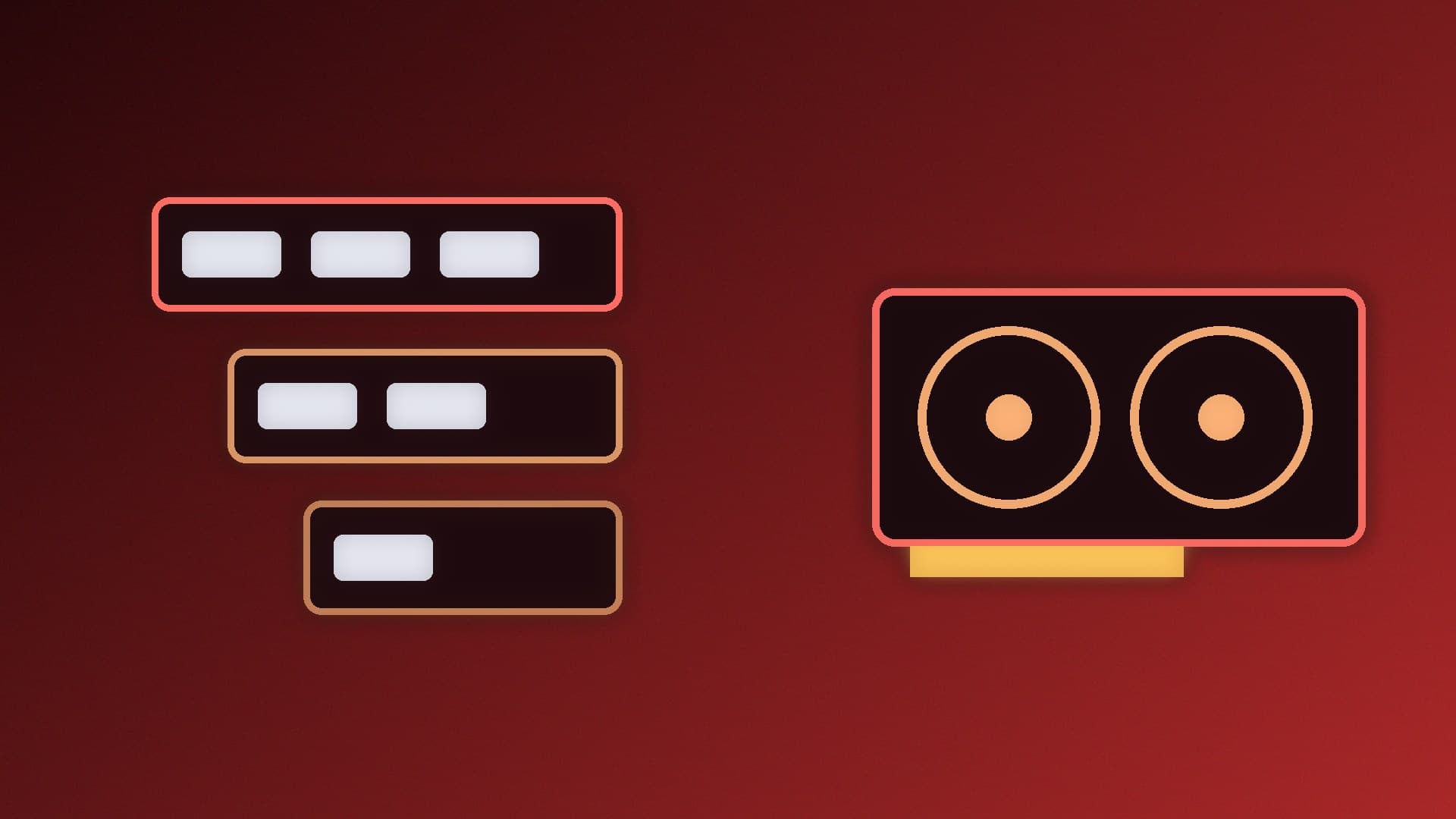
When you install a Radeon graphics driver, AMD's installer quietly offers a choice most people skip: how much of AMD Software: Adrenalin Edition you actually want. Click Additional Options and you can pick Default, Minimal or Driver Only, plus a Factory Reset and Custom Install. This comparison explains what each option does, based on AMD's own support articles checked on 27 November 2026.
The three install types at a glance
AMD added the choice in Radeon Software Adrenalin 21.4.1, describing the options then as Full Install (the default), Minimal Install and Driver Only. In AMD's current install guide the same three appear under Software Type as Default, Minimal and Driver Only.
| Default (full) | Minimal | Driver Only |
|---|
Graphics driver | Yes | Yes | Yes |
AMD Software app | Full | Basic controls only | No user interface |
Gaming, recording and streaming features | Yes | No recording or capture | No |
Performance tuning | Yes | No | No |
Where you check the driver version | AMD Software | AMD Software | Device Manager |
The descriptions come straight from AMD. Default "provides all AMD Software features and controls for gaming, recording, streaming, and tweaking your performance". Minimal "provides only the basic controls" and "does not include advanced features such as performance tweaking or recording and capturing content". Driver Only "provides no user interface for AMD Software features", and AMD says the driver version information is then available in Device Manager.
Default: everything AMD offers
Choose Default (or simply click Accept & Express Install, which AMD describes as the default settings for a standard installation) if you use any of AMD Software's extras. That includes recording, streaming and performance tuning. If you record gameplay with AMD's tools, as in our guide on how to record gameplay with AMD Adrenalin, you need this option.
For what a recent driver release added, see our AMD Adrenalin 26.11.2 news story. For a feature-by-feature comparison with NVIDIA's equivalent app, see NVIDIA App vs AMD Software.
Minimal keeps AMD Software installed but strips it back to basic controls. You lose performance tweaking and recording or capture, according to AMD. Our view: it suits people who want to set display and graphics options in AMD's own app now and then, but who already use other tools for recording (such as OBS Studio) and don't tune their card. AMD's preferences article shows separate preference screens for full and minimal installs, so you can still adjust the app itself.
Driver Only: no AMD app at all
Driver Only installs the graphics driver with no AMD Software interface. You check the driver version in Device Manager instead, as covered in our guide on how to check your driver version in Windows 11. Our view: this is for people who want the fewest extras possible on their system, for example a PC used mainly for work, a test bench, or a build where you monitor and tune with other tools. See our best free hardware monitoring software for options.
Factory Reset, Custom Install and the AI Bundle
The same Additional Options screen has three more settings worth understanding:
Factory Reset (optional): AMD says this "removes all prior versions of the AMD Software Package and temporarily pauses Windows Updates". The installer restarts the PC and carries on after the reboot. The catch, in AMD's words: "You will not be able to roll back to the previously installed drivers." If you might want to go back, read our guide on how to roll back a graphics driver before ticking it.
Custom Install: lets you choose which available components or features to install.
AI Bundle: AMD says that starting with Adrenalin Edition 26.1.1, an AI Bundle install option is available on supported systems, and the installer asks you to review its separate licence agreement. Our view: leave it unticked unless you plan to use it.
AMD also recommends keeping the default install location (C:\Program Files\AMD), and suggests closing open apps and temporarily disabling anti-virus, firewall, remote access and streaming services before running setup.
Can you switch later?
Yes, but not from inside the app. AMD states: "Switching from one install type to another requires going through the Radeon Software installation and setup process again." In practice that means running the installer again and choosing a different Software Type. If you're switching because of driver problems rather than preference, our guide on how to clean install graphics drivers with DDU covers a deeper clean-up.
Which should you choose?
Pick Default if you record, stream or tune your card. It's what AMD's express install uses.
Pick Minimal if you want AMD's app for occasional basic settings but use other tools for recording and tuning.
Pick Driver Only if you don't want AMD Software at all and are happy checking the driver version in Device Manager.
The choice is the same whichever Radeon card you have, from a PowerColor RX 9060 XT 16GB Reaper to an ASUS RX 9070 16GB Prime OC. AMD lists Windows 11 version 21H2 and later, and 64-bit Windows 10 version 1809 and later, as supported operating systems.
Our verdict
For most gamers, Default is the right choice, because it's the only install type with AMD's recording, streaming and performance-tuning features. Choose Minimal if you just want basic controls, or Driver Only if you want no AMD app at all. Only tick Factory Reset if you're sure you won't need to roll back, and remember that changing install type later means running the installer again.