A KVM (keyboard, video, mouse) switch lets two computers share one set of monitors, a keyboard, a mouse and other USB devices, so you can flip between a gaming PC and a work laptop with a button press. Setting one up is mostly a matter of getting the cables into the right groups, but a few details (EDID emulation, which USB port the keyboard goes in, and the video standard the switch supports) decide whether it works smoothly. We've used TESmart's documentation for its HKS202-E23 two-PC, two-monitor HDMI switch as the worked example because it's clear and detailed; other brands work in a similar way, but port names and hotkeys differ, so check your own switch's manual.
Before you buy or plug in: check the video spec
A KVM sits in the video path, so the switch itself must support the resolution and refresh rate you want. TESmart's HKS202-E23, for example, is an HDMI 2.0 switch rated for up to 3840 x 2160 at 60Hz per output, with lower-resolution modes such as 2560 x 1440 at 120Hz and 1920 x 1080 at 240Hz; TESmart says it doesn't support 4K at 144Hz. If you have a high-refresh 1440p or 4K gaming monitor, you need a switch rated for that mode (often HDMI 2.1 or DisplayPort 1.4 models) and cables to match. Our DisplayPort vs HDMI and HDMI cable for 4K 120Hz guides explain the limits, and best TESmart KVM switch compares models.
For two monitors, each computer also needs two video outputs. TESmart notes that a laptop without a second HDMI output can use a USB-C-to-HDMI adapter or a dock, and a desktop with DisplayPort can use a DisplayPort-to-HDMI adapter or cable, but it warns against chaining several adapters, which can make the picture unstable.
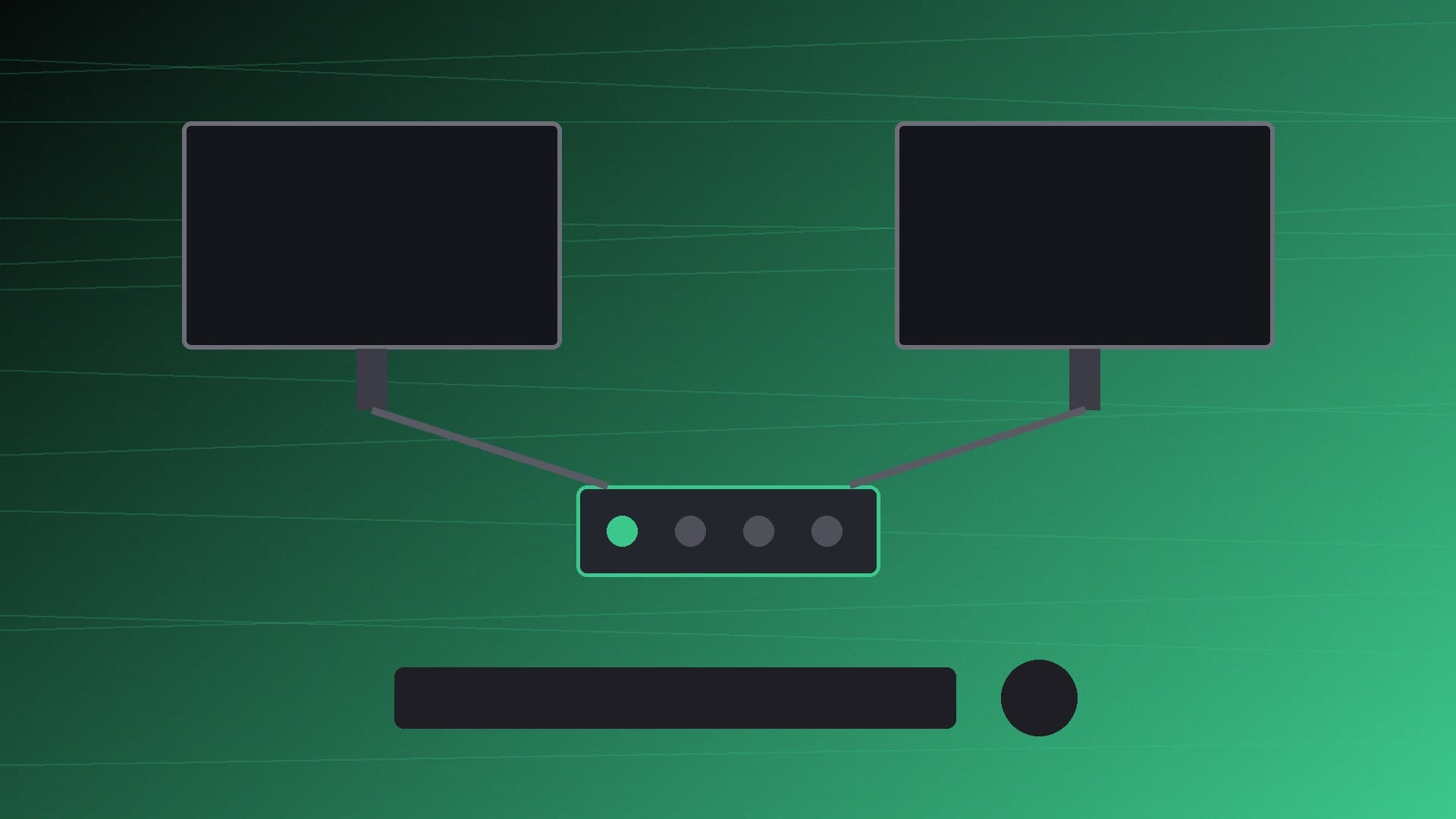
On a two-monitor KVM, each PC gets an input group: two video inputs and one USB upstream connection. On the HKS202-E23 you connect one supplied KVM cable (HDMI plus USB) and one supplied HDMI cable from each computer to its PC1 or PC2 group. The rule that matters on any KVM: both video cables and the USB cable in a group must come from the same computer. Mixing them up is the most common reason the keyboard controls one PC while the screen shows the other.
Step 2: Connect the monitors
Plug your monitors into the switch's display outputs (Display 1 and Display 2 on TESmart's model) with your own cables. Use the monitor's best-supported input for the switch's video standard. If your monitors have different maximum resolutions, note that TESmart's manual says you can't swap the two monitor images in its split mode.
Step 3: Plug the keyboard and mouse into the dedicated ports
Most KVMs have dedicated keyboard and mouse ports plus one or more general USB ports. Use the dedicated ports for your keyboard and mouse: TESmart says the keyboard must be in a dedicated keyboard/mouse port for hotkeys to work. Put other devices, such as a USB drive, printer or USB headset, in the general USB port. On the HKS202-E23 that's a USB 2.0 port, and there's also an analogue audio output for speakers. TESmart says this model doesn't support direct Bluetooth connections, so a Bluetooth mouse or keyboard stays paired to one PC; a USB wireless receiver plugged into the switch is the better option.
Step 4: Power on and set up Windows displays
Connect the switch's power adapter, turn it on, then start both PCs. Select each PC in turn and set up the monitors in Windows as you normally would (see how to set up dual monitors in Windows 11), including extended or mirrored mode, resolution and refresh rate.
Step 5: Learn the switching methods
The HKS202-E23 switches with a front-panel button, an IR remote or keyboard hotkeys. TESmart's hotkey trigger is Scroll Lock by default, with Right Ctrl as an alternative; if your keyboard has no Scroll Lock key, TESmart's support page explains how to set the trigger to Right Ctrl by holding the switch button for 15 seconds. In the mode where each monitor shows a different PC, you move keyboard and mouse control between them by pressing Right Alt twice. Hotkeys vary a lot between brands, so check your manual.
What EDID emulation does (and when it doesn't)
When you switch away from a PC, it can think its monitors have been unplugged and shuffle your windows onto one screen. EDID emulation stops this by keeping each PC supplied with monitor information while it isn't selected. TESmart says its HKS202-E23 emulators help preserve window positions and desktop layout, but only in Display Mode 1 (one PC across both monitors); EDID emulation isn't supported in Display Mode 2, where each monitor shows a different PC. If windows still jump around when you switch, check that the mode you're using supports EDID emulation.
Troubleshooting
Hotkeys don't work: make sure the keyboard is in a dedicated keyboard/mouse port, and try both Scroll Lock and Right Ctrl as the trigger, as TESmart's support page suggests.
Gaming keyboard or mouse extras don't work: many KVMs pass the keyboard and mouse through directly, but some features can still fail. TESmart's HKS202-E23 offers a Legacy Emulation Mode for basic keyboard, mouse and hotkey operation when a device doesn't work in Pass-Through Mode. If you turn pass-through off by mistake, TESmart suggests using a basic 104-key keyboard to turn it back on.
No picture or flickering: check every device, cable and adapter supports the resolution and refresh rate you've set, lower it to test, and remove extra adapters. See how to fix no display or no signal and second monitor not detected.
No sound: route USB audio devices through the shared USB port, or use the switch's analogue output, and check the playback device in Windows after switching.
Don't need to share monitors?
If both PCs have their own screens and you only want one keyboard and mouse, software can do the job over your network without a box. See best free keyboard and mouse sharing software and Deskflow vs Mouse Without Borders. For a laptop-only setup, a dock may be simpler; see USB-C hub vs docking station.