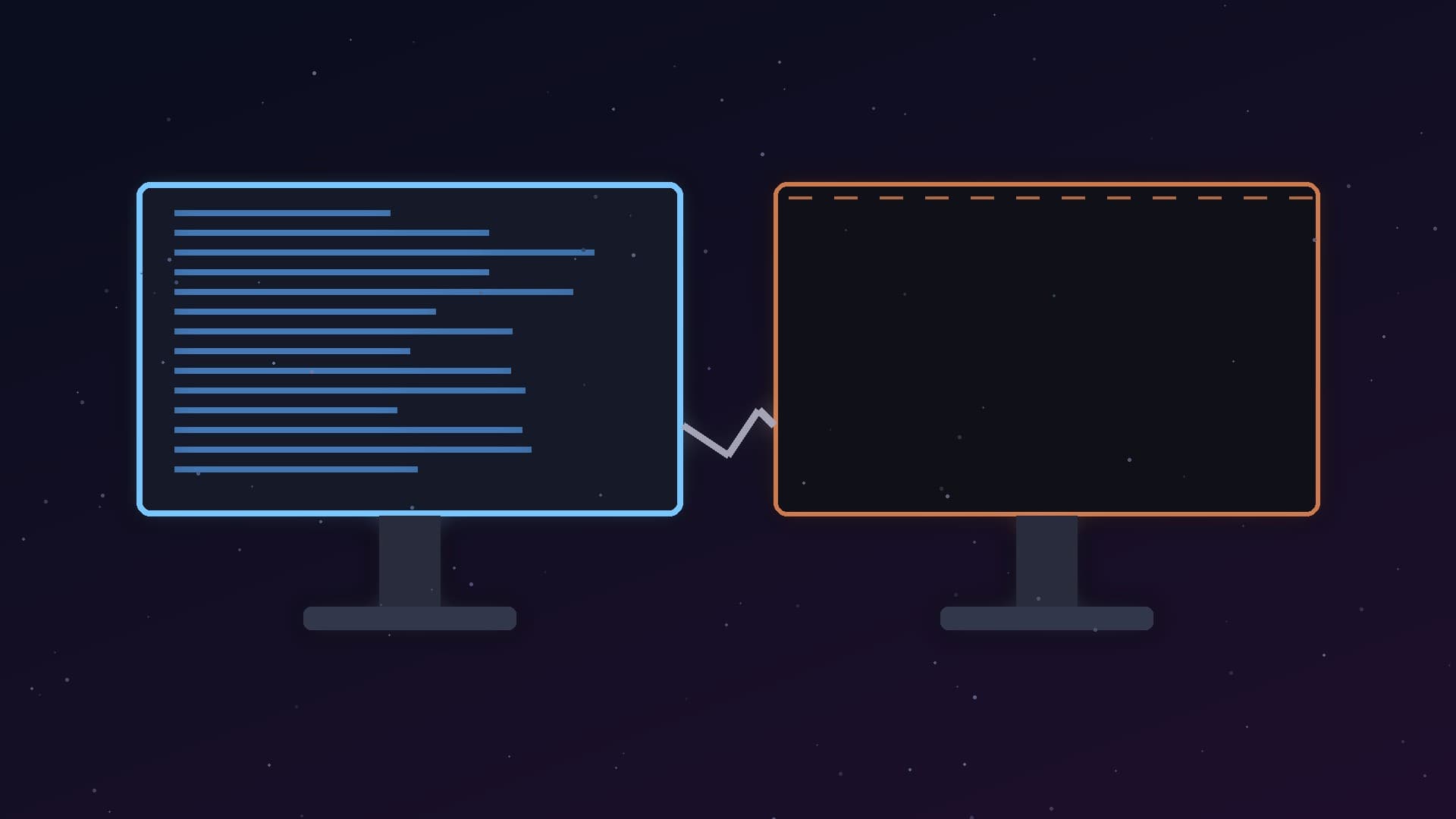
Adding a second screen is one of the cheapest productivity upgrades you can make to a PC, so it's frustrating when you plug one in and Windows 11 acts as though it isn't there. The good news is that the cause is usually simple: the wrong input, the wrong port, a cable that can't carry the signal, or a graphics driver that needs a nudge. The steps below are based on Microsoft's own Windows 11 support documentation, plus general PC building practice, and they're ordered from quickest to most involved.
If neither of your screens shows anything at all, this isn't the right guide; start with our fix for no display or no signal instead. This guide is for when your main monitor works but the second one stays black or never appears in Settings.
Step 1: Check the monitor itself
Start with the boring stuff, because it's the most common cause.
Power: make sure the monitor is switched on at the wall and at its own power button. Many monitors show a "no signal" message for a few seconds and then drop into standby, which can look like a dead screen.
Input source: use the monitor's on-screen menu or input button to select the port you've actually plugged into. A monitor with two HDMI ports and a DisplayPort input won't always switch automatically, and some only scan for a signal when they power on.
Cable seated at both ends: push the connector fully home at both the PC and the monitor. Most DisplayPort plugs have a latch that clicks into place; HDMI plugs can work loose if the cable is heavy or tightly bent.
Microsoft's own checklist for multiple monitors starts in the same place: make sure your cables are properly connected to your PC or dock, then check for Windows updates.
Step 2: Plug into the right port on a desktop PC
This is the mistake that catches out the most desktop owners. If your PC has a graphics card, both monitors should normally be plugged into the ports on the graphics card, which sit in a horizontal row lower down on the back of the case. The video outputs higher up, on the motherboard's rear I/O panel, are driven by the processor's integrated graphics.
Those motherboard outputs only work if your processor actually has integrated graphics, and even then whether they run alongside a graphics card depends on the motherboard and its BIOS settings. Check your motherboard manual if you specifically want to use them. For a normal gaming or work setup, the simple fix is to move the second monitor's cable onto a free port on the graphics card.
Laptops are different: the HDMI, DisplayPort or USB-C ports are wired to whichever graphics chip the maker chose, so just use the port that's there. If you're using USB-C, it needs to support video output (DisplayPort Alt Mode or Thunderbolt); a charge-only or data-only USB-C port won't drive a monitor.
Windows doesn't always pick up a monitor that was connected while the PC was already running, or one that was asleep when Windows checked. Microsoft's fix is built into Settings:
Open Start > Settings > System > Display.
Expand Multiple displays.
Select Detect.
If Windows finds the monitor, it will appear as a numbered box at the top of the Display page. Select Identify to show the number on each screen, then drag the boxes so they match how your monitors sit on the desk and select Apply. Our guide to setting up dual monitors in Windows 11 covers arrangement, scaling and choosing the main display in more detail.
Step 4: Check the projection mode with Windows + P
Sometimes Windows can see the second monitor but isn't sending anything to it. Press Windows key + P to open the projection menu. According to Microsoft, the options are:
Option | What it does |
|---|
PC screen only | Shows everything on one display only |
Duplicate | Shows the same thing on all displays |
Extend | Spreads your desktop across multiple screens |
Second screen only | Shows everything on the second display only |
If it's set to PC screen only, the second monitor will stay black even though it's connected. Choose Extend for a normal dual-monitor desktop.
Step 5: Reset the graphics driver
A graphics driver that has got itself into a confused state can stop responding to new displays. Microsoft's display troubleshooting advice is to press Windows logo key + Ctrl + Shift + B, which resets the graphics driver. If that doesn't help, Microsoft suggests seeing whether a restart fixes it, and it's worth restarting with the second monitor already connected and switched on, so Windows sees it from the start.
Step 6: Update, roll back or reinstall the display driver
If the monitor still isn't detected, look at the driver. Microsoft's steps for checking it through Device Manager are:
Type device manager in the taskbar search box and open it.
Expand Display adapters.
Right-click your graphics card and choose Update driver, or open Properties > Driver to see more options.
If the problem started straight after a driver update, Microsoft suggests using Roll Back Driver on the Driver tab and restarting. If that option is greyed out, Windows doesn't have a previous driver to go back to. You'll need administrator rights for rollbacks and uninstalls.
For gaming PCs, it's usually best to install the latest driver directly from NVIDIA, AMD or Intel rather than relying on Windows Update. Also run Settings > Windows Update > Check for updates, as Microsoft recommends, in case a display-related fix is waiting.
Step 7: Swap cables and ports to isolate the fault
If software fixes haven't worked, it's time to work out which piece of hardware is at fault. Change one thing at a time:
Try a different cable. Cheap or very long HDMI and DisplayPort cables are a common cause of a blank screen or a signal that drops in and out, especially at high resolutions and refresh rates.
Try a different port on the graphics card, and a different input on the monitor.
Try the second monitor on its own as the only display. If it doesn't work by itself either, the monitor, its cable or its input is the likely problem.
Try the monitor on another device, such as a laptop or games console. If it works there, the problem is on the PC side.
Remove adapters and docks. HDMI-to-DisplayPort converters, USB-C hubs and docking stations add another layer that can fail. Connect directly if you can.
If you're not sure which connection to use in the first place, our DisplayPort vs HDMI guide explains the differences for gaming monitors.
Step 8: Detected but blank, or stuck at the wrong resolution?
If Windows lists the monitor but it shows a black screen, flickers or looks wrong, open Settings > System > Display, select the second monitor and check its resolution and refresh rate. A refresh rate the cable or input can't carry can produce a blank screen. Drop to 60Hz first; once the picture is stable, step back up. Our guide to changing your monitor's refresh rate shows where the setting lives.
Quick checklist
Monitor on, correct input selected, cable fully seated.
On a desktop, both monitors plugged into the graphics card, not the motherboard.
Settings > System > Display > Multiple displays > Detect.
Windows + P and choose Extend.
Windows + Ctrl + Shift + B, then restart with the monitor connected.
Update, roll back or reinstall the graphics driver.
Swap cables, ports and devices one at a time to find the faulty part.
Our verdict
A second monitor that Windows 11 won't detect is nearly always a connection or settings problem rather than a broken screen. Check the monitor's power and input first, then make sure that on a desktop both screens are plugged into the graphics card, not the motherboard. After that, use Settings > Display > Multiple displays > Detect, set Windows + P to Extend, and reset the graphics driver with Windows + Ctrl + Shift + B. If it still won't appear, update or roll back the display driver, then swap cables and ports one at a time until you find the faulty part.