Everything below comes from Bitsum's official Process Lasso website, FAQ, free vs Pro comparison and release notes, checked on 25 November 2026.
Windows' Task Manager lets you change a program's priority or the CPU cores it can use, but only until you close it. Process Lasso, made by Bitsum, is best thought of as an automated task manager: it applies those settings every time a program starts, and adds an algorithm called ProBalance that steps in when something is hogging the processor. It runs on Windows 7 to 11 and has been around since 2003, according to Bitsum. The current version when we checked was 19.1.0, dated 18 November 2026.
What Process Lasso does
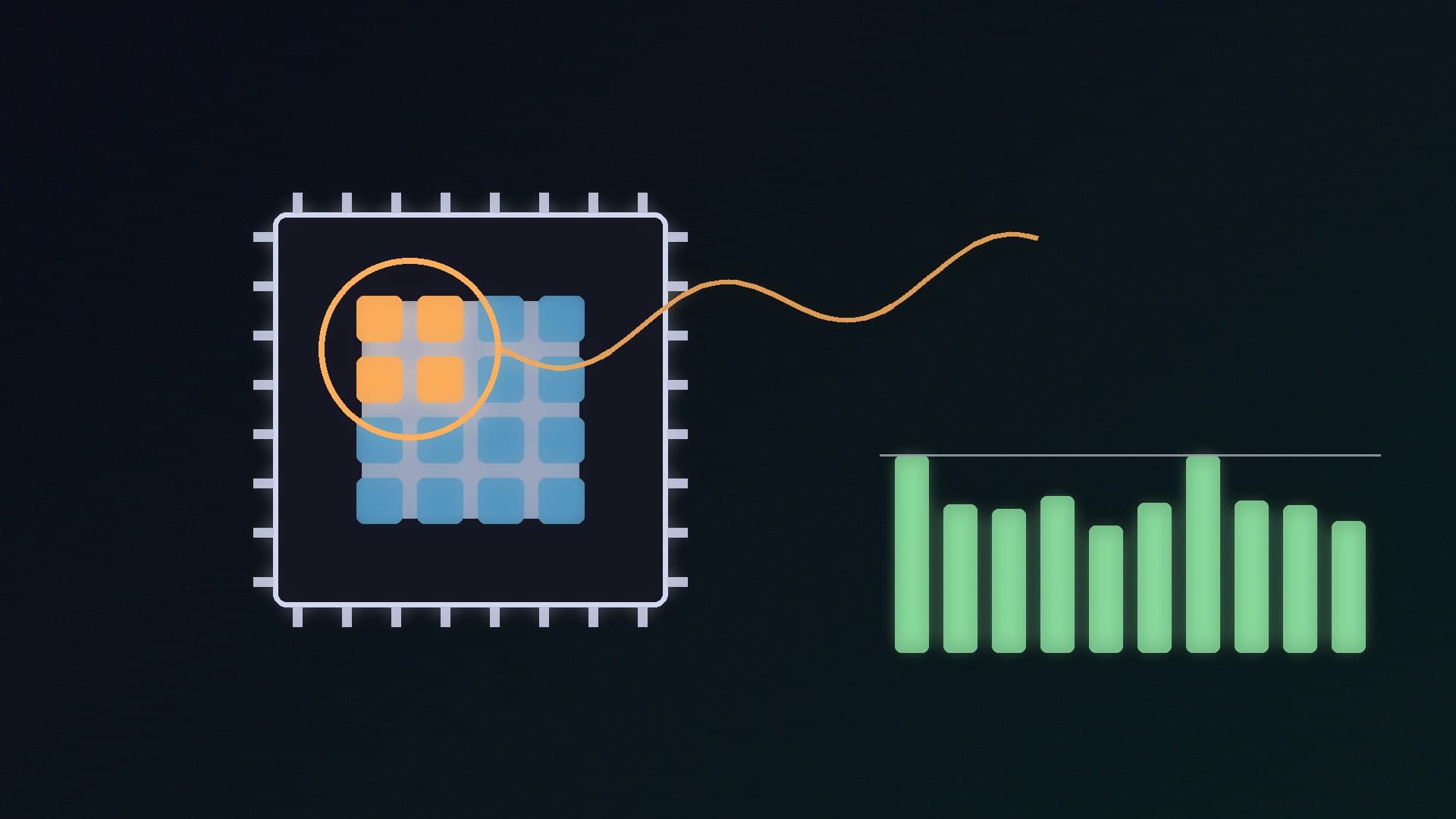
ProBalance. Bitsum says ProBalance temporarily lowers the priority of background processes that are monopolising the CPU, so one runaway program can't make the whole system unresponsive.
Persistent priorities and CPU affinities. Set a priority class or a set of CPU cores once, and it's applied every time that program launches.
CPU Sets. A softer alternative to affinities that works more like preferred cores, letting a program spill onto other cores when it needs to.
Performance Mode. Switches to the Bitsum Highest Performance power plan while chosen programs or games run. Bitsum says this plan boosts performance by turning off the CPU's power-saving functions.
IdleSaver. Uses a faster power plan while you're using the PC and a power-saving one when it's idle.
Efficiency Mode control. Lets you control and keep Windows 11's Efficiency Mode applied to chosen processes.
Bitsum says all rules are enforced by a lightweight background service called the Process Governor, and the main window is optional.
Free vs Pro: what you actually need
Process Lasso is free to use indefinitely. After a short trial of everything, the free version keeps ProBalance, Performance Mode, SmartTrim, CPU, I/O and GPU priorities, CPU affinities, CPU Sets, Efficiency Mode control, IdleSaver and the configuration profile switcher. It also shows a short reminder at startup.
Pro is needed for adding rules for the CPU Limiter, Watchdog rules, the Instance Balancer, per-program power profiles, disallowed processes and preventing sleep while a program runs, plus automatic updates and commercial use. When we checked on 25 November 2026, Bitsum listed a single-PC lifetime licence at approximately £18 (reduced from approximately £30), with an Entire Home lifetime licence for up to five PCs at approximately £27 (reduced from approximately £46). Bitsum notes prices may not include taxes, and there's a 30-day money-back guarantee. Bitsum's own advice is that the free version is enough if you want ProBalance, Performance Mode for your games and your own priority, CPU affinity and CPU Sets rules.
How to install and set up Process Lasso
Download it from bitsum.com. Use the official site rather than a download portal.
Run the installer and accept the UAC prompt. Bitsum says rules are enforced by the background Process Governor service, so they keep working even when the main window is closed.
Leave the defaults alone at first. Bitsum says the defaults are usually best, with ProBalance active, and that ProBalance is on by default. Most other features stay off until you turn them on.
Watch the main window. It shows a live graph, a process list with any rules applied, and an actions log of every adjustment Process Lasso makes, so you can see exactly what it's doing.
Settings worth changing on a gaming PC
Right-click a game's process and choose Induce Performance Mode. From then on, Process Lasso switches to the Bitsum Highest Performance power plan whenever that game runs and switches back afterwards. Automatic game detection (for example via Steam) can do this for every detected game, but Bitsum says it's off by default in current versions. You'll find it under Options > Power > Performance Mode > Enable Automatic Detection. If you'd rather manage power yourself, our guide to changing the power mode in Windows 11 covers the built-in options.
Exclude a game from ProBalance if it shows "Restrained"
If a game shows "Restrained" in the Status column, ProBalance has temporarily lowered its priority. Bitsum says that normally doesn't affect performance and the restraint is lifted while you play, but it suggests right-clicking the game and choosing Exclude from ProBalance.
Set a permanent priority or CPU affinity
Right-click any process to set its priority class or CPU affinity, and choose the "Always" option so it's applied every time the program starts. Bitsum's advice is to keep rules "precise and few": constraining one problematic background process, or keeping a game on a specific set of cores, is more likely to help than micro-managing every process. It specifically warns against broad affinity rules on all processes or on system and security software, and says most of the time it's best to let Windows schedule threads where it sees fit.
AMD X3D processors
For Ryzen X3D chips such as the 7950X3D, Bitsum says CPU Sets and CPU affinity rules let you choose which cores specific apps use, and it recommends CPU Sets because they let an app grow beyond its preferred cores when needed. Bitsum also notes that some users with certain CPU affinity rules on X3D processors may get better results by turning off the Xbox Game Bar, so Process Lasso's rules alone control scheduling. For more on what X3D's extra cache means for gaming, see our Ryzen 7 9800X3D vs Ryzen 7 9700X comparison.
Games with anti-cheat
Bitsum says Easy Anti-Cheat blocks direct access to game processes, but Process Lasso can still help. For CPU affinity, set the rule on the launcher (such as Steam.exe) and the games it starts will inherit it. For priorities, use Enforce by Windows Registry, which sets the priority as the process is created. On bans, Bitsum's FAQ says there has never been a single case, because Process Lasso only makes outside adjustments and never touches process memory, though it adds that a game may refuse to start if your rules don't suit it.
New in version 19: finding latency problems
Process Lasso 19, released in November 2026, added two free tools. LatencyTest (in the Tools menu as DPC/ISR Latency Monitor) measures how long each driver's interrupt routines run and tells you which driver is likely to blame for audio dropouts or stutter. Interrupt Affinity Policy then lets you choose which CPUs service each device's interrupts. Bitsum says original settings are saved and can be restored. Both are also available as free stand-alone downloads. For the classic approach to the same problem, see our LatencyMon guide.
When Process Lasso won't help
Bitsum is upfront that it can't fix everything. It says ProBalance acts only when it's needed, so a lightly loaded PC won't feel different, and if a slowdown is caused by waiting on a drive rather than the CPU, ProBalance won't address it. It also can't make a program use more cores than it was written to use. If your PC is constantly slow, start with fixing high CPU usage in Windows 11 and trimming startup apps, and use Task Manager or Process Explorer to find the culprit first.
Our verdict
Process Lasso is worth installing if you multitask heavily, run long renders or compiles while doing other things, or want a game always on specific cores. The free version covers ProBalance, Performance Mode, permanent priorities, affinities and CPU Sets, which is everything most gamers need. Leave the defaults on, add a few precise rules rather than many, use CPU Sets on dual-CCD X3D chips, and don't expect it to fix a PC that's slow for other reasons.