This guide is based on Microsoft's official Nearby sharing support pages, checked on 25 November 2026. Menu names can vary slightly between Windows 11 versions.
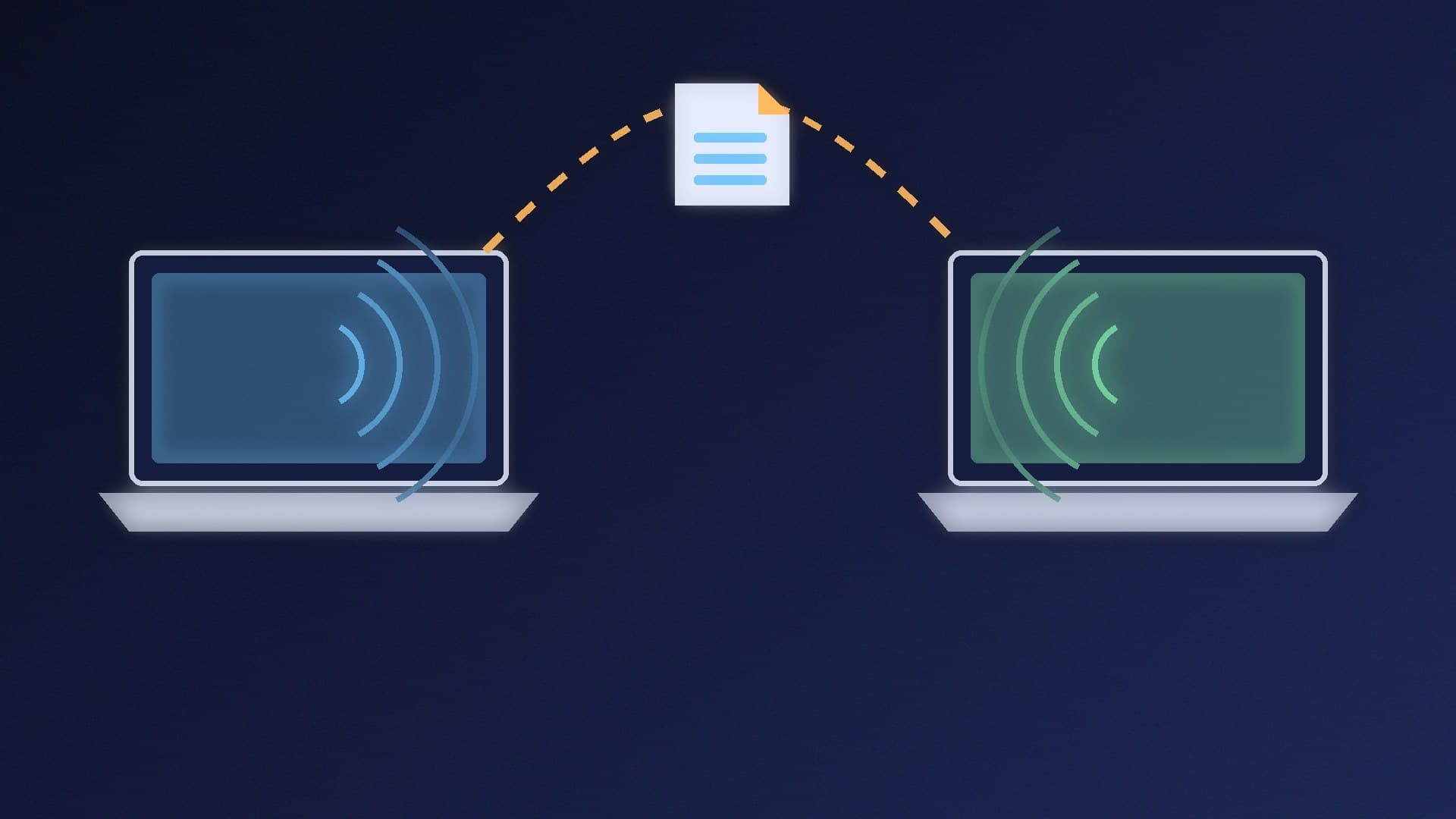
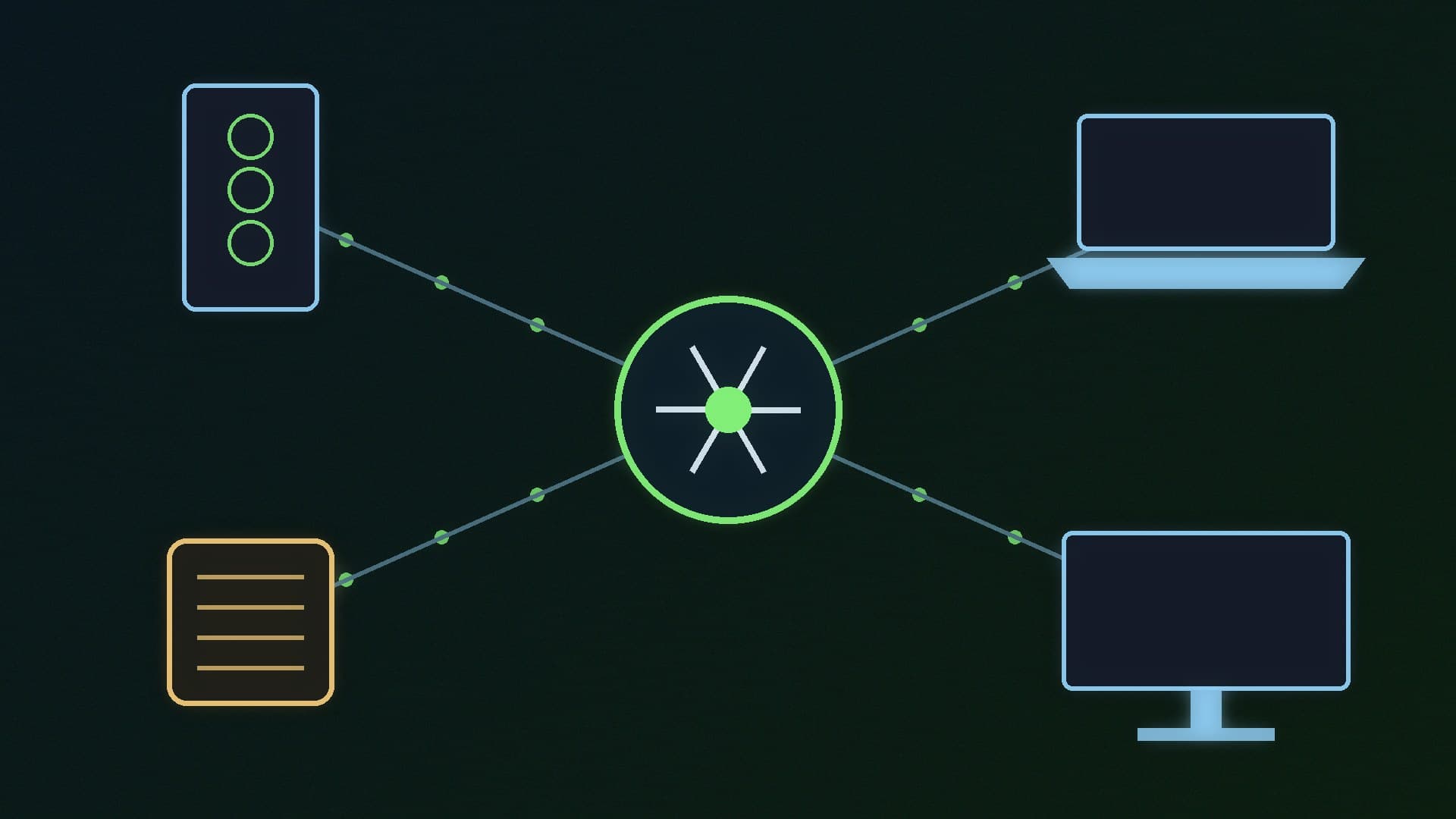
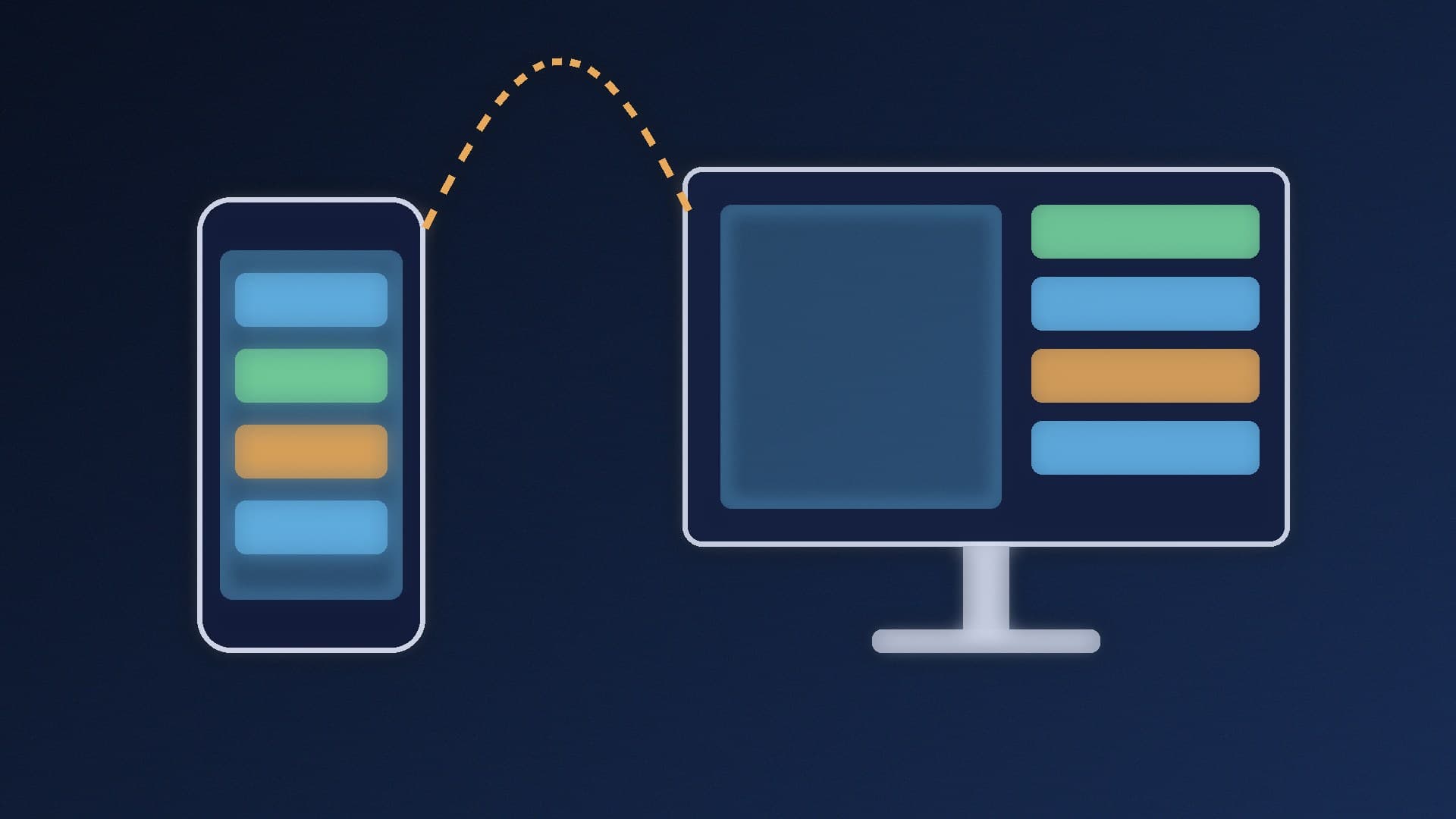
Moving a file from your desktop to a laptop in the same room shouldn't mean hunting for a USB stick or uploading it to the cloud and downloading it again. Nearby sharing is Windows' built-in answer: Microsoft says it lets you send documents, photos, links to websites and more to nearby Windows PCs using Bluetooth or Wi-Fi. It's free and already part of Windows, so there's nothing to install.
It's designed for PC-to-PC transfers. To move files between a PC and a phone, use Phone Link or, for any phone brand, LocalSend. For regular access to files on another PC, a mapped network drive is a better fit.
What you need
Microsoft's support pages list these requirements for both PCs, the one you're sending from and the one receiving:
Windows 11. Microsoft says the PC you're sharing to can also run Windows 10 version 1803 or later, but Windows 10 support ended on 14 October 2025, so we'd keep both PCs on Windows 11.
Bluetooth 4.0 or higher with Low Energy (LE) support on both PCs.
Wi-Fi for faster transfers. If the sending PC runs the latest version of Windows 11, Microsoft says it can share over Wi-Fi when the receiving PC is connected to the same private Wi-Fi network. Otherwise, it falls back to Bluetooth, which is much slower.
Check your PC supports Bluetooth LE
Press Start, type Device Manager and open it.
Expand Bluetooth and right-click your Bluetooth radio adapter, then select Properties.
Open the Details tab and choose Bluetooth radio supports Low Energy Central Role from the Property list.
The value should say True.
Desktop PCs often don't have Bluetooth at all. If yours doesn't, a USB adapter such as the ASUS USB-BT500 or a Wi-Fi card with Bluetooth such as the TP-Link Archer TX55E adds it. Our best Bluetooth adapters guide and our guide to adding Wi-Fi to a desktop PC cover the options.
How to turn on Nearby sharing
Do this on both PCs:
Select Start > Settings > System > Nearby sharing.
Choose who can share with you:
My devices only lets you share between PCs signed in with the same Microsoft account.
Everyone nearby lets you share with any nearby PC, such as a family member's laptop.
Optionally, under Save files I receive to, select Change and pick a different folder.
The privacy setting to get right
Microsoft warns that if you choose Everyone nearby, your PC's Bluetooth MAC address and name are made available to other devices around you, and that this information could be used to link your PC to you. At home that's rarely a problem, but on a laptop in a café, on a train or at university, switch back to My devices only or turn Nearby sharing off when you're done.
If your PC is on a home network, also make sure the network is set to private: go to Settings > Network & internet > Wi-Fi (or Ethernet), select the network you're connected to and set Network profile type to Private network. Microsoft's troubleshooting page says Nearby sharing works only if your network is set to private.
How to send a file
On the sending PC, open File Explorer and find the file.
Select it and choose Share from the toolbar at the top, or right-click the file and select Share.
In the share window, select the name of the PC you want to send it to.
On the receiving PC, a notification appears. Select Save & open or Save.
Send a photo or web link
Photos: open the picture in the Photos app, select Share in the toolbar, then pick the PC. On the receiving PC, choose Save & open or Save.
Web links: in Microsoft Edge, open the page, select Settings and more > More tools > Share and choose the PC. The receiving PC gets a notification; select Open to load the page in its browser.
Tips for faster, more reliable transfers
Get both PCs on the same private Wi-Fi network. Microsoft notes Bluetooth transfers are much slower, so for videos and other large files, make sure Wi-Fi is being used.
Keep them close. Microsoft says Nearby sharing works best when devices are close together, especially over Bluetooth, and recommends keeping them within about 10 metres.
Stop the PCs sleeping mid-transfer. Check Settings > System > Power & battery so sleep doesn't interrupt a long transfer.
Zip large folders. Microsoft suggests compressing large files into a zip if transfers of big files fail.
Fixing common Nearby sharing problems
Nearby sharing is missing or greyed out in the Share menu. Check both PCs meet the requirements, Bluetooth LE is supported, Nearby sharing is on and Bluetooth and Wi-Fi are turned on.
The other PC doesn't appear. On both PCs, check Nearby sharing is on and set to Everyone nearby or, if both use your Microsoft account, My devices only. Toggling Bluetooth or Wi-Fi off and on again can refresh discoverability.
Stuck on "Waiting to receive". Microsoft suggests restarting Bluetooth on both PCs, then restarting both PCs. If you use My devices only, both must be signed in to the same Microsoft account.
Transfers are slow even though both PCs are on Wi-Fi. Make sure both are on the same Wi-Fi network and update the Wi-Fi drivers in Device Manager. Also check Network discovery is on under Settings > Network & internet > Advanced network settings > Advanced sharing settings.
Transfers stop part-way. Check power and sleep settings, keep the PCs within range, and Microsoft says firewalls or antivirus software can sometimes block sharing.
No notification on the receiving PC. Check the notification centre on the right of the taskbar. Microsoft says notifications can appear there but not on screen, for example when focus assist is turned on; our Focus and Do Not Disturb guide explains those settings.
Bluetooth won't pair or recognise devices. Remove and re-pair devices, or update the Bluetooth driver. Our guide to fixing Bluetooth in Windows 11 goes further.
Our verdict
Nearby sharing is the quickest way to move the odd file between two Windows 11 PCs in the same room, with no cables, apps or cloud accounts involved. Make sure both PCs have Bluetooth LE, put them on the same private Wi-Fi network so transfers don't crawl along over Bluetooth, and use My devices only unless you genuinely need to receive from other people. For phones or regular large transfers, Phone Link, LocalSend or a mapped network drive are better tools.