The steps below follow NVIDIA's PAIR getting-started guide, its RTX Spark playbook for PAIR 1.0.0 and its PAIR FAQ, all read on 25 November 2026.
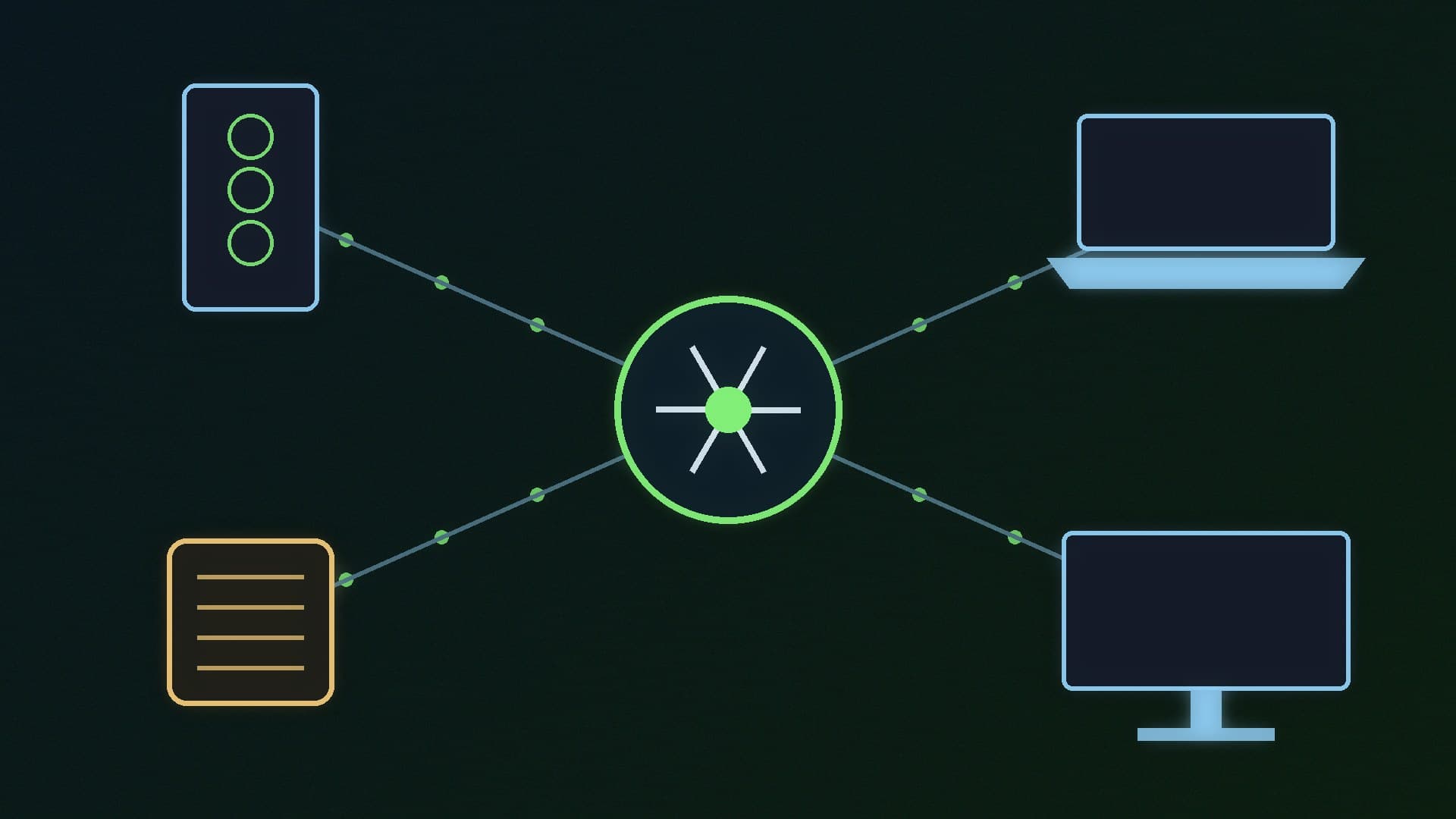
If you have more than one capable computer at home, say a gaming PC with a GeForce RTX card and a Mac or a DGX Spark, you've probably wondered whether your AI apps could use all of them. NVIDIA Personal AI Router, shown as NVIDIA PAIR once installed, is NVIDIA's answer. It links compatible machines on your local network and sends each AI request from your apps to a machine that has the right model loaded and is free to run it.
What PAIR does, and what it doesn't
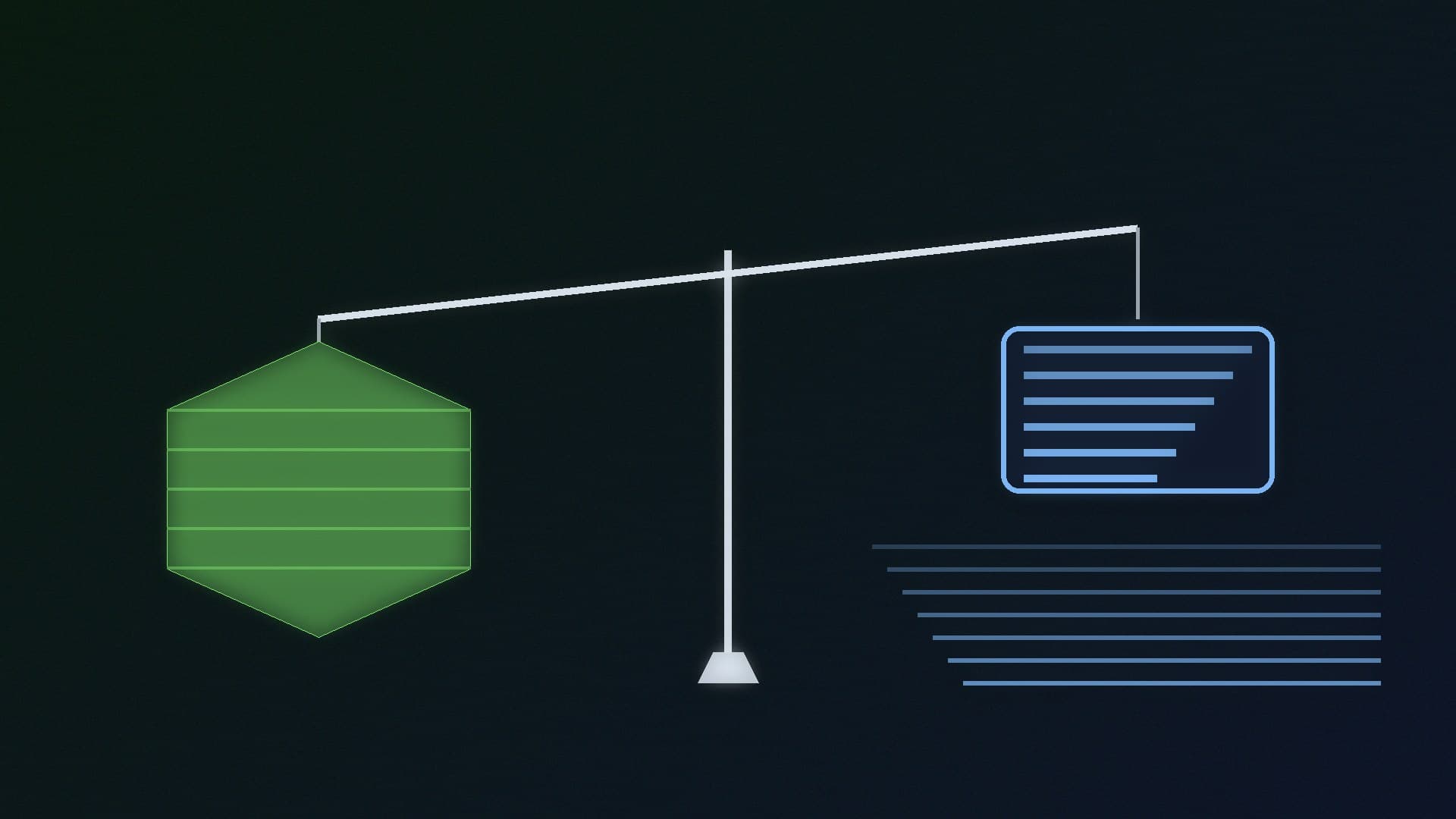
This is the most important thing to understand before you start. NVIDIA says PAIR routes each request to one machine. It does not pool GPU memory, combine graphics cards into one bigger GPU, or split a model across computers. Each machine that serves a request must be able to fit the whole model on its own.
So PAIR won't let two 16GB graphics cards run a model that needs 32GB. What it does help with is running several requests at once, for example a multi-agent app that fires off lots of independent jobs, by spreading them across your machines. If you want to split one large model across two PCs, that's a different technique; see our guide to splitting an LLM across two PCs with llama.cpp RPC.
NVIDIA says PAIR is designed to keep prompts, files and agent context on your home network, provided your app, models, engines and paired computers are all local.
What you need
Requirement | What NVIDIA lists |
|---|
GeForce RTX PC | GeForce RTX 20 Series or newer, Windows 11 or Linux |
RTX PRO workstation | Turing generation or newer, Windows 11 or Linux |
RTX Spark | Windows 11 on Arm |
DGX Spark | DGX OS (Linux) |
Mac | Apple silicon or Intel, macOS 13 or later |
Inference engine | llama.cpp, Ollama or LM Studio |
Network | A trusted local network for pairing |
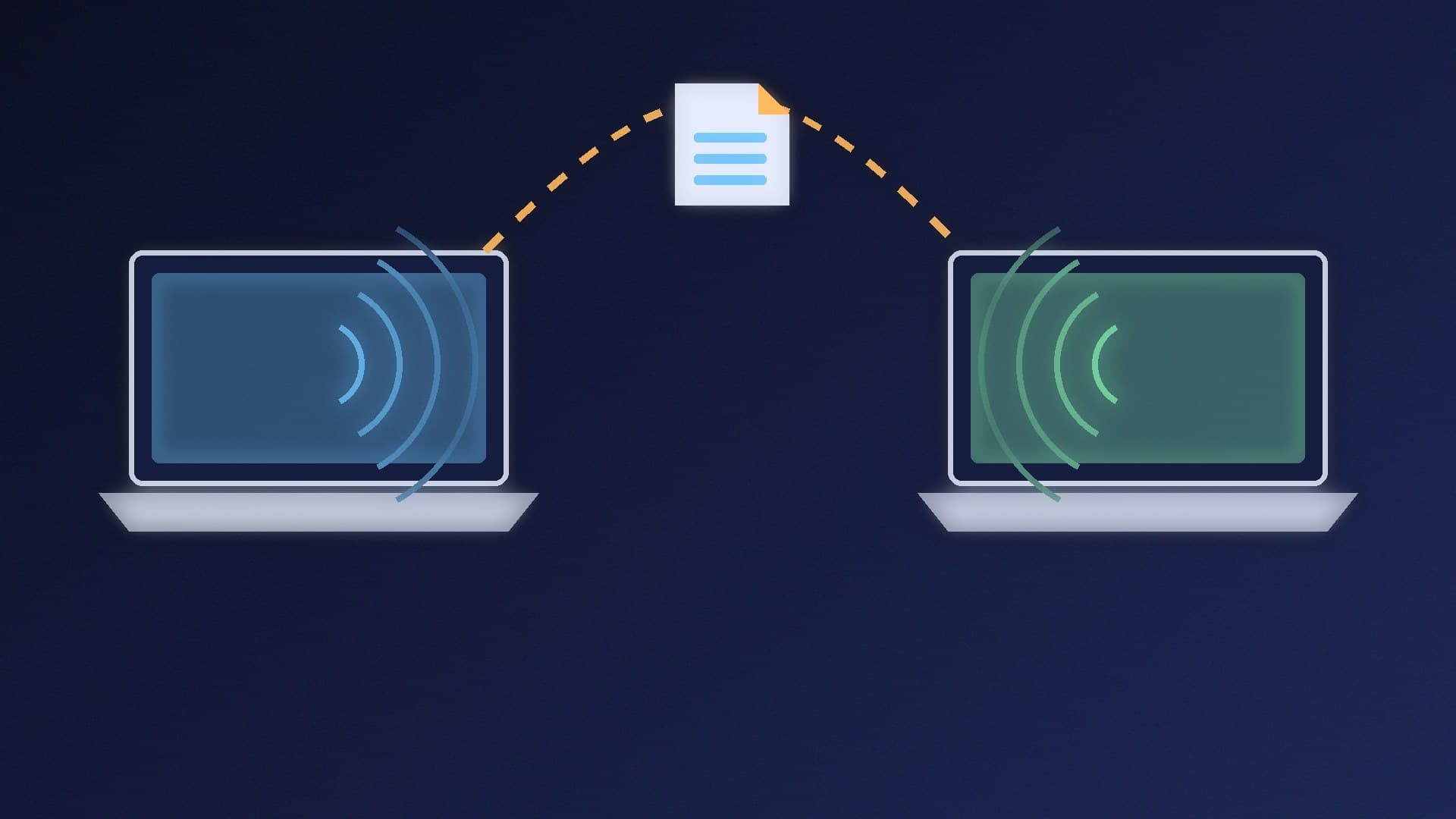
Windows, Linux and macOS machines can be paired with each other. One machine is enough to try PAIR; you need two or more to see requests routed between them. NVIDIA's playbook says setup takes about 10 minutes plus download time.
Each engine also has its own hardware requirements, and a machine can run PAIR without being able to run an engine. Remember too that a model's download size isn't its total memory requirement: the context and the engine's own overhead need room as well. Our explainer on context length and VRAM covers why.
Step 1: Install PAIR on each machine
Download PAIR from NVIDIA's PAIR releases page, choosing the package for your operating system and architecture. NVIDIA offers:
Windows: a .exe installer. Run it, then open NVIDIA PAIR from the Start menu. RTX Spark systems need the Windows ARM64 package.
Linux: a Debian (.deb) package. Install it from the folder you downloaded it to with sudo apt install ./NVPAIR-Setup-*.deb, then open NVIDIA PAIR from your applications menu.
macOS: a .dmg. Drag NVIDIA PAIR to Applications and launch it.
On a machine with no desktop, such as a headless server, NVIDIA says to use PAIR's terminal interface instead. Don't run the desktop app and the terminal interface on the same machine: NVIDIA warns that they start competing services and can conflict over ports, engines and settings.
The Windows installer adds the firewall rules PAIR needs. On Linux with a restrictive firewall, you'll need to allow PAIR's ports yourself (see Step 6).
Step 2: Complete first-run setup
The first time PAIR opens, it offers to install inference engines for you. It preselects Ollama, LM Studio and llama.cpp where they're available for your platform. Pick the ones you want, or skip this if you already manage them yourself; NVIDIA says existing Ollama and LM Studio installations can be detected and used.
Wait for the engine to report that it's running. NVIDIA notes that the first start takes a little longer than later ones.
Step 3: Pair your machines
With PAIR running on each computer on the same network:
On the first machine, select Add node in the top-right toolbar (or go to Settings > Cluster).
Choose the other machine from the discovered list. If it isn't found, add it by IP address.
PAIR shows a six-digit PIN on the first machine and sends an invitation.
On the second machine, accept the invitation and enter the PIN.
Check Settings > Cluster for the other machine under Connected nodes.
Repeat for any further machines. NVIDIA stresses that you should only pair while both devices and the network are trusted, because the PIN is a short-lived setup code rather than a strong long-term credential.
Step 4: Add a model
For each machine that should do AI work, select it in Overview, start its engine, choose Add model and download a model. A machine can only take a request if it's online, its engine is running and it has the requested model, so to share work across several machines, put the same model on each of them.
If you use PAIR's managed llama.cpp, models use an exact Hugging Face ID such as ggml-org/gemma-3-1b-it-GGUF:Q4_K_M, and NVIDIA says PAIR offers one verified Q4_K_M option per search result. For Ollama, use the exact Ollama model name.
Step 5: Point your apps at PAIR
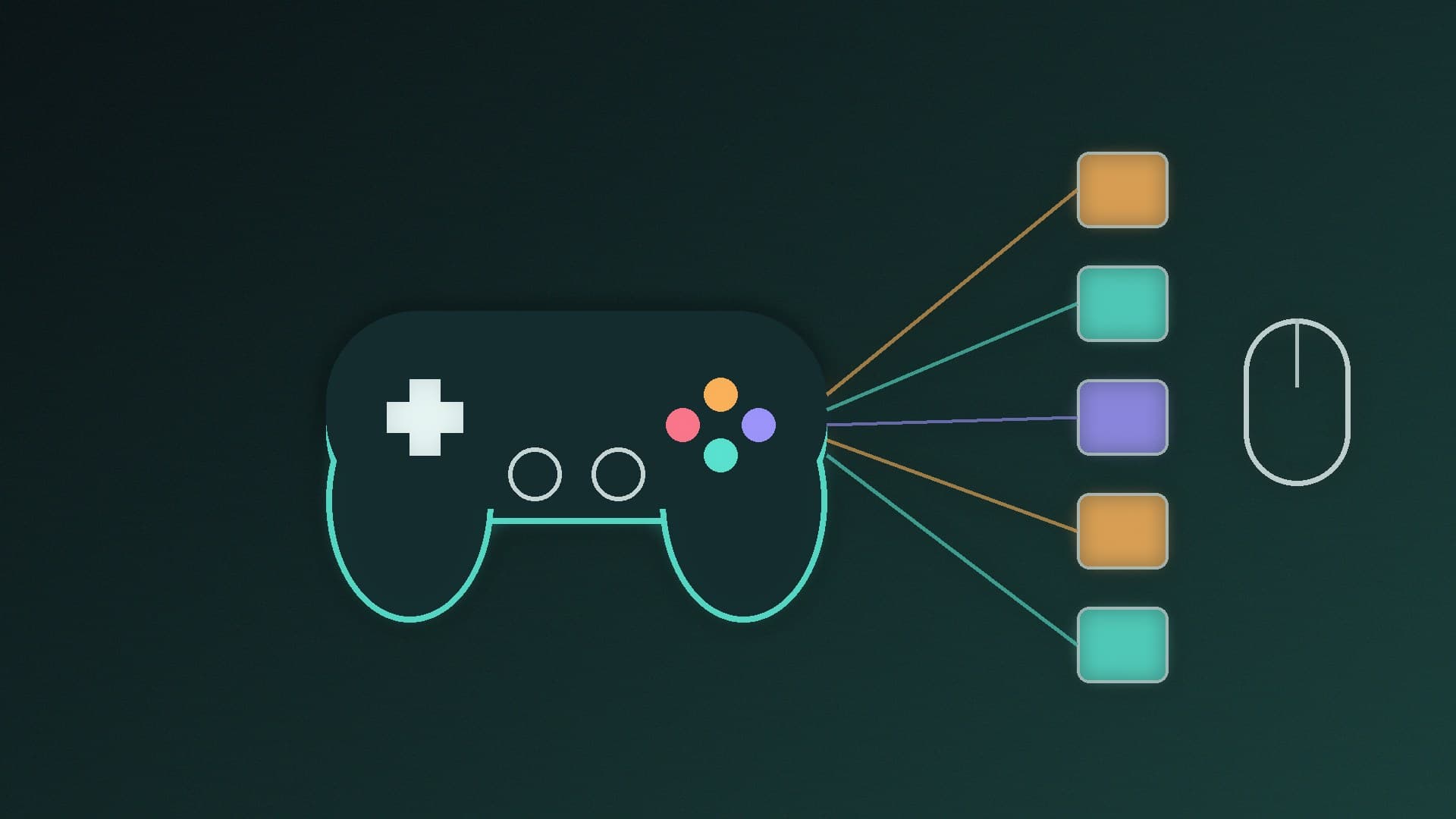
Select Endpoints in PAIR's toolbar to see a local address for each engine, in the form http://127.0.0.1:<port>. Copy it rather than typing a port from memory. PAIR's proxy takes over the port each engine normally uses (11434 for Ollama, 1234 for LM Studio and 8080 for llama.cpp), so apps already set up for those ports keep working, and the engines themselves move to the next free port.
Two request styles work. The OpenAI-style /v1/chat/completions endpoint works with all three engines, so it's the one to use if you're unsure. Ollama's own /api/chat style only works with the Ollama endpoint. Our guide to using Ollama's OpenAI-compatible API explains the difference for app developers.
Watch out for one thing that NVIDIA says surprises people: PAIR's endpoint only accepts requests from the same machine. Requests from elsewhere on the network get a 403 error. So install PAIR on the computer where you actually run your apps and pair it into the cluster; that machine doesn't need a GPU or an engine of its own. If you want other devices to reach a model directly, that's a different setup, such as sharing Ollama on your local network, with the security trade-offs that brings.
Step 6: Check it's working
Send a test prompt through the endpoint, then open Overview, filter by Jobs and look at the Running on or Ran on label to see which machine handled it. Send several requests to see them spread across machines. Alternatively, the Test button under Settings > Service sends a burst of requests for you.
If machines can't find each other, check the ports. NVIDIA lists 5353/udp for discovery (mDNS) and ports 14318 to 14323 for communication between machines.
Who should use PAIR?
PAIR makes most sense if you already own more than one capable machine and run apps or agents that make several requests at once. If you only have one PC, it adds little beyond what Ollama or LM Studio already do, and if your goal is running a model too big for any single machine, it can't help. If you just want one PC to answer several requests at once, see our guide to handling parallel requests in Ollama before adding another layer.
Our verdict
NVIDIA PAIR is a simple way to let your AI apps use every capable PC, Mac and DGX Spark on your home network: install it on each machine, pair them with a PIN, add the same model to each, and point your apps at PAIR's local endpoint. Just remember that it shares out requests rather than combining memory, so every machine still has to fit the whole model on its own.