This guide is based on Microsoft's official Phone Link support pages, checked on 25 November 2026. Menu names can shift slightly between Phone Link versions.
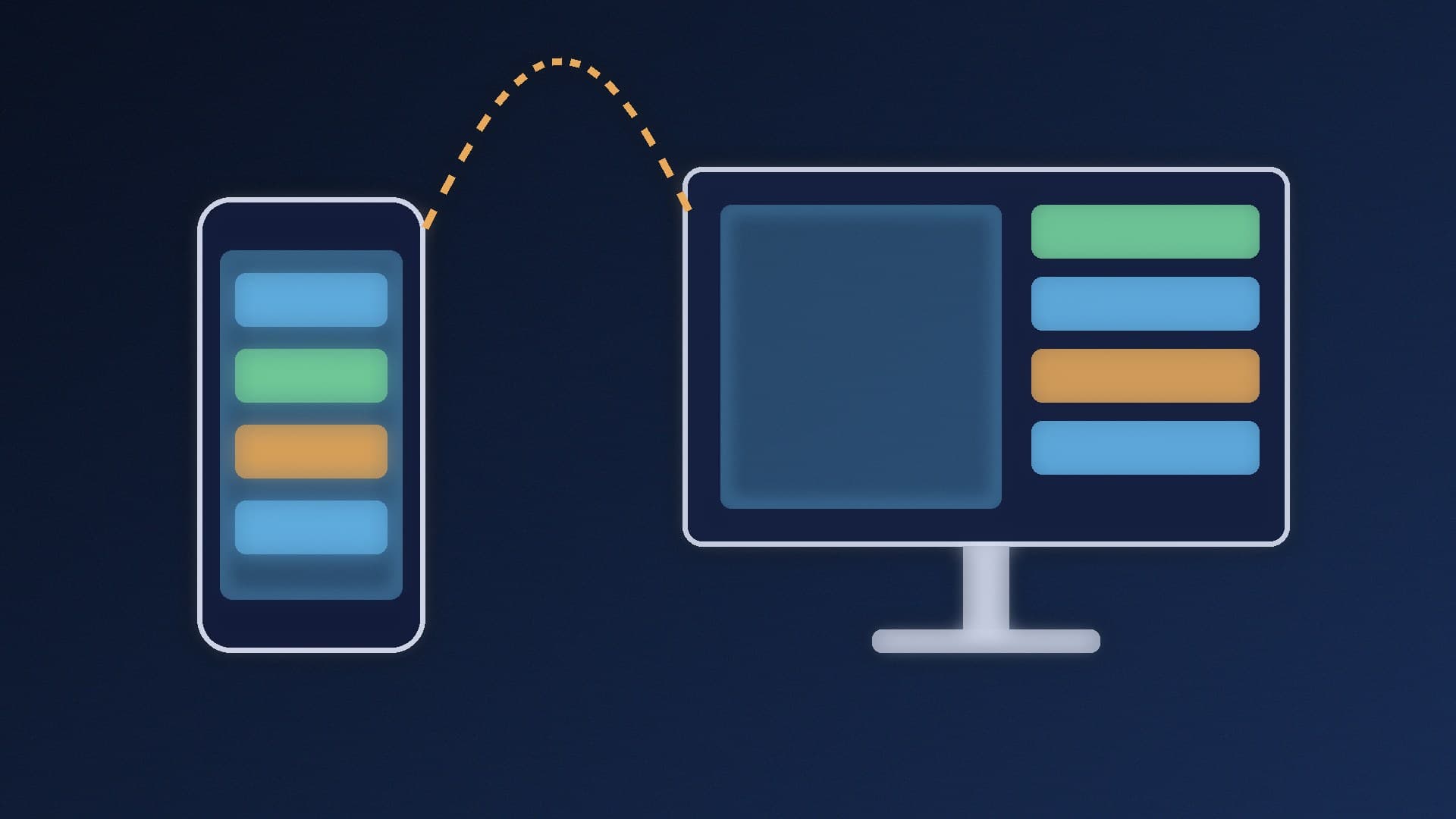
If your phone buzzes on the desk while you're in the middle of a game or a work session, Phone Link lets you deal with it without picking it up. It's Microsoft's free app for linking a phone to a Windows PC, and Microsoft says it lets you read and reply to text messages, make and receive calls, manage notifications and, on Android, view recent photos and use your phone's apps on the PC. It comes preinstalled on most Windows 10 and Windows 11 PCs, and it pairs with a companion app on the phone called Link to Windows.
What you get depends a lot on whether you have an Android phone or an iPhone, so it's worth knowing the differences before you start.
Android vs iPhone: what works
| Android | iPhone |
|---|
Phone requirement | Android 10 or later | iOS 16 or later |
How it connects | Same Wi-Fi network as the PC (plus optional mobile data syncing) | Bluetooth (the PC needs Bluetooth Low Energy) |
Messages, calls, notifications | Yes | Yes |
Recent photos | Yes | Not listed by Microsoft for iPhone |
Phone apps on the PC | On supported devices | No |
Phone files in File Explorer | Yes, Android 11 or later | No |
Companion app | Link to Windows (preinstalled on select phones, or from Google Play or the Samsung Galaxy Store) | Link to Windows from the App Store is optional |
Microsoft's requirements page lists a PC running Windows 10 (October 2022 update or later for Android, May 2019 Update or later for iPhone) or Windows 11, and recommends keeping Windows up to date. Phone Link doesn't support work or school accounts, and Microsoft says it doesn't currently support multiple Android profiles either. It's only available on Windows PCs.
Before you start
Sign in to Windows with a Microsoft account, or be ready to sign in to one in Phone Link. Android pairing uses the same Microsoft account on the phone and PC.
Put the phone and PC on the same Wi-Fi network if you're using Android.
Turn on Bluetooth on both devices if you're using an iPhone. Desktop PCs often don't have Bluetooth at all, so check first. If yours doesn't, a USB adapter such as the ASUS USB-BT500 or a Wi-Fi card with Bluetooth such as the TP-Link Archer TX55E adds it; our best Bluetooth adapters guide covers the options. If Bluetooth is there but misbehaving, see how to fix Bluetooth not working in Windows 11.
Make sure Phone Link is installed. Search for Phone Link from the taskbar. Microsoft says it's on most PCs by default, but if it's missing you can install it from the Microsoft Store.
How to link an Android phone
On the PC, type Phone Link in the taskbar search box and open it.
Sign in to your Microsoft account if asked.
On the phone, install or open Link to Windows. Phone Link shows a web address you can type into the phone's browser to get the app, or you can search for Link to Windows in the Google Play Store. Some phones have it preinstalled.
Sign in to the phone app with the same Microsoft account you used on the PC.
Back on the PC, select I have the Link to Windows app ready. A QR code appears.
In the phone app, choose the option to scan the QR code, allow camera access and scan the code on your PC screen. If you'd rather not use a QR code, Phone Link also offers a pairing option where you type a code on the phone instead.
Accept the Android permissions the app asks for. Microsoft says these are what allow your phone's content to appear on the PC; on Android 13 and later, the notification permission is needed for data transfer and notifications to work at all.
Follow the remaining prompts on the phone, then return to the PC.
If you've linked the phone to your Microsoft account before, Phone Link may simply show a list of your linked Android devices so you can pick one.
How to link an iPhone
Turn on Bluetooth on the PC and the iPhone, and keep them close together.
Open Phone Link from the Start menu.
Under Pick your phone, select iPhone. If it's greyed out, Microsoft says your PC's Bluetooth may be off or unavailable.
Scan the QR code on the PC with the iPhone's normal camera app. This starts Bluetooth pairing.
On the iPhone, open the Bluetooth details for your PC and turn on Share System Notifications, Show Notifications and Sync Contacts. Microsoft says notifications and messages depend on the first two, while contacts and call history in Phone Link need Sync Contacts.
You don't have to install Link to Windows on the iPhone, but Microsoft recommends version 1.23031.2 or later if you do.
Settings worth changing straight away
Open Settings inside Phone Link to choose exactly what syncs. Microsoft says you can toggle features such as notifications, messages, calls and photos on or off, and turning one off stops that content syncing until you turn it back on. Depending on your phone, there may also be options to:
Choose where files sent from the phone are saved on the PC.
Play the phone's audio through the PC.
Use the phone as an instant hotspot.
Copy and paste between the phone and PC, where supported.
Sync content over mobile data when Wi-Fi isn't available. Leave this off if you're on a limited data plan.
Two privacy points are worth knowing. First, Microsoft warns that when you grant the messages permission, sensitive texts such as two-factor authentication codes can appear in Phone Link, so think twice on a shared family PC. Second, the Android app can ask for location permission so your PC can use the phone's location for things like local search, time zones and weather; Microsoft says this data is de-identified and not sold to advertisers, but you can decline it.
Browse Android files in File Explorer
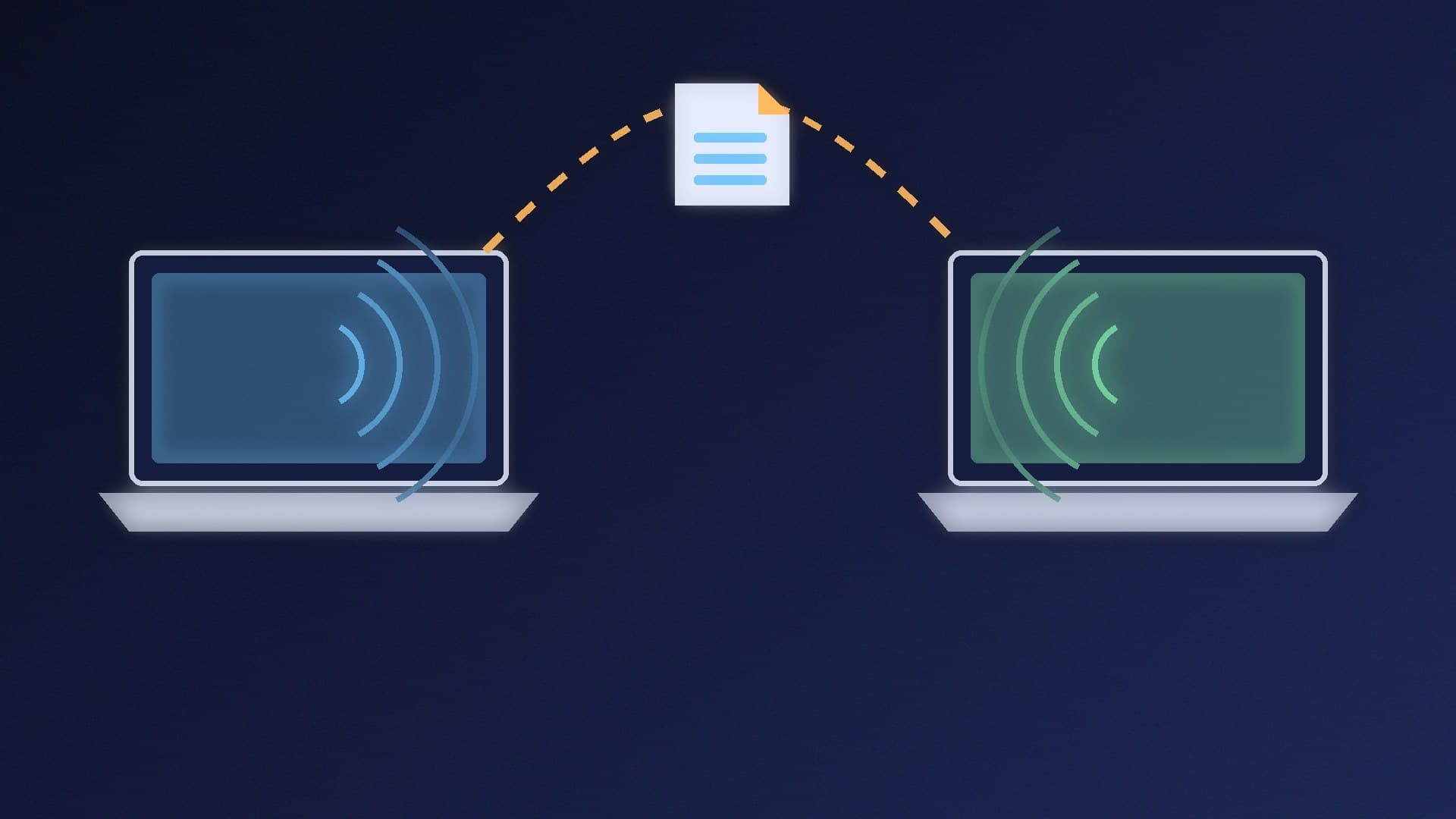
On Android 11 or later, with Link to Windows version 1.24072.258.0 or later, Microsoft says your paired phone can show up in File Explorer. From there you can browse folders, open, copy, move, rename or delete files and transfer them wirelessly. Only one phone can appear in File Explorer at a time. Microsoft also says files you delete from the phone this way go to a deleted-items folder on the phone, where they stay for 30 days, so mistakes can usually be undone. If you need to move files between a PC and phones from different makers, our LocalSend guide is an alternative.
Phone Link isn't the only cross-device trick either: you can also use your phone as a webcam in Windows 11.
Fixing common Phone Link problems
Nothing syncs after setup (Android). Check both devices are on, near each other and on the same Wi-Fi network, as Microsoft's troubleshooting page advises.
The QR code won't scan. Make sure you allowed Link to Windows to use the camera; Microsoft notes the app needs permission to take pictures before it can scan.
"My codes don't match." After more than three failed attempts to match codes, Microsoft says linking is blocked for security. Close and reopen Phone Link on the PC and start setup from there; you'll be asked to accept permissions instead of matching codes.
iPhone option greyed out. Turn Bluetooth on, or add a Bluetooth adapter if the PC doesn't have one.
Notifications missing on Android 13 or later. Grant the notification permission to Link to Windows in the phone's settings.
How to unlink a phone
To remove a phone, go to Settings > Bluetooth & devices > Mobile devices on the PC and select the device to remove. Microsoft notes that this removes it from cross-device features for that Microsoft account, including Phone Link, using the phone as a camera and phone files in File Explorer, but it might not remove the Bluetooth pairing, so remove that separately in Bluetooth settings if you want a clean slate. On an iPhone, also select Forget this Device for the PC in the iPhone's Bluetooth settings.
Our verdict
Phone Link is worth setting up on almost any Windows 11 PC: it's free, usually already installed and takes a few minutes to pair. Android users get the most from it, with messages, calls, photos, apps on supported phones and File Explorer access over Wi-Fi. iPhone owners get a narrower but still handy set of texts, calls and notifications over Bluetooth, so check your PC has Bluetooth first. Review what syncs in Phone Link's settings, especially on a shared PC where two-factor codes could pop up on screen.