Every RAM kit lists its speed, such as DDR5-6000, and a string of timings, such as CL30 or 30-36-36. Speed gets most of the attention, but timings tell you how many clock cycles the memory takes to respond to different commands. This guide explains what each of the main timings means, how to read them on a spec sheet, and how to compare two kits without being misled by the biggest or smallest number. We've based the definitions on Crucial's memory guides and Kingston's DDR5 specifications.
What RAM timings are
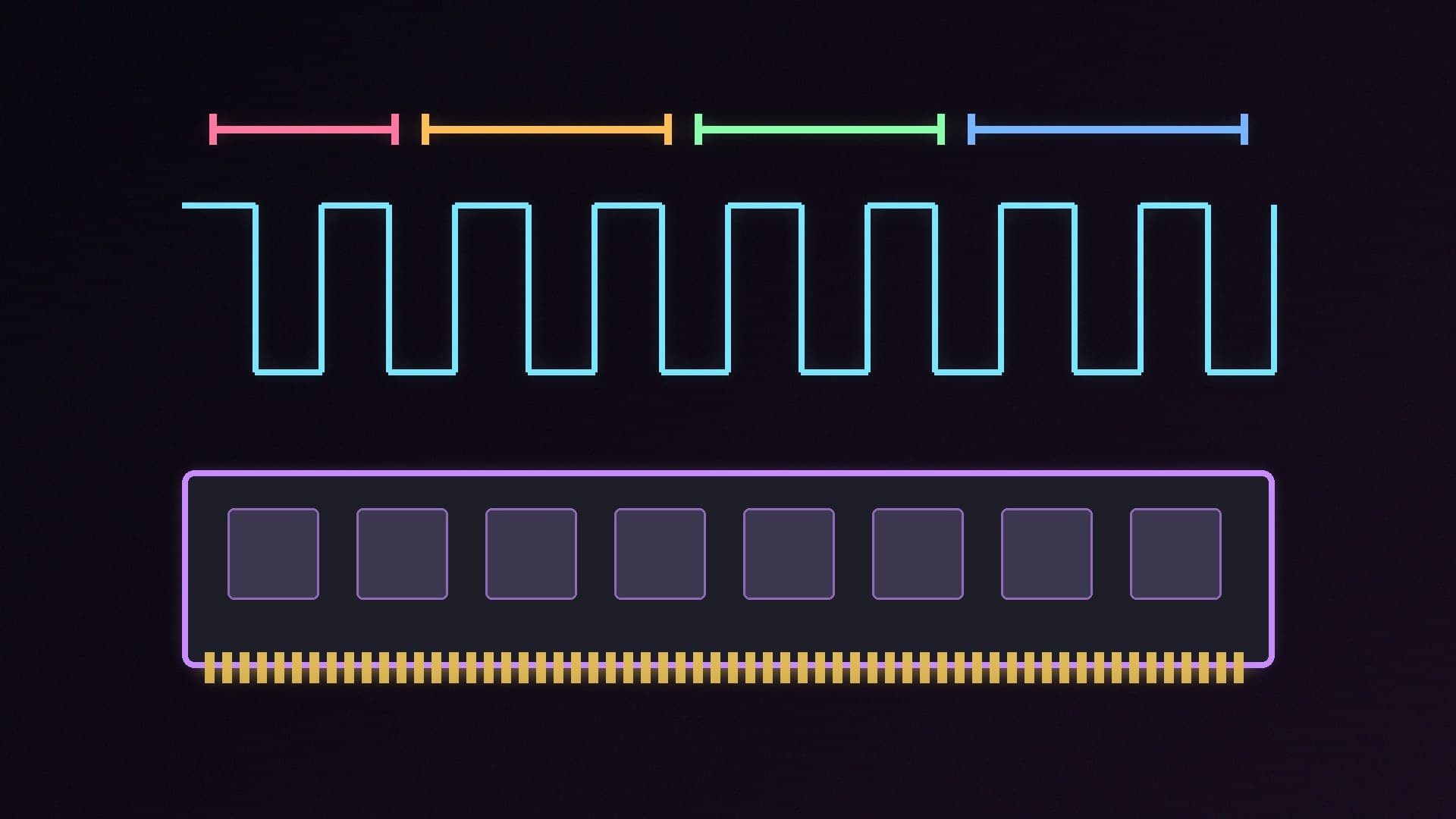
Crucial describes memory timings as a set of values that define how quickly a memory module can respond to commands. They're measured in clock cycles, not in seconds, which is the single most important thing to remember when you compare them.
Timings are usually written as a row of numbers separated by dashes. Crucial's example of a generic DDR3 timing is 9-9-9-24. On modern kits you'll often see just the first three numbers, or only the first one, written as CL.
The four main timings, in order
Crucial breaks the standard timings down into four values, which appear in this order:
CAS latency (CL): the time it takes for the module to have data ready when the memory controller asks for it. This is the headline number on most kits, such as CL30 or CL36.
tRCD (Crucial calls it Row Column Delay): the time it takes to read memory after the memory is ready.
tRP (Row Precharge Time): the time it takes for the memory to have a new row ready for use.
tRAS (Row Active Time): the minimum time a row must stay active to make sure its data can be accessed.
So a kit listed as 30-36-36 has a CAS latency of 30 and tRCD and tRP of 36 cycles. If a fourth number is shown, it's tRAS. Crucial's table of typical timings lists tRAS as N/A for DDR4 and DDR5, and some kit listings, like the example below, show only the first three numbers.
For a real example, the Kingston FURY Beast 32GB (2x16GB) DDR5-6000 CL30 EXPO kit is listed in our specs database with timings of 30-36-36.
Lower is better, but only at the same speed
Within the same speed, lower timings mean fewer cycles of waiting. Crucial's own example: if two DDR4-2666 modules have CAS latencies of CL16 and CL19, the CL16 module will perform better.
The mistake is comparing CL numbers across different speeds. Because timings are counted in clock cycles, a faster kit has shorter cycles and can afford a higher CL. Crucial says CAS latency on its own is an inaccurate indicator of performance, and that latency is best measured in nanoseconds:
Crucial notes that as memory speeds have risen, CL numbers have risen too, but true latency in nanoseconds has stayed roughly the same. Its example is that DDR4-2400 CL17 and DDR4-2666 CL19 have roughly the same latency, so the faster DDR4-2666 kit performs better. That's why newer DDR5 kits have much higher CL numbers than DDR4 without being slower to respond. Our RAM true latency guide shows how to do the sum for any kit.
Why newer RAM has bigger numbers
Crucial's table of typical timings shows how much the numbers have grown: 5-5-5-15 for DDR2, 9-9-9-24 for DDR3, 16-16-16 for DDR4 and 36-36-36 for DDR5. Crucial explains that newer memory types have much faster clock cycle times, so the real-world latency is still fast despite the bigger numbers. Don't rule out a DDR5 kit because CL36 looks high next to an old DDR4 CL16 kit.
How to compare two RAM kits
Crucial's advice for choosing memory is a two-step process, and it works well:
Pick the fastest speed your system supports. Check your CPU and motherboard's supported speeds and the memory profiles your board can run. See our guide to enabling XMP or EXPO.
Then choose the lowest latency you can afford at that speed. At the same speed, compare CL first, then tRCD and tRP.
For example, DDR5 CL30 vs CL36 compares two common DDR5-6000 options, and our best DDR5 RAM guide lists kits by speed and timings.
Where the timings come from: XMP and EXPO profiles
When you install a new kit, it won't necessarily run at its advertised speed and timings straight away. The rated numbers are stored in memory profiles. Kingston, for example, says its FURY Beast DDR5 kits include Intel XMP 3.0 and AMD EXPO profiles with pre-optimised speeds, timings and voltages, and that its EXPO-certified modules also include XMP 3.0 profiles. Kingston lists FURY Beast DDR5 latencies from CL30 to CL40 across speeds from 5200 to 6800MT/s. You enable the profile in your motherboard's BIOS to get the speed and timings on the box.
How to check the timings your PC is running
To see the timings your RAM is running at:
Use a free tool such as CPU-Z, which shows the current memory timings on its Memory tab. Our CPU-Z guide explains how.
Crucial says its free Crucial System Scanner reports your RAM's CAS latency, along with other information about your memory and storage.
To confirm your RAM speed in Windows, follow our guide to checking RAM speed in Windows 11.
If the timings are higher than the kit's rating, the memory profile probably isn't enabled.
Our verdict
RAM timings are counts of clock cycles: CAS latency (CL), tRCD, tRP and, if a fourth number is shown, tRAS, in that order. Lower numbers are better only when you compare kits at the same speed; across different speeds, convert to nanoseconds, because a faster kit can have higher timings and still respond just as quickly. Choose the fastest speed your platform supports first, then the lowest timings you can afford at that speed, and remember to enable XMP or EXPO in the BIOS so your kit runs at its rated timings.