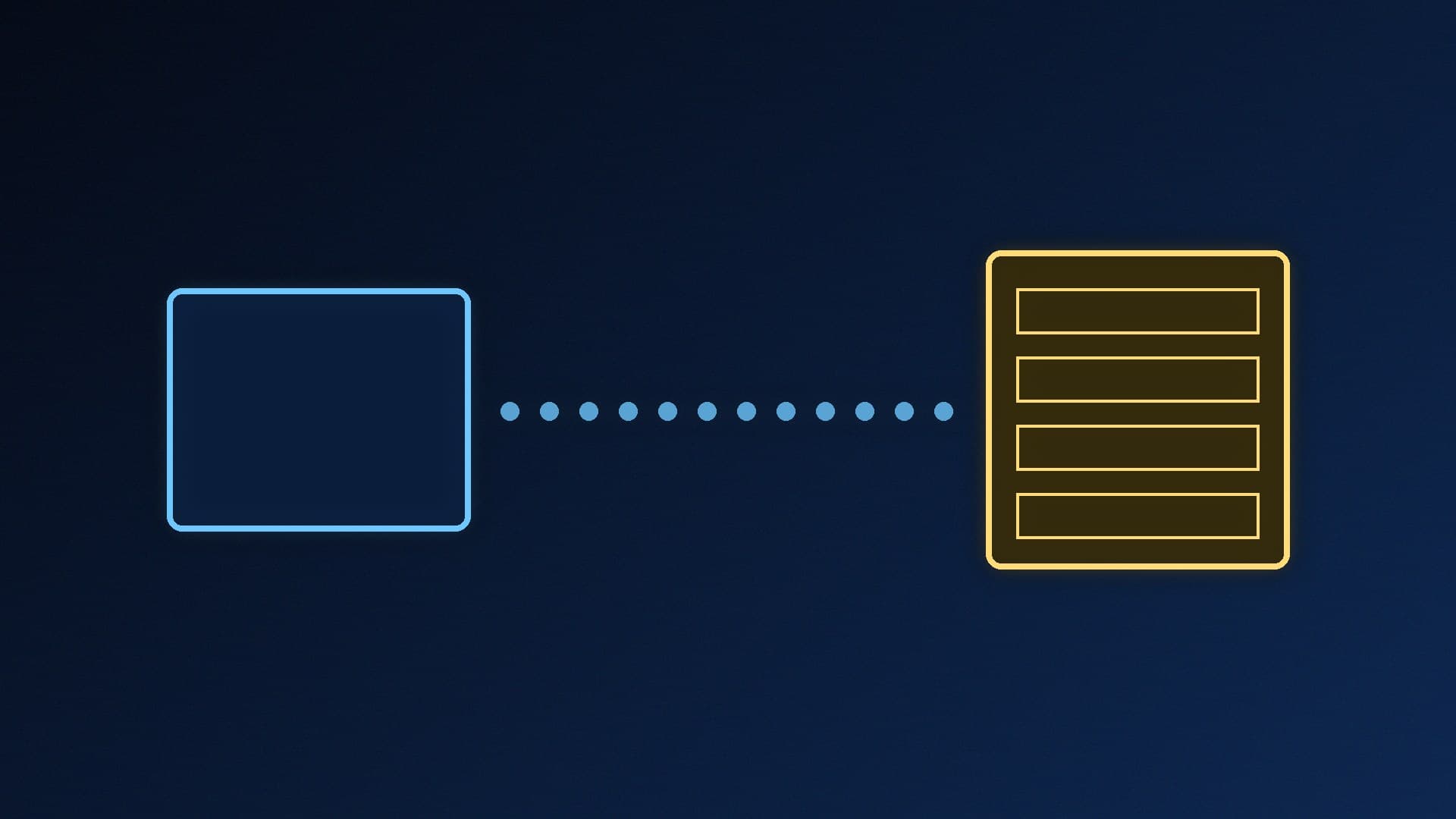
If you keep files on another PC, a NAS or a router's USB drive, mapping it as a network drive gives it a drive letter in File Explorer, so you don't have to type its network address every time. This guide follows Microsoft's official support article; Forge PC hasn't tested every NAS or router.
Before you start
You need the network path of the shared folder (usually written as \\computername\sharename) and permission to access it. Microsoft's troubleshooting advice also says the computers should be on the same network.
Map the drive
Microsoft's steps for Windows 11:
Open File Explorer from the taskbar or Start menu, or press Windows key + E.
Select This PC in the left pane.
On the File Explorer ribbon, select More (the three dots) and choose Map network drive. If it isn't on the More menu, right-click This PC in the folder pane and you'll find it there.
In the Drive list, choose a drive letter. Any available letter will do.
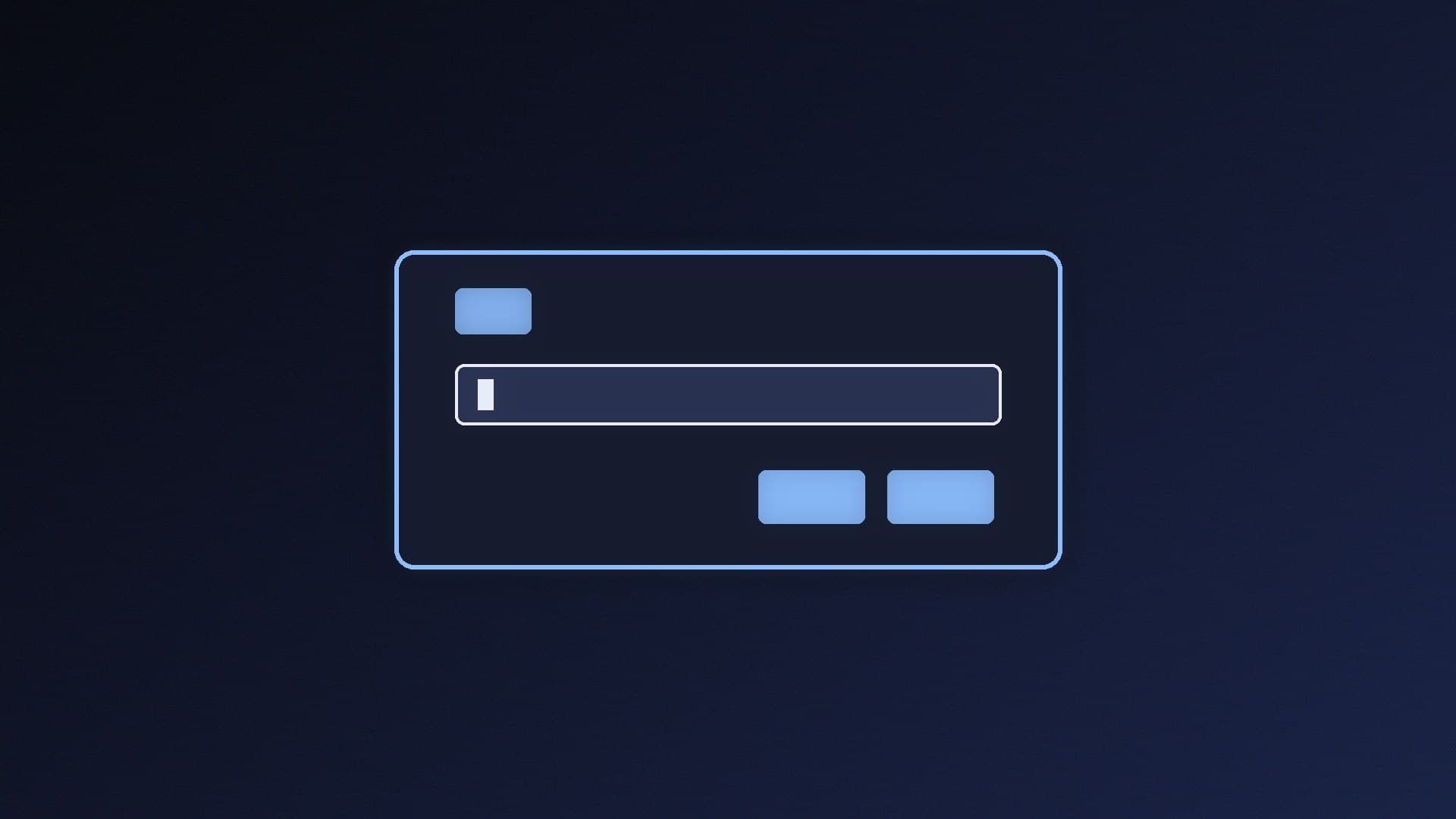
In the Folder box, type the path of the folder or computer, or select Browse to find it.
Tick Reconnect at sign-in if you want the drive every time you sign in.
Select Finish.
The drive now appears under This PC with its letter.
If you can't see other PCs
If you open Network in File Explorer and see "Network discovery is turned off", Microsoft says to select the banner, then Turn on network discovery and file sharing.
If it won't connect
Microsoft says that if you can't connect, the computer you're connecting to might be turned off, or you might not have the correct permissions. Its troubleshooting steps include:
It's also worth checking the path for typos. If transfers are slow on a wired network, see how to fix Ethernet stuck at 100Mbps.
Faster transfers
Mapped drives are only as quick as your network. If you move big files around regularly, 2.5GbE vs 1GbE Ethernet explains whether faster networking is worth it, and best 2.5GbE switches lists options.
Our verdict
To map a network drive in Windows 11, open File Explorer, select This PC, choose More then Map network drive, pick a letter, enter the \computer\share path, tick Reconnect at sign-in and select Finish. If it won't connect, check the other device is on and on the same network, your permissions, network discovery and Windows updates.