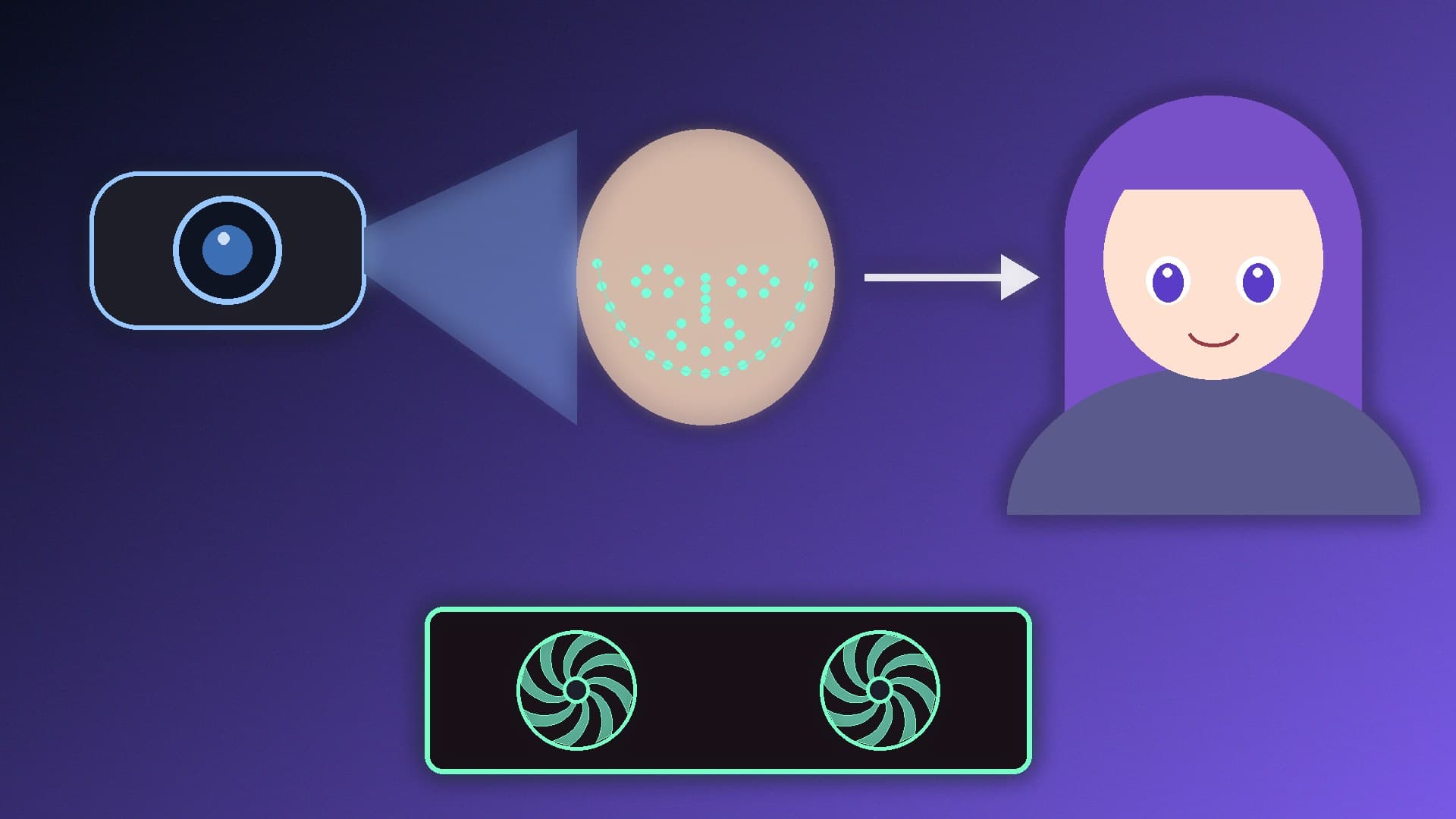
You don't need a motion-capture suit or an iPhone to become a VTuber. The two most popular free apps on PC, VSeeFace for 3D avatars and VTube Studio for 2D Live2D models, can read your expressions from an ordinary webcam using machine-learning face tracking that runs on your own computer. This guide walks through picking the right app for your model, setting up the camera, choosing a tracker (including NVIDIA's GPU-accelerated option for RTX cards), getting the avatar into OBS and keeping CPU and GPU load down while you game. It's based on each app's official documentation.
Step 1: Work out what kind of avatar you have
This decides which app you use, because neither one does both:
2D Live2D Cubism model (the flat, illustrated style used by many VTubers): use VTube Studio. Its Steam page says it "ONLY supports Live2D Cubism models" and that support for other formats isn't planned.
3D VRM model (for example, one made in VRoid Studio): use VSeeFace. Its developer says Live2D models aren't supported and points Live2D users to VTube Studio instead.
If you don't have an avatar yet, VRoid Studio from Pixiv is a free 3D character maker for Windows and macOS with preset hair, faces and outfits you adjust with sliders. One catch: VSeeFace only supports the VRM0 standard, not VRM 1.0, so pick the VRM0 export format when you export from VRoid Studio.
Step 2: Get the webcam and lighting right
Both apps use OpenSeeFace, an open-source face-tracking library by Emiliana (the VSeeFace developer). VTube Studio's Steam page says its webcam tracking is "powered by OpenSeeFace". The tracker finds your face in the image and runs small neural-network models on it to locate facial landmarks, so the quality of the picture matters more than the camera's headline resolution.
The VSeeFace documentation gives practical advice:
Light comes first. Before buying a new webcam, make sure the room is as bright as possible. The developer notes that insufficient light will usually make webcams quietly lower their frame rate.
720p to 1080p is the sweet spot. The tracker crops out your face and rescales it to 224x224 pixels, so going higher than 1080p "won't really help all that much". 640x480 can work but is more jittery, with less accurate eye tracking.
30fps is enough. VSeeFace caps the camera at 30fps by default and interpolates between tracking frames. VTube Studio's manual says it interpolates tracking data to 60fps, and its requirements page says 15 to 30fps is enough for good tracking.
USB 3 helps. For 720p and 1080p, the developer recommends a USB 3 webcam. On USB 2, the images have to be compressed (for example as MJPEG) before reaching the PC, which usually makes them look worse and can hurt tracking quality.
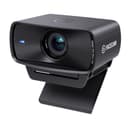
Any decent 1080p webcam will do. The Logitech Brio 500, for example, is listed in our database as a 1080p, 60fps USB-C camera, and the Elgato Facecam MK.2 is another streaming-focused option. Our guide on how to choose a webcam covers the basics, and how to adjust webcam settings in Windows 11 shows where to fix exposure and brightness before you start tracking.
Step 3a: Set up VSeeFace (3D VRM avatars)
Download VSeeFace from its official website, vseeface.icu. The developer says the website, the #vseeface-updates channel on Deat's Discord and the release archive are the only official download locations. It runs on 64-bit Windows 8 and later. There's no Mac version.
Unzip it to its own folder. To update later, delete the old folder or unpack the new version over it. If VSeeFace or its tracker suddenly disappears, the developer says that's usually over-eager antivirus software deleting the Python-based tracker, so whitelist the folder.
Choose your camera on the starting screen, then press Recommend Settings. This runs a system benchmark and picks a tracking quality and webcam frame rate that balances CPU use against quality.
Load your VRM model and look straight at the camera to calibrate.
Optional extras. VSeeFace can track your hands with a Leap Motion controller, and supports "perfect sync" detailed face tracking from an iPhone via apps including iFacialMocap, FaceMotion3D, VTube Studio and MeowFace. It can also send, receive and combine tracking data using the VMC protocol. Its simple expression detection can trigger the Fun, Angry and Surprised expressions on your model automatically.
Step 3b: Set up VTube Studio (2D Live2D avatars)
Install VTube Studio from Steam. It's free with all features. An optional paid "Remove Watermark" DLC removes the watermark shown while webcam tracking is active. The desktop app runs on Windows and macOS.
Load your Live2D model and run the auto-setup (or set it up manually).
Pick a tracker. VTube Studio offers three webcam trackers on Windows:
OpenSeeFace: the default, with several quality levels so it can run on low-spec PCs.
Google MediaPipe tracker: built in on Windows with no download. The VTube Studio manual describes its quality as "roughly comparable" to the NVIDIA tracker, with CPU and GPU use comparable to OpenSeeFace. It supports hand tracking, but its head-rotation range is a bit more restrictive.
NVIDIA Broadcast tracker: a free DLC for NVIDIA RTX graphics cards only. It runs the face tracking on the GPU's Tensor cores, and the developer says it uses "very few CPU/GPU resources" even at 60fps. The download is about 2GB, hand tracking isn't supported with it, and the DLC's Steam page lists an RTX 3060 as the recommended GPU. Install the DLC before starting VTube Studio, then choose "RTX - NVIDIA Broadcast" under Tracking Type.
Calibrate. Look at the camera with a neutral face and press calibrate. Turn off the 3D tracking preview window when you don't need it, because the manual says rendering it costs some CPU and GPU time.
VTube Studio's manual ranks tracking quality as iOS first, then webcam, then Android. If you have a recent iPhone or iPad, its face tracking can be streamed to the PC over your local network, which also takes the tracking load off your PC's CPU.
Step 4: Get your avatar into OBS without a green screen
Both apps support a transparent background, so you don't need chroma key:
VSeeFace supports transparent capture through OBS's Game Capture, Spout2 and its own virtual camera.
VTube Studio recommends Spout2 on Windows: it's fast, uses almost no CPU, supports transparency and doesn't capture the app's interface. Install the Spout2 plugin for OBS (the version that matches your OBS version), turn Spout2 on in VTube Studio, add a Spout2 source in OBS, set "Composite mode" to "Premultiplied Alpha" and set VTube Studio's background to transparent black. The VTube Studio manual specifically warns you not to follow the "Resize Output (source size)" step in the plugin's official guide, as it may break your OBS scenes.
If you want to use your avatar in Discord or Teams calls instead of OBS, see our guide on how to use the OBS virtual camera. For the rest of your streaming setup, start with how to set up your PC for streaming.
Step 5: Keep CPU and GPU load down while gaming
Face tracking competes with your game for resources, so tune it once everything works.
CPU. In VSeeFace, the separate facetracker.exe process causes most of the CPU load. The OpenSeeFace README says that, depending on frame rate, tracking "can easily use up a whole CPU core", though at 30fps it should use less than 100% of one core on a decent CPU. The VSeeFace developer recommends these fixes, in order:
Lower the webcam frame rate first. 15fps "should still give acceptable results" because VSeeFace interpolates. Webcam resolution has almost no impact on CPU usage.
Then lower the tracking model. VSeeFace offers High, Medium, "Barely okay", Low and "Toaster" quality models. Toaster is much faster but disables blink, gaze tracking and expression detection.
Turn on synthetic gaze in the General settings to skip the gaze-tracking model.
GPU. VSeeFace's GPU load mainly depends on frame rate and anti-aliasing. Don't set anti-aliasing to "Really nice", turn off effects, the virtual camera and improved anti-aliasing if you don't use them, and drop the frame-rate cap from 60 to 30 or 24 if needed. The developer also notes that a model exported straight from VRoid can need a few hundred draw calls because every hair strand has its own material. Merging materials and atlasing textures in Blender can cut that to around ten.
If tracking freezes in games, the developer says it's often Windows giving all the CPU or GPU to the game. Suggested fixes include updating the NVIDIA driver, turning off Windows Game Mode and "game booster" features, capping the game's frame rate and using borderless windowed mode.
What hardware do you actually need?
The official minimums are modest. VSeeFace needs a DirectX-compatible GPU, a 64-bit CPU and Windows. VTube Studio's Steam page recommends a 2.5GHz CPU, 6GB of RAM and an AMD or NVIDIA card with at least 4GB of video memory and DirectX 11.
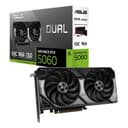
Our suggestion: if you game and VTube on one PC, the tracker's CPU load is the thing to watch, so a modern six-core or better CPU gives you headroom. If you use VTube Studio and already own an NVIDIA RTX card, such as the ASUS RTX 5060 8GB Dual OC, try the free NVIDIA Broadcast tracker to move face tracking off the CPU. If your PC is still struggling, our single PC vs dual PC streaming guide explains when a second machine makes sense.