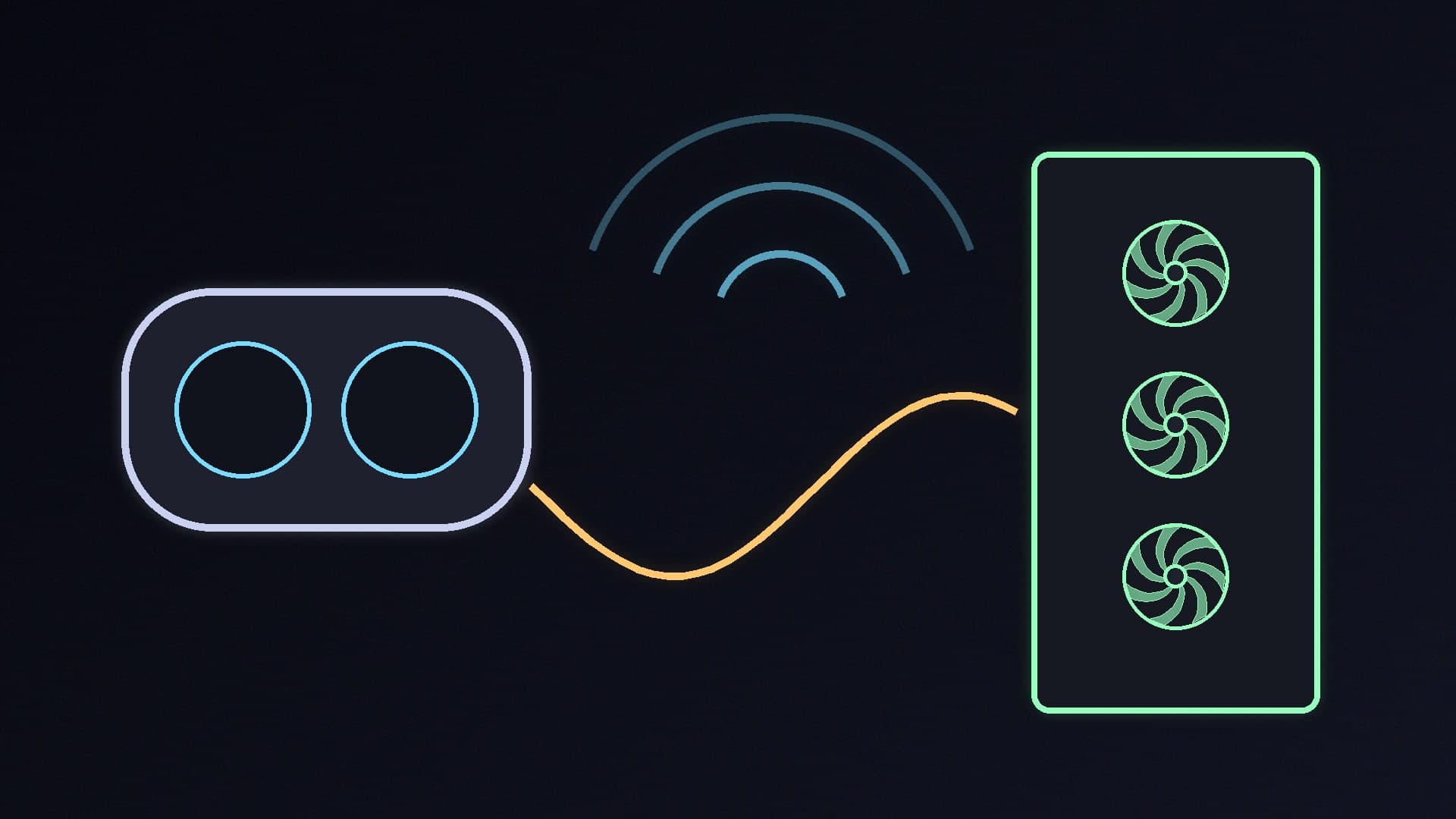
A Meta Quest headset runs its own games, but connect it to a gaming PC and it can play PC VR titles using your graphics card instead. Meta's official way to do this is Meta Horizon Link, which works over a USB-C cable (Link) or over Wi-Fi (Air Link), and Valve's Steam Link app offers a wireless route straight into SteamVR. This guide follows Meta's and Valve's published instructions and requirements.
What you need
A compatible Windows PC. Meta's minimum requirements for Link are an Intel Core i5-4590 or AMD Ryzen 5 1500X or better, 8GB or more of RAM, Windows 10 or Windows 11, one USB port and a supported graphics card. Meta's recommended spec is an Intel Core i7 or AMD Ryzen 7, an Nvidia RTX 20-series or AMD Radeon RX 6000-series graphics card, 16GB of RAM and a USB-C port.
The Meta Horizon Link app installed on the PC, kept up to date.
Your Quest updated to the latest software.
For a wired connection: a USB-C 3.2 cable that supports at least 5Gbps. Meta says the cable needs to carry data and power and recommends one at least 3 metres long so you can move comfortably.
For Air Link: a Wi-Fi network, preferably 5GHz.
Step 1: Check your graphics card is supported
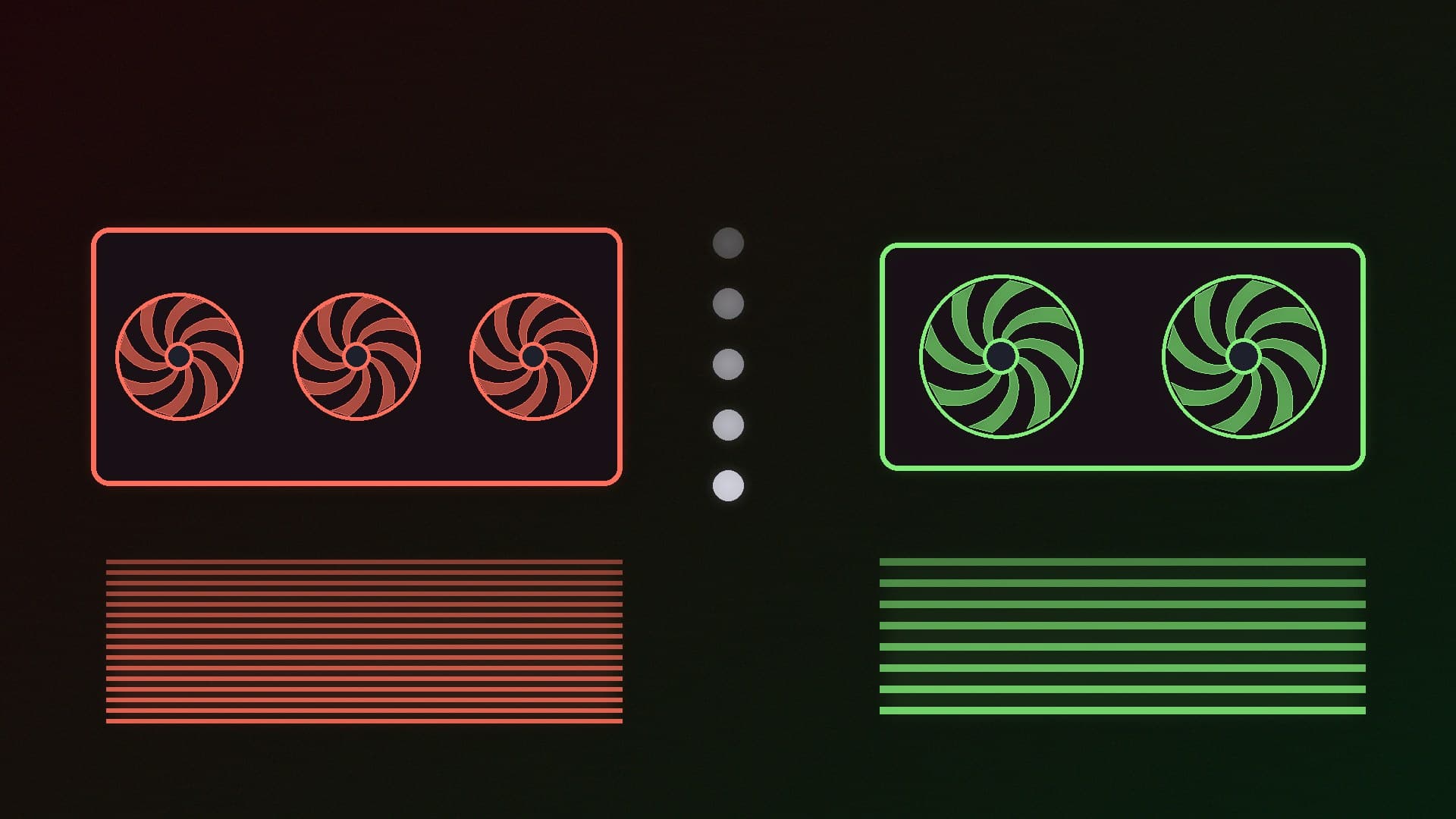
Meta publishes a list of supported GPUs. It includes the Nvidia GeForce RTX 20-series (except the RTX 2050), RTX 30, 40 and 50-series, the GTX 970, GTX 1060 6GB, GTX 1070, GTX 1080, GTX 1650 Super, GTX 1660 and GTX 1660 Ti, and on the AMD side the 400, 500, 5000 and 7000 series, the RX 6600 XT, 6700 XT, 6800 XT and 6900 XT, the Vega series and the RX 9070 and RX 9070 XT. Meta notes that the RTX 3050 laptop GPU and 3050 Ti aren't recommended for Link.
There are some important gaps. Meta says Intel Arc graphics cards and workstation cards aren't currently supported, and it lists the GTX 1650, GTX 1060 3GB, GTX 1050 Ti and RX 560 as not supported. Whatever card you have, install the latest driver before you start, as Meta's troubleshooting advice includes checking your graphics drivers are up to date; our guide to updating graphics drivers shows how.
Step 2: Connect with a cable (Link)
A cable connection doesn't depend on your Wi-Fi, so it's a good place to start. Meta's steps are:
Plug the USB-C 3.2 cable into a USB 3.2 port on your PC, then plug the other end into the headset.
Press the Meta button on your controller to open the Navigator.
Select the status bar at the top of the Navigator to open Quick controls.
Select Link, then select the PC your headset is plugged into.
Select Launch.
If the connection is unreliable, make sure you're using a fast port rather than a USB 2.0 port; our guide to checking USB port speed in Windows 11 explains how, and USB 3.2 Gen 1 vs Gen 2 vs Gen 2x2 explains the naming.
Step 3: Connect wirelessly (Air Link)
Air Link uses the same Meta Horizon Link app on your PC but streams over Wi-Fi instead of a cable. Meta's steps are:
Press the Meta button to open the Navigator, then select the status bar to open Quick controls.
Select Link, then turn on the toggle next to Use Air Link.
Select your PC from the list of available computers, then select Pair.
Check that the pairing code shown in the headset matches the one on your PC.
Click Confirm in the PC app, put the headset back on and select Launch.
Meta recommends a 5GHz network, and our 2.4GHz vs 5GHz vs 6GHz Wi-Fi explainer covers the differences. Valve's Steam Link requirements (below) call for a wired connection between the PC and the router, and that's a sensible setup for Air Link too.
Alternative: Steam Link for SteamVR games
Valve's Steam Link app is available on Meta Quest headsets and streams your Steam VR library wirelessly from your PC. Valve's published minimum requirements are a PC running Steam and SteamVR on Windows 10 or newer, an Nvidia GTX 970 or better graphics card, a 5GHz Wi-Fi 5 wireless router, a wired connection between your PC and the router, and a Meta Quest 2, 3 or Pro headset. Valve also notes that Remote Play Together isn't supported for VR. If you mostly play Steam VR games, it's worth trying both Air Link and Steam Link to see which works better on your network.
If Link or Air Link isn't working
Check Link is turned on. Meta says Link and Air Link are enabled automatically on headsets with the latest Horizon OS updates. In the headset, open Quick controls, select Settings, then Link, and check the toggle.
Check the basics Meta lists: that your PC meets the minimum requirements, your graphics drivers are up to date, unnecessary background programs are closed, and you've restarted the PC before trying again.
Try the cable in another port. As a general check, use a USB 3.2 port on the back of the PC rather than a hub.
For Air Link problems, make sure you're on a 5GHz network, as Meta recommends, and try connecting the PC to the router with a cable. If your Wi-Fi drops generally, see how to fix Wi-Fi disconnecting in Windows 11.
Our verdict
To connect a Meta Quest to your PC, install the Meta Horizon Link app, check your graphics card is on Meta's supported list (Intel Arc isn't currently supported), update your drivers, then use Link with a USB-C 3.2 cable for the most reliable connection or Air Link over 5GHz Wi-Fi for a wireless one. If you mainly play SteamVR games, Valve's Steam Link app is a good wireless alternative on Quest 2, 3 and Pro, provided your PC is wired to a 5GHz router.