The steps, commands and requirements come from Ollama's Hermes Agent integration page and context-length documentation, and from Nous Research's Hermes Agent quickstart, providers page and local Ollama guide, all read on 25 November 2026.
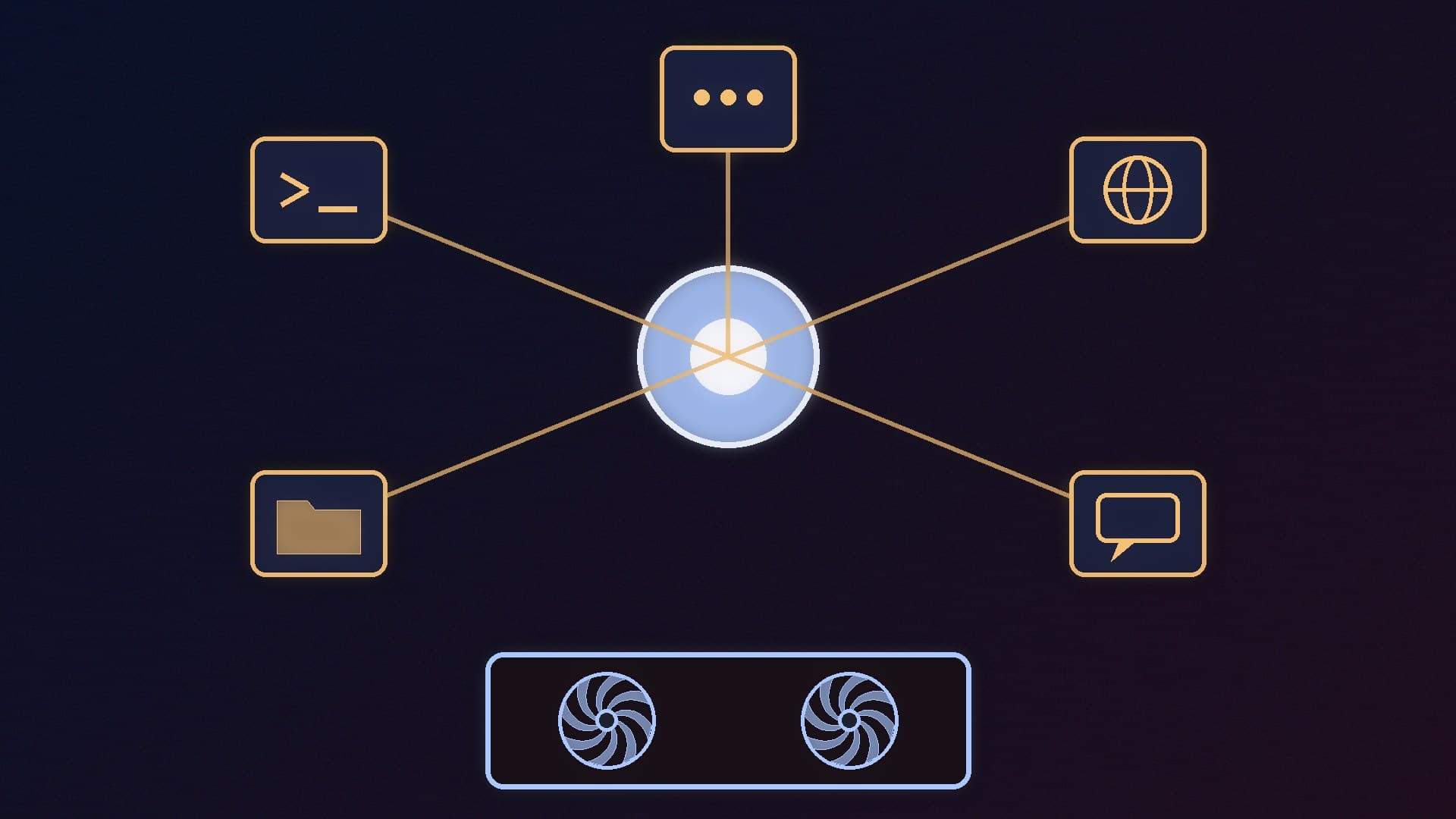
Hermes Agent is an AI agent from Nous Research. Ollama describes it as a "self-improving" agent with automatic skill creation, memory that carries across sessions and more than 70 built-in skills. Unlike a plain chatbot, it can act on your PC: Nous Research's local guide says it can edit files, run terminal commands and browse the web using tool calls. It can also connect to messaging apps such as Telegram and Discord, so you can message your agent from your phone.
By default you'd connect it to a cloud AI service, but it also works with Ollama, so the model runs on your own graphics card with no per-token charges. NVIDIA is promoting the same idea on its new RTX Spark PCs; its launch post says developers can set up agents with Hermes Agent. You don't need an RTX Spark, though: any PC that runs Ollama well will do. If you don't have Ollama yet, start with our guide to running AI models locally with Ollama and LM Studio.
What you need
Nous Research's local Ollama guide lists these requirements:
| Minimum | Recommended |
|---|
RAM | 8GB (for 3B models) | 32GB or more (for 27B+ models) |
Storage | 5GB free | 30GB or more (for multiple models) |
CPU | 4 cores | 8 or more cores |
GPU | Not required | NVIDIA GPU with 8GB+ VRAM |
A graphics card isn't strictly needed, but the guide warns that CPU-only use is much slower. In practice, the model you choose and the context length (see below) decide how much VRAM you need.
This is the most important choice. Hermes does its work through tool calls, and Nous Research warns that models without tool-call support "can only chat; they can't take actions". Our explainer on tool calling in Ollama covers what that means.
Nous Research's guide recommends gemma4:31b, which Ollama's tags page lists at 19GB to 20GB with a 256K context window. That's a good fit for a 24GB graphics card. With a 16GB card, smaller tool-capable models are a better match, such as gpt-oss:20b (14GB, 128K context) or gemma4:26b (16GB to 19GB, 256K context), both of which Ollama tags as supporting tools. Our guides to running Gemma 4 locally and running gpt-oss locally explain the sizes.
Download your model first, for example:
ollama pull gpt-oss:20b
Step 2: Raise Ollama's context length to 64K
Hermes Agent requires a model with at least 64,000 tokens of context and, according to its quickstart, rejects models with smaller windows at startup. Ollama's own documentation says its default is 4K context on cards with less than 24GB of VRAM and 32K on 24GB to 48GB, so you'll almost certainly need to change it. Ollama itself recommends at least 64,000 tokens for agents and coding tools.
You can do this in two ways:
Ollama app: open Settings and move the context length slider to 64K.
Command line: start the server with OLLAMA_CONTEXT_LENGTH=64000 ollama serve. On Windows, Ollama's FAQ explains how to add a variable such as OLLAMA_CONTEXT_LENGTH under Edit environment variables for your account, after quitting Ollama from the taskbar; start it again afterwards.
A bigger context uses more VRAM, so check that your model still fits. Run ollama ps and look at the PROCESSOR column; Ollama advises avoiding offloading to the CPU. Our guides to setting Ollama's context length, context length and VRAM and checking that Ollama is using your GPU go into more detail.
Step 3: Install and connect Hermes the easy way
Ollama has a built-in shortcut. Run:
ollama launch hermes
According to Ollama's documentation, this offers to install the Hermes command-line agent if it isn't already installed, lets you pick a model, points Hermes at Ollama's local endpoint (http://127.0.0.1:11434/v1) and sets your model as the default. It then optionally connects a messaging platform and opens a Hermes chat.
Step 3 (alternative): Install Hermes manually
If you'd rather set it up yourself, Nous Research offers a Hermes Desktop installer for Windows and macOS, or command-line installs:
Windows (PowerShell): iex (irm https://hermes-agent.nousresearch.com/install.ps1)
Linux, macOS or WSL2: curl -fsSL https://hermes-agent.nousresearch.com/install.sh | bash
Then connect it to Ollama:
In the setup wizard (or later by running hermes model), choose More providers, then Custom endpoint.
Enter the base URL http://127.0.0.1:11434/v1.
Leave the API key blank; local Ollama doesn't need one.
Confirm the model Hermes detects, and leave the context length blank to auto-detect it.
You can also edit ~/.hermes/config.yaml directly, setting provider: custom, base_url: http://localhost:11434/v1, your model name as default, and context_length: 64000.
Step 4: Start using your agent
Run hermes to open a chat. Nous Research suggests starting with simple tasks such as listing the Python files in a folder and counting their lines, or summarising a README file. To switch models during a session, type /model followed by the model name.
Remember that an agent that can run commands can also make mistakes on your PC. Start in a test folder, read what it proposes before approving actions, and don't point it at important files until you trust your setup.
Keep the model loaded. Ollama's FAQ says models are kept in memory for five minutes by default before being unloaded, which makes a messaging bot slow to respond. Our guide to keeping Ollama models loaded shows how to change that.
Chat from your phone. Run hermes gateway setup to link Telegram, Discord, Slack, WhatsApp, Signal or email.
Windows users who prefer Linux tools can run Hermes and Ollama in WSL2; see our guide to setting up WSL2 for local AI.
For other agent apps that work with local models, see our best local AI agent apps.
Our verdict
The quickest route is to set Ollama's context length to 64K, pull a tool-capable model such as gpt-oss:20b on a 16GB card or gemma4:31b on a 24GB card, and run ollama launch hermes. The 64K context requirement is the step most likely to trip you up, so check ollama ps afterwards to make sure the model still fits in your graphics card's VRAM.