Model sizes, download sizes, context lengths and settings come from Ollama's Granite 4.2 and Granite 4 library pages and IBM's Granite GitHub repository, all read on 25 November 2026.
IBM's Granite models don't get the attention of Llama, Qwen or Gemma, but they're worth knowing about if you want a local AI model for work. IBM builds them for business tasks such as summarising documents, pulling data out of text, answering questions about your own files and calling tools, and releases them under the permissive Apache 2.0 licence, so you can use them commercially without a custom licence to read. The latest family available in Ollama, Granite 4.2, also adds a built-in thinking mode. Here's how to run it on your own PC.
Which Granite model should you pick?
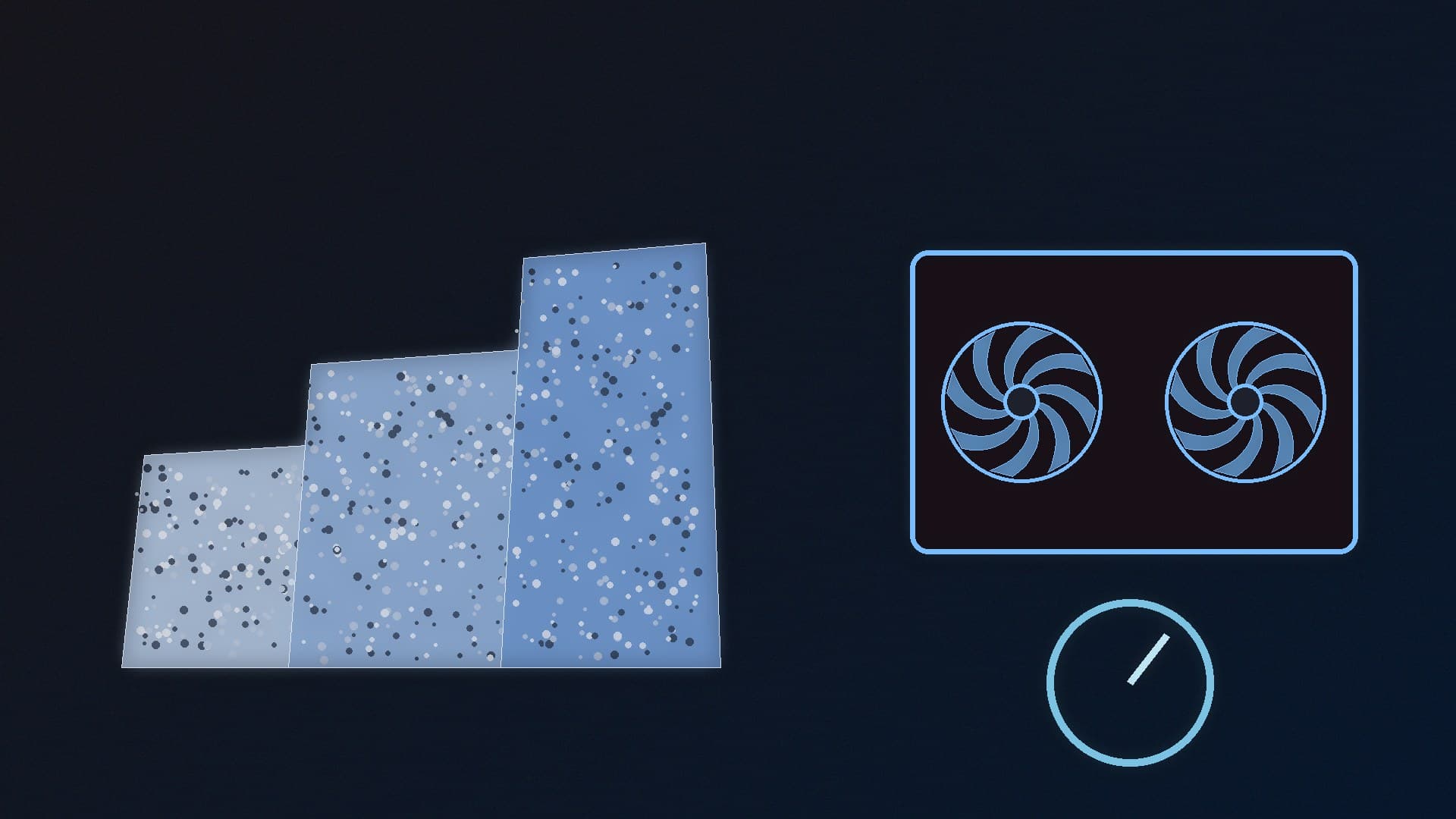
Ollama's library lists three Granite 4.2 sizes. Ollama describes them as dense models, so every parameter is used for every token.
Model | Ollama command | Default download (4-bit) | 8-bit download | Context window |
|---|
Granite 4.2 3B | ollama run granite4.2:3b
| 2.2GB | 3.9GB | 128K |
Granite 4.2 8B (default) | ollama run granite4.2:8b
| 5.3GB | 9.3GB | 128K |
Granite 4.2 30B | ollama run granite4.2:30b
| 18GB | 31GB | 128K |
As a rough guide, the model needs to fit in your graphics card's VRAM with a few gigabytes spare for context:
8GB cards: Granite 4.2 8B at its default 4-bit size (5.3GB) fits comfortably and is the sensible starting point. Our guide to running a local LLM on 8GB of VRAM has more tips.
12GB to 16GB cards: you can run the 8B model at 8-bit (9.3GB) for slightly higher quality, but the 30B model's 18GB download won't fit entirely.
24GB cards: the 30B model's 18GB default build fits, with around 6GB left for context.
No graphics card, or a laptop: the 3B model's 2.2GB download is small enough to run on a CPU or integrated graphics. See how to run a local LLM without a GPU.
Not sure how much VRAM you have? Our how much VRAM do you need guide explains how to check.
Step 1: Install Ollama
Download Ollama for Windows, macOS or Linux from ollama.com and run the installer. If you've not used it before, our guide to running AI models locally with Ollama and LM Studio walks through the basics.
Step 2: Download and run Granite 4.2
Open a terminal (PowerShell on Windows) and type:
ollama run granite4.2
That downloads the default 8B model and opens a chat prompt. To choose a different size, add a tag, for example ollama run granite4.2:3b or ollama run granite4.2:30b. Ollama's page says the default build is typically the Q4_K_M quantisation; for the 8-bit version add -q8_0, as in ollama run granite4.2:8b-q8_0.
Once it's running, check the model is actually on your graphics card rather than your CPU with ollama ps. Our guide to checking Ollama is using your GPU explains what to look for.
Step 3: Control the thinking mode
Granite 4.2's model page says thinking is switched on by default: the model reasons step by step inside a thinking block before giving its answer. That helps with harder questions but makes simple replies slower. In Ollama's chat you can change it with these commands:
Command | Effect |
|---|
/set nothink
| Turn thinking off for the fastest, direct answers |
/set think low
| A light thinking pass |
/set think high
| Full reasoning depth |
/set think
| Turn thinking back on at the default level |
For everyday jobs like summarising an email or rewriting a paragraph, turning thinking off is usually the better choice. Our guide to turning off thinking in Ollama covers the same settings for apps and the API.
Step 4: Give it more context
Granite 4.2 supports a 128K-token context window, but Ollama won't use all of that by default because a longer context takes more VRAM. If you want to paste in long documents, raise the context length gradually as explained in our guide to setting Ollama's context length, and watch your VRAM use as you go.
What Granite is good at
Ollama's model page lists Granite 4.2's intended uses as summarisation, text classification, text extraction, question answering, retrieval augmented generation (RAG), code tasks, function calling, multilingual dialogue and fill-in-the-middle code completion. It supports 12 languages: English, German, Spanish, French, Japanese, Portuguese, Arabic, Czech, Italian, Korean, Dutch and Chinese.
The page also says the models support structured JSON output, which makes them a good fit if you're building scripts that need predictable answers. See our guides to structured outputs in Ollama and tool calling in Ollama. Note that Ollama's Granite 4.2 listing doesn't currently show the "tools" badge that appears on the older Granite 4 page, so if tool calling doesn't work with your app, try granite4 instead.
Granite 4.2 accepts text only. If you want to ask questions about images, you'll need a different model.
What about the older Granite 4 models?
Ollama still hosts the earlier Granite 4 family (granite4), which IBM released on 2 October 2025. It's interesting because its "-h" models use a hybrid design with Mamba-2 layers, and Ollama lists them with a 1M-token context window. Sizes run from the 366MB granite4:350m-h to the 19GB granite4:small-h (tagged 32b-a9b-h), with the 4.2GB granite4:tiny-h (tagged 7b-a1b-h) a lighter option for low-end hardware. Unless you specifically want those very long context windows or tiny models, the newer Granite 4.2 is the one to start with.
Our verdict
Granite 4.2 is a sensible, no-nonsense choice for local AI work tasks: it's Apache 2.0-licensed, its 5.3GB default 8B model runs on an 8GB graphics card, and its thinking mode can be switched off with /set nothink when you just want quick answers. Start with ollama run granite4.2, try the 30B model if you have a 24GB card, and drop to the 3B model on laptops or PCs without a graphics card.