This guide is based on Microsoft's own support and Microsoft Learn documentation, checked on 25 November 2026, with one interface detail credited to PCWorld.
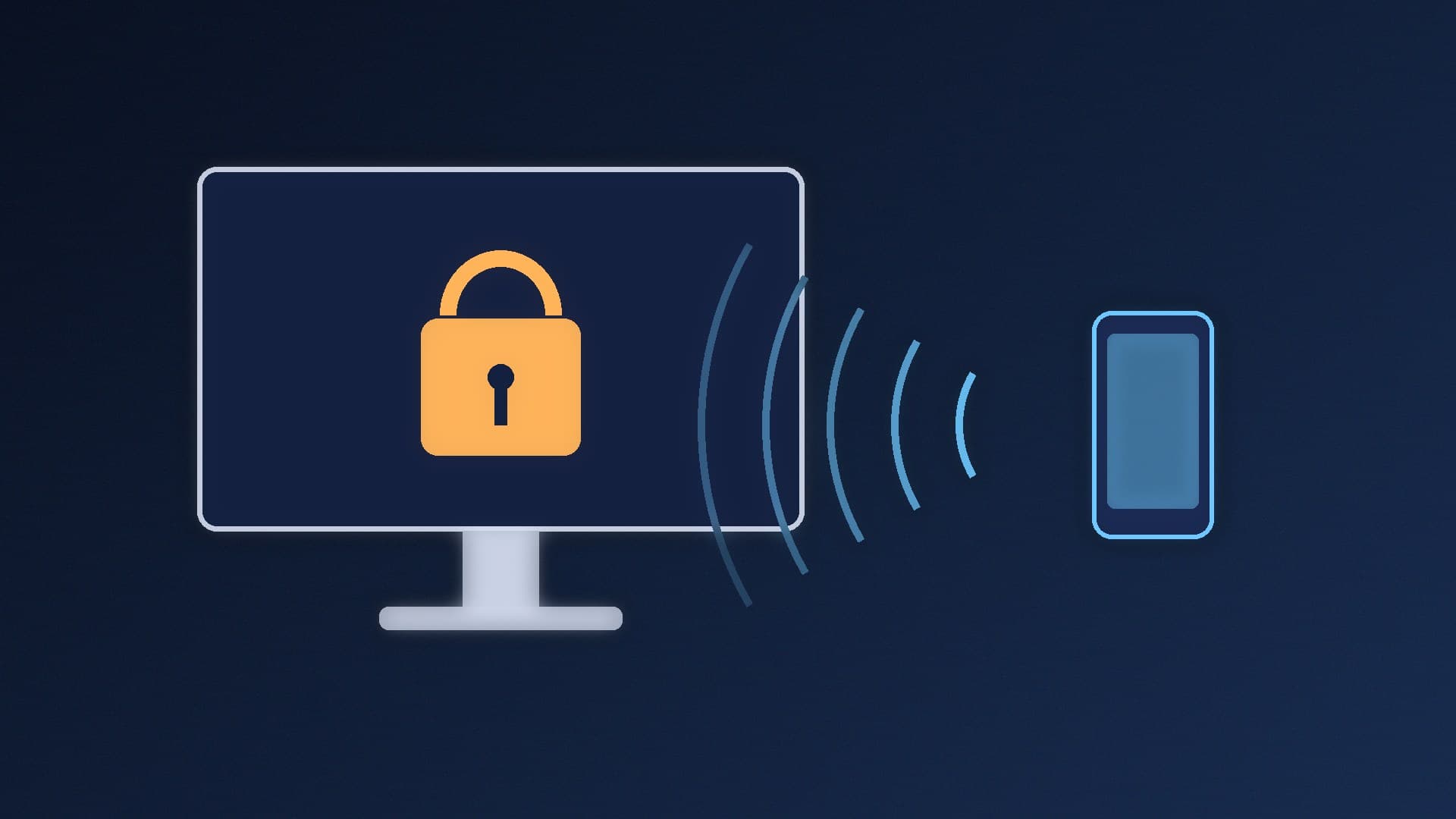
Pressing Windows key + L before you leave your desk is the best habit there is, but most of us forget at least occasionally. Dynamic Lock is Windows 11's built-in safety net: pair your phone with your PC over Bluetooth, and Windows will lock the PC by itself once the phone (and, presumably, you) has moved out of range. It's free, takes a couple of minutes to set up and needs no extra software.
What Dynamic Lock does (and doesn't do)
Microsoft describes Dynamic Lock as a feature that uses Bluetooth to pair with a phone and locks the device when the Bluetooth signal drops below a certain level, indicating you're no longer near it. According to Microsoft's sign-in options page, Windows will lock automatically within a minute after you're out of Bluetooth range.
There are three important limits to understand before you rely on it:
It only locks, never unlocks. When you come back, you sign in as normal with your PIN, password, face or fingerprint.
It waits until the PC is idle. Microsoft Learn notes that Dynamic Lock only locks the device if the Bluetooth signal falls and the system is idle. If someone sits down and starts using your PC before the lock kicks in, it won't lock.
It isn't a replacement for locking manually. Microsoft's own wording is that it's an additional barrier that only reduces the chance of someone getting in if you forget.
In other words, treat Dynamic Lock as a backup for the times you forget, not as your main security.
What you need
A Windows 11 PC with Bluetooth. Most laptops and many motherboards with built-in Wi-Fi have it. Many desktop PCs don't, in which case a cheap USB adapter such as the ASUS USB-BT500 or a Wi-Fi card with Bluetooth such as the TP-Link Archer TBE550E adds it. Our guide to the best Bluetooth adapters for PC covers the options.
A phone with Bluetooth. Microsoft's documentation refers to a phone, and its policy settings for businesses list Phone as the only currently supported device class, so a smartwatch or earbuds won't do the job.
A sign-in method on your account. Dynamic Lock is only useful if your PC asks for a PIN, password or Windows Hello when it's locked. If you're not sure which to use, see Windows Hello PIN vs password.
Step 1: Pair your phone with your PC
On your phone, turn on Bluetooth and leave the Bluetooth settings screen open so it's discoverable.
On the PC, open Settings > Bluetooth & devices and make sure Bluetooth is turned on.
Select Add device, choose Bluetooth in the Add a device window, then pick your phone from the list of discoverable devices.
Follow any instructions that appear, which for a phone usually means confirming that the code shown on the PC matches the one on your phone, then select Done.
If the PC can't see the phone, or Bluetooth is missing from Settings altogether, work through our guide to fixing Bluetooth not working in Windows 11 first.
Step 2: Turn on Dynamic Lock
Open Settings > Accounts > Sign-in options.
Scroll down to Additional settings and find Dynamic lock.
Turn it on. Microsoft's support page describes this as a toggle; on some versions of Windows it's a checkbox labelled Allow Windows to automatically lock your device when you're away, as PCWorld's guide shows.
If Windows says it can't find a paired phone, go back to Step 1 and check that the phone appears under Bluetooth & devices.
Step 3: Test it
Take your phone and walk away from the PC (another room or further usually does it), leave it idle for a couple of minutes, then come back. The PC should be at the lock screen. If it isn't, try walking further away: Bluetooth range varies a lot with walls, the adapter and where it's plugged in. Microsoft's business documentation says the default signal settings let someone move around an average-sized office or cubicle without triggering a lock, so it isn't designed to fire the moment you stand up.
Common problems and fixes
The PC never locks. Check that the phone is still paired and that Bluetooth is on at both ends. Remember the PC also has to be idle; a video playing full screen or an app keeping the system awake may stop Dynamic Lock from kicking in. Moving a USB adapter from the back of a tower to a front port or a short USB extension cable can also change how the signal behaves.
The PC locks while I'm sitting at it. This can happen if your phone turns Bluetooth off (for example in a battery saver or flight mode) or the connection drops. Windows treats a lost connection like a phone that's walked away. Keep Bluetooth on and check your phone isn't aggressively restricting it.
My laptop locks when I take it to a meeting without my phone. That's expected: Dynamic Lock tracks the gap between the phone and the PC, not your physical presence.
Dynamic lock is greyed out or missing. On work or school PCs it may be controlled by your organisation through Group Policy or Intune, in which case only your IT team can change it.
Other ways to lock your PC quickly
Windows key + L locks the PC instantly.
Ctrl + Alt + Delete, then Lock.
A screen-off timeout with sign-in required on wake, so the PC locks after a period of inactivity even if Dynamic Lock doesn't trigger. Pair it with sensible sleep settings; our sleep vs hibernate guide explains the difference.
Presence sensing, on Windows 11 PCs with a built-in presence sensor, which Microsoft says can turn your screen off automatically when you leave and wake the device when you approach.
Our verdict
Dynamic Lock is worth turning on if you have a phone and a Bluetooth-equipped PC: pair the phone under Settings > Bluetooth & devices, then turn on Dynamic lock under Settings > Accounts > Sign-in options > Additional settings. Just remember that it only locks once you're out of range and the PC is idle, which can take a minute or more, so keep pressing Windows key + L whenever you can and treat Dynamic Lock as your safety net.