The explanation below comes from Microsoft's Windows Hello documentation and support pages, read on 24 November 2026. Where we add our own advice, we say so.
When you set up a new Windows 11 PC, it asks you to create a PIN, and the sign-in screen tends to favour it over your Microsoft account password. At first glance that looks backwards: how can a short PIN be safer than a long password? The answer is that they work in completely different ways, and the length of the code is only a small part of the story.
At a glance
| Windows Hello PIN | Account password |
|---|
Where it works | Only on the device where you set it up | Anywhere you can sign in to that account |
Sent over the internet? | No, Microsoft says it's never transmitted or stored on a server | Online passwords are sent to the server to be checked |
Hardware protection | Backed by the PC's TPM chip, with anti-hammering protection | Microsoft says Windows doesn't link local passwords to the TPM |
If someone learns it | They also need your physical PC | They can try it from anywhere (for an online account) |
Needed for face or fingerprint? | Yes, it's the fallback | No |
How a Windows Hello PIN works
Microsoft gives three main reasons it considers a Windows Hello PIN better than an online password:
It's tied to one device. The PIN only works on the specific PC where it was set up. Microsoft says that someone who obtains your online password can sign in to your account from anywhere, but if they learn your PIN they'd also need your device. If you want to use Hello on several PCs, you set it up on each one.
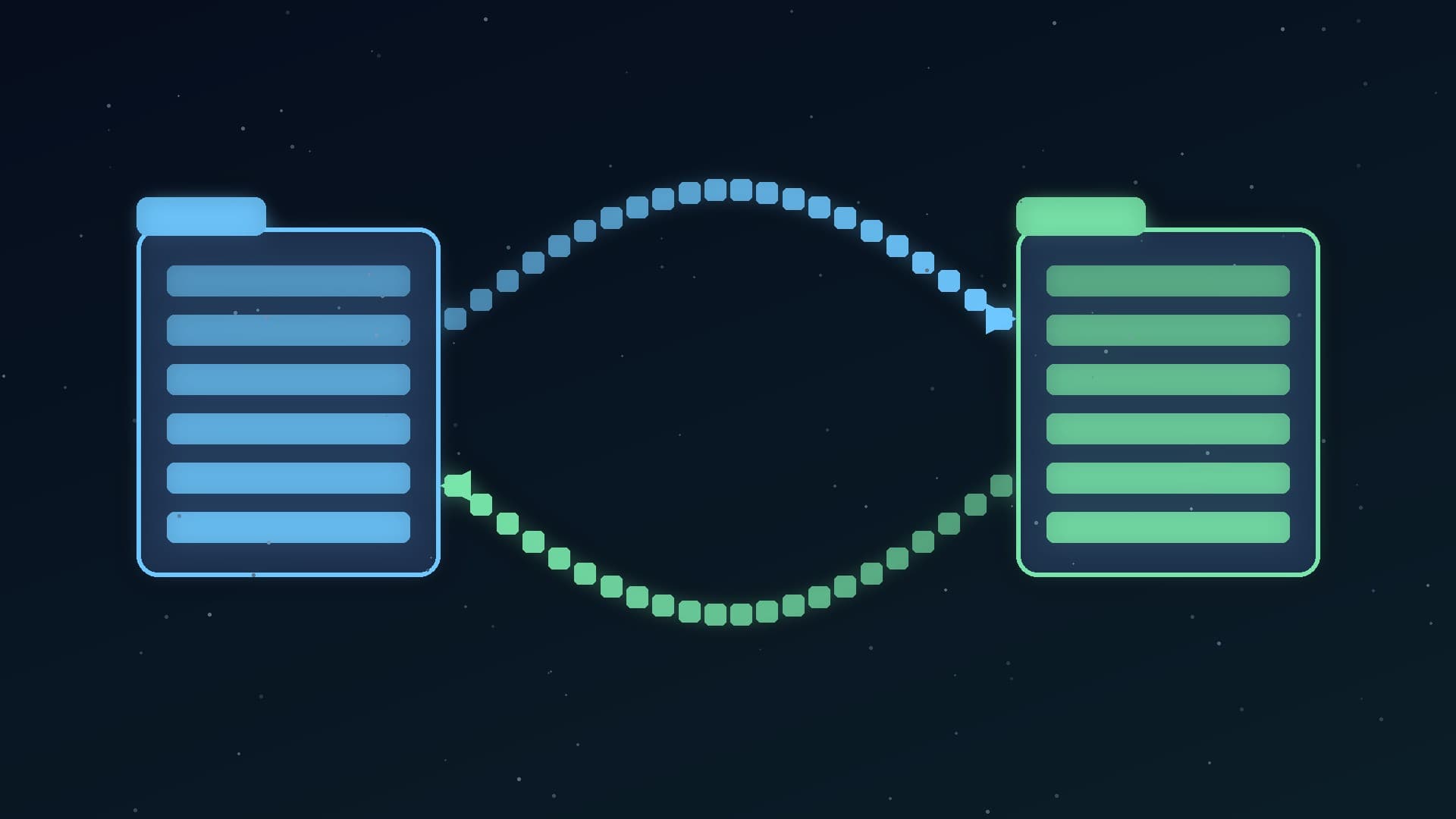
It stays local. An online password is transmitted to a server, where it can be intercepted or stolen. Microsoft says a PIN is "local to the device, never transmitted anywhere, and it isn't stored on the server." Instead, creating the PIN sets up an asymmetric key pair; entering the PIN unlocks a key on your PC that signs the sign-in request.
It's backed by hardware. The PIN is protected by the Trusted Platform Module (TPM), a tamper-resistant security chip. Because Hello uses key pairs rather than shared secrets, Microsoft says your credentials can't be stolen if the identity provider or a website you use is compromised.
Microsoft is careful to add that "a PIN is stronger than a password" isn't about the PIN having more possible combinations. It's about the PIN unlocking a hardware-protected key on one device, rather than sending a reusable secret over the internet.
What stops someone guessing your PIN?
A short PIN would be easy to brute-force if there were no limits, which is where the TPM comes in. Microsoft says the TPM has anti-hammering features that thwart attempts to try every combination.
Microsoft's Windows Hello for Business documentation describes what happens in practice: after three wrong PINs, Windows asks you to type a challenge phrase before you get one more attempt; after that, the PIN option is disabled until the PC restarts. If wrong guesses continue, the device enters lockout periods that get longer, which Microsoft attributes to the TPM 2.0 anti-hammering feature. That documentation is written for business deployments, so treat it as an illustration of how the protection works rather than a promise about exact timings on a home PC (our advice).
Microsoft lists TPM 2.0 as a minimum hardware requirement for Windows 11. If you built your own PC, make sure firmware TPM is enabled in the BIOS; our guide to enabling Secure Boot and TPM shows where to find it.
Why passwords still matter
Switching to a PIN doesn't make your password irrelevant:
Your Microsoft account password still protects your account online. Anyone with it can try to sign in to your email, OneDrive or Xbox account from another device, so use a long, unique password and turn on two-step verification (our advice).
You may need it to reset your PIN. Microsoft says that if you can sign in with a password, you can reset a forgotten PIN by selecting I forgot my PIN in Settings or on the lock screen.
Older "convenience PINs" are different. Microsoft notes that a convenience PIN, used in some managed setups, still uses the password behind the scenes, unlike a Windows Hello PIN.
If you're deciding which kind of account to use in the first place, our local account vs Microsoft account comparison covers the trade-offs.
Where face and fingerprint fit in
Windows Hello also supports facial recognition (with an infrared camera) and fingerprint sign-in. Microsoft says you're asked to create a PIN as part of setting these up, so you can still sign in if the sensor isn't working or you can't use it. Microsoft also says Windows Hello biometric data is stored locally on the device in encrypted form, and doesn't roam or get sent to Microsoft's cloud. Our Windows Hello face vs fingerprint comparison explains which biometric option suits which PC.
Microsoft's support page also notes a sign-in change for Windows 11: starting in November 2026 and rolling out by January 2027, if face or fingerprint doesn't recognise you straight away, the PIN entry option appears alongside it so you can use whichever works first.
How to set up a Windows Hello PIN
Microsoft's steps are:
Open Settings > Accounts > Sign-in options.
Under Ways to sign in, select PIN (Windows Hello).
Select Set up and follow the instructions.
Choose a PIN that isn't your bank card PIN, your birthday or an obvious sequence such as 1234, since someone with physical access to your PC could guess those (our advice).
Our verdict
For signing in to your PC, a Windows Hello PIN is the safer choice according to Microsoft, because it only works on that one device, never leaves it and is protected by the TPM's anti-hammering lockouts, whereas a password can be stolen and reused from anywhere. Use a PIN (plus face or fingerprint if your PC supports them) for everyday sign-in, but keep a strong, unique Microsoft account password with two-step verification, because that's what protects your account online and lets you reset a forgotten PIN.