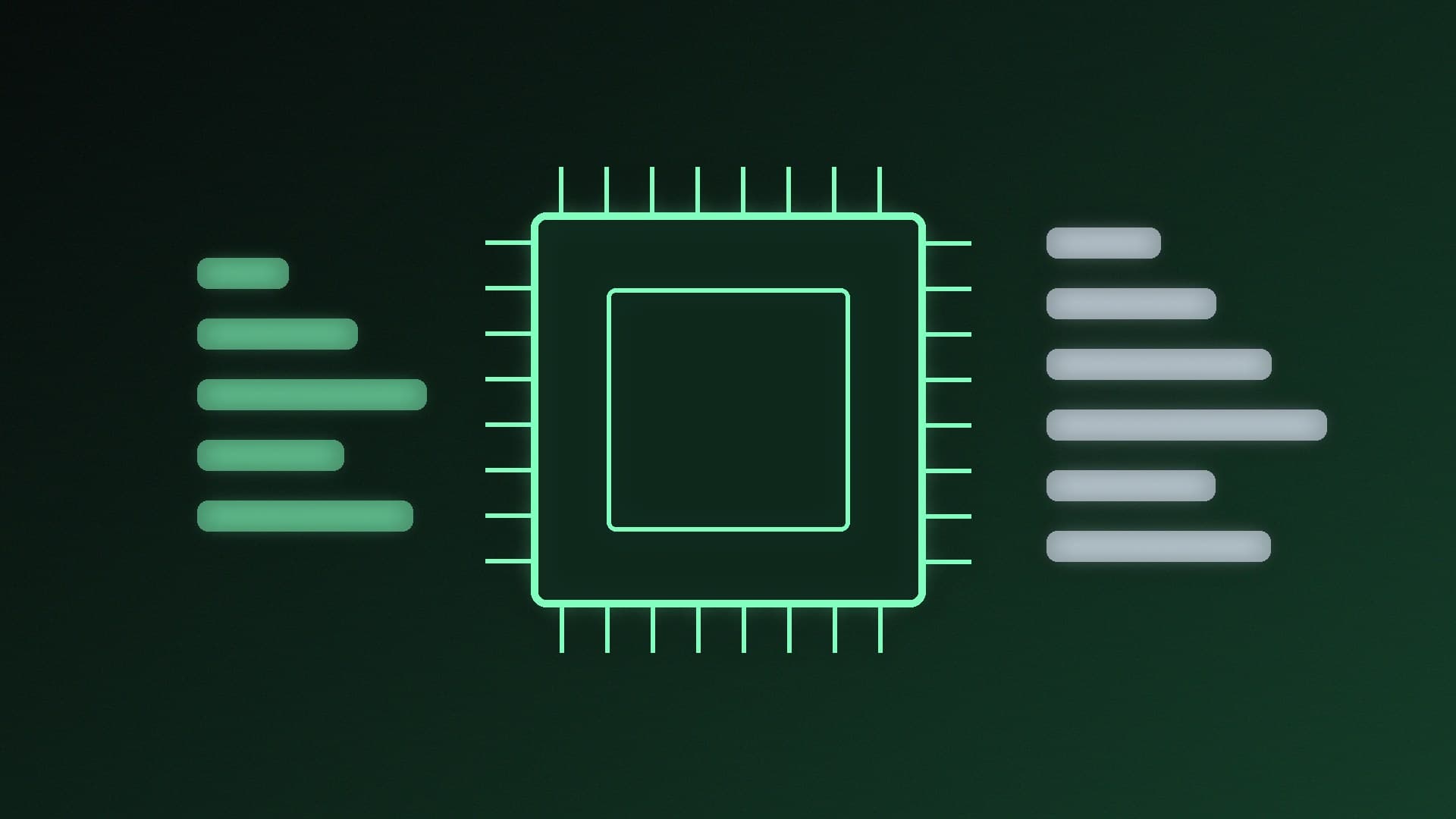
Not every PC has a graphics card with lots of VRAM, and plenty of office PCs and mini PCs have none at all. You can still run a local large language model (LLM): both Ollama and LM Studio can load models into system memory and run them on the CPU. This guide is based on Ollama's and LM Studio's official documentation; Forge PC hasn't benchmarked CPU-only speeds, so we don't quote any.
What you need
LM Studio lists these Windows requirements:
CPU: AVX2 instruction support is required on x64 processors (Snapdragon X Elite ARM PCs are also supported)
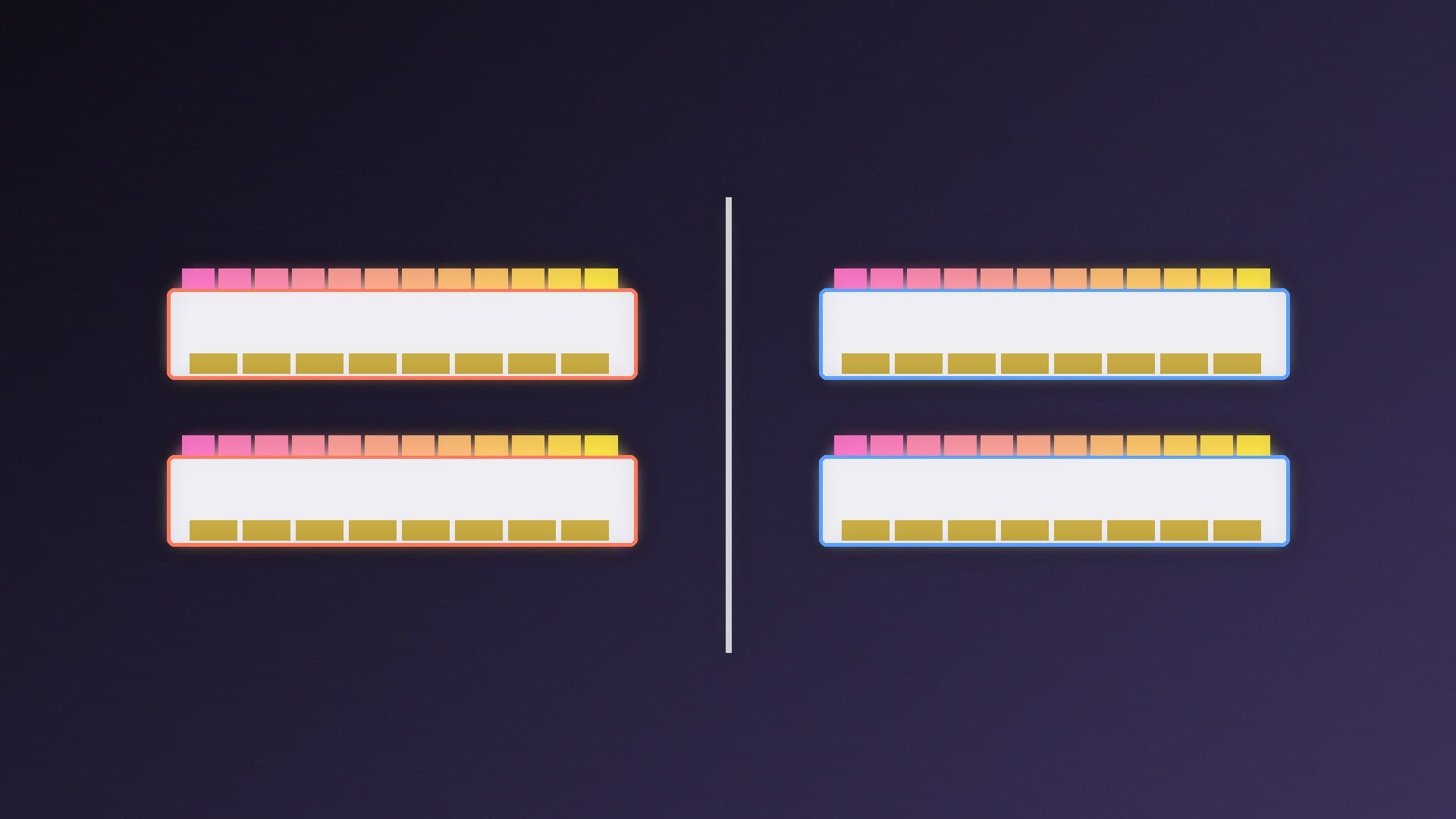
RAM: at least 16GB recommended, because LLMs can consume a lot of RAM
GPU: at least 4GB of dedicated VRAM is recommended, not required
Ollama runs as a native Windows application. Its Windows documentation says the install needs at least 4GB of space for the program, plus extra space for models, which can be tens to hundreds of GB. If your C: drive is tight, our guide to moving Ollama models to another drive explains how to change where models are stored.
Step 1: install Ollama or LM Studio
Install either app as normal. Our guide to running AI models locally with Ollama and LM Studio walks through the first run. Neither needs a GPU to start.
Step 2: choose a small model
Without a GPU, the whole model sits in system RAM, alongside Windows and your other apps. Start with a small model and a quantised version (for example a 4-bit GGUF in LM Studio) rather than the biggest one you can find. Our GGUF quantisation explainer covers what the labels mean, and how much RAM you need for local AI covers sizing.
Step 3: check where the model is running
Ollama's FAQ says the ollama ps command shows loaded models and a Processor column:
100% CPU means the model was loaded entirely into system memory
100% GPU means it was loaded entirely onto the graphics card
a split such as 48%/52% CPU/GPU means it's partly in each
On a PC without a supported GPU you should see 100% CPU. If you do have a GPU but it isn't being used, check Ollama's hardware support page: it lists NVIDIA cards with compute capability 5.0 and newer (driver 550 or newer, or 570+ for compute capability 5.0-6.2), and its Windows page says AMD Radeon cards can use ROCm or Vulkan acceleration.
Step 4: keep expectations realistic
Running on the CPU works, but LM Studio still recommends at least 4GB of dedicated VRAM, so don't expect GPU-like responsiveness (we haven't measured CPU-only speeds). A longer context also uses more memory: see context length and memory explained. Close heavy apps, keep the context length modest (see how to set Ollama's context length), and use a smaller model if replies are too slow.
When to add a GPU
If you find local AI useful, a graphics card with more VRAM is the biggest upgrade. Our guides to running a local LLM on 8GB of VRAM and NPU vs GPU for local AI explain the options.
Our verdict
You can run a local LLM with no graphics card: install Ollama or LM Studio, pick a small quantised model, and confirm with ollama ps that it shows 100% CPU. LM Studio recommends 16GB of RAM and needs an AVX2 CPU on x64; leave plenty of disk space for models.