Our picks are based on which distributions are officially supported by NVIDIA's CUDA installation guide, AMD's ROCm 10.2.0 compatibility matrix and ROCm on Radeon documentation, plus the requirements published by LM Studio, Ollama, ComfyUI and vLLM, all read on 26 November 2026. Support lists change with each release, so check them again before installing.
There are hundreds of Linux distributions, and most of them can run local AI software in some form. But if you want your graphics card to work with the least fuss, one thing matters more than anything else: whether the GPU maker officially supports the distribution. NVIDIA and AMD both publish lists, and the distros on them get tested drivers, packaged installers and documentation that matches what you see on screen. Pick one that's not on the list and you may spend your evening working around missing packages rather than running models.
That's why this guide is short, and why one distribution comes out on top.
Quick picks
Pick | Best for | NVIDIA CUDA | AMD ROCm (Radeon RX 9000/7000) |
|---|
Ubuntu 24.04 LTS or 26.04 LTS | Most people | Supported | Supported |
Red Hat Enterprise Linux 10 | Workstations and business use | Supported | Supported |
Debian 13 | NVIDIA users who want a stable base | Supported | Not listed for Radeon |
Fedora 44 | NVIDIA users who want newer software | Supported | Not listed for Radeon |
How we chose
We started with the two official lists that matter most for local AI:
NVIDIA's CUDA installation guide for Linux lists supported distributions including Ubuntu 26.04, 24.04 and 22.04 LTS, Debian 12 and 13, Fedora 44, Red Hat Enterprise Linux 8, 9 and 10, Rocky Linux and AlmaLinux 8 to 10, openSUSE Leap and SUSE Linux Enterprise Server.
AMD's ROCm 10.2.0 compatibility matrix lists the Radeon RX 9000 and RX 7000 series, Radeon PRO W7000 series and Radeon AI PRO R9000 series as supported on Ubuntu 26.04.1, 24.04.5 and 22.04.5, and Red Hat Enterprise Linux 10.3 and 9.9. For Ryzen AI processors with integrated Radeon graphics, such as the Ryzen AI Max series, it lists Ubuntu 26.04.1 and 24.04.5.
We then checked what the main local AI apps say about Linux. Ollama provides an install script and its own packages for Linux. LM Studio's Linux version is an AppImage that requires Ubuntu 20.04 or newer. ComfyUI's desktop app is available as an AppImage and a .deb package. vLLM's documentation says it can only fully run on Linux.
1. Ubuntu 24.04 LTS or 26.04 LTS: best overall
Why it's our pick: Ubuntu is on both NVIDIA's CUDA list and AMD's ROCm list for Radeon cards, and it's the only distribution AMD lists for Ryzen AI processors, so it works whichever graphics card or AI chip you buy now or later.
NVIDIA lists Ubuntu 22.04, 24.04 and 26.04 LTS. AMD's ROCm 10.2.0 matrix lists Ubuntu 22.04.5, 24.04.5 and 26.04.1 for current Radeon cards, and Ubuntu is the only Linux distribution it lists for Ryzen AI processors with integrated graphics. AMD's separate ROCm on Radeon documentation, which covers releases up to ROCm 7.2.1, also lists Ubuntu 24.04 and 22.04 desktop versions with the hardware enablement (HWE) kernel.
The apps agree. LM Studio's documentation names Ubuntu specifically: it needs Ubuntu 20.04 or newer, though LM Studio says versions newer than 22 "are not well tested". Ubuntu is also the default distribution in Windows Subsystem for Linux, according to NVIDIA's CUDA on WSL guide, so commands you learn on a Windows PC carry straight over.
Which version? If you have an AMD card, check the exact Ubuntu point release and kernel AMD lists for your ROCm version before installing, because AMD's matrix specifies them. The Ubuntu versions on both companies' lists are all long-term support (LTS) releases, so stick to those rather than interim releases.
Watch out for: Ubuntu's inbox AMD driver. Ollama's Linux guide notes that the amdgpu driver built into the Linux kernel is older and may not support all ROCm features, and recommends AMD's latest driver for the best support.
Our guides to installing NVIDIA drivers on Ubuntu for local AI and installing ROCm on Ubuntu take you through the GPU setup.
2. Red Hat Enterprise Linux 10: best for workstations
Why it's our pick: it's the only other distribution on both NVIDIA's list and AMD's Radeon list, which makes it a strong choice for an office AI workstation or a machine that has to fit into an existing Red Hat setup.
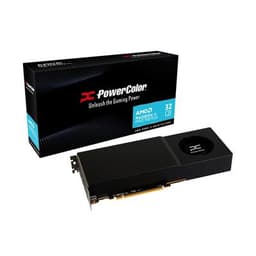
AMD's ROCm 10.2.0 matrix lists RHEL 10.3 and 9.9 for Radeon RX 9000 and 7000 cards, as well as Radeon PRO and Radeon AI PRO cards such as the PowerColor AI Pro R9700 32GB. NVIDIA lists RHEL 8, 9 and 10.
Rocky Linux and AlmaLinux: NVIDIA's guide also lists Rocky Linux 8 to 10 and AlmaLinux 8 to 10, using the same RHEL repository names, so they're a good fit for NVIDIA-based machines. AMD's matrix lists Rocky Linux only for some Instinct data centre GPUs, not for Radeon cards, so don't assume ROCm support carries over.
Watch out for: none of the desktop AI apps we checked names RHEL in its requirements. LM Studio only names Ubuntu, so check each app's documentation before you commit.
3. Debian 13: best for NVIDIA users who want stability
Why it's our pick: NVIDIA lists both Debian 12 and Debian 13, with CUDA packages for x86 and Arm systems, so it's a well-supported choice for an NVIDIA-based machine.
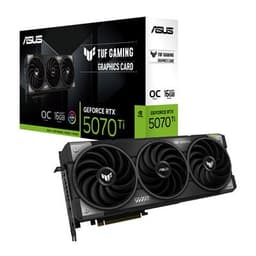
For a quiet, always-on AI server with an NVIDIA graphics card, such as an ASUS RTX 5070 Ti 16GB TUF Gaming OC, running Ollama as a background service, Debian is a sensible choice. Ollama's Linux install guide sets Ollama up as a systemd service, which works the same way on Debian as on Ubuntu.
Watch out for: AMD support. AMD's ROCm 10.2.0 matrix lists Debian 12 and 13 for its Instinct data centre GPUs, but not for Radeon consumer or workstation cards. If you have, or might buy, a Radeon card, choose Ubuntu.
4. Fedora 44: best for NVIDIA users who want newer software
Why it's our pick: NVIDIA's CUDA guide lists Fedora 44 as supported, so it's an officially backed option if you prefer Fedora's desktop to Ubuntu's on a PC with an NVIDIA graphics card.
Watch out for: AMD support. AMD's ROCm 10.2.0 matrix doesn't list Fedora for Radeon cards, so AMD users are better off with Ubuntu. NVIDIA lists one specific Fedora release, so check the CUDA guide again before upgrading Fedora to a new version.
What about Linux Mint, Pop!_OS, Arch and the rest?
Popular desktop distributions such as Linux Mint, Pop!_OS and Arch Linux aren't on NVIDIA's CUDA distribution list or AMD's ROCm matrix that we read. That doesn't mean they can't run local AI. But you're relying on community support rather than the GPU maker's, and installation guides may not match exactly. If you want the smoothest experience with the least troubleshooting, stick to the distributions above.
Tips for setting up a Linux AI PC
Our verdict
Ubuntu LTS is the best Linux distribution for most local AI PCs, because it's officially supported by both NVIDIA's CUDA and AMD's ROCm for Radeon cards, it's the only distro AMD lists for Ryzen AI chips, and it's what LM Studio and WSL use. Red Hat Enterprise Linux is the alternative on both lists for workstations. Debian 13 and Fedora 44 are good choices only if you use an NVIDIA graphics card.