The details below come from Microsoft's WSL documentation, read on 24 November 2026, plus our existing Linux and Windows guides. Where we describe how dual booting works in general, that's standard PC behaviour rather than a measured result.
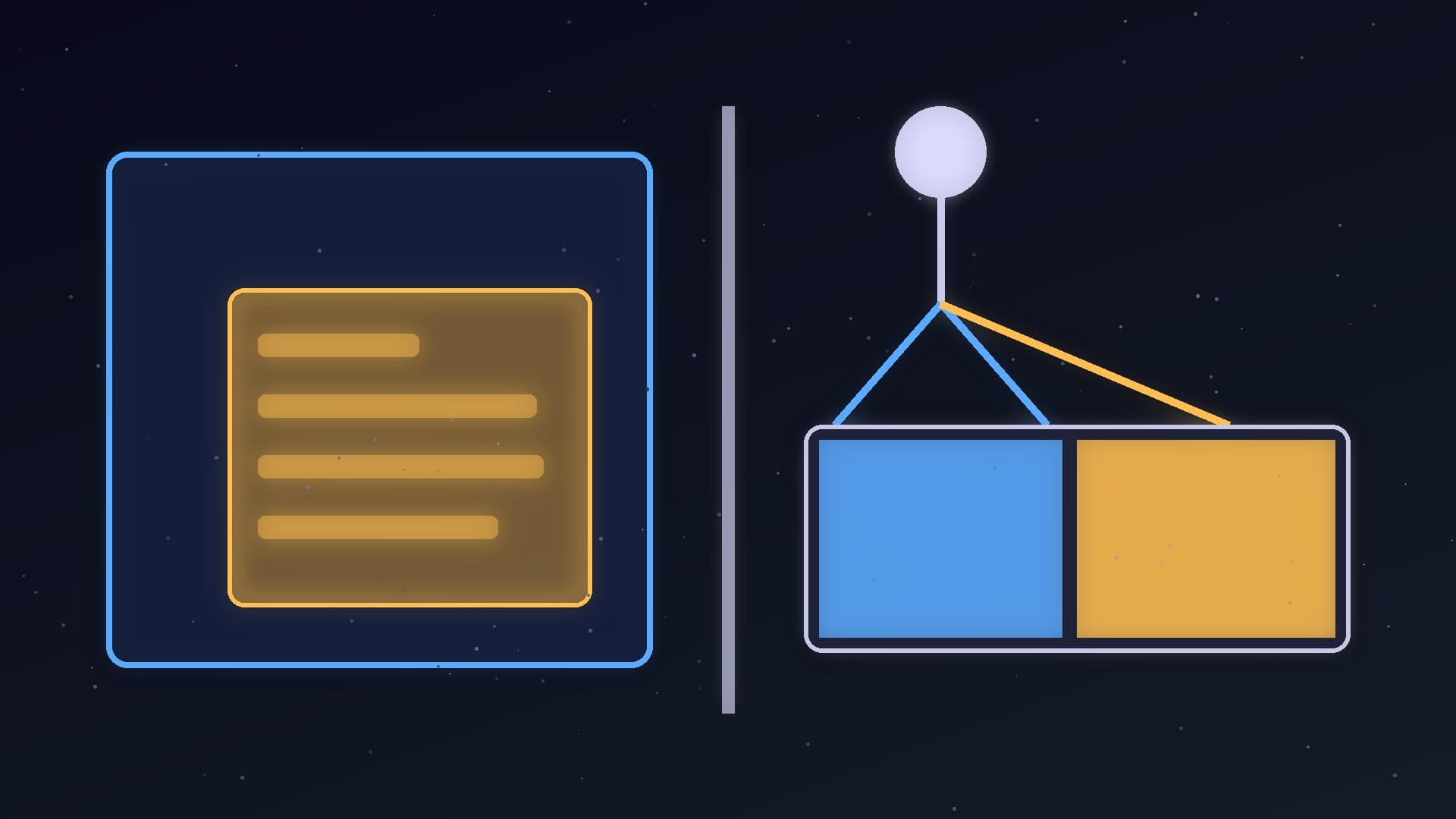
There are two main ways to get Linux on a PC that already runs Windows 11. The Windows Subsystem for Linux (WSL) runs a Linux environment inside Windows, so you can use both at once. Dual booting installs Linux on its own partition or drive, and you choose which operating system to start each time you switch the PC on. Both are free, and both are good choices, for different people.
The short answer
Choose WSL if you want Linux command-line tools, programming languages, containers or AI frameworks while keeping Windows apps, games and files at hand.
Choose dual boot if you want Linux to have the whole PC, including direct access to all hardware, a full Linux desktop and Linux-native games or apps, and you don't mind rebooting to switch.
How each one works
Microsoft describes WSL as a Windows feature that lets you run a Linux environment on your Windows machine without the need for a separate virtual machine or dual booting. The current version, WSL 2, is the default. Microsoft says it uses virtualisation technology to run a real Linux kernel inside a lightweight utility virtual machine, with distributions running as isolated containers inside that managed VM. Microsoft's FAQ adds that WSL needs fewer resources (CPU, memory and storage) than a full virtual machine, and that the VM starts, stops and manages resources automatically.
Dual booting is simpler in concept. Linux is installed to its own partition or a separate drive, a boot menu lets you pick an operating system at start-up, and whichever you choose runs directly on the hardware with nothing else running underneath it. Our guide to dual booting Windows 11 and Linux walks through the setup.
Head to head
| WSL 2 | Dual boot |
|---|
Setup | One command, wsl --install, in an admin terminal, then a restart | Partition or spare drive, USB installer, boot menu set-up |
Switching | Instant: Linux and Windows run at the same time | Reboot each time |
Hardware access | Virtualised; GPU compute supported, USB devices need extra set-up | Direct access to all supported hardware |
Linux desktop | Linux GUI apps run on the Windows desktop, but not a full Linux desktop | Full Linux desktop environment |
Memory | Shares RAM with Windows; by default up to 50% of total memory | Linux gets all the RAM |
File access | Windows drives mounted under /mnt; fastest when files stay in the Linux file system | Separate file systems; sharing needs care |
Risk to Windows install | Low: no partitioning | Higher: partitioning and boot changes |
Setup and risk
WSL wins clearly on convenience. Microsoft says you can install it on Windows 10 version 2004 and later or Windows 11 by opening PowerShell or Command Prompt as administrator, entering wsl --install and restarting. Ubuntu is the default distribution, and you can choose others with wsl --install -d <DistroName>. Nothing on your Windows drive is repartitioned.
Dual booting means shrinking a partition or adding a drive, creating a USB installer (see our guide to making a bootable USB with Ventoy or Rufus) and changing boot settings. It's routine for experienced builders, but a mistake during partitioning can cost you data, so back up first. If your Windows drive is BitLocker or Device Encryption protected, have your BitLocker recovery key to hand before changing boot settings. The cleanest option is a second SSD dedicated to Linux; our M.2 SSD installation guide covers fitting one.
WSL 2 runs a real Linux kernel, and Microsoft says it offers full system call compatibility and much better file system performance than the older WSL 1. The big caveat is where your files live. Microsoft recommends against working across operating systems: for the fastest performance, store files in the WSL file system when you're using Linux tools, and in the Windows file system when using Windows tools. Projects kept on /mnt/c and built with Linux tools will be slower.
Memory is shared. Microsoft's WSL settings documentation says the WSL 2 VM is assigned 50% of total Windows memory and the same number of logical processors as Windows by default, and you can change both in the .wslconfig file. Microsoft also notes that WSL 2 returns freed memory to Windows but doesn't yet release cached pages until the WSL instance shuts down, so long sessions that touch many files can tie up RAM. On a 16GB PC running heavy Linux workloads alongside Windows apps, that's worth bearing in mind.
With dual boot, Linux has the whole machine to itself, with no Windows running in the background. That's the better choice for long, memory-hungry jobs and for anyone who wants to tune the system without a virtualisation layer in the way.
GPU, AI and hardware access
Microsoft says WSL can use your GPU to accelerate machine learning workloads. Its GPU compute guide covers NVIDIA CUDA in WSL and DirectML-based frameworks on AMD, Intel and NVIDIA graphics cards, with the latest driver installed from your GPU maker's website. If you have several GPUs, Microsoft says WSL can access only one at a time. Our guide to setting up WSL2 with GPU support for local AI covers the practical steps.
Other hardware is less straightforward. Microsoft notes that WSL 2 networking uses NAT by default, so Linux gets its own virtual network address, and that USB devices need the separate USBIPD-WIN project to connect. Dual boot has none of these layers: if Linux supports your hardware, it can use it directly, which also matters for AI stacks that expect a native install, such as ROCm on Ubuntu.
Gaming and desktop apps
WSL is aimed at developers. Microsoft says WSL 2 can run Linux GUI apps (X11 and Wayland) integrated with the Windows desktop, but that this doesn't provide a full Linux desktop experience. For gaming, you'd normally play Windows games on Windows, so WSL adds little.
If you want to game on Linux itself, using Proton through Steam or Linux-native titles, you need Linux running on the hardware, which means dual boot or a dedicated Linux PC. Our Windows 11 vs Linux for gaming comparison covers what works and what doesn't, including anti-cheat issues.
Virtual machines and compatibility
Because WSL 2 uses part of Hyper-V (the Virtual Machine Platform component), Microsoft's FAQ notes that some third-party virtualisation apps couldn't run alongside it, though recent versions of VirtualBox and VMware support Hyper-V and WSL 2. If you also use virtual machines, check our best free virtual machine software guide for details. Dual booting doesn't affect Windows virtualisation at all.
Our verdict
For most Windows PC owners who want Linux for coding, scripts, containers or AI frameworks, WSL is the better choice: it installs with one command, doesn't touch your partitions, runs alongside Windows and supports GPU compute. Choose dual boot if you want Linux to own the hardware, with all the RAM, direct device access, a full desktop and Linux gaming, and you're happy to reboot to switch. Many enthusiasts end up using both, with WSL for daily tools and a second SSD for a full Linux install.