The steps below follow AMD's official ROCm 10.2.0 installation documentation and Ollama's Linux and hardware support documentation, all read on 24 November 2026. Commands and version numbers change with each ROCm release, so if anything below differs from AMD's page when you read this, follow AMD.
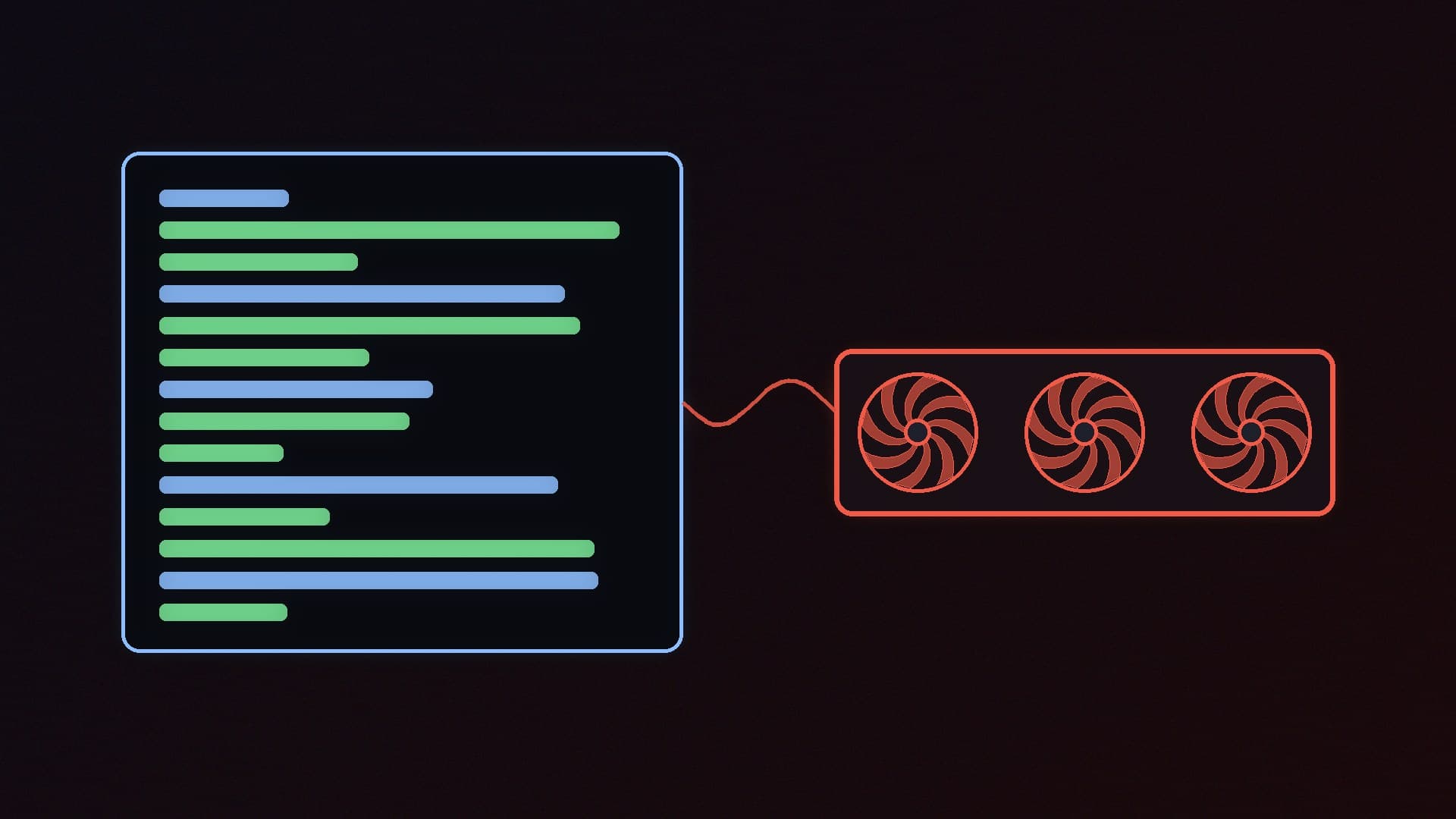
ROCm is AMD's software stack for GPU computing. It's what lets AI tools such as PyTorch, llama.cpp and Ollama use a Radeon graphics card on Linux, in the same way that CUDA does for NVIDIA cards. If you're not sure whether ROCm or the simpler Vulkan route suits you better, read CUDA vs ROCm vs Vulkan for local AI first. If you'd rather stay on Windows, our guide to running local AI on an AMD Radeon GPU covers that.
What you need
A supported AMD GPU. AMD's ROCm 10.2.0 installation page lists these Radeon gaming cards: RX 9070 XT, RX 9070 GRE, RX 9070, RX 9060 XT, RX 9060 XT LP, RX 9060, RX 9050 (including the 4GB model), RX 7900 XTX, RX 7900 XT, RX 7900 GRE, RX 7800 XT, RX 7700 XT, RX 7700 and RX 7600. It also lists Radeon AI PRO R9700, R9700S, R9600D and R9600 workstation cards, several Radeon PRO W7000 cards and the PRO W6800, plus many Ryzen AI processors with integrated Radeon graphics. AMD says a GPU that isn't listed isn't officially supported, although it may be enabled by the community through AMD's TheRock nightly builds.
A supported Ubuntu release. AMD publishes amdgpu-install packages for Ubuntu 26.04 ("resolute"), 24.04 ("noble") and 22.04 ("jammy"). This guide uses Ubuntu 24.04.
A CPU with PCIe atomics. AMD says ROCm needs a CPU that supports PCIe atomics, which covers modern CPUs from AMD's first-generation Zen and Intel's Haswell onwards.
An internet connection and an account with sudo rights.
If you're still choosing a card, our best 24GB graphics cards for local AI and RX 9060 XT 16GB vs RX 9070 XT for local AI will help.
Step 1: Check which GPU you have
Open a terminal and run:
lspci | grep -i -E "vga|display"
Look for the Radeon model name in the output and compare it with AMD's list above. Also check your Ubuntu version:
lsb_release -a
Step 2: Enable Above 4G Decoding in the BIOS
AMD's installation page warns you to enable Above 4G Decoding in your BIOS settings before installing. Restart your PC, enter the BIOS or UEFI setup (usually by pressing Delete or F2 during start-up), and look for the option under PCI or PCIe settings. Its exact name and location depend on your motherboard maker, so check your board's manual if you can't find it. Save and exit.
Step 3: Update Ubuntu
Make sure the system is up to date before you add AMD's packages:
sudo apt update && sudo apt upgrade
Restart if the update installed a new kernel.
Step 4: Download and install the amdgpu-install script
AMD's amdgpu-install method is meant for Radeon cards and Ryzen processors. According to AMD, the script installs ROCm, the AMD GPU driver and graphics components together, picks the right packages for your GPU and distribution, and adds an uninstall script so the whole stack can be removed later. For Ubuntu 24.04, AMD's ROCm 10.2.0 page gives these commands:
wget https://repo.radeon.com/amdgpu-install/31.70/ubuntu/noble/amdgpu-install_31.70.317000-1_all.deb
sudo apt install ./amdgpu-install_31.70.317000-1_all.deb
On Ubuntu 22.04, replace noble with jammy in the web address. On Ubuntu 26.04, use resolute. If you're reading this after a newer ROCm release, the version number in the file name will be different, so copy the current commands from AMD's page.
Step 5: Install ROCm and the AMD GPU driver
Now run the script with the use cases AMD gives for a Radeon graphics card:
sudo amdgpu-install --usecase=rocm,graphics --gfxversion=auto
AMD describes this as installing ROCm, the graphics packages and the amdgpu driver packages in one go.
Ryzen processors with integrated graphics are different. AMD says supported Ryzen APUs need the kernel driver that comes with Ubuntu rather than its own, so it gives this command instead:
sudo amdgpu-install --usecase=rocm --gfxversion=auto --no-dkms
AMD also says supported Ryzen APUs on Ubuntu 24.04 need the OEM kernel 6.14 or newer, which it installs with sudo apt update && sudo apt install linux-oem-24.04d followed by a restart.
Step 6: Give your user access to the GPU
By default, Linux controls GPU access through the render and video groups. AMD's documentation adds your user to both with:
sudo usermod -a -G render,video $LOGNAME
AMD also documents an alternative using udev rules to give every user on the PC access, which is handy for shared machines. Either way, restart your PC to apply the changes:
sudo reboot
Step 7: Check that ROCm can see your GPU
After restarting, AMD recommends two checks. First, run:
rocminfo
This lists the processors ROCm can see. Your CPU appears first. Scroll down and you should find an agent with your graphics card's LLVM target in the Name field, such as gfx1200 for an RX 9060 XT or gfx1201 for an RX 9070 XT, and the card's name under Marketing Name. If only your CPU appears, ROCm isn't seeing the GPU.
Second, run:
amd-smi version
This should print the AMD SMI tool version along with the ROCm version and the amdgpu driver version, so you can confirm that ROCm 10.2.0 is installed.
Step 8: Install Ollama and put the GPU to work
With ROCm working, the easiest way to try a local language model is Ollama. Its Linux install command is:
curl -fsSL https://ollama.com/install.sh | sh
Ollama's hardware support page lists the Radeon RX 9070 XT, 9070 GRE, 9070, 9060 XT, 9060 XT LP, 9060, 7900 XTX, 7900 XT, 7900 GRE, 7800 XT, 7700 XT, 7700, 7600 XT and 7600, among others, for its ROCm back end on Linux. Note that Ollama's documentation still says it needs the "AMD ROCm v7 driver" on Linux. We couldn't find an Ollama statement about ROCm 10.2 specifically, so if Ollama doesn't use your GPU after following this guide, check Ollama's release notes and its GPU documentation before anything else. Ollama's documentation also notes that, for AMD GPUs on some Linux distributions, you may need to add the ollama user to the render group.
Then download and run a model, for example:
ollama run llama3.2
To confirm the model is running on your Radeon card rather than the CPU, follow our guide to checking whether Ollama is using your GPU. For a browser-based chat window, see how to install Open WebUI for Ollama. We cover Ollama on Linux in more detail, including running it as a service, in how to install Ollama on Linux.
Troubleshooting
Your card isn't on AMD's list. Ollama documents an unofficial workaround for some unsupported Radeon cards: setting the HSA_OVERRIDE_GFX_VERSION environment variable to the closest supported target. Its example is the Radeon RX 5400 (gfx1034), which can be forced to use gfx1030 by setting HSA_OVERRIDE_GFX_VERSION="10.3.0". This isn't supported by AMD, and it doesn't work for every card.
Apps hang on a PC with more than one GPU. AMD's Linux system requirements page says systems with multiple GPUs may need iommu=pt set at boot to prevent application hangs.
ROCm can't see the GPU at all. Check that Above 4G Decoding is on, that you restarted after adding your user to the render and video groups, and that your Ubuntu release is one AMD supports for your card.
Using containers. AMD says GPU access permissions should be set on the host system, not inside the container.
Our verdict
To install ROCm on Ubuntu for local AI, check that your Radeon card is on AMD's ROCm 10.2.0 support list, enable Above 4G Decoding in the BIOS, then install AMD's amdgpu-install package and run sudo amdgpu-install --usecase=rocm,graphics --gfxversion=auto. Add yourself to the render and video groups, restart, and confirm your GPU appears in rocminfo. After that, Ollama's one-line installer is the quickest way to start running models on your Radeon card, though it's worth checking Ollama's documentation for any ROCm version requirements first.