Windows 11 handles two or three monitors well out of the box, but a few everyday annoyances remain: losing the mouse pointer across a wide desk, monitor layouts that reset when you unplug a laptop, brightness you can only change with fiddly monitor buttons, and wallpaper that doesn't suit mixed screen sizes. These free tools fix those problems. Our picks are based on each developer's official documentation and feature lists, checked on 27 November 2026. If you haven't connected your screens yet, start with how to set up dual monitors in Windows 11.
Quick picks
Tool | Best for | Price | Made by |
|---|
Windows 11 display settings | Layout, window memory when undocking | Built in | Microsoft |
PowerToys (Mouse Jump, FancyZones) | Moving the pointer and windows across screens | Free | Microsoft |
DisplayFusion Free | Per-monitor wallpaper and window shortcuts | Free version (Pro is paid) | Binary Fortress Software |
NirSoft MultiMonitorTool | Saving and restoring monitor layouts, command-line switching | Freeware | Nir Sofer |
Twinkle Tray | Brightness for every monitor from the taskbar | Free | Xander Frangos |
1. Windows 11 display settings: best built-in option
Before installing anything, make sure Windows' own options are set up properly. Microsoft's guide covers the essentials in Start > Settings > System > Display:
Identify shows a number on each screen so you know which is which, and you can drag the displays into the same arrangement as your desk so the mouse moves smoothly between them.
Under Multiple displays, Remember window locations based on monitor connection and Minimize windows when a monitor is disconnected control what happens when you undock a laptop. Microsoft says that when you re-dock, "Windows puts everything back exactly where you had it before."
Press Windows key + P to switch between PC screen only, Duplicate, Extend and Second screen only.
Windows also has a built-in shortcut for moving windows: Win + Shift + arrow keys sends the active window to the adjacent monitor (Microsoft's PowerToys documentation notes that FancyZones doesn't override it). If a screen goes missing, see how to fix a second monitor not detected in Windows 11, and if text looks the wrong size on one display, see how to change display scaling.
Choose it if: you have two monitors of similar size and just want a reliable layout.
2. PowerToys Mouse Jump and FancyZones: best for moving around big setups
Microsoft's free PowerToys collection includes two tools that matter for multi-monitor users.
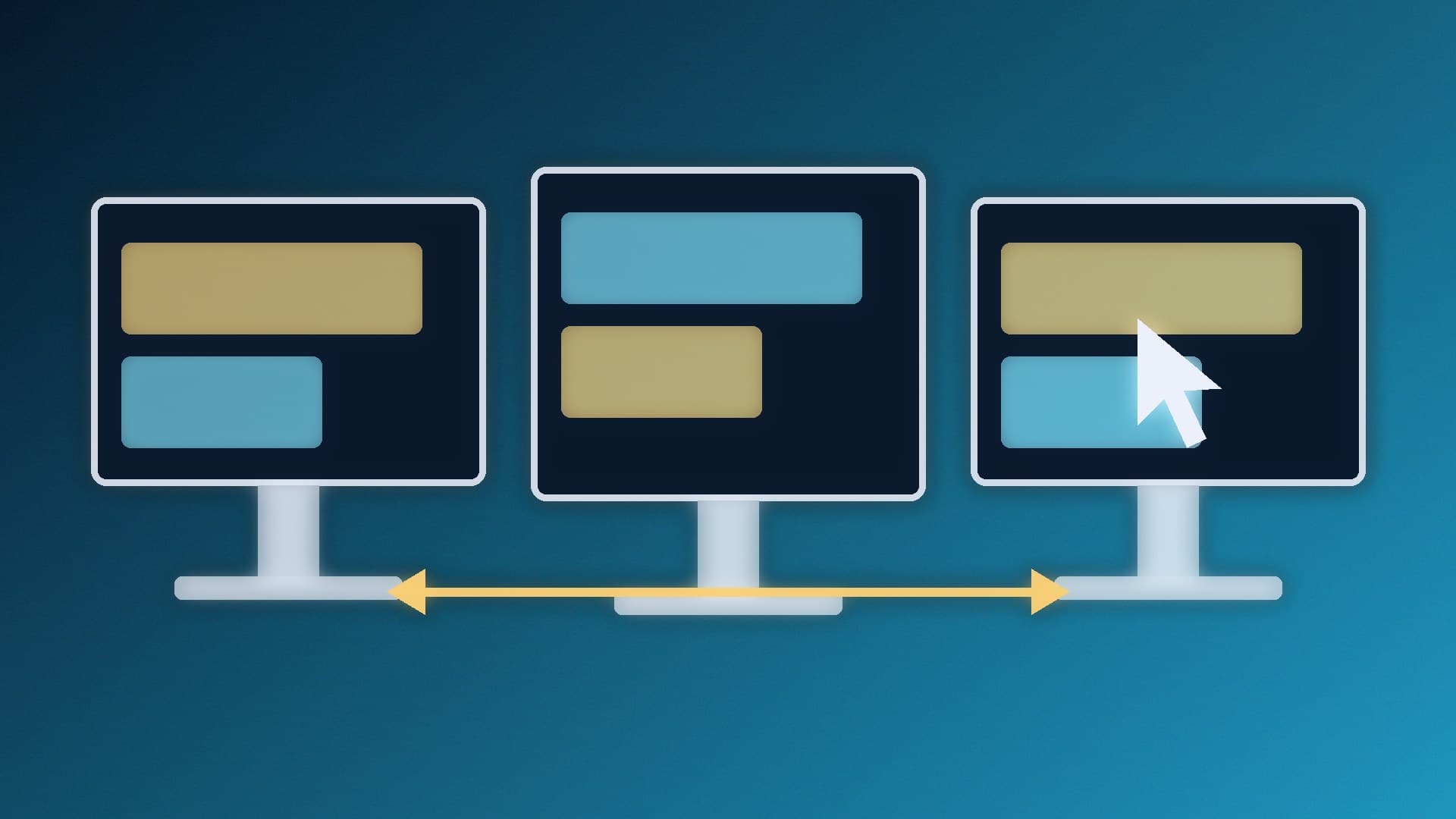
Mouse Jump, part of Mouse utilities, is the one most people don't know about. Microsoft says it "allows moving the mouse pointer long distances on a single screen or across multiple screens". You press its shortcut to open a preview of all your displays and click where you want the pointer to go. Keyboard controls let you press 1 to 9 to jump to a numbered monitor, Left or Right to cycle through them, Home or End for the first or last monitor, or P for the primary monitor. It's a real time-saver on triple-monitor or ultrawide-plus-portrait setups.
FancyZones divides each screen into zones you can snap windows into. For multi-monitor use, Microsoft lists options to show zones on all monitors while dragging, to let zones span across monitors (all monitors must have the same DPI scaling), and to rotate windows across monitors with a shortcut (Alt + X by default) once you turn that mode on. Our FancyZones guide covers setup, and our best free window management tools compares it with tiling window managers.
Choose it if: you have three or more screens, or one very wide one, and lose the pointer or spend time dragging windows around.
3. DisplayFusion Free: best for wallpaper and window shortcuts
DisplayFusion from Binary Fortress Software is the best-known multi-monitor utility, and it has a free version alongside paid Pro licences. Binary Fortress's Free vs Pro table is the thing to read before you install, because many headline features are Pro-only.
What the free version includes, according to that table:
Wallpaper: a different image on each monitor, one image spanned across all monitors or across selected monitors only, sizing options, solid colours and gradients.
Monitor configuration: set resolution, colour depth, refresh rate and orientation, enable or disable monitors, change the primary monitor, with a live preview to help identify screens.
Window functions: TitleBar Buttons, keyboard shortcuts for pre-configured functions to move, size and span windows, always-on-top and transparency functions, and functions to switch the default playback and recording audio devices.
What needs Pro: multi-monitor taskbars (a taskbar on every monitor), saved Monitor Profiles, monitor splitting, Triggers, and functions to move a window to a specific monitor, among others. Binary Fortress's site was advertising a Black Friday/Cyber Monday discount on its desktop apps when we checked, but we haven't listed prices because they vary by licence type.
Choose it if: you want different wallpapers per screen, or keyboard shortcuts and title bar buttons for moving and sizing windows, without paying. For animated backgrounds instead, see Lively Wallpaper vs Wallpaper Engine.
MultiMonitorTool is a small freeware utility from Nir Sofer. NirSoft says it lets you "disable/enable monitors, set the primary monitor, save and load the configuration of all monitors, and move windows from one monitor to another", either from its window or from the command line without showing any interface. It also has a preview window for each monitor, and version 2.20 added a /SetScale option to set display scaling from the command line.
That makes it the go-to free tool for anyone who switches layouts often: for example, turning off a side monitor for gaming and turning it back on afterwards with a desktop shortcut. NirSoft warns that when you disable and re-enable a monitor on a system with three or more screens, Windows may put it in a different position, so save your configuration to a file first and load it to restore. It also notes that the tool is only useful when your desktop is extended, not duplicated, and that some actions may need a workaround on Windows 11 24H2 (changing something in Windows' display settings, or unplugging and replugging a monitor, before trying again). Version 2.25 is the latest listed on NirSoft's page.
Choose it if: you want one-click or scripted monitor layouts, such as a gaming profile and a work profile.
5. Twinkle Tray: best for brightness across every screen
Windows doesn't give desktop monitors a brightness slider, which is a real nuisance with two or three screens. Twinkle Tray adds a taskbar icon with sliders for "all compatible monitors", which can adjust one display or all of them at once. Its developer says it works with most laptops and DDC/CI-enabled monitors, supports hotkeys per display or for all displays, can control DDC/CI features such as contrast, volume and power state, can adjust brightness by time of day or when idle, and can "normalize backlight across different monitors" so mismatched screens look more even. All features are free, and it's available from the Microsoft Store or as an installer from GitHub (which the developer recommends). Version 1.17.2 was current when we checked.
You'll usually need to turn on DDC/CI in your monitor's on-screen menu first. For a lighter alternative, see our Twinkle Tray vs Monitorian comparison.
Choose it if: you change brightness between day and night, or your monitors are different brightness levels at the same setting.
Tips for a better multi-monitor setup
Match scaling if you can. FancyZones' zone spanning needs the same DPI scaling on every monitor, and windows move more predictably between screens at the same scale.
Line the screens up in Settings, not just on the desk. Dragging the displays into the right positions in Display settings is what makes the pointer cross at the right height.
Save your layout. MultiMonitorTool's configuration files are a free backup for complicated setups.
Consider the hardware. If you're deciding between two screens and one wide one, read ultrawide vs dual monitors; for tidier positioning, see our best monitor arms.