USB-C has become the standard way to charge laptops, power portable monitors and run single-cable desk setups, and the technology that makes higher-power USB-C charging work is USB Power Delivery (USB PD). This explainer covers what USB PD does, the difference between the original 100W limit and the newer 240W level, and what to check on chargers, cables and devices. It's based on the USB Implementers Forum's (USB-IF) official USB PD and USB Type-C pages.
What USB Power Delivery does
USB PD is a USB-IF specification that lets a power source and the device being powered agree how much power should flow and at what voltage, rather than everything running at the basic USB level. USB-IF lists several things it adds:
Higher power levels than earlier USB standards, now up to 240W.
Power direction that isn't fixed, so whichever product has the power, host or peripheral, can provide it.
The ability for each device to take only the power it needs and request more when required, which helps when several devices share one source.
Optional power management through a hub talking to the PC.
Low-power devices such as headsets can negotiate for only the small amount they need.
USB-IF says Power Delivery is designed to co-exist with the older USB Battery Charging standard.
100W vs 240W
| Up to 100W | Up to 240W |
|---|
Specification | USB PD before Revision 3.1 | USB PD Revision 3.1 (announced 2021) |
Highest fixed voltage | 20V | 48V |
Cable requirement | USB Type-C cable rated at 5A | Full-featured USB Type-C cable meeting the 240W requirements in USB Type-C Release 2.1 |
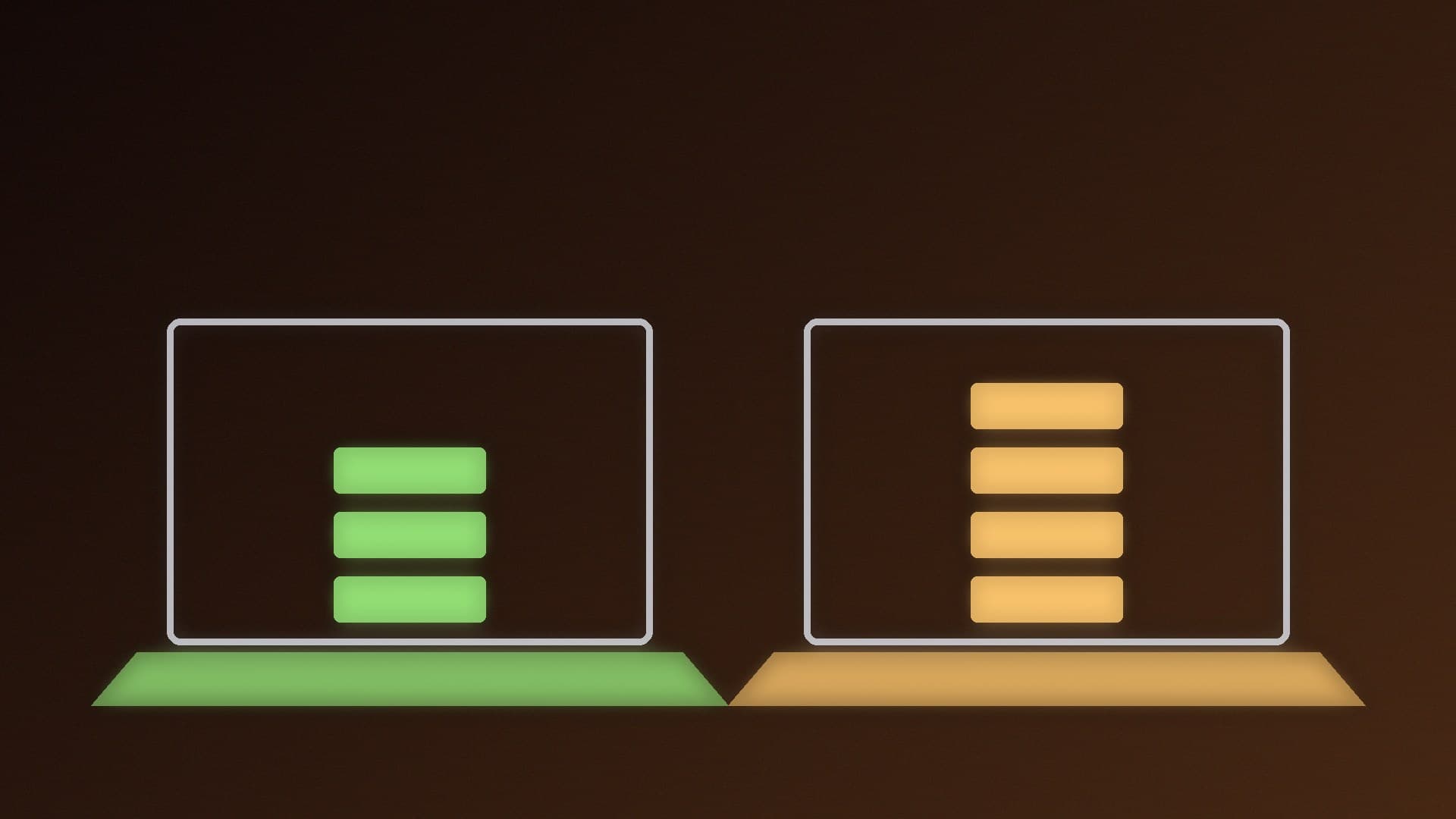
According to USB-IF, USB PD was limited to 100W before Revision 3.1, using a 20V supply and USB Type-C cables rated at 5A. Revision 3.1 adds new fixed voltages of 28V, 36V and 48V, which enable up to 140W, 180W and 240W respectively. The USB Type-C specification was updated to Release 2.1 at the same time to define the cable requirements for 240W.
Revision 3.1 also adds an adjustable voltage supply mode, which lets the device being powered request intermediate voltages from 15V up to the charger's maximum fixed voltage.
What this means for your setup
USB-IF gives several examples of what USB PD enables, and they map neatly onto a PC desk:
Monitors that charge your laptop. A mains-powered monitor can power or charge a laptop over the same USB-C cable that carries the picture. Our best USB-C monitor guide covers screens built for this.
Pass-through charging. USB-IF says USB power bricks can pass power through a laptop's USB ports. Our USB-C hub vs docking station comparison explains the difference between them.
Fewer power bricks. Higher USB power allows bus-powered devices such as hard drives and printers that would otherwise need their own adapter.
How to get the power you expect
USB PD only delivers its top power level when every part of the chain supports it. Before you rely on one charger or dock for a laptop, check these points:
The device's own limit. Your laptop maker's spec page or manual tells you whether it charges over USB-C and the maximum power it accepts. A 240W charger won't make a laptop draw more than it is designed for.
The charger's rating. Check the charger's listed USB PD output, and whether it lists 28V, 36V or 48V outputs if you need more than 100W.
The cable. USB-IF says 100W charging needs a USB Type-C cable rated at 5A, and 240W needs a full-featured cable meeting the 240W requirements. A lower-rated cable can limit the power available.
Hubs and docks. If a dock or hub passes power through to your laptop, check the charging figure it lists for the laptop on the maker's spec page, not just the size of its power adapter.
Certification. USB-IF says companies can only use its certified USB logos on products that have passed USB-IF compliance testing and appear on its Integrators List, so a certified logo is a useful sign that a charger or cable has been tested.
This article covers power only. Data speed and video output are listed separately on spec sheets, so check those ratings as well when you buy a cable or dock. For speed naming, see our USB 3.2 Gen 1 vs Gen 2 vs Gen 2x2 and USB4 vs Thunderbolt 5 explainers, and if a USB-C port isn't behaving, try our guide to fixing USB-C problems in Windows 11.
Our verdict
USB Power Delivery is what lets one USB-C cable charge a laptop, power a dock or carry power from a monitor. The original standard tops out at 100W using 20V and 5A cables; USB PD Revision 3.1 raises that to 240W with new 28V, 36V and 48V levels and full-featured cables meeting the 240W requirements. To get the power you expect, match your laptop's USB-C charging limit with a charger, cable and dock rated for at least that much.