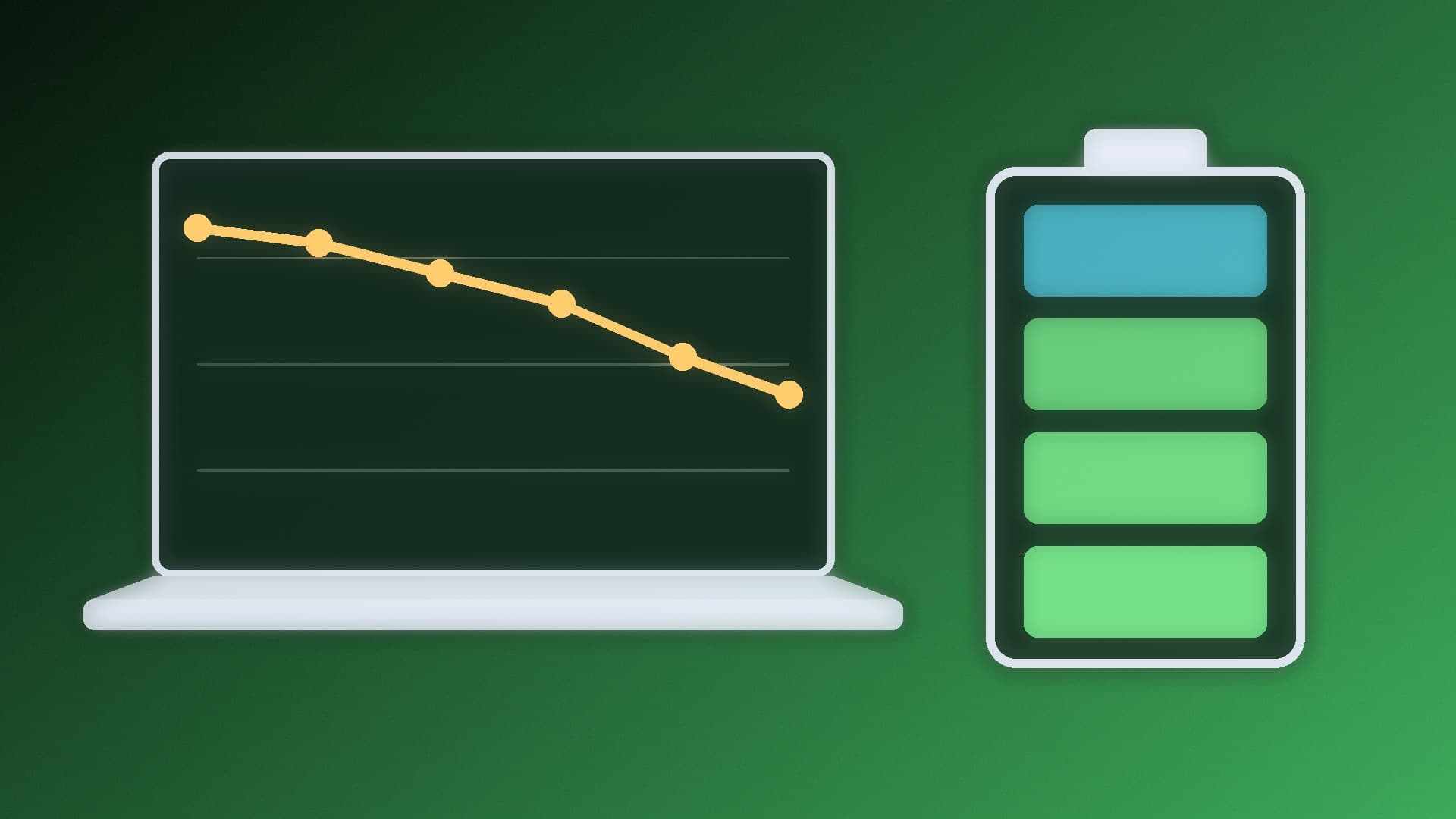
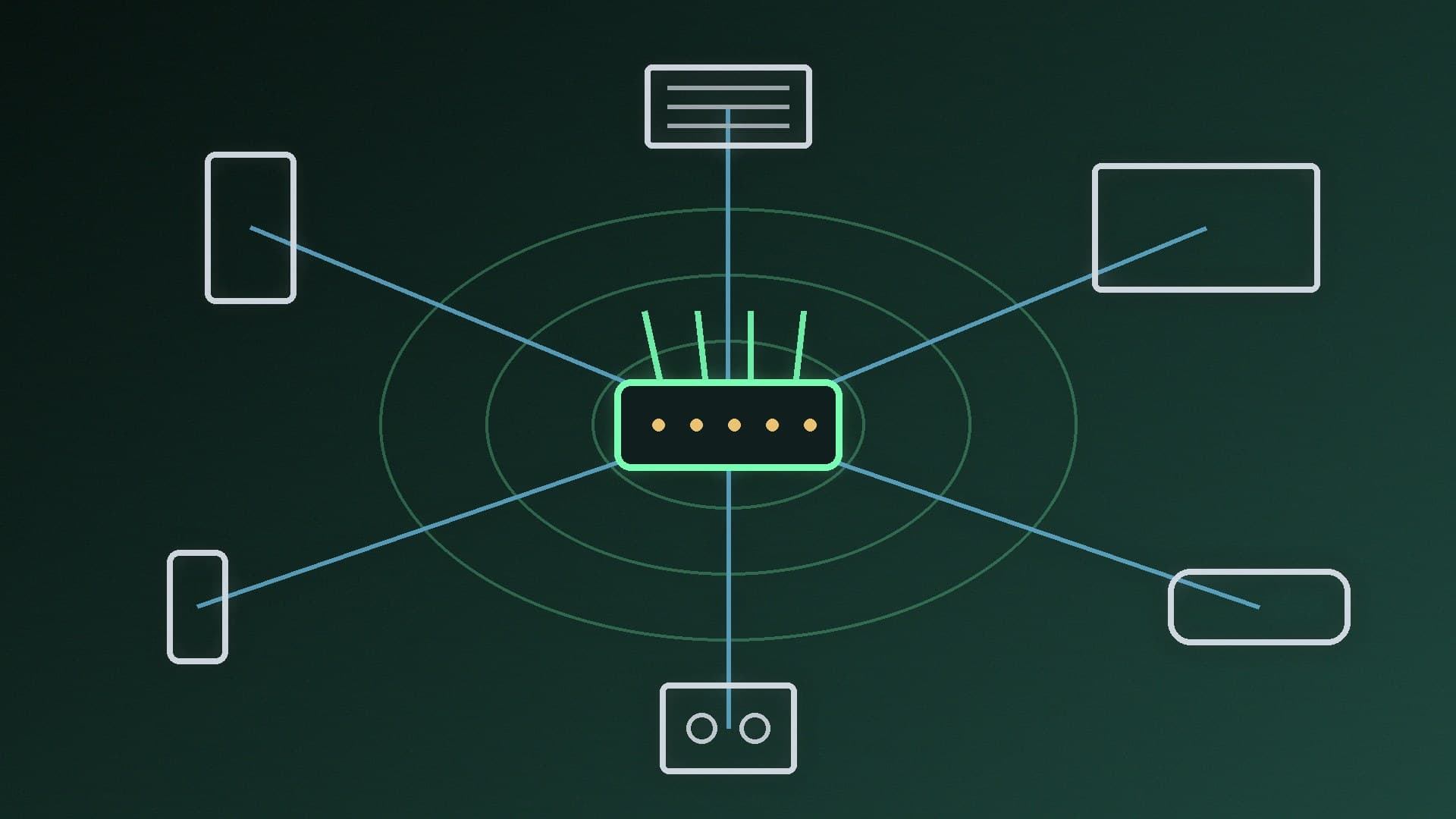
If your laptop's battery life seems to be getting worse, Windows can tell you more than the battery icon does. The built-in powercfg command can produce three HTML reports that answer different questions. A battery report shows how the battery has been used over time. An energy report looks for common power-efficiency problems. A sleep study shows how well modern standby is working. The commands and options are taken from Microsoft's official powercfg documentation, checked on 26 November 2026.
Before you start
You'll run these commands in Terminal, Windows PowerShell or Command Prompt. Right-click the Start button and choose Terminal. If Windows says a report needs administrator rights, choose Terminal (Admin) instead.
Each report is saved as an HTML file. Unless you say otherwise, it goes into the folder the command runs from. You'll usually find that folder at the start of the prompt, for example C:\Users\YourName.
These reports are only useful on laptops and other battery-powered devices. A desktop PC has no battery to report on.
1. The battery report
Microsoft describes this as a report of battery usage characteristics over the lifetime of the system.
To create it, type:
powercfg /batteryreport
To save it somewhere easy to find, add /output:
powercfg /batteryreport /output "C:\Users\YourName\Desktop\batteryreport.html"
Replace YourName with your own user folder name. You can also limit how many days the report covers with /duration. For example, this covers the last four days:
powercfg /batteryreport /duration 4
Open the HTML file in any web browser. Look for the capacity details for the installed battery and how they've changed over the report period. If the battery can now hold much less than when it was new, shorter runtimes are expected. Calibration or a new power plan won't fix that, and a replacement battery is the real fix. If the battery still holds most of its original capacity, the cause is more likely to be software, settings or background activity, and the next two reports help with that.
2. The energy report
This report looks for common energy-efficiency and battery-life problems. Microsoft says to run it when the computer is idle, with no open programs or documents. Close everything else first.
powercfg /energy
By default it watches the system for 60 seconds. You can make it watch for longer with /duration, measured in seconds, and choose where it's saved with /output:
powercfg /energy /output "C:\Users\YourName\Desktop\energy-report.html" /duration 120
Open the report and work through any errors and warnings first. They point to settings or devices that may be stopping the laptop from saving power. Change one thing at a time, then run the report again to see whether the warning has gone.
3. The sleep study
Many modern laptops use modern standby rather than traditional sleep. If your laptop loses a lot of charge in your bag overnight, the sleep study is the report to check. Microsoft says it covers modern standby quality over the last three days.
powercfg /sleepstudy
As with the other reports, /output sets the file name and location, and /duration sets how many days it covers:
powercfg /sleepstudy /duration 7 /output "C:\Users\YourName\Desktop\sleepstudy.html"
If your laptop doesn't use modern standby, this report may not be available. In that case, see our guide to stopping a PC waking from sleep. Our sleep vs hibernate comparison can help you decide whether hibernate makes more sense when you're carrying the laptop around.
A sensible order to work in
Run the battery report to see whether the battery itself has worn.
If capacity looks healthy, run the energy report with everything closed and fix its errors.
If the battery drains while the lid is closed, run the sleep study.
Check your everyday settings too. Our guide on how to change power mode in Windows 11 covers the Best power efficiency, Balanced and Best performance options.
Our verdict
You don't need third-party software to diagnose laptop battery problems. powercfg /batteryreport tells you whether the battery has worn. powercfg /energy, run on an idle system, points to settings that waste power. powercfg /sleepstudy shows what's happening while a modern standby laptop is asleep. Save each report to your Desktop with /output so it's easy to find, change one thing at a time, and run the report again to check the result.